
1. Introducció
This manual provides detailed instructions for setting up, operating, and maintaining your Ourlife WiFi Extender Signal Booster, Model M-A25. This device is designed to expand your existing wireless network coverage, eliminate dead zones, and provide stable, high-speed internet access throughout your home or office.
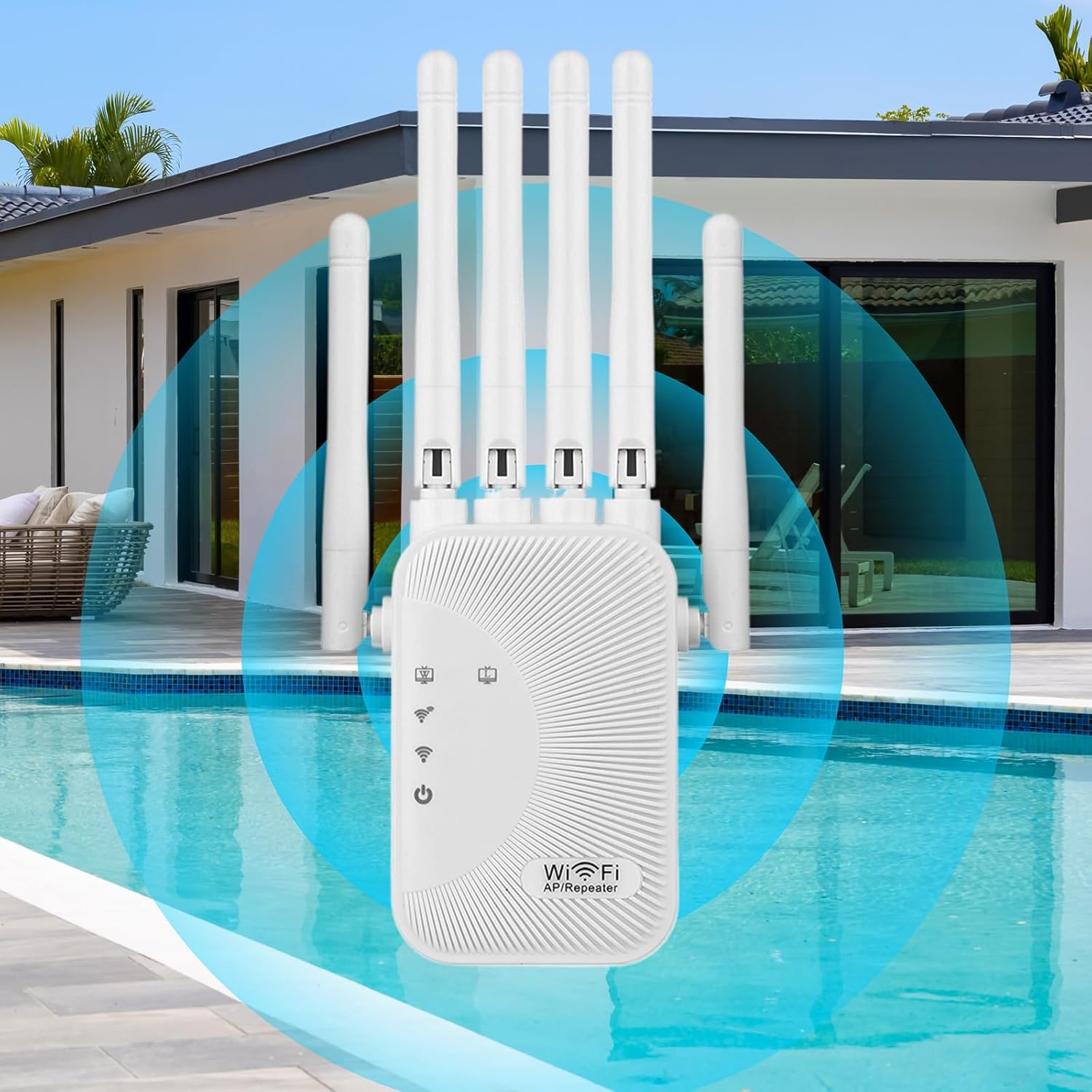
Imatge 1.1: Frontal view de l'Ourlife WiFi Extender Signal Booster (M-A25).
2. Producte acabatview
2.1 Característiques clau
- WiFi de doble banda: Supports 2.4GHz (300Mbps) and 5GHz (1200Mbps) for a combined speed of up to 1200Mbps.
- Cobertura ampliada: Equipped with 6 high-gain antennas to extend wireless networks up to 12,000 sq.ft, eliminating dead zones.
- Smart Dual-Core Processor: Ensures ultra-stable signals for seamless online activities.
- WPS One-Button Setup: Simplifies the connection process with your existing router.
- Dissipació de calor eficient: Features dual-side ventilation holes to maintain stable performance and extend lifespan.
- Àmplia compatibilitat: Works with over 45+ wireless smart devices including gaming consoles, PCs, smart TVs, smartphones, and tablets.
- Ports Gigabit Ethernet: Provides stable wired connections for devices.
2.2 Contingut del paquet
- 1 x Ourlife WiFi Extender Signal Booster (Model M-A25)
- 1 x Manual d'usuari
2.3 Components del dispositiu
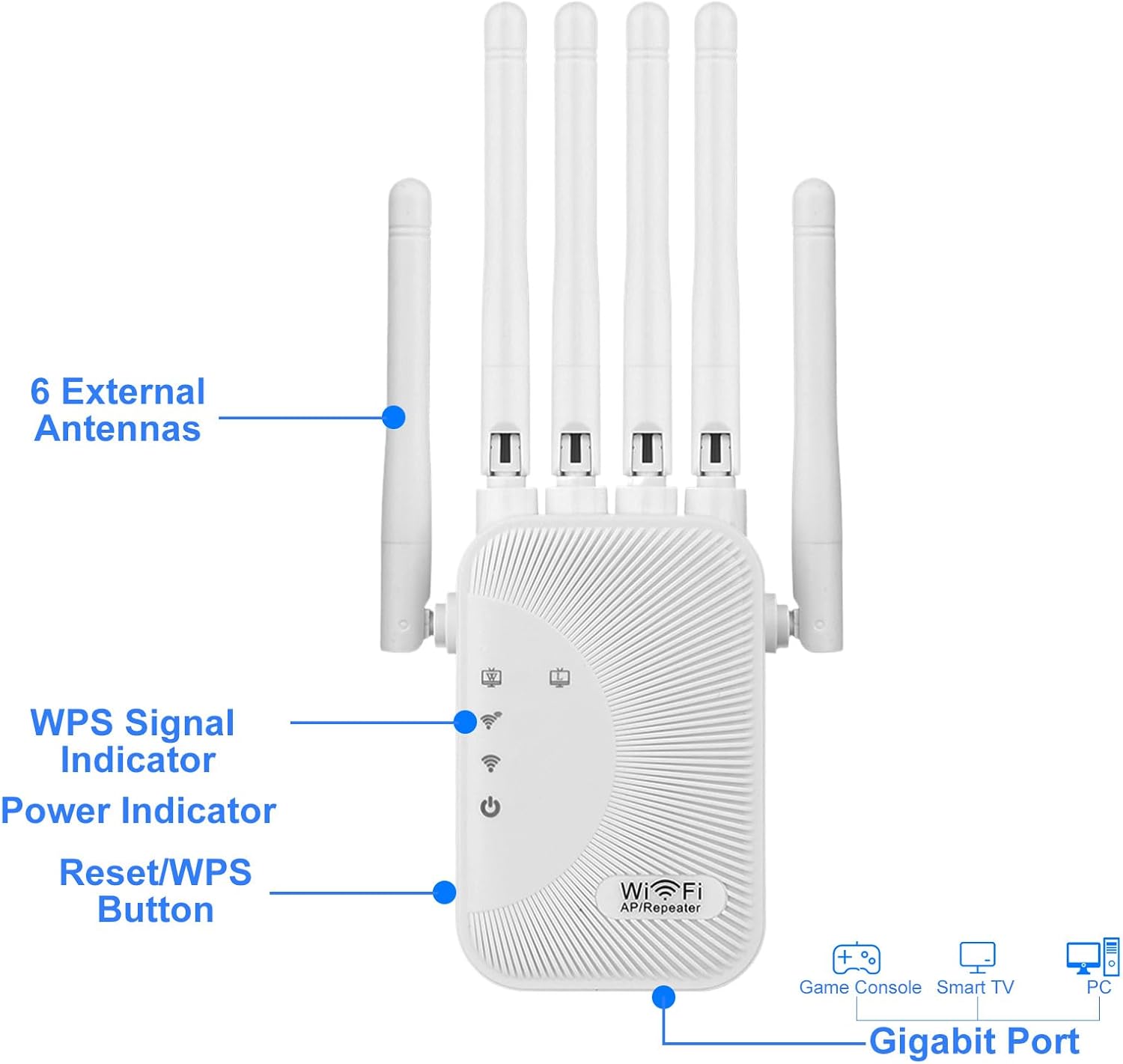
Image 2.1: Labeled diagram of the WiFi Extender's components.
- 6 External Antennas: For enhanced signal reception and transmission.
- WPS Signal Indicator: Indicates WPS status and signal strength.
- Indicador d'alimentació: Shows the device's power status.
- Botó de restabliment/WPS: Used for WPS setup or to reset the device to factory settings.
- Ports Gigabit: For wired connections to devices like PCs or gaming consoles.
3. Instruccions de configuració
There are two primary methods to set up your Ourlife WiFi Extender: WPS One-Button Setup or Web Configuració del navegador.
3.1 WPS One-Button Setup
El mètode WPS (Wi-Fi Protected Setup) és la manera més ràpida de connectar l'extensor al router.
- Plug the Ourlife WiFi Extender into an electrical outlet near your main router.
- Wait for the Power Indicator light to become stable.
- Premeu el botó WPS del vostre encaminador principal.
- Within 2 minutes, press the Reset/WPS button on your Ourlife WiFi Extender.
- The WPS Signal Indicator on the extender will blink and then turn solid, indicating a successful connection.
- You can now unplug the extender and move it to a desired location (see Section 4.3 for placement guidelines).

Image 3.1: Visual guide for WPS One-Button Setup.
3.2 Web Configuració del navegador
If your router does not have a WPS button or if the WPS method fails, you can set up the extender via a web navegador.
- Plug the Ourlife WiFi Extender into an electrical outlet.
- Connect your computer or smartphone to the extender's default Wi-Fi network (e.g., "Ourlife_Ext"). No password is required initially.
- Obre a web browser and enter the default IP address (usually 192.168.1.1 or 192.168.0.1) or the default web address (check the label on the extender or the included quick start guide).
- Follow the on-screen instructions to select your existing Wi-Fi network and enter its password.
- Configure the extender's network name (SSID) and password. You can choose to keep the same as your main router or create a new one.
- Once configured, the extender will restart. Reconnect your devices to the new extended network.
Video 3.1: Official Ourlife video demonstrating the setup process for the WiFi Extender.
4. Operating Modes and Placement
4.1 Modes de funcionament
L'Ourlife WiFi Extender supports multiple operating modes to suit various network requirements:
- Mode de repetidor: Extends the coverage of an existing wireless network. This is the most common mode for home use.
- Mode de punt d'accés (AP): Converts a wired network connection into a wireless one, ideal for areas without Wi-Fi but with Ethernet access.
- Mode d'encaminador: Functions as a primary router, creating a new wireless network from a modem connection.

Image 4.1: Illustration of the different operating modes.
4.2 Compatibilitat de dispositius
The extender is compatible with a wide range of devices, ensuring stable and fast WiFi signals for all your connected electronics.

Image 4.2: The extender's compatibility with various smart devices.
4.3 Col·locació òptima
Proper placement of your WiFi extender is crucial for maximizing signal coverage and performance.
- Place the extender roughly halfway between your router and the area where you need improved Wi-Fi coverage.
- Avoid placing the extender too close to the router, as this will not significantly extend coverage.
- Avoid placing the extender too far from the router, as it will receive a weak signal and cannot effectively boost it.
- Ideal placement is typically 10-40 feet from your main router.
- Ensure there are minimal obstructions (thick walls, large metal objects) between the extender and both your router and client devices.

Image 4.3: Visual guide for optimal WiFi extender placement.
5. Manteniment
To ensure the longevity and stable performance of your Ourlife WiFi Extender, follow these maintenance guidelines:
- Dissipació de calor: The device features dual-side ventilation holes for efficient heat dissipation. Ensure these vents are not blocked.
- Col·locació: Always place the extender in a well-ventilated area to prevent overheating.
- Neteja: Periodically clean the device with a soft, dry cloth to remove dust. Do not use liquid cleaners or aerosols.
- Actualitzacions de firmware: Comproveu el del fabricant weblloc web periòdicament per actualitzar el firmware per garantir un rendiment i una seguretat òptims.

Image 5.1: Close-up of the extender's ventilation design.
6. Solució De Problemes
If you encounter issues with your Ourlife WiFi Extender, refer to the following common problems and solutions:
| Problema | Possible causa/solució |
|---|---|
| No Wi-Fi in certain areas of your home. | The extender may be placed too far from the router or in a location with too many obstructions. Refer to Section 4.3 for optimal placement. |
| Weak Wi-Fi signal through thick walls or floors. | This is a common issue. The extender is designed to mitigate this. Ensure optimal placement and consider adjusting antenna orientation. |
| Difficulty connecting devices to the extended network. | Ensure the extender is properly set up (WPS or Web Browser). Verify the extended network's password. Try restarting both the extender and the client device. |
| Lost connection or intermittent signal. | Check for interference from other electronic devices. Ensure the extender is not overheating (see Section 5). Try resetting the extender and reconfiguring. |
| WPS setup fails. | Ensure you press the WPS button on both the router and extender within the specified time frame (usually 2 minutes). If it continues to fail, use the Web Browser Setup method. |
7. Especificacions
| Característica | Detall |
|---|---|
| Marca | Ourlsi |
| Número de model | M-A25 |
| Comunicació sense fils estàndard | 802.11ac |
| Velocitat de transferència de dades | 1200 Mbps (300Mbps for 2.4GHz, 867Mbps for 5GHz) |
| Classe de banda de freqüència | Doble banda (2.4 GHz, 5 GHz) |
| Antenes | 6 antenes externes |
| Interval | Fins a 12,000 peus quadrats |
| Característica especial | 1-Tap Setup (WPS) |
| Dispositius compatibles | Consola de jocs, ordinador personal, televisor intel·ligent, telèfon intel·ligent, tauleta |
| Color | GrayWhite |
| Ports | Ports Gigabit Ethernet |
8. Garantia i Suport
8.1 Informació de la garantia
L'Ourlife WiFi Extender Signal Booster (Model M-A25) comes with a standard manufacturer's warranty. Please refer to the product packaging or the official Ourlsi weblloc web per conèixer els termes i condicions específiques de la garantia.
8.2 Atenció al client
For technical assistance, troubleshooting, or any product-related inquiries, please contact Ourlife customer support through their official weblloc web o la informació de contacte proporcionada amb la compra.