
1. Introducció
This manual provides essential information for setting up, operating, maintaining, and troubleshooting your CHUWI Hi10 X2 2-in-1 Laptop Tablet. Please read it thoroughly before using your device.
Què hi ha a la caixa
- Hi10 X2 Tablet
- Teclat magnètic
- Estoig amb suport
- Conjunt de carregadors
- Manual d'usuari (aquest document)

Image 1.1: CHUWI Hi10 X2 Tablet with Magnetic Keyboard and Case.
2. Configuració
2.1 Càrrega inicial
Before first use, fully charge your CHUWI Hi10 X2 tablet using the provided charger set. Connect the charger to the Type-C port on the tablet and plug it into a power outlet. The charging indicator light will illuminate.
2.2 Attaching the Magnetic Keyboard and Case
Align the tablet with the magnetic connectors on the keyboard. The magnets will secure the tablet in place. The case with stand can be adjusted to your preferred viewangle de ing.
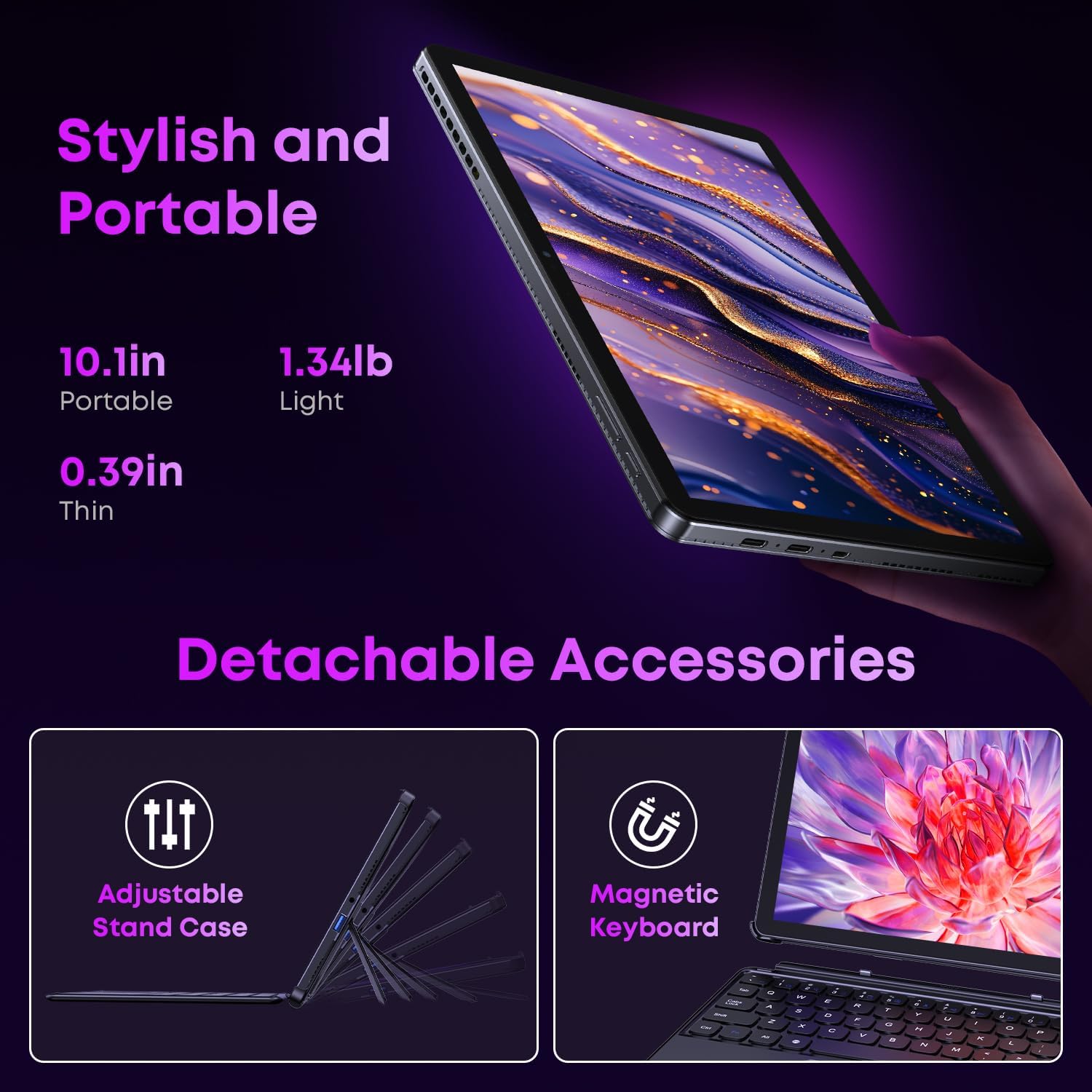
Image 2.1: Detachable accessories including the magnetic keyboard and adjustable stand case.
2.3 First Boot-Up and Windows Activation
Press and hold the power button until the screen turns on. Follow the on-screen instructions to complete the initial Windows 11 setup. If your Windows system arrives unactivated, please send the serial number (located on the back of the device) to CHUWI support via Amazon for your activation key.
2.4 Connexió a Wi-Fi
During setup, you will be prompted to connect to a Wi-Fi network. Select your network and enter the password. The device supports Wi-Fi 6 for fast and stable connections.
3. Instruccions de funcionament
3.1 Engegada/Apagada i Mode de repòs
- Encès: Premeu i manteniu premut el botó d'engegada fins que la pantalla s'il·lumini.
- Apagar: From the Windows Start menu, select Power > Shut down.
- Mode de repòs: Briefly press the power button to enter or exit sleep mode.
3.2 Ús de la pantalla tàctil
The 10.1-inch HD touchscreen supports 10-point multi-touch gestures. Use taps, swipes, and pinches for navigation and interaction with applications.

Image 3.1: The 10.1-inch HD touchscreen display.
3.3 Laptop and Tablet Modes
The magnetic keyboard allows for seamless switching between laptop and tablet modes. Attach the keyboard for typing and productivity, or detach it for a pure tablet experience.
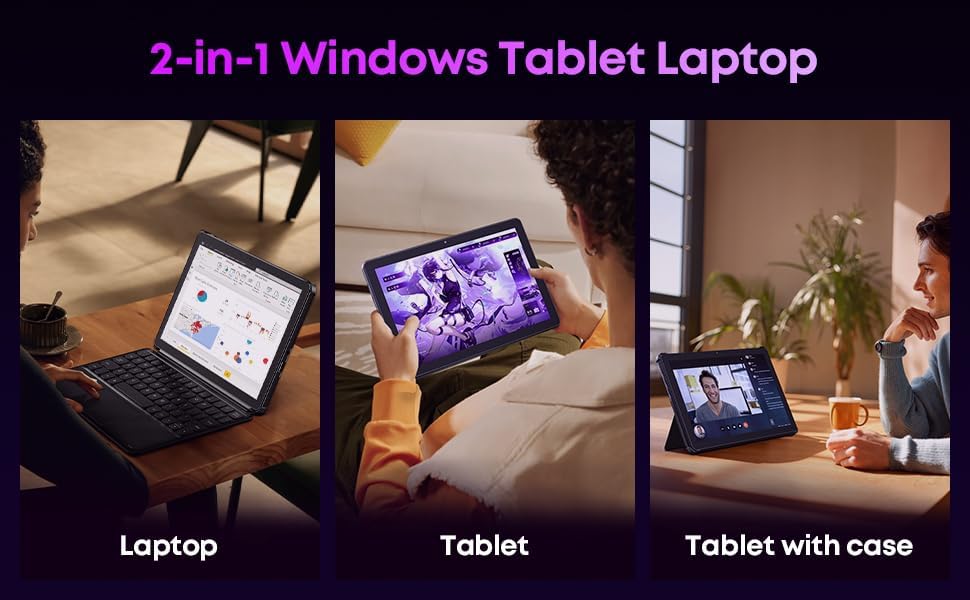
Image 3.2: Usage scenarios demonstrating laptop, tablet, and tablet with case modes.
3.4 Connectivitat
- Ports USB: The tablet features a full-featured Type-C port and a USB 3.2 Gen1 port for data transfer and connecting peripherals.
- Micro HDMI: Connect to external monitors or TVs using the Micro HDMI port for extended display options, supporting up to 4K video output.
- Bluetooth 5.3: Pair with wireless headphones, mice, and other Bluetooth accessories.
- Wi-Fi 6: Enjoy high-speed internet connectivity for streaming and browsing.
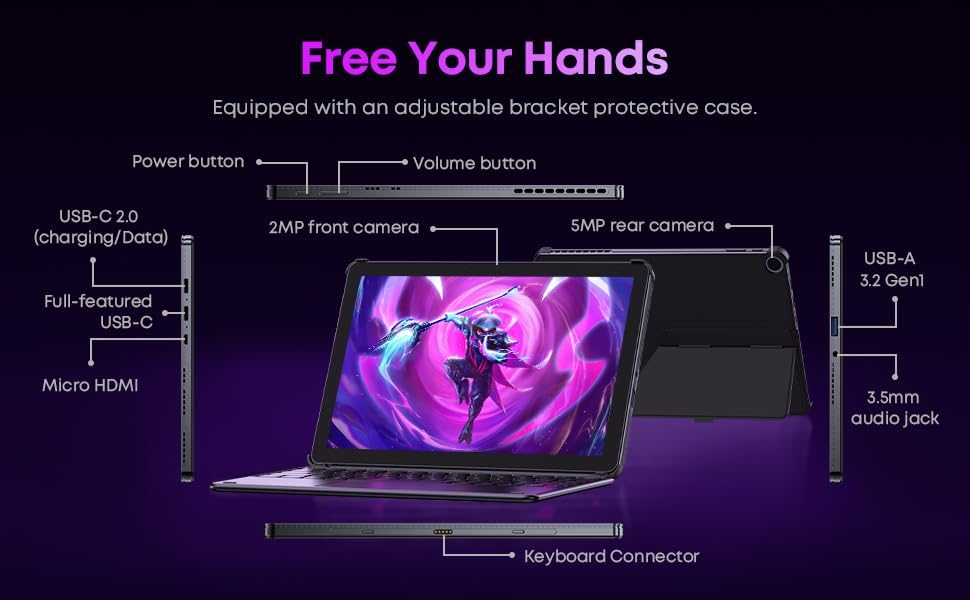
Imatge 3.3: Detallada view of the tablet's ports and connectors.
3.5 Ús de la càmera
The tablet is equipped with a 5MP autofocus rear camera for capturing photos and videos, and a 2MP front camera for video calls and selfies.

Image 3.4: Camera and wireless connectivity features.
3.6 Processor and Storage
Powered by a 10th Gen Intel Core i3 processor (up to 3.9GHz) and 8GB RAM, the tablet handles multitasking efficiently. The 256GB SSD provides ample storage and fast access to your files.

Image 3.5: Intel 10th Gen Core i3 Processor details.
3.7 Producte acabatview Vídeo
Vídeo 3.6: Un overview of the CHUWI Hi10 X2 2-in-1 Laptop Tablet, highlighting its features and functionality.
4. Manteniment
4.1 Neteja del dispositiu
Feu servir un drap suau i sense borrissol per netejar la pantalla i el cos de la tauleta. Per a taques difícils, fregueu lleugerament.ampRenta el drap amb aigua o una solució netejadora de pantalles. Evita productes químics agressius o materials abrasius.
4.2 Cura de la bateria
To prolong battery life, avoid exposing the tablet to extreme temperatures. It is recommended to keep the battery charge between 20% and 80% for optimal longevity. Avoid fully discharging the battery frequently.
4.3 Actualitzacions de programari
Comproveu i instal·leu regularment si hi ha actualitzacions de Windows per assegurar-vos que el vostre sistema tingui els pegats de seguretat i les millores de rendiment més recents. Aneu a Configuració > Actualització de Windows.
4.4 Gestió d'emmagatzematge
Periòdicament review i eliminar innecessaris files and applications to free up storage space on the 256GB SSD. This helps maintain optimal device performance.
5. Solució De Problemes
5.1 El dispositiu no s'encén
- Ensure the device is fully charged. Connect the charger and wait a few minutes before attempting to power on.
- Premeu i manteniu premut el botó d'engegada durant 10-15 segons per realitzar un restabliment complet.
5.2 Problemes de connectivitat Wi-Fi
- Reinicieu el router Wi-Fi i la tauleta.
- Comproveu si altres dispositius es poden connectar a la mateixa xarxa Wi-Fi.
- Oblida't de la xarxa a la configuració de Windows i torna a connectar-te.
5.3 Screen Not Responding to Touch
- Reinicieu la tauleta.
- Assegureu-vos que la pantalla estigui neta i lliure de residus.
5.4 Keyboard Not Working
- Ensure the tablet is correctly aligned and securely connected to the magnetic keyboard.
- Reinicieu la tauleta.
Per obtenir més ajuda, consulteu la secció de Suport.
6. Especificacions
| Característica | Especificació |
|---|---|
| Marca | CHUWI |
| Nom del model | Hi10 X2 |
| Processador | Intel Core i3 (10th Gen, up to 3.9 GHz) |
| Sistema operatiu | Windows 11 Home |
| RAM | 8 GB |
| Emmagatzematge | SSD de 256 GB |
| Mida de la pantalla | 10.1 polzades |
| Resolució de visualització | 1280 x 800 píxels |
| Connectivitat | Wi-Fi 6, Bluetooth 5.3 |
| Ports | Full-featured Type-C, USB 3.2 Gen 1, Micro HDMI, 3.5mm Audio Jack |
| Càmeres | 5MP Autofocus Rear, 2MP Front |
| Pes | 1.3 lliures (aprox. 0.59 kg) |
| Dimensions (L x A x A) | 9.6" x 6.49" x 0.39" |
| Capacitat de la bateria | 3400 mAh |
7. Informació de la garantia
The CHUWI Hi10 X2 2-in-1 Laptop Tablet comes with a Garantia limitada d'1 any. This warranty covers manufacturing defects and malfunctions under normal use. Please retain your proof of purchase for warranty claims.
For detailed warranty terms and conditions, please refer to the official CHUWI weblloc o contacteu amb el servei d'atenció al client.
8. Suport
If you encounter any issues not covered in the Troubleshooting section, or require assistance with Windows activation, please contact CHUWI customer support. You can typically find support contact information on the official CHUWI website or through your purchase platform (e.g., Amazon seller messaging).
Quan contactis amb el servei d'assistència, tingues a mà el número de sèrie del dispositiu i el comprovant de compra.