
GeekShare GC1201A
GeekShare Hall Effect Switch Controller (GC1201A) User Manual
Model: GC1201A
1. Introducció
The GeekShare Hall Effect Switch Controller is a versatile gaming controller designed for multi-platform compatibility, including Nintendo Switch (OLED/NS2/1/Lite), PC (Steam, Windows), and mobile devices (Android, iOS). It features dual-mode connectivity (Bluetooth and 2.4G wireless), a 1000mAh battery, 6-axis gyroscope, dual vibration motors, and customizable RGB lighting for an immersive gaming experience.
Contingut del paquet
- 1 x GeekShare Hall Effect Wireless Controller
- 1 x cable de càrrega USB-C
- 1 receptor sense fil 2.4G
- 1 x Manual d'usuari
2. Característiques clau
- Joysticks d'efecte Hall: Provides precise control and prevents stick drift.
- Modes de connectivitat dual: Seamlessly switch between Bluetooth 5.0 for mobile and consoles, and 2.4G wireless with the included dongle for PC.
- Compatibilitat multiplataforma: Supports Nintendo Switch (OLED/NS2/1/Lite), PC (Steam, Windows), Android, and iOS devices.
- Comentaris immersius: Features a 6-axis gyroscope for motion control and dual vibration motors with 5-level adjustment for realistic haptic feedback.
- Bateria de llarga durada: Integrated 1000mAh rechargeable battery offers up to 15 hours of continuous gameplay.
- Il·luminació RGB personalitzable: Enhance your gaming setup with personalized RGB light effects.
- Botons programables: Two back buttons (M1, M2) can be mapped to complex commands for quick execution.
- Funció turbo: Auto and manual turbo settings for rapid-fire actions.
Opcions de connectivitat
The controller supports three connection methods: Bluetooth, 2.4G wireless (with dongle), and wired USB-C.

Botons programables
The M1 and M2 buttons on the back can be programmed to perform specific actions, allowing for quick execution of complex in-game commands.

Feedback de vibracions
Equipped with dual motors, the controller provides adjustable vibration feedback to enhance immersion. There are 5 levels of vibration intensity.

Durada de la bateria
The built-in 1000mAh battery provides extended gameplay. A full charge takes approximately 2.5 hours and offers up to 20 hours of continuous use.

Funció Turbo
The controller supports both automatic and manual turbo functions, allowing for rapid, repeated input of a button press. This is typically activated by pressing the 'M' button along with a desired action key.

Control de moviment
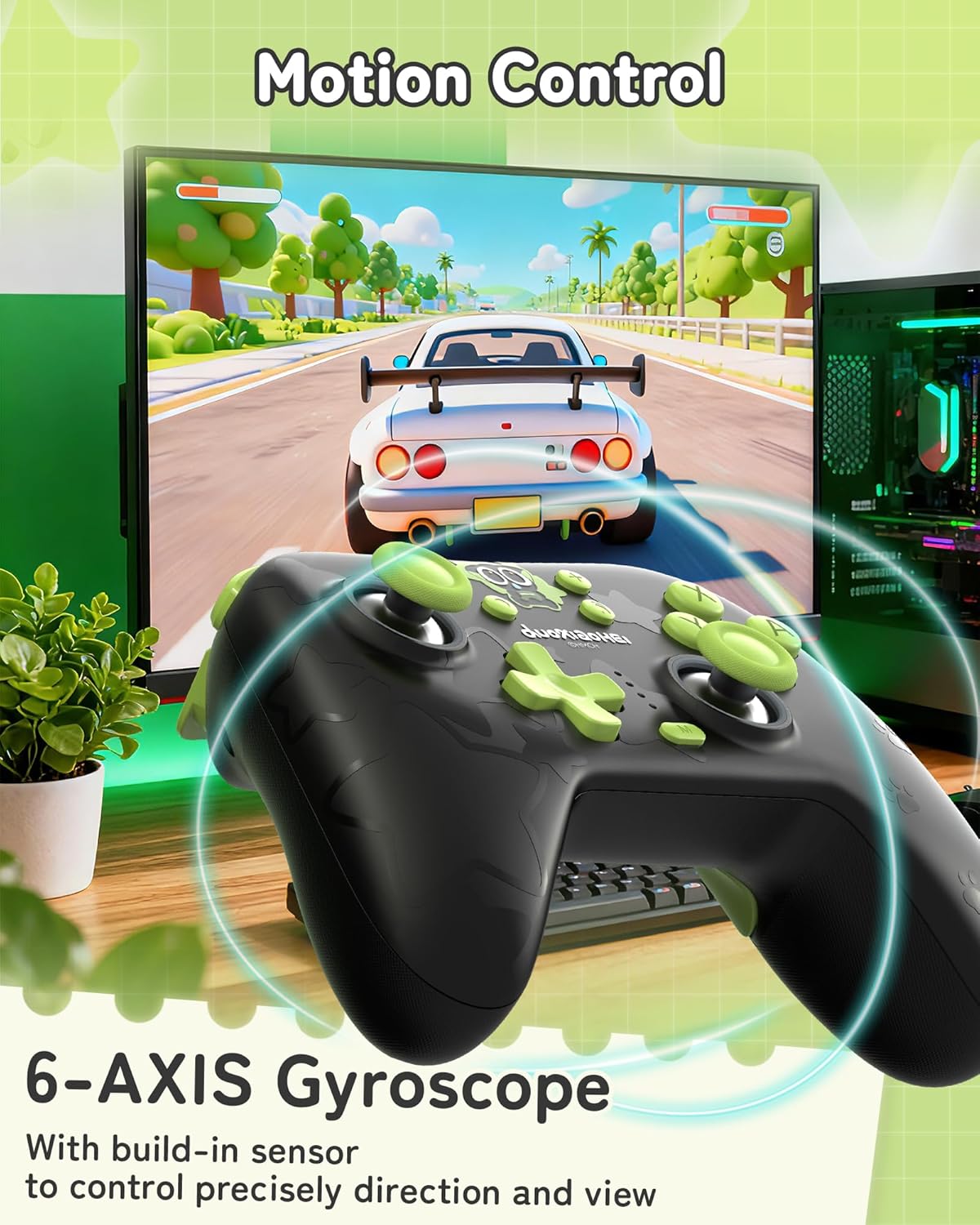
A built-in 6-axis gyroscope enables precise motion control, allowing for intuitive direction and view adjustments in compatible games.
3. Configuració i connexió
3.1 Càrrega del controlador
Before first use, fully charge the controller. Connect the included USB-C cable to the controller's charging port and the other end to a USB power source (e.g., console, PC, or USB wall adapter). The indicator lights will show charging status and turn off when fully charged.
3.2 Connecting to Nintendo Switch (Bluetooth)
- A la teva Nintendo Switch, vés al menú INICI.
- Seleccioneu "Controladors" > "Canvia l'empunyadura/l'ordre".
- Press and hold the Pairing button on the top of the GeekShare controller until the indicator lights begin to flash rapidly.
- The Switch will detect the controller. Once paired, the indicator light(s) on the controller will remain solid.
- Note: This controller may not support waking up the Switch console from sleep mode. You may need to manually wake the console before connecting.
3.3 Connecting to PC (2.4G Wireless)
- Insert the 2.4G wireless receiver into an available USB port on your PC.
- Turn on the GeekShare controller.
- The controller should automatically connect to the receiver. The indicator light(s) on the controller will remain solid once connected.
- If connection fails, press the pairing button on the controller and the button on the 2.4G receiver simultaneously to initiate pairing.
3.4 Connecting to Mobile Devices (Bluetooth)
- Assegureu-vos que el Bluetooth estigui habilitat al vostre dispositiu Android o iOS.
- On your device, go to Bluetooth settings and scan for new devices.
- Press and hold the Pairing button on the top of the GeekShare controller until the indicator lights begin to flash rapidly.
- Select "GeekShare Controller" (or similar name) from the list of available devices.
- Once paired, the indicator light(s) on the controller will remain solid.
3.5 Connexió per cable
Connect the controller directly to your device (Switch dock, PC) using the USB-C cable. The controller will function as a wired controller and will also charge simultaneously.
4. Instruccions de funcionament
4.1 Controls bàsics
The controller features standard button layouts including A/B/X/Y buttons, D-pad, Left/Right joysticks, L/R/ZL/ZR shoulder buttons, and Home/Capture/Plus/Minus buttons. Refer to in-game prompts for specific button functions.
4.2 Programming M1/M2 Buttons
The M1 and M2 buttons on the back can be assigned to replicate other button presses or sequences. Consult the full user manual (included in the box) for detailed programming instructions, as the process may vary based on desired complexity.
4.3 Turbo Function Activation
To activate the Turbo function for a specific button:
- Press and hold the 'M' button.
- While holding 'M', press the desired action button (e.g., A, B, X, Y, L, R, ZL, ZR).
- Release both buttons. The selected button will now have the Turbo function enabled.
To adjust between manual and auto turbo, or to clear the turbo setting, refer to the detailed instructions in the included user manual.
4.4 Ajust de la intensitat de la vibració
The controller offers 5 levels of vibration intensity. Specific button combinations (e.g., 'M' button + D-pad Up/Down) are typically used to cycle through these levels. Refer to the included user manual for the exact key combinations.
4.5 Control d'il·luminació RGB
The RGB lighting can be customized. This usually involves pressing a dedicated button or a combination of buttons to change colors, patterns, or turn the lighting on/off. Consult the included user manual for specific instructions.
5. Manteniment i cura
- Mantingueu el controlador sec i allunyat de temperatures extremes.
- Netegeu el controlador amb un drap suau i sec. No utilitzeu productes químics agressius ni materials abrasius.
- Eviteu deixar caure el controlador o sotmetre'l a impactes forts.
- Guardeu el controlador en un entorn net i sense pols quan no l'utilitzeu.
- Charge the controller regularly, even if not used frequently, to maintain battery health.
6. Solució De Problemes
6.1 El controlador no es connecta
- Assegureu-vos que el controlador estigui prou carregat.
- Verify that the correct connection mode (Bluetooth, 2.4G, Wired) is selected or attempted for your device.
- For Bluetooth, ensure your device's Bluetooth is on and the controller is in pairing mode (flashing lights).
- For 2.4G, ensure the receiver is properly inserted into the PC and try re-pairing if necessary.
- Prova de reiniciar tant el controlador com el dispositiu al qual intentes connectar-te.
- If connecting to Switch, ensure you are in the "Change Grip/Order" menu.
6.2 Retard d'entrada o desconnexions
- Assegureu-vos que no hi hagi interferències electromagnètiques fortes a prop.
- Move closer to the connected device (for wireless connections).
- For PC, ensure the 2.4G receiver is in a clear line of sight and not obstructed.
- Try a wired connection to rule out wireless interference.
6.3 Els botons o joysticks no responen
- Check if the controller is properly connected and powered on.
- Restart the controller and the gaming device.
- Assegureu-vos que no hi hagi residus enganxats al voltant dels botons o dels joysticks.
- If the issue persists, a factory reset (if available, consult the included manual) might be necessary.
6.4 Controller Not Charging
- Ensure the USB-C cable is securely connected to both the controller and the power source.
- Prova un cable USB-C o una font d'alimentació diferent.
- Verify the power source is active and providing sufficient power.
7. Especificacions
| Número de model | GC1201A |
| Connectivitat | Bluetooth 5.0, 2.4G Wireless (with receiver), USB-C Wired |
| Compatibilitat | Nintendo Switch (OLED/NS2/1/Lite), PC (Windows), Android, iOS |
| Capacitat de la bateria | 1000 mAh |
| Hora de joc | Up to 15-20 hours (approx.) |
| Temps de càrrega | Aprox. 2.5 hores |
| Sensor de moviment | Giroscopi de 6 eixos |
| Vibració | Dual Motors with 5-level adjustment |
| Característiques especials | Hall Effect Joysticks, Programmable M1/M2 buttons, Turbo function, RGB Lighting |
8. Garantia i Suport
For warranty information and technical support, please refer to the official GeekShare website or contact their customer service directly. Details can typically be found on the product packaging or the included user manual.
GeekShare Official Weblloc: Visit GeekShare Store on Amazon
Ask a question about this manual
Ask about setup, troubleshooting, compatibility, parts, safety, or missing instructions. Manuals+ will review the question and use this page’s manual context to help answer it.