
Introducció
This manual provides detailed instructions for the setup, operation, and maintenance of your MOBAPAD Chitu2 HD Wireless Controller. Please read this manual thoroughly before using the product to ensure optimal performance and longevity.
Què hi ha a la caixa
Verifiqueu que tots els components siguin presents al vostre paquet:
- ChiTu 2 Switch 2 Controller ×1
- Smart RGB Charging Dock ×1
- Cable USB-C × 1
- Cross D-Pad ×1 (replaceable)
- Manual d'usuari × 1
- Targeta de garantia × 1
- QC Pass ×1

Image: All items included in the MOBAPAD Chitu2 HD Wireless Controller package.
Configuració
Càrrega inicial
Before first use, fully charge the controller using the included USB-C cable and Smart RGB Charging Dock. Connect the USB-C cable to the dock and a power source. Place the controller onto the dock to begin charging. The RGB lighting on the dock will indicate charging status.
Connexió a la Nintendo Switch
- Set the toggle switch on the back of the controller to the "NS Mode" position.
- On your Nintendo Switch console, navigate to Controladors > Canvia d'adherència/ordre.
- Manteniu premut el botó d'inici (M logo) on the controller for 3 seconds until the LED lights flash rapidly.
- For the first-time connection, within 20 seconds, remove and reattach a Joy-Con to your Switch console to activate the wake-up function for the controller.
- Once paired, the controller will vibrate briefly, and the corresponding player LED will illuminate solid.
- To auto-reconnect or wake up the Switch console, short press the Home button (M logotip).

Image: Step-by-step guide for connecting the controller to Nintendo Switch.
Connecting to PC, Android, iOS
Set the toggle switch on the back of the controller to the "BT" (Bluetooth) position for PC, Android, or iOS devices. Follow your device's standard Bluetooth pairing procedure to connect the controller.
Instruccions de funcionament
TMR Glide Joysticks
The controller features Next-Gen TMR Glide Joysticks with non-contact magnetic sensors, LSR liquid silicone rings, and an inverted stick cap structure. This design provides smooth, drift-free performance and precise control.

Imatge: Detallada view of the TMR Glide Joystick technology.

Image: Frictionless 'Air' Tech for zero drift and precise movements.
Botons mecànics
All face buttons are equipped with premium mechanical micro-switches, offering a short 0.7mm actuation distance and a crisp, tactile "clicky" response. These buttons are designed for fast input and durability with a 5 million+ click lifespan.

Image: Internal structure of the mechanical micro-switch buttons.
HD Vibration
The controller integrates dual ALPS linear vibration motors, providing multi-layered and high-frequency tactile feedback for an immersive gaming experience.

Image: Location of ALPS linear vibration motors and 6-axis motion sensor.
NFC & 6-Axis Motion Control
A built-in NFC reader ensures 100% compatibility with amiibo figures for in-game rewards. The high-precision 6-axis gyroscope enables fluid motion tracking and immersive aim control.

Image: Using the NFC function to scan amiibo figures.
Programmable Macro Buttons & Turbo Function
The controller features two programmable back buttons (M1 and M2) that support complete button remapping and macro recording. This allows for simplified complex combos and instant execution of multi-button sequences. The Turbo function can be assigned to any function button with the dedicated Turbo button, allowing for rapid fire inputs.

Image: Turbo function and programmable macro buttons.
D-Pads intercanviables
The controller includes easily swappable disc and cross-style D-pads, allowing customization for different game styles.
Base de càrrega
The Smart RGB Charging Dock provides convenient drop-and-go instant charging. It also features immersive multi-mode RGB lighting.
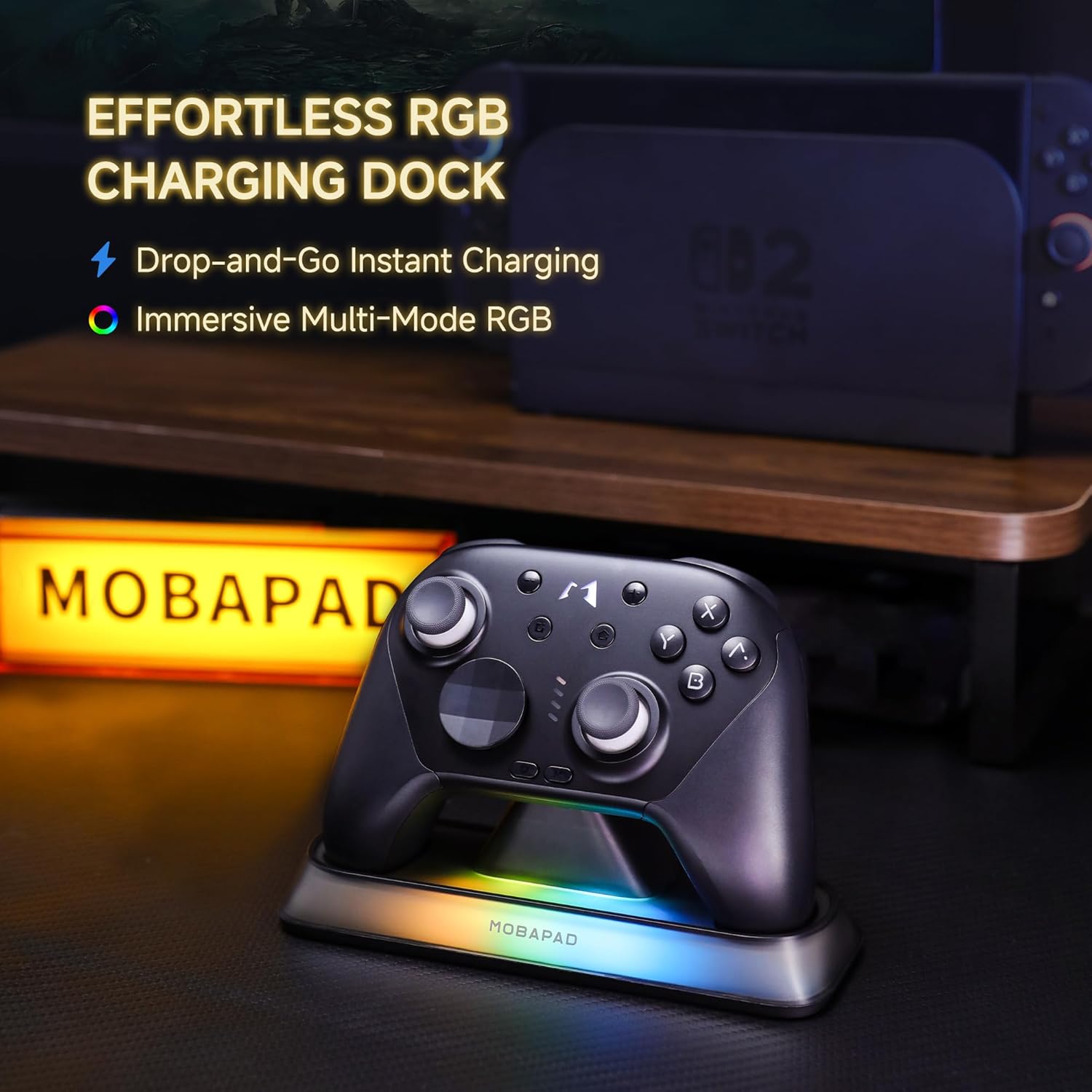
Image: Controller in the Smart RGB Charging Dock.
Manteniment
To maintain your controller's performance and appearance:
- Netegeu el controlador regularment amb un drap suau i sec. Eviteu utilitzar productes químics agressius o materials abrasius.
- Guardeu el controlador en un lloc fresc i sec, allunyat de la llum solar directa i de temperatures extremes.
- Eviteu deixar caure el controlador o sotmetre'l a impactes forts.
- Ensure the charging contacts on both the controller and the dock are clean and free of debris for efficient charging.
Resolució de problemes
Problemes de connexió
- El controlador no es connecta: Ensure the mode switch on the back is set correctly (NS for Switch, BT for other devices). Verify Bluetooth is enabled on your device. Try re-pairing the controller.
- Connexió intermitent: Ensure the controller is within range of your device. Avoid obstacles that may interfere with the wireless signal.
Problemes de càrrega
- El comandament no es carrega: Check that the USB-C cable is securely connected to both the dock and a power source. Ensure the controller is properly seated on the charging dock, aligning the contact points.
- RGB lights not working on dock: Verify the dock is powered. If the controller is fully charged, some RGB effects may turn off automatically.
Button/Joystick Malfunction
- Els botons no responen: Ensure the controller is charged. Try resetting the controller (refer to the full user manual for specific reset instructions if available).
- Joystick issues: While designed for zero drift, if any issues arise, ensure the controller's firmware is up to date.
Especificacions
| Característica | Detall |
|---|---|
| Dispositius compatibles | Nintendo Switch 2 / Switch OLED / Switch Lite / Windows PC / Android / iOS |
| Tipus de controlador | Wireless Gamepad/Controller |
| Tecnologia de connectivitat | Sense fil/per cable |
| Característiques addicionals | Zero-Drift TMR Control, ALPS HD Haptics, Charging Dock, Mechanical Buttons, Ergonomic Grip, One-Tap Wake-Up, Motion Sensing, Screenshot, Wireless |
| Quantitat de botons | 19 |
| Plataforma de maquinari | Nintendo Switch, PC, Android, iOS |
| Font d'alimentació | Funciona amb bateria |
| Pes de l'article | 200 grams |
| Dimensions de l'article | 5.79 x 3.98 x 2.64 polzades |
| Nom del model | ChiTu 2 |
| UPC | 730425194441 |
Vídeo oficial del producte
Vídeo: Un funcionari ha acabatview of the Mobapad Chitu2 HD Wireless Controller with Charging Dock, demonstrating its features and design.
Garantia i Suport
The MOBAPAD Chitu2 HD Wireless Controller includes a Warranty Card in the package. Please refer to this card for specific warranty terms and conditions. For technical support, troubleshooting assistance, or any product-related inquiries, please contact MOBAPAD-Official customer service through their official channels or the retailer where the product was purchased.