
Introducció
Thank you for choosing the OBZ Bluetooth Barcode Scanner OV-26T. This device is a versatile 2D/1D/QR code reader designed for efficient data capture in various environments such as retail, warehousing, and inventory management. It features wireless connectivity via Bluetooth and a 2.4G wireless base, along with a convenient charging stand. This manual provides detailed instructions for setting up, operating, and maintaining your scanner to ensure optimal performance.
Producte acabatview
The OBZ OV-26T scanner is engineered for reliability and ease of use. It combines a comfortable handheld design with advanced scanning technology.
Components clau
- Escàner de codi de barres: The main handheld unit for scanning codes.
- Charging Stand/Base: Provides charging and 2.4G wireless connectivity.
- Cable USB: For charging and connecting the base to a host device.
- Lithium Polymer Batteries: Two included for extended operation.

Image: The OBZ Bluetooth Barcode Scanner with its charging stand, illustrating the complete product setup.
Configuració
1. Càrrega de l'escàner
Before first use, ensure the scanner is fully charged.
- Connect the USB cable to the charging stand and then to a power source (e.g., computer USB port or USB wall adapter).
- Place the scanner into the charging stand. The indicator light on the scanner will show charging status.
- A full charge takes approximately 3.5 hours and provides up to 10 hours of scanning time. The battery is detachable for convenience.

Image: Illustration of the detachable battery design and charging specifications, including 10 hours scanning time, 3.5 hours charging time, and 100 days standby time for the 2200mAh battery.
2. Connecting the Charging Stand (for 2.4G Wireless Mode)
If you plan to use the 2.4G wireless connection, connect the charging stand to your host device.
- Plug the USB cable from the charging stand into an available USB port on your computer or POS system. The system should automatically recognize the device.
Instruccions de funcionament
Modes de connexió
The OBZ OV-26T scanner supports two wireless connection modes: Bluetooth and 2.4G Wireless Base.
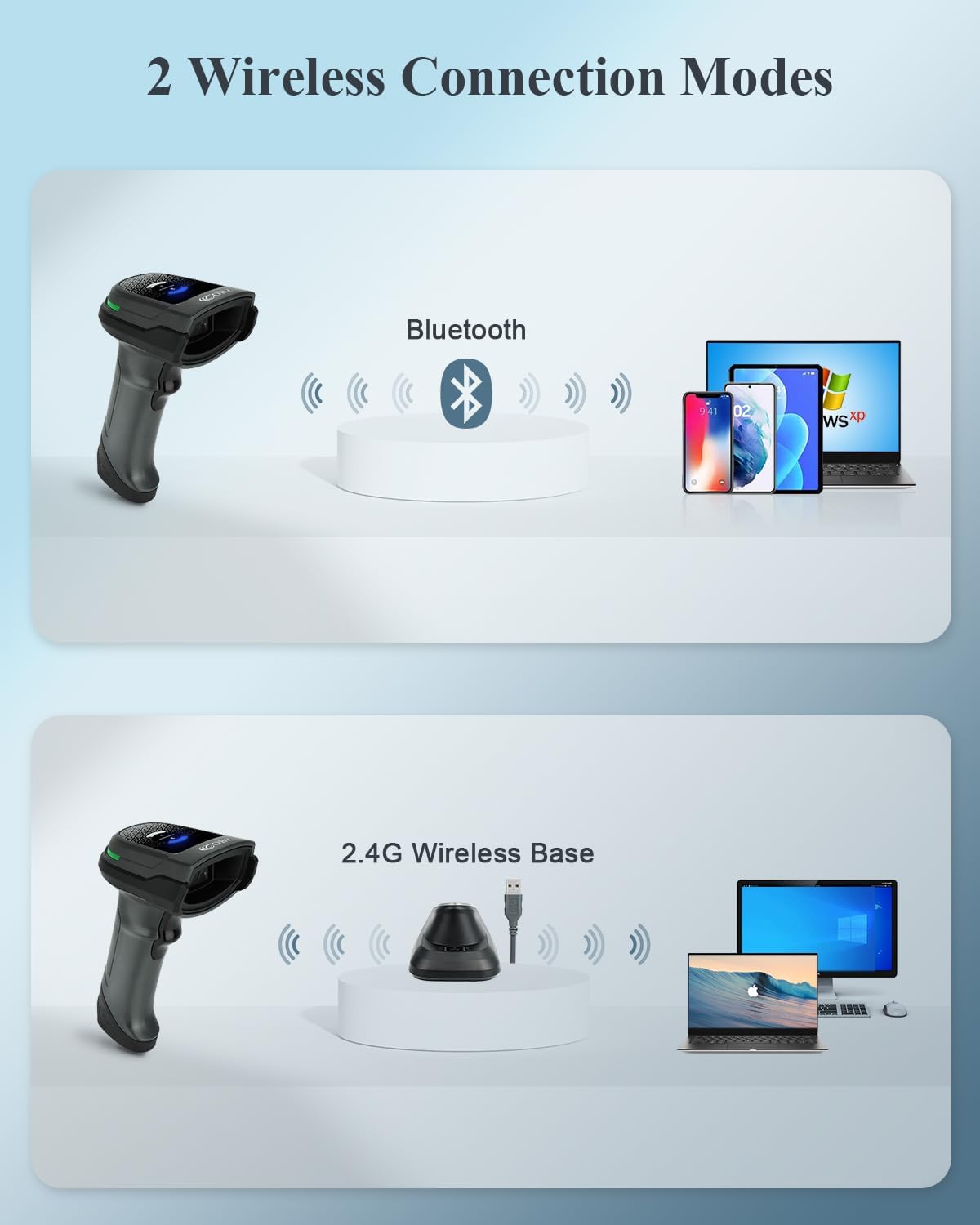
Image: Diagram illustrating the two wireless connection modes: Bluetooth for direct connection to devices like smartphones, tablets, and laptops, and 2.4G Wireless Base for connection via a USB dongle to computers.
1. Connexió Bluetooth
- Enceneu l'escàner.
- Activate Bluetooth on your host device (smartphone, tablet, laptop, etc.).
- Cerca available Bluetooth devices. The scanner should appear as "OBZ Scanner" or similar.
- Select the scanner to pair. A successful connection will be indicated by a specific sound or light on the scanner.
2. 2.4G Wireless Base Connection
- Ensure the charging stand is connected to your computer via USB.
- Enceneu l'escàner.
- The scanner and base are typically pre-paired. If not, press the "Connection Button" on the base to initiate pairing. The scanner will automatically connect to the base.

Image: The Smart Base, highlighting its functions: recharging the scanner, transmitting barcode data, and a one-click pairing function via the connection button.
Escaneig de codis de barres
The scanner is capable of reading various 1D, 2D, and QR codes from both paper and digital screens.
- Apunteu la finestra de l'escàner cap al codi de barres que voleu escanejar.
- Press the trigger button. A red aiming beam will appear.
- Ensure the aiming beam covers the entire barcode.
- A successful scan will be indicated by a beep and/or a green light. The scanned data will be transmitted to your connected device.
Image: The scanner demonstrating its ability to read various barcode types including 1D, PDF417, ISSN/ISBN, QR Code, Aztec, and DataMatrix from both physical labels and digital screens.

Image: Visual representation of the scanner's fast reading speed, capable of decoding PDF417, DataMatrix, QR Code, Aztec, ISSN/ISBN, UPC/EAN, and all 1D types.
Compatibilitat
The OBZ OV-26T scanner is compatible with a wide range of operating systems and devices.
- Sistemes operatius: Mac OS, Windows, Linux, Android, iOS.
- Dispositius: PC, Laptops, Tablets, iPads, Smartphones, Point-of-Sale (POS) systems.

Image: Display of the scanner's broad compatibility with Mac OS, Windows, Linux, Android, and iOS, connecting to PCs, laptops, tablets, iPads, smartphones, and POS systems.
Manteniment
- Neteja: Use a soft, dry cloth to clean the scanner's exterior. For the scanning window, use a soft, lint-free cloth lightly dampened with water or a mild glass cleaner. Avoid abrasive materials or harsh chemicals.
- Cura de la bateria: To prolong battery life, avoid fully discharging the battery frequently. Store the scanner in a cool, dry place when not in use for extended periods.
- Emmagatzematge: Store the scanner and charging stand in a safe environment, away from extreme temperatures, moisture, and direct sunlight.
- Manipulació: Handle the scanner with care. Avoid dropping it, as this can damage internal components.
Resolució de problemes
- L'escàner no s'encén:
- Ensure the battery is properly inserted and charged. Place the scanner on the charging stand for at least 30 minutes.
- L'escàner no es connecta per Bluetooth:
- Assegureu-vos que el Bluetooth estigui habilitat al dispositiu amfitrió.
- Ensure the scanner is in Bluetooth pairing mode (refer to specific pairing instructions if available in the quick start guide).
- Delete any previous pairings of the scanner from your device's Bluetooth list and try pairing again.
- Ensure the scanner is within the effective range of your Bluetooth device.
- Scanner not connecting via 2.4G Wireless Base:
- Verify the charging stand is securely connected to your computer's USB port.
- Try pressing the "Connection Button" on the base to re-establish the link.
- Prova amb un port USB diferent del teu ordinador.
- L'escàner no llegeix els codis de barres:
- Assegureu-vos que el codi de barres no estigui malmès ni mal imprès.
- Netegeu la finestra de lectura de l'escàner.
- Ajusteu la distància i l'angle entre l'escàner i el codi de barres.
- Ensure the barcode type is supported by the scanner (1D, 2D, QR).
- Check if the scanner is properly connected to your host device.
- Inconsistent or slow scanning:
- Ensure the scanner battery is sufficiently charged.
- Minimitzar les interferències d'altres dispositius sense fil.
- For dense QR codes, ensure proper lighting and a steady hand.
Especificacions
| Característica | Detall |
|---|---|
| Número de model | OV-26T |
| Tecnologia de connectivitat | Bluetooth, 2.4G Wireless (via base), USB Cable |
| Capacitat d'escaneig | 1D, 2D, QR Codes (e.g., UPC/EAN, PDF417, DataMatrix, QR Code, Aztec) |
| Dispositius compatibles | Android Devices, iOS Devices, Mac OS, Point Of Sale Systems, Windows PC |
| Font d'alimentació | Battery-Powered, Corded Electric (via USB) |
| Tipus de bateria | Polímer de liti (2 inclòs) |
| Capacitat de la bateria | 2200 mAh (aproximadament, segons la imatge) |
| Temps de càrrega | Aprox. 3.5 hores |
| Temps d'escaneig | Fins a 10 hores |
| Temps d'espera | Fins a 100 dies |
| Dimensions del producte | 5.7 x 3 x 3.54 polzades |
| Pes de l'article | 6.9 unces |
| Fabricant | OBZ |
Garantia i Suport
For warranty information and technical support, please refer to the documentation included with your product or contact OBZ customer service directly. Contact details can typically be found on the manufacturer's official weblloc web o a l'embalatge del producte.