
Introducció
The Memorex MTAB10 10.1-inch Tablet Bundle is designed for everyday productivity, entertainment, and convenience. This manual provides essential information for setting up, operating, and maintaining your tablet and its accessories. Please read this guide thoroughly to ensure proper use and to maximize your device's potential.
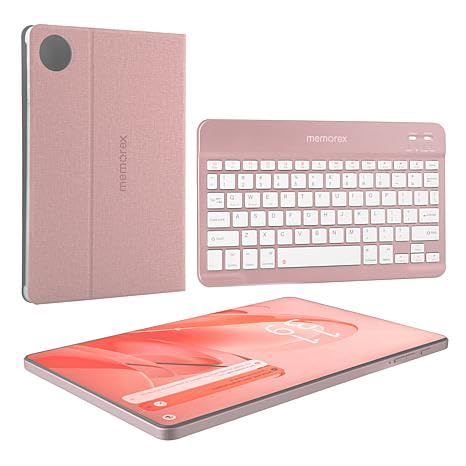
Image: The Memorex MTAB10 tablet in its protective case with the Bluetooth keyboard attached, showcasing el paquet complet.
Què hi ha a la caixa
Verifiqueu que tots els elements siguin presents al paquet:
- Memorex 10.1" Tablet
- Teclat Bluetooth
- Protective Case Cover with Stand
- AC Adapter Charger and Cable
- Manual d'instruccions (aquest document)
- Guia d'inici ràpid
Configuració
1. Engegada inicial i configuració bàsica
- Carregueu la tauleta: Before first use, connect the tablet to the AC adapter and charge it fully. The charging port is typically located on the side of the tablet.
- Encès: Press and hold the power button (usually on the side or top edge) for a few seconds until the Memorex logo appears.
- Segueix les instruccions que apareixen a la pantalla: The tablet will guide you through the initial setup process, which includes selecting your language, connecting to Wi-Fi, setting up your Google account, and configuring basic settings.

Image: The Memorex MTAB10 tablet secured in its protective case, displaying the home screen with notifications.
2. Connecting the Bluetooth Keyboard
- Carregueu el teclat: Ensure the Bluetooth keyboard is charged. Connect it to a power source if necessary.
- Turn On Keyboard: Locate the power switch on the keyboard and slide it to the "On" position.
- Enable Bluetooth on Tablet:
- Vés a Configuració a la teva tauleta.
- Toqueu Dispositius connectats or Bluetooth & device connection.
- Commuta Bluetooth a "Encès".
- Emparellar el teclat:
- Al teclat, premeu Connecta't or Maridatge button (refer to the keyboard's specific instructions if available).
- On your tablet, in the Bluetooth settings, look for available devices. The keyboard should appear as "Bluetooth Keyboard" or a similar name.
- Tap on the keyboard's name to initiate pairing. You may be prompted to enter a code on the keyboard and press Enter.
- Confirmació: Once paired, the tablet will indicate that the keyboard is connected.
3. Configuració Wi-Fi
- Accés a la configuració de Wi-Fi:
- Llisca cap avall des de la part superior de la pantalla per obrir el tauler de Configuració ràpida.
- Toqueu i manteniu premut Icona de wifi, o aneu a Configuració > Xarxa i Internet > Wi-Fi.
- Connexió a una xarxa:
- Ensure Wi-Fi is turned "On".
- Seleccioneu la xarxa Wi-Fi desitjada de la llista de xarxes disponibles.
- Si us demana, introduïu la contrasenya de xarxa i toqueu Connecta't.
- Confirmació: A Wi-Fi icon will appear in the status bar once connected.
Funcionament de la tauleta
1. Navegació bàsica
- Gestos de la pantalla tàctil:
- Toca: Selecciona un element o obre una aplicació.
- Llisca: Desplaça't per pàgines o llistes.
- Pessiga per fer zoom: Enlarge or reduce content (e.g., photos, web pàgines).
- Premsa llarga: Accedir a menús contextuals o moure icones.
- Pantalla d'inici: The central hub for your apps and widgets. Customize it by long-pressing on empty space.
- Barra de navegació: Typically at the bottom of the screen, includes Back, Home, and Recent Apps buttons.
2. Característiques d'Android 14
Your Memorex MTAB10 tablet runs on Android 14, offering enhanced privacy controls, improved system performance, and new customization options. Explore the Settings menu to discover all available features and personalize your experience.
3. Using the Bluetooth Keyboard
- Mecanografia: Use the keyboard for text input in any application that supports it (e.g., word processors, email, web navegadors).
- Tecles de funció: Many keyboards include function keys (Fn keys) that can control tablet features like volume, screen brightness, and media playback. Refer to your keyboard's specific layout for details.
- Trackpad/Mouse (if applicable): If your keyboard case includes a trackpad, it functions similarly to a laptop trackpad for cursor control.

Image: The Memorex MTAB10 tablet with its Bluetooth keyboard and protective case, set up on a desk for productivity.
Manteniment
1. Neteja de la tauleta
- Pantalla: Use a soft, lint-free cloth (e.g., microfiber) slightly dampNetegeu amb aigua o un netejador de pantalles dissenyat específicament per a electrònica. Eviteu productes químics agressius.
- Cos: Wipe the tablet's body and case with a soft, dry cloth.
- Ports: Keep charging ports and headphone jacks free of dust and debris. Use a soft brush or compressed air if necessary, but avoid inserting sharp objects.
2. Cura de la bateria
- Càrrega òptima: Avoid completely draining the battery frequently. Charge it when the battery level is low (e.g., 20-30%).
- Eviteu temperatures extremes: Do not expose the tablet to very high or very low temperatures, as this can degrade battery life.
- Utilitzeu el carregador original: Always use the provided AC adapter and cable for charging to ensure compatibility and safety.
3. Actualitzacions de programari
Regularly check for and install software updates to ensure your tablet has the latest security patches, bug fixes, and performance improvements.
- Vés a Configuració > Sistema > Actualització del sistema.
- Follow the on-screen instructions to check for and install any available updates. Ensure your tablet is sufficiently charged or connected to power during updates.
Resolució de problemes
This section addresses common issues you might encounter with your Memorex MTAB10 tablet.
Tablet Will Not Turn On
- Comproveu la bateria: Ensure the tablet is charged. Connect it to the AC adapter and let it charge for at least 30 minutes before attempting to power it on again.
- Força el reinici: Press and hold the power button for 10-15 seconds. This can sometimes resolve minor software glitches.
Problemes de connectivitat Wi-Fi
- Reinicieu l'encaminador: Power cycle your Wi-Fi router and modem.
- Oblida't de la xarxa: Go to Wi-Fi settings, tap on the problematic network, and select "Forget". Then, try to reconnect.
- Senyal de comprovació: Ensure you are within range of your Wi-Fi router.
Bluetooth Keyboard Not Connecting
- Keyboard Power/Charge: Assegureu-vos que el teclat estigui encès i completament carregat.
- Torna a emparellar: Go to tablet's Bluetooth settings, "Forget" the keyboard if it's listed, then repeat the pairing process.
- Interferència: Move away from other Bluetooth or wireless devices that might cause interference.
Rendiment lent
- Tanca les aplicacions en segon pla: Tanca les aplicacions que no s'utilitzen i que s'executen en segon pla.
- Esborra la memòria cau: Periodically clear the cache of apps that consume a lot of storage.
- Alliberar emmagatzematge: Elimineu-les innecessàries files, photos, or videos to free up internal storage.
- Reinicia la tauleta: A simple restart can often improve performance.
Especificacions
| Marca | Memorex |
| Nom del model | 10.1 inch Tablet (MTAB10) |
| Sistema operatiu | Android 14 |
| Processador | A523 ARM Cortex-A523 Octa-Core Processor (up to 2.0 GHz) |
| Memòria RAM | 4 GB |
| Capacitat d'emmagatzematge | 128 GB |
| Mida de la pantalla | 10.1 polzades |
| Resolució de visualització | 1200 x 1920 pixels (FHD IPS) |
| Capacitat de la bateria | 6000 milionsamp Hores |
| Càmera posterior | 13 MP |
| Càmera frontal | 8 MP |
| Connectivitat | Wi-Fi (802.11 ac/b/g/n), Bluetooth |
| Pes de l'article | 3 lliures |
Garantia i Suport
Informació de la garantia
The Memorex MTAB10 tablet comes with a Garantia limitada de 1 anys. This warranty covers manufacturing defects under normal use. Please retain your proof of purchase for warranty claims. For specific terms and conditions, refer to the warranty card included in your package or visit the official Memorex weblloc.
Atenció al client
If you encounter issues not covered in the troubleshooting section or require further assistance, please contact Memorex customer support. You can typically find contact information (phone, email, or support portal) on the official Memorex weblloc web o a la Guia d'inici ràpid.
For the most up-to-date support resources, visit the Memorex Support Weblloc (Note: This is a placeholder link, please refer to actual product documentation for the correct URL.)