
1. Producte acabatview
The KCEVE Triple Monitor KVM Switch (Model KC-203CDHX) allows you to control two computers (one laptop and one desktop) using a single set of keyboard, mouse, and three monitors. This device is ideal for optimizing your workspace by reducing cable clutter and enabling seamless switching between systems. It supports high-resolution video output, fast data transfer, and power delivery for compatible laptops.
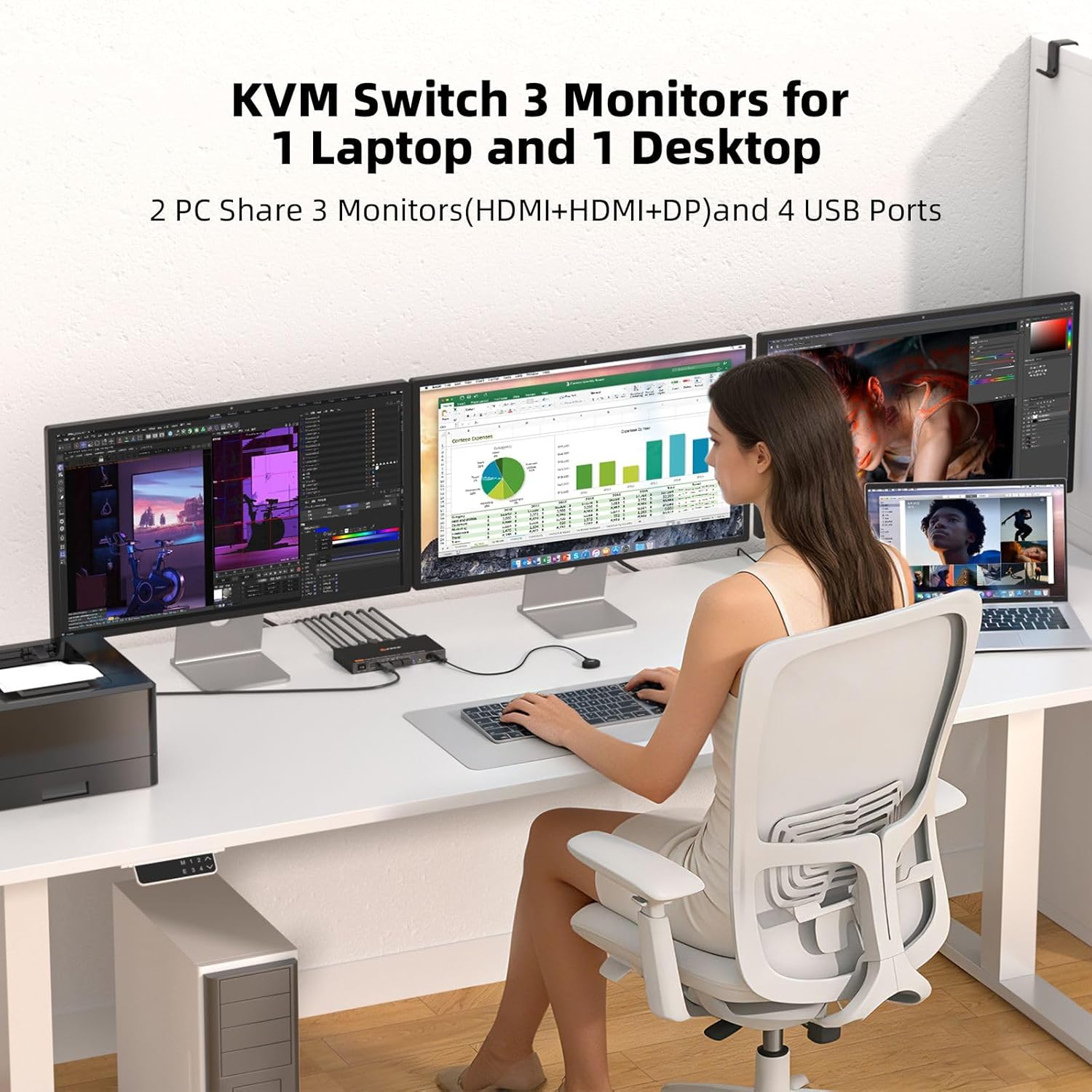
The KCEVE KVM Switch enables a single user to operate two computers (laptop and desktop) across three shared monitors, keyboard, and mouse.
2. Contingut del paquet
Si us plau, verifiqueu que tots els elements siguin presents al vostre paquet:
- 1 x KCEVE Triple Monitor KVM Switch (Model KC-203CDHX)
- 1 x cable USB-C a USB-C
- 1 x USB-A to USB-B Cable
- 1 x adaptador d'alimentació DC 12V
- 1 x Wired Remote Control (1.5m)
- 1 x Manual d'usuari

Contents included in the KVM Switch package.
3. Diagrama del producte
Familiarize yourself with the ports and indicators on the KVM switch:

Front and rear panel layout of the KVM Switch with port labels.
Panell frontal:
- Interruptor ON / OFF: Power toggle for the KVM switch.
- Ports USB 3.1 (4x): Connect USB peripherals such as keyboard, mouse, USB drives, and printers. Supports up to 10Gbps data transfer.
- Laptop/Desktop Indicators: LEDs to show which computer is currently selected.
- Botó SELECCIÓ: Canvia manualment entre ordinadors connectats.
- Wired Remote Port: Connect the included wired remote control.
Panell posterior:
- Monitor Outputs (3x): Connect to your three monitors (1x DisplayPort, 2x HDMI).
- PC 2 Input (Desktop): Connect to your desktop PC (1x DisplayPort, 1x USB-B 3.1).
- PC 1 Input (Laptop): Connect to your laptop (1x USB-C 3.1 with PD, 1x USB-C for video/data).
- Entrada d'alimentació DC 12V: Connecteu l'adaptador de corrent de 12 V proporcionat.
4. Instruccions de configuració
Segueix aquests passos per connectar el teu commutador KVM:
- Connexió d'alimentació: Connect the DC 12V power adapter to the KVM switch's DC 12V input port and plug it into a power outlet.
- Connexions del monitor: Connect your three monitors to the KVM switch's Monitor Output ports (1x DisplayPort, 2x HDMI). Ensure your monitors are powered on.
- Desktop PC Connection (PC 2):
- Connect a DisplayPort cable from your desktop PC's graphics card to the KVM switch's PC 2 DisplayPort input.
- Connect the USB-A to USB-B cable from your desktop PC's USB-A port to the KVM switch's PC 2 USB-B input.
- Laptop Connection (PC 1):
- Connect a USB-C cable from your laptop's USB-C port (which supports video output and Power Delivery) to the KVM switch's PC 1 USB-C input. This single cable handles video, data, and power delivery to your laptop.
- Nota: Ensure your laptop's USB-C port supports DisplayPort Alternate Mode (DP Alt Mode) and Power Delivery for full functionality.
- Connexions perifèriques: Connect your keyboard, mouse, and any other USB peripherals (e.g., USB drive, printer) to the USB 3.1 ports on the front panel of the KVM switch.
- Wired Remote (Optional): Connect the wired remote control to its dedicated port on the front panel for convenient switching.
- Encès: Turn on the KVM switch using the ON/OFF switch. Power on both your desktop PC and laptop.
The KVM switch is plug-and-play and typically does not require driver installation for Windows, macOS, Chrome OS, Linux, Unix, and Ubuntu systems.
5. Instruccions de funcionament
Canviar entre ordinadors:
You can switch between your connected laptop and desktop using two methods:
- Botó físic: Press the 'SELECT' button on the front panel of the KVM switch. The LED indicators will show which computer is active.
- Comandament a distància per cable: Press the button on the wired remote control. This allows for convenient switching if the KVM unit is out of reach.

Two methods for switching between connected computers.
Display Modes (Extended & Mirror):
The KVM switch supports both extended and mirror display modes for your monitors. You can switch between these modes using your operating system's display settings.
- Mode estès: Each monitor displays independent content, expanding your desktop workspace.
- Mode mirall: All monitors display the same content, duplicating your desktop.
For Windows users, press Windows + P to quickly access display mode options.

Visual representation of Extended Mode and Mirror Mode for triple monitor setups.
Multi-Stream Transport (MST) Functionality:
This KVM switch supports MST, which simplifies connecting multiple displays. For laptops, a single USB-C port can drive all three displays. For desktops, a single DisplayPort connection can manage all three displays.
- Windows: Windows computers can output three different screens (extended mode) with MST.
- macOS: macOS computers typically output three identical screens (mirror mode) as macOS does not natively support Multi-Stream Transport (MST) for extended displays across multiple external monitors from a single port.

MST functionality for Windows and macOS systems.
Power Delivery (PD) for Laptops:
The KVM switch's USB-C input for PC 1 (Laptop) supports 100W Power Delivery, allowing it to charge your compatible laptop while connected. This eliminates the need for a separate laptop charger.
Laptop charging via the KVM switch's 100W Power Delivery port.
6. Manteniment
To ensure optimal performance and longevity of your KVM switch:
- Neteja: Feu servir un drap suau i sec per netejar l'exterior del dispositiu. Eviteu netejadors líquids o materials abrasius.
- Ventilació: Assegureu-vos que el commutador KVM estigui col·locat en una zona ben ventilada per evitar el sobreescalfament. No bloquegeu cap obertura de ventilació.
- Gestió de cables: Mantingueu els cables organitzats i lliures de doblegaments o doblegaments excessius per evitar danys.
- Apagar: If the device will not be used for an extended period, it is recommended to power it off and disconnect the power adapter.
7. Solució De Problemes
Si teniu problemes, consulteu els següents consells de resolució de problemes:
- Sense visualització als monitors:
- Ensure all video cables (HDMI, DisplayPort, USB-C) are securely connected to both the KVM switch and your computers/monitors.
- Verify that the KVM switch is powered on and the correct computer is selected (check LED indicators).
- Check your computer's display settings to ensure the monitors are detected and configured correctly (e.g., extended or duplicate mode).
- Confirm that your laptop's USB-C port supports DisplayPort Alternate Mode.
- If connecting to a desktop, ensure your graphics card supports the required resolution and refresh rate for three monitors.
- Nota: For triple 4K@60Hz output from a desktop, your computer needs to support 8K signal output. Otherwise, the resolution may decrease.
- El teclat/ratolí no respon:
- Ensure your keyboard and mouse are connected to the USB 3.1 ports on the KVM switch's front panel.
- Verify the USB cables connecting your computers to the KVM switch are securely plugged in.
- Try connecting the peripherals directly to your computer to confirm they are functional.
- Reinicieu el commutador KVM i els vostres ordinadors.
- El portàtil no carrega:
- Ensure your laptop's USB-C port supports Power Delivery (PD).
- Verify the USB-C cable used is rated for 100W PD.
- Confirm the KVM switch's DC 12V power adapter is connected and receiving power.
- Intermittent Connection/Unstable Operation:
- Ensure the DC 12V power adapter is connected and providing stable power to the KVM switch.
- Comproveu totes les connexions dels cables per si hi ha fluïdesa o danys.
- Reduce the number of high-bandwidth USB devices connected if experiencing issues.
8. Especificacions
Detailed technical specifications for the KCEVE Triple Monitor KVM Switch:
| Característica | Especificació |
|---|---|
| Número de model | KC-203CDHX |
| Input Ports (PC 1 Laptop) | 1x USB-C (Video, Data, 100W PD) |
| Input Ports (PC 2 Desktop) | 1x DisplayPort, 1x USB-B 3.1 |
| Output Ports (Monitors) | 1x DisplayPort, 2x HDMI |
| Ports perifèrics USB | 4x USB 3.1 (10Gbps) |
| Video Resolution (Desktop) | Triple 4K@60Hz (requires 8K signal output from PC) |
| Video Resolution (Laptop) | 2x 4K@60Hz + 1x 1080P@60Hz |
| Velocitat de transferència de dades USB | Fins a 10 Gbps (USB 3.1) |
| Lliurament d'energia | 100W (for laptop charging via USB-C) |
| Mètodes de canvi | Physical Button, Wired Remote Control |
| Compatibilitat de sistemes operatius | Windows 7/8/10/11/XP/Vista, Mac OS, Chrome OS, Linux, Unix, Ubuntu |
| Dimensions (L x A x A) | 6.3 x 3.2 x 0.8 polzades (160 x 81.2 x 19.2 mm) |
| Pes de l'article | 10.9 unces |
| Material | Metall |
| Vol. Operatiutage | 12 Volts |
| Valoració actual | 1 Amps |

The KVM switch supports 4K@60Hz resolution for an enhanced visual experience.

USB 3.1 ports provide ultra-fast 10Gbps data transfer speeds.
9. Garantia i Suport
The KCEVE Triple Monitor KVM Switch comes with a 12-month after-sale support period. If you encounter any problems or have questions regarding the product, please contact KCEVE customer support for assistance. Our team is dedicated to resolving any issues you may experience.
For technical support or warranty claims, please refer to the contact information provided on the KCEVE official weblloc web o la documentació de la compra.