
1. Configuració
1.1 Contingut del paquet
Before assembly, please verify that all components are present in the package:
- KTC H24F7 24 Inch 240Hz Monitor
- Base del monitor
- Suport de monitor
- Adaptador d'alimentació
- Cable HDMI
- Guia d'inici ràpid (QSG)
1.2 Instruccions de muntatge
Seguiu aquests passos per muntar el vostre monitor:
- Traieu amb cura el monitor i tots els components de l'embalatge.
- Attach the monitor stand to the monitor base. Ensure it clicks securely into place.
- Connect the assembled stand and base to the back of the monitor. The stand is designed for easy snap-in installation.
- Col·loqueu el monitor en una superfície plana i estable.

1.3 Instal·lació del suport VESA
The KTC H24F7 monitor supports VESA 100mm x 100mm mounting for alternative stand or wall mount solutions. Ensure you use M4-0.7 x 10mm screws (not included) for secure installation.

1.4 Connexió a dispositius
Connecteu l'ordinador o altres dispositius al monitor amb els cables adequats.
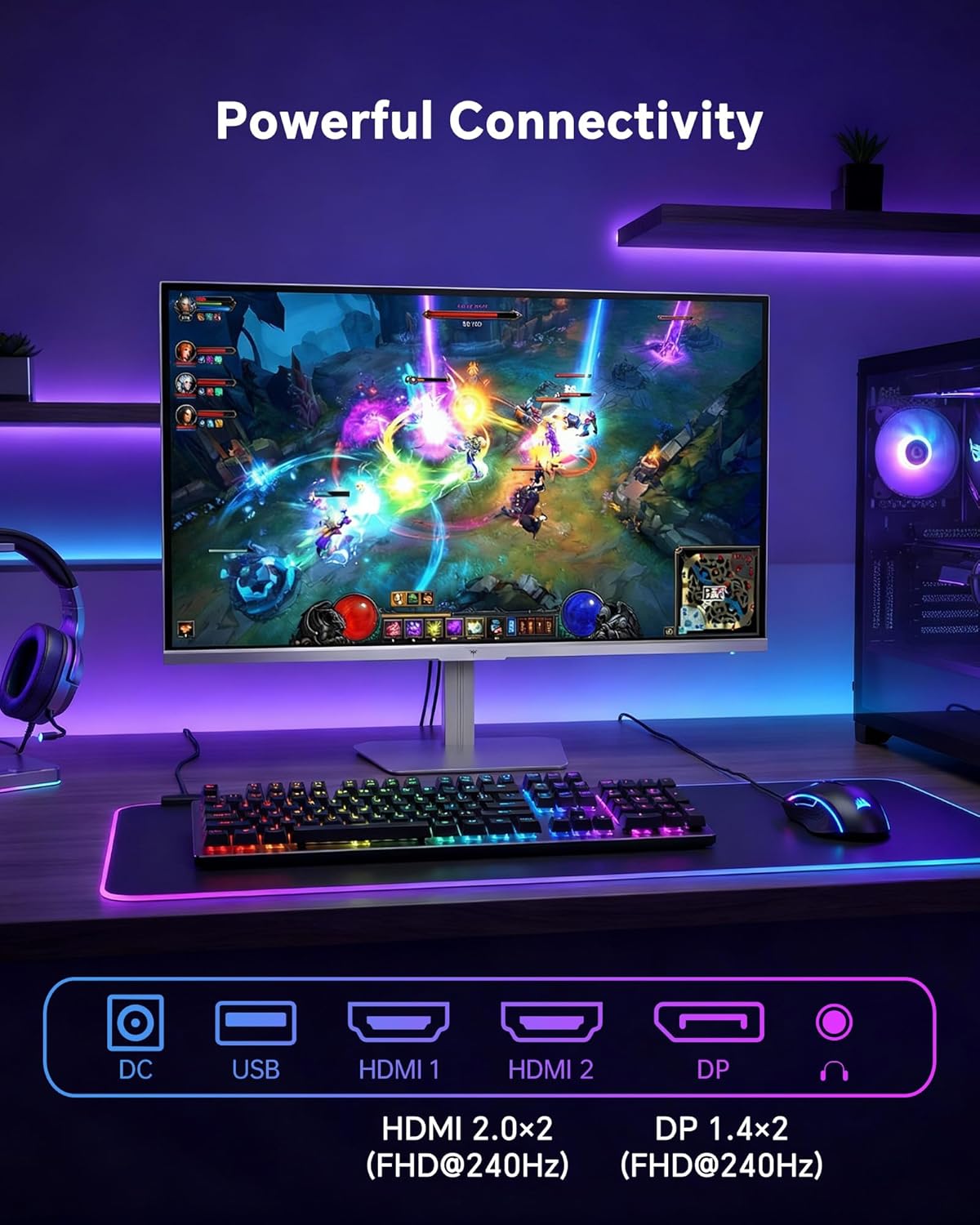
- HDMI: Use an HDMI cable to connect to devices with HDMI output. The monitor has two HDMI 2.0 ports, supporting FHD at 240Hz.
- DisplayPort: Use a DisplayPort cable for devices with DisplayPort output. The monitor has one DisplayPort 1.4, supporting FHD at 240Hz.
- Potència: Connect the power adaptor to the DC input on the monitor and then to a power outlet.
- USB: A USB 2.0 port is available for connecting peripherals.
- Sortida d'àudio: A 3.5mm audio jack is available for connecting headphones or external speakers.
2. Instruccions de funcionament
2.1 Encès/Apagat
Premeu el botó d'engegada que es troba al monitor per engegar-lo o apagar-lo. L'indicador lluminós d'engegada s'il·luminarà quan el monitor estigui actiu.
2.2 Menú de visualització en pantalla (OSD)
The OSD menu allows you to adjust various monitor settings. Use the control buttons (typically located on the back or bottom of the monitor) to navigate the menu and select options. Refer to the Quick Start Guide for specific button functions.
2.3 Configuració de la pantalla
Optimitzeu el vostre viewexperiència ajustant els paràmetres següents:
- Freqüència d'actualització: The monitor supports a 240Hz refresh rate for smooth motion. Ensure your graphics card settings are configured to utilize this rate.

- Sincronització adaptativa: This technology synchronizes the monitor's refresh rate with your graphics card's frame rate to eliminate screen tearing and stuttering. Enable Adaptive Sync in the OSD menu and ensure it is also enabled in your graphics card control panel (FreeSync/G-Sync compatible).

- HDR 400: High Dynamic Range 400 provides enhanced contrast and color accuracy, delivering brighter highlights and deeper shadows. Activate HDR in the OSD menu and your operating system display settings for compatible content.

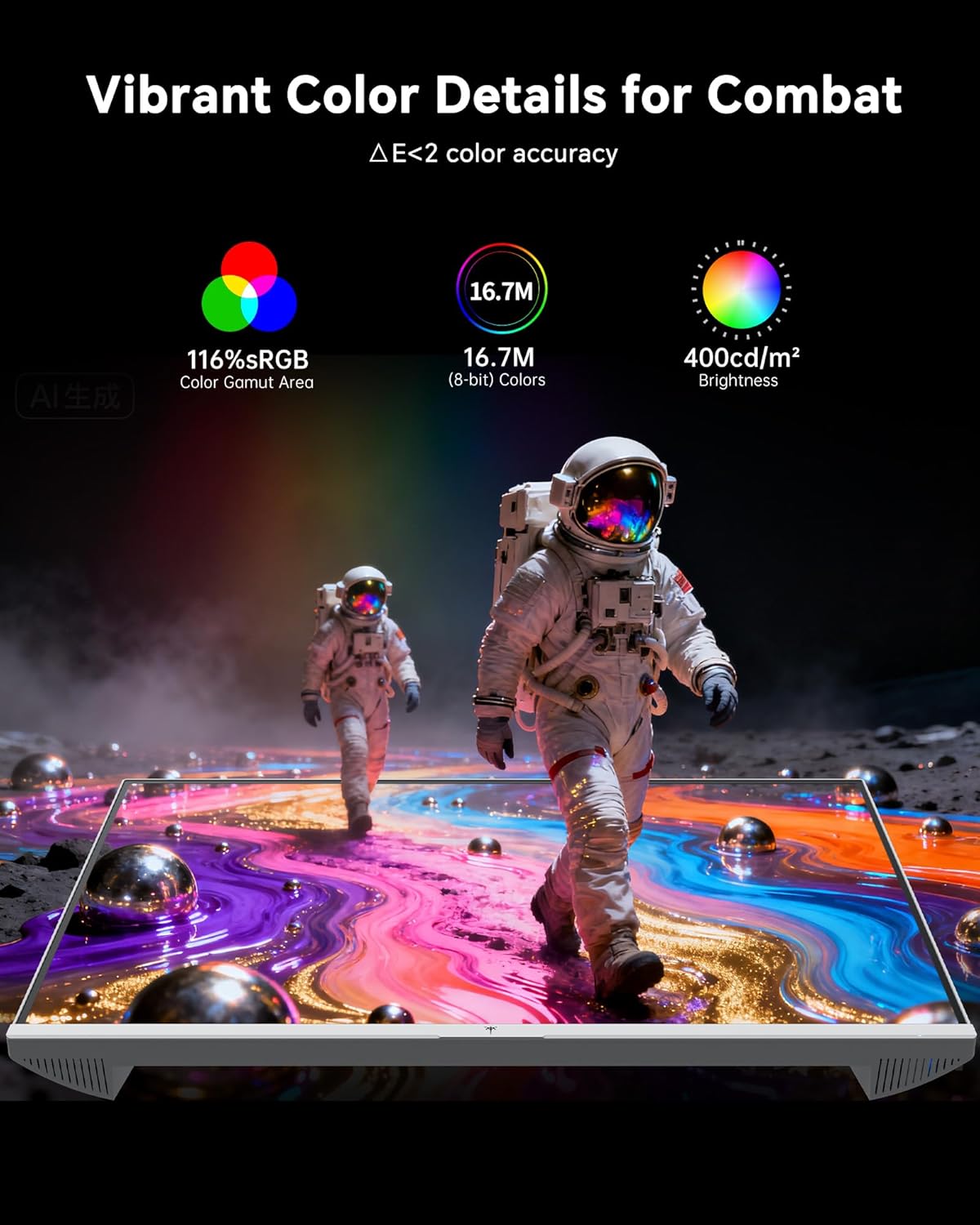
- Configuració de color: The monitor offers 116% sRGB color gamut and 16.7 million colors. Adjust brightness (up to 400 cd/m²) and color temperature through the OSD menu to suit your preference.
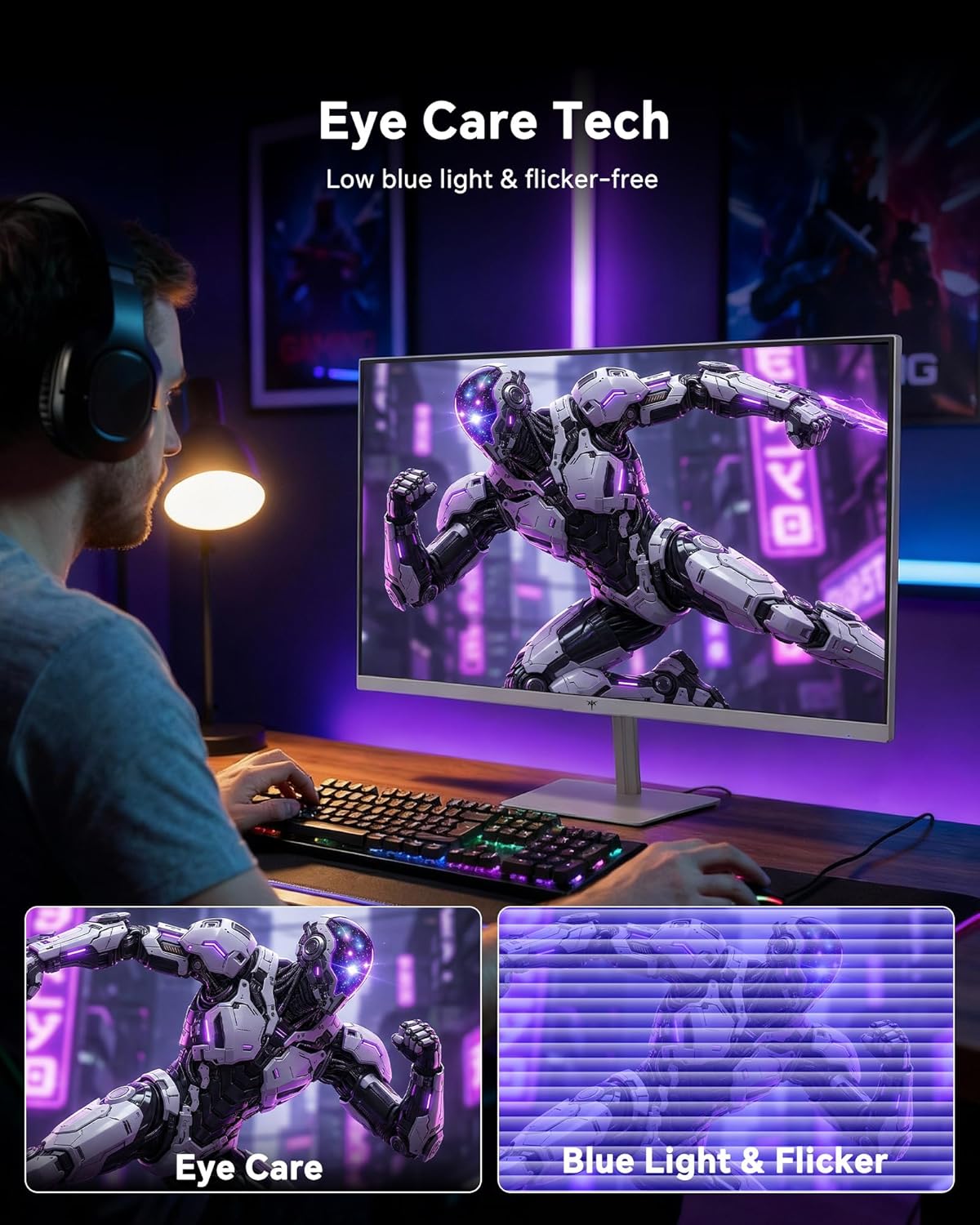
- Tecnologia per a la cura dels ulls: The monitor features low blue light and flicker-free technology to reduce eye strain during prolonged use. These settings can typically be adjusted or enabled within the OSD menu.
2.4 Monitor Tilt Adjustment
The monitor supports tilt adjustment from -5° to 15° (±3°). Gently adjust the monitor panel to your desired viewangle de ing.
3. Manteniment
3.1 Neteja del monitor
Per netejar la pantalla del monitor i casing:
- Apagueu sempre el monitor i desconnecteu el cable d'alimentació abans de netejar-lo.
- Utilitzeu un drap suau i sense pelusa lleugerament dampesbandida amb aigua o un netejador de pantalles suau i no abrasiu.
- Wipe the screen gently to remove dust and smudges. Avoid applying excessive pressure.
- Per al casing, use a dry, soft cloth. Do not use alcohol, ammonia, or abrasive cleaners, as these can damage the surface.
3.2 Atenció general
- Eviteu col·locar objectes pesats sobre el monitor o els seus cables.
- No exposeu el monitor a la llum solar directa, a la calor excessiva o al fred extrem.
- Mantingueu el monitor allunyat de líquids i d'una humitat elevada.
- Assegureu-vos d'una ventilació adequada al voltant del monitor per evitar el sobreescalfament.
4. Solució De Problemes
If you encounter issues with your KTC H24F7 monitor, refer to the following common problems and solutions:
| Problema | Causa possible | Solució |
|---|---|---|
| No hi ha imatge a la pantalla | Power cable disconnected; Video cable disconnected or loose; Incorrect input source selected; Monitor is off. | Ensure power cable is securely connected and monitor is on. Check video cable connections (HDMI/DisplayPort) at both the monitor and computer. Press the input source button on the monitor to cycle through inputs. |
| Image flickering or tearing | Adaptive Sync not enabled; Graphics card driver issues; Faulty video cable. | Enable Adaptive Sync in the OSD menu and your graphics card control panel. Update graphics card drivers. Try a different video cable. If using DisplayPort 1, try DisplayPort 2 or HDMI if available, as some units may experience issues with specific ports. |
| Els colors apareixen incorrectes o descolorits | Color settings incorrect; HDR not properly configured; Faulty video cable. | Adjust color settings (brightness, contrast, color temperature) in the OSD menu. Ensure HDR is enabled in both the OSD and your operating system for HDR content. Try a different video cable. |
| Monitor not reaching 240Hz | Graphics card limitations; Incorrect display settings in OS; Cable bandwidth limitations. | Ensure your graphics card supports 240Hz at 1080p. Verify display settings in your operating system (e.g., Windows Display Settings or NVIDIA/AMD control panel) are set to 240Hz. Use the provided HDMI cable or a certified DisplayPort 1.4 cable. |
| Stuck or dead pixels | Defecte de fabricació. | A small number of stuck or dead pixels (typically 1-3) may be considered normal for LCD panels. If the issue is severe or persistent, contact customer support. |
5. Especificacions
| Característica | Detall |
|---|---|
| Marca | CTC |
| Número de model | H24F7 |
| Mida de la pantalla | 24 polzades |
| Resolució | FHD 1080p (1920 x 1080 píxels) |
| Tipus de panell | IPS ràpid |
| Freqüència d'actualització | 240 Hz |
| Temps de resposta | 1 Millisecond (MPRT) |
| Relació d'aspecte | 16:9 |
| Brillantor | 400 candeles per metre quadrat |
| Relació de contrast | 1000:1 |
| Gamma de colors | 116% sRGB |
| Suport HDR | HDR 400 |
| Sincronització adaptativa | FreeSync, G-Sync Compatible |
| Connectivitat | 2x HDMI 2.0, 1x DisplayPort 1.4, 1x USB 2.0, 1x Audio Out (3.5mm) |
| Característiques de la cura dels ulls | Low Blue Light, Flicker-Free, Anti-Glare Screen |
| Ajustaments | Inclinació (de -5° a 15°) |
| Muntatge VESA | 100 mm x 100 mm |
| Dimensions (P x A x A) | 5.39 "P x 21.25" W x 15.74" H |
| Pes de l'article | 3.2 quilos |
| Color | Blanc |
6. Garantia i assistència
6.1 Informació de la garantia
The KTC H24F7 monitor comes with a three-year manufacturer warranty. Aquesta garantia cobreix els defectes de materials i de mà d'obra en ús normal.
Conserveu el vostre comprovant de compra per a reclamacions de garantia.
6.2 Atenció al client
For technical assistance, warranty claims, or any questions regarding your KTC H24F7 monitor, please contact KTC customer support. KTC aims to provide responsive customer support and typically responds within 12 hours.
You can usually find contact information on the official KTC website or through the retailer where you purchased the product. When contacting support, please have your monitor model number (H24F7) and purchase details ready.