
1. Introducció
This manual provides detailed instructions for the Donner DEK-630 61-Key Electronic Keyboard. Please read this manual thoroughly before using the instrument to ensure proper operation and to maximize your musical experience. The DEK-630 is designed for beginners and music enthusiasts, featuring lighted keys, various tones and rhythms, and learning modes to support your musical journey.

Image 1.1: The Donner DEK-630 61-Key Electronic Keyboard Set, including the keyboard, Z-stand, and bench.
2. Què hi ha a la caixa
Verifiqueu que tots els components siguin presents al paquet:
- Donner DEK-630 Electric Keyboard
- Z-shaped Stand
- Banc de piano
- Descans musical
- Note Stickers
- Adaptador d'alimentació
- Manual d'instruccions (aquest document)
3. Configuració
3.1 Assembling the Z-shaped Stand
- Unfold the main frame of the Z-stand.
- Attach the horizontal support bars to the vertical frames using the provided screws and knobs. Ensure they are securely tightened.
- Adjust the height of the stand to your preferred playing position using the adjustment knobs.
Video 3.1: Official Donner Music video demonstrating the assembly of the DEK-630 keyboard stand.
3.2 Assembling the Piano Bench
- Unfold the legs of the piano bench.
- Ensure all locking mechanisms are engaged for stability.
3.3 Placing the Keyboard and Music Rest
- Carefully place the DEK-630 keyboard onto the assembled Z-stand. Ensure it is stable and centered.
- Inseriu el pentagrama a les ranures designades del panell superior del teclat.

Image 3.1: The Donner DEK-630 keyboard fully set up with the Z-stand and piano bench.
3.4 Connexió d'alimentació
- Connect the provided power adapter to the DC 12V input jack (8) on the rear panel of the keyboard.
- Connecteu l'adaptador d'alimentació a una presa de corrent estàndard.

Image 3.2: Close-up of the DEK-630's rear panel, highlighting the power adapter input and other connectivity options.
4. Instruccions de funcionament
4.1 Encès/Apagat
Premeu el botó PODER button located on the control panel to turn the keyboard on or off. The LCD display will illuminate upon power-on.
4.2 Pantalla LCD acabadaview
The LCD display provides visual feedback on the current tone, rhythm, tempo, and learning mode status. Use the navigation buttons to browse through options.

Image 4.1: The DEK-630's LCD display, showing active settings for tones, rhythms, and learning modes.
4.3 Tone Selection (300 Tones)
To select a tone:
- Premeu el botó TO botó.
- Feu servir el teclat numèric o el +/- buttons to select from 300 available tones. The selected tone number and name will appear on the LCD.
4.4 Rhythm Selection (256 Rhythms)
To select a rhythm:
- Premeu el botó RITME botó.
- Feu servir el teclat numèric o el +/- buttons to select from 256 available rhythms.
- Premeu INICI/PARA per iniciar o finalitzar la reproducció del ritme.
4.5 Demo Songs (40 Songs)
The keyboard includes 40 demo songs for listening and practice.
- Premeu el botó CANÇÓ DEMO botó.
- Utilitza el +/- buttons to cycle through the demo songs.
- Premeu JUGAR to start the selected demo song.
4.6 Learning Modes
The DEK-630 offers built-in learning modes to assist beginners, including lighted keys, auto-chord, and metronome functions.
- Tecles il·luminades: Keys illuminate to guide you during learning exercises.
- Auto-Chord: Automatically plays chords based on single key presses, simplifying accompaniment.
- Metrònom: Provides a steady beat to help develop rhythm and timing. Activate by pressing the METRONOM botó.

Image 4.2: A user's hands playing the DEK-630, demonstrating the lighted key feature for learning.
4.7 Enregistrament i reproducció
Per enregistrar la teva actuació:
- Premeu el botó REC button. The REC indicator will light up.
- Reprodueix la melodia que vulguis.
- Premeu JUGAR to stop recording and listen to your recorded performance.
4.8 Dual Keyboard / Split Functions
- Dual Keyboard: Allows two different voices to be layered and played simultaneously.
- Funció de divisió: Divides the keyboard into two sections, each with its own tone, allowing two different instruments to be played at once. Refer to the full manual for detailed activation steps.
4.9 Control de volum
Ajusteu el volum principal amb el botó MÀSTER VOLUM knob or buttons on the control panel.
4.10 Opcions de connectivitat
The DEK-630 offers various ports for expanded functionality:
- Sustain Pedal Jack (1): Connect an optional sustain pedal for expressive playing.
- MIDI Port (2): Connect to computers or other MIDI devices for music production and learning software.
- Port USB (3): For USB MIDI connectivity.
- Audio Input Line (4): Connecteu fonts d'àudio externes (per exemple, un reproductor MP3) per reproduir acompanyadament.
- Output (L/R) (5): Connecteu-vos a l'exterior amplifiers or mixing consoles.
- Mic Jack (6): Connect a microphone for vocal accompaniment.
- Presa per a auriculars (7): Connect headphones for private practice. Headphones need to be purchased separately.
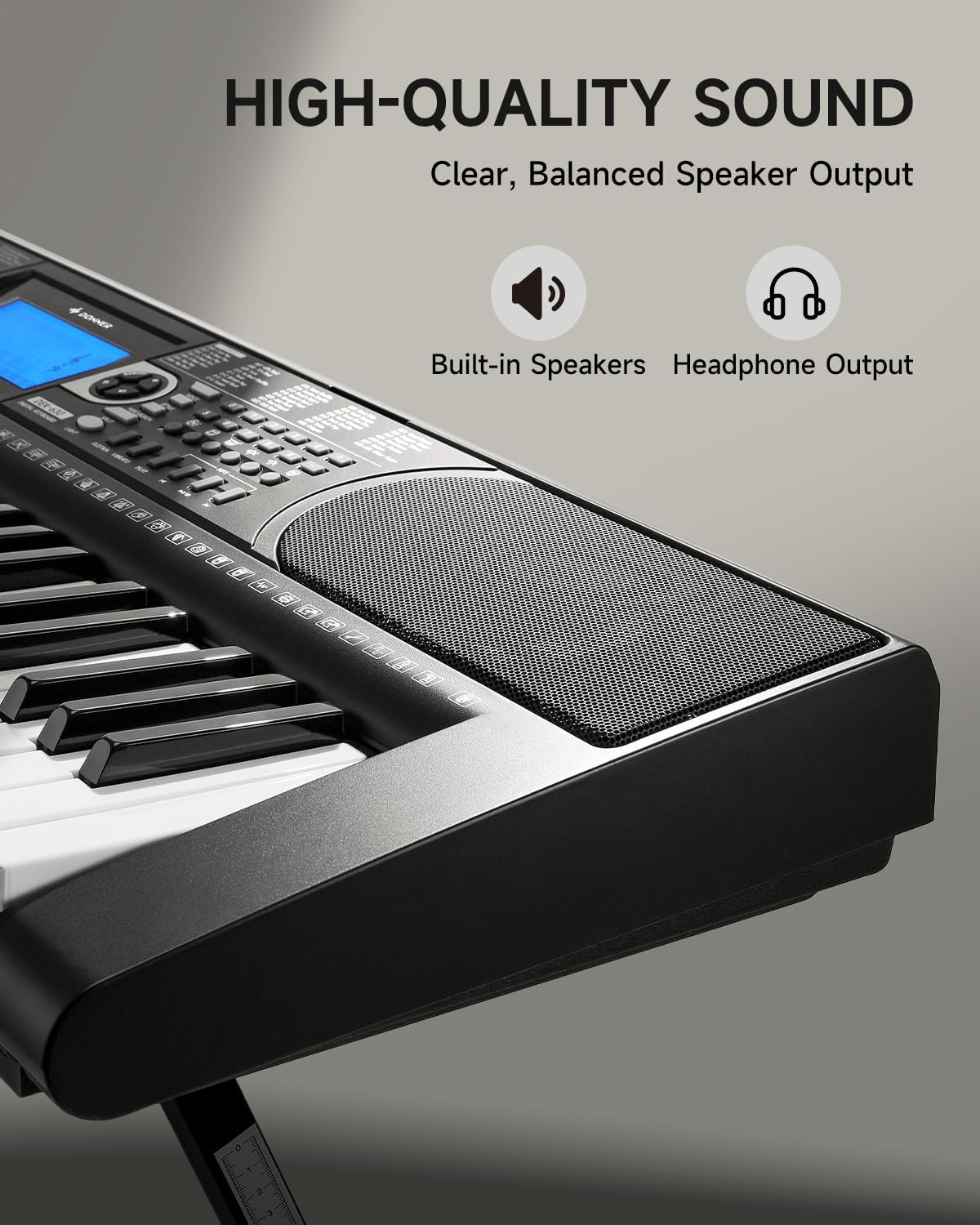
Image 4.3: The DEK-630's built-in speaker and headphone output for versatile sound options.
5. Manteniment
5.1 Neteja
- Wipe the keyboard and stand with a soft, dry cloth.
- Per a la brutícia tossuda, utilitzeu una mica damp un drap i després assecar-lo bé.
- Eviteu utilitzar netejadors abrasius, dissolvents o ceres, ja que poden danyar l'acabat.
5.2 Emmagatzematge
- Guardeu el teclat en un lloc fresc i sec, allunyat de la llum solar directa i de temperatures extremes.
- If storing for an extended period, disconnect the power adapter.
6. Solució De Problemes
| Problema | Causa possible | Solució |
|---|---|---|
| Sense so |
|
|
| Les claus no responen |
|
|
| La pantalla LCD està en blanc |
|
|
7. Especificacions
- Model: DEK-630
- Nombre de claus: 61
- Tons: 300
- Ritmes: 256
- Cançons de demostració: 40
- Característiques especials: Built-In Speaker, Lighted Keys, Portable, LCD Display, Learning Modes (Auto-Chord, Metronome)
- Connectivitat: USB MIDI, Audio Input, Output (L/R), Mic Jack, Headphone Jack, Sustain Pedal Jack
- Potència: Adaptador d'alimentació DC 12V
- Dimensions (Keyboard without stand): 37.80 x 11.81 x 3.54 polzades (96 x 30 x 9 cm)
- Components inclosos: Electric Keyboard, Z-shaped Stand, Piano Bench, Music Rest, Note Stickers
8. Garantia i Suport
8.1 Informació de la garantia
The Donner DEK-630 Electronic Keyboard comes with a 2 any de garantia from the date of purchase. This warranty covers manufacturing defects and malfunctions under normal use. Please retain your proof of purchase for warranty claims. The warranty does not cover damage caused by misuse, accidents, unauthorized modifications, or normal wear and tear.
8.2 Atenció al client
For technical assistance, troubleshooting, or warranty inquiries, please contact Donner customer support. Visit the official Donner weblloc web per obtenir informació de contacte i recursos addicionals.
Donner Official Weblloc: www.donnerdeal.com