
1. Producte acabatview
This manual covers the GEOID CC700 Pro GPS Bike Computer, the GEOID CS600 Speed & Cadence Sensor, and the GEOID BM05 Handlebar Mount. These devices are designed to enhance your cycling experience with advanced tracking, navigation, and data collection capabilities.
1.1 GEOID CC700 Pro GPS Bike Computer
The CC700 Pro is a feature-rich GPS bike computer offering precise navigation and performance tracking.
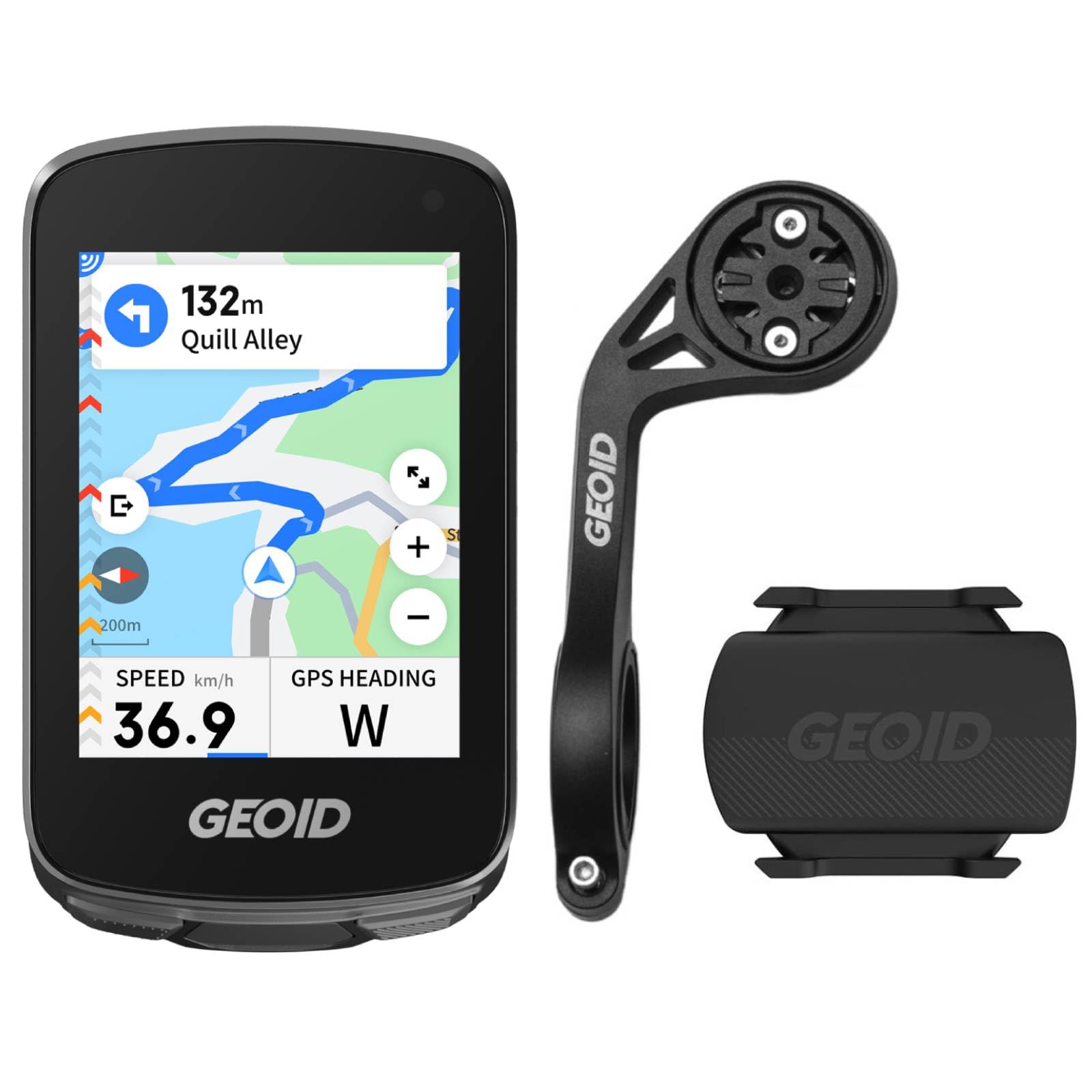
Figure 1: GEOID CC700 Pro GPS Bike Computer showing real-time navigation.
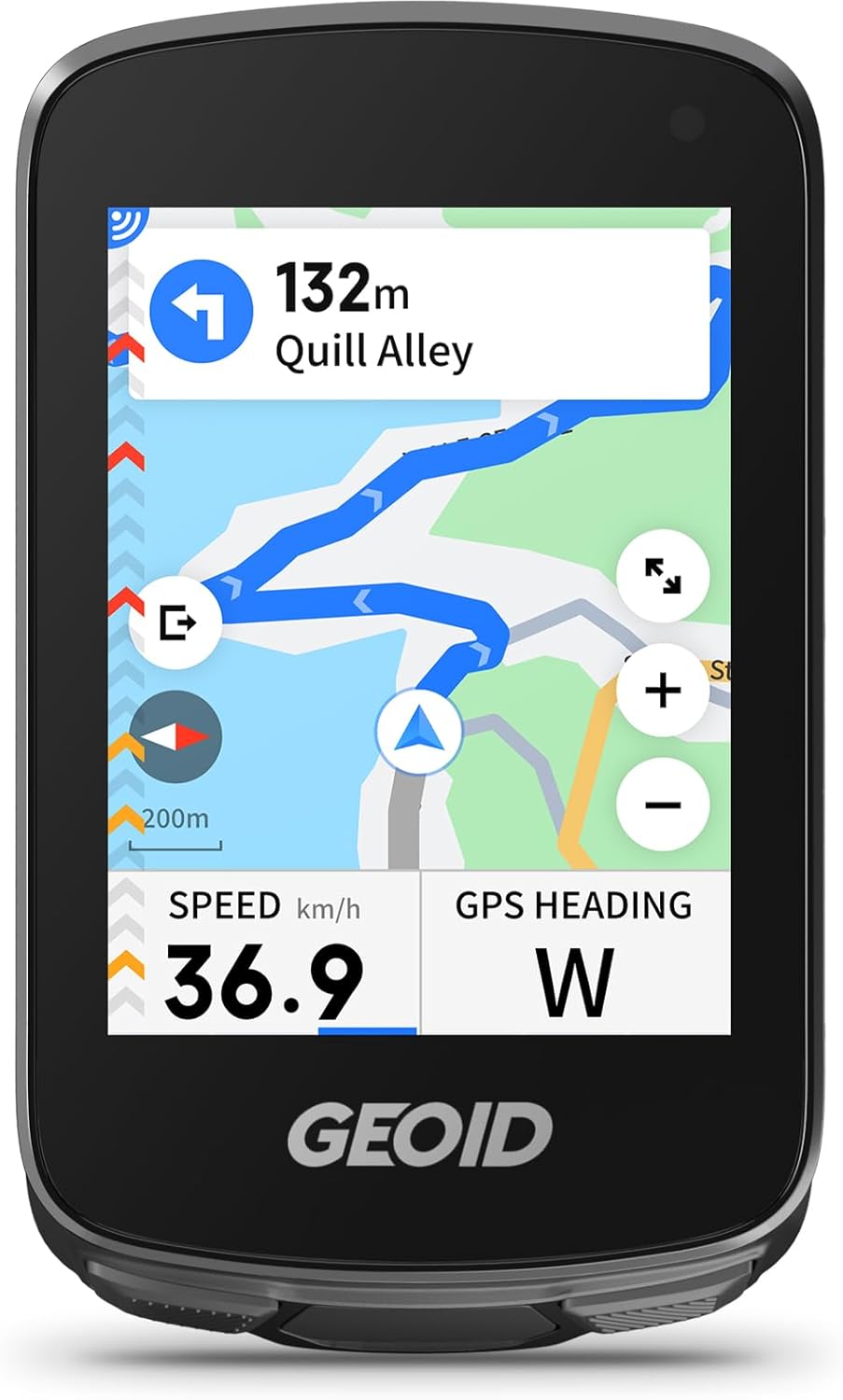
Figure 2: The CC700 Pro's clear display for map navigation and ride data.
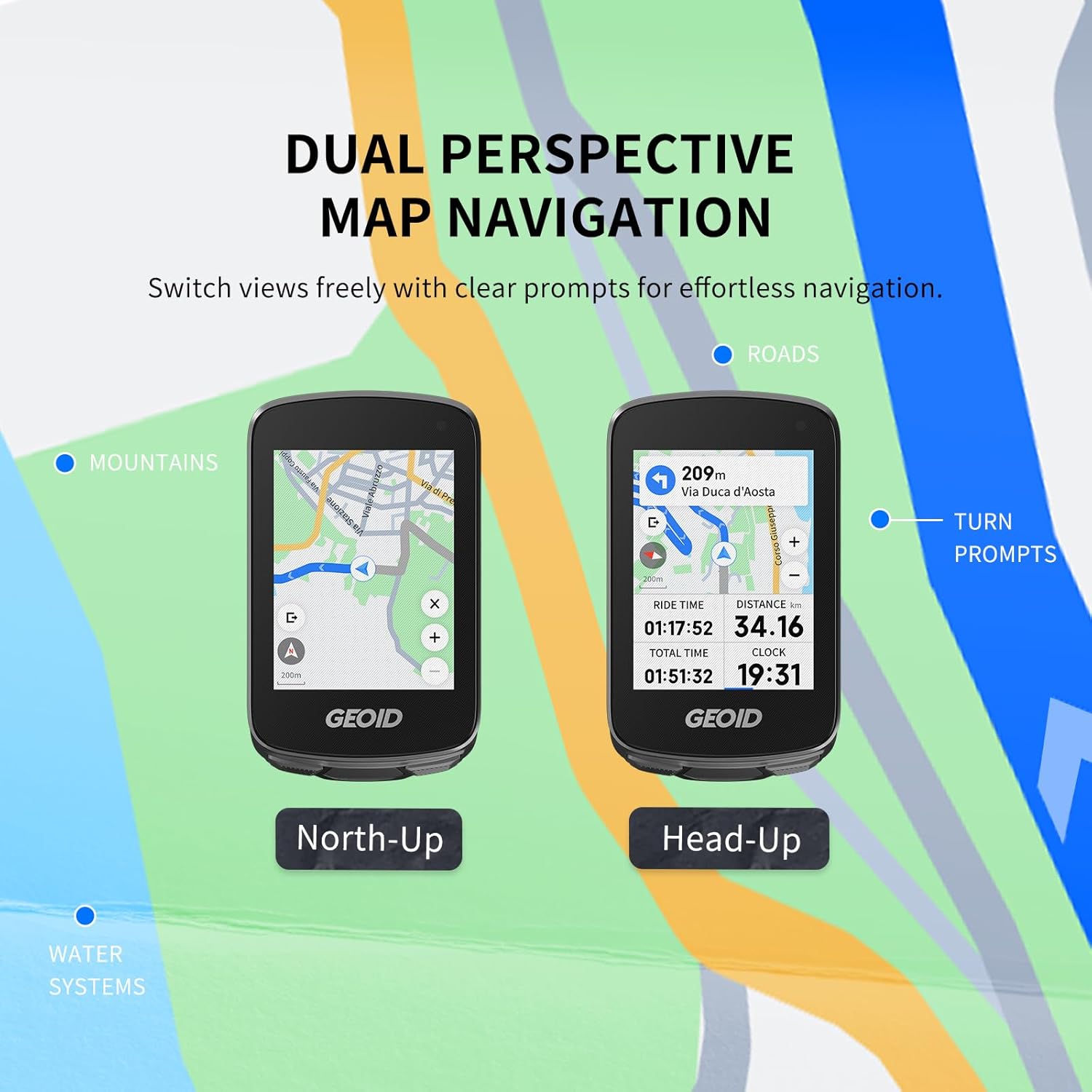
Figure 3: Dual perspective map navigation allows switching between North-Up and Head-Up views for effortless navigation.

Figure 4: Zoom functionality on the CC700 Pro map for exploring the road ahead or viewing the bigger picture.
1.2 GEOID CS600 Speed & Cadence Sensor
The CS600 is a 2-in-1 sensor that accurately measures both speed and cadence, essential for tracking your cycling performance.

Figure 5: The GEOID CS600 Speed & Cadence Sensor.

Figure 6: Key features of the CS600 sensor, including ANT+ & Bluetooth connectivity and IP66 waterproofing.
1.3 GEOID BM05 Handlebar Mount
The BM05 provides a secure and stable mounting solution for your bike computer on round handlebars.
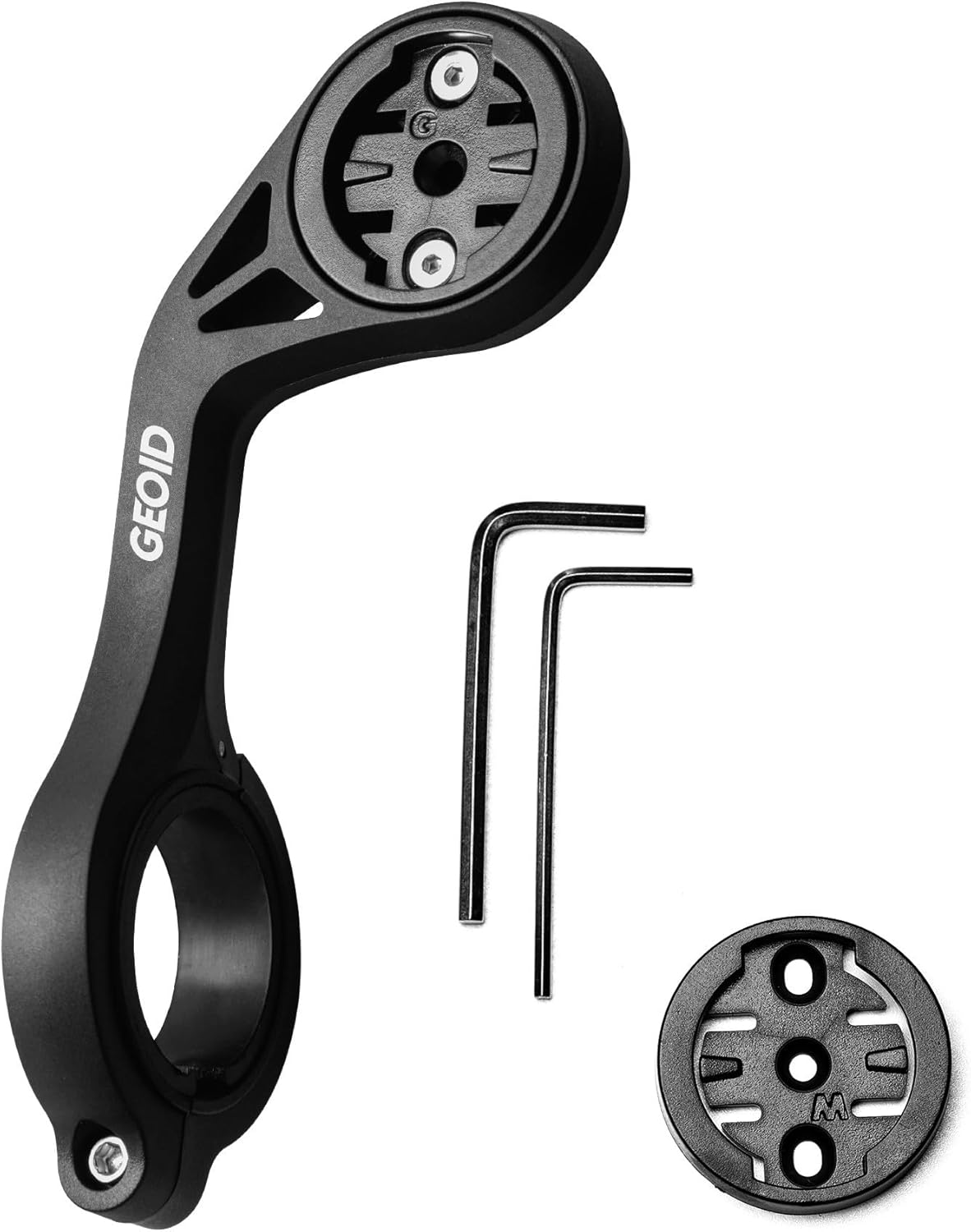
Figure 7: The BM05 Handlebar Mount, designed for secure attachment of your bike computer.

Figure 8: The BM05 mount installed on a bike, showcasing its robust and lightweight design.
2. Getting Started: Bike Computer Setup
2.1 Initial Configuration and Pairing
To begin using your GEOID CC700 Pro, you must first configure and pair it with the OnelapFit app on your smartphone.
Video 1: GEOID CC700 Pro Installation and Operation Guide. This video demonstrates the initial setup and pairing process with the OnelapFit app.
- Download OnelapFit: Cerca and download the 'OnelapFit' app from your phone's app store, or scan the QR code provided in the manual.
- Registre i inici de sessió: Complete the registration process and log in to the app. Ensure your personal information is updated.
- Power On Bike Computer: Press and hold the 'A' button on your CC700 Pro to power it on. A QR code will appear on the screen.
- Maridatge: In the OnelapFit app, tap the plus icon (+) in the upper right corner labeled 'Bike computer+'. Select the corresponding CC700 Pro model and scan the QR code displayed on your bike computer.
- Finalització: After successful pairing, your bike computer is ready for use.
2.2 Canvi d'unitats de mesura
You can easily switch between metric and imperial units, as well as adjust time and temperature units, via the OnelapFit app.
Video 2: How to Switch the Units From Metric to Imperial. This video demonstrates how to change measurement units within the OnelapFit app.
- Configuració d'accés: Open the OnelapFit app and navigate to the Device Settings page.
- Configuració de la funció: Click on 'Function Settings'.
- Preferències de la unitat: Tap 'Measurement Units' to switch between Metric and Imperial. Confirm your selection.
- Temps i temperatura: You can also change time and temperature units from this menu.
3. Modes de funcionament
3.1 Outdoor Cycling
For outdoor rides, the CC700 Pro tracks your performance using GPS and connected sensors.
- Start Ride: On the home screen of your bike computer, select 'Training', then choose 'Cycling mode'. Set your desired parameters and click 'Start Cycling'.
- Switch Pages: Press the 'B' button briefly to switch between different data display pages.
- Pausa/Reprèn: Press the 'C' button briefly to manually pause or resume your ride.
- Final de sessió: Press and hold the 'C' button to end the current riding session.
3.2 Entrenament en interiors
The CC700 Pro can also be used for indoor training, requiring connection to a stationary bike.
- Començar l'entrenament: On the home screen, select 'Training', choose 'Cycling Mode'. Set your parameters (e.g., resistance, grade) and click 'Start Cycling'.
- Switch Pages: Press and release the 'B' button to switch between data pages.
- Pausa/Reprèn: Press and release the 'C' button to manually pause or resume your indoor training.
- End Ride: Press and hold the 'C' button to end the ride.
4. Connexió del sensor
The GEOID CC700 Pro bike computer supports various sensors to provide comprehensive ride data.
The bike computer supports speed, cadence, heart rate, power, trainer, radar taillight, smart taillight, electronic shifting, and DJI action camera sensor device connectivity.
- Add Sensor: Navigate to the 'Sensors' menu on your bike computer. Select the type of sensor you wish to add or search for all available sensors. Click 'Add'.
- Manage Sensors: For already added sensors, you can delete or configure them as needed.
5. Bike Computer Settings
5.1 Gestió de la memòria
The bike computer stores your ride data. It's important to manage its memory to prevent data loss.
- When the bike computer's memory is full, new ride records will overwrite the oldest ones.
- Be sure to upload your rides to OnelapFit after each ride to avoid data loss.
- Tap 'Clear' to erase all ride records and navigation routes.
5.2 Restaura la configuració
If you need to reset your bike computer's configurations, you can use the restore settings option.
- Clicking 'Restore Settings' will reset the bike computer's ride settings, auto-shutdown, and other configurations to factory defaults.
- No data will be deleted during this process.
5.3 Configuració d'idioma
You can change the display language of your bike computer.
- Go to 'Settings' > 'Preferences' > 'Language' to switch languages.
5.4 Download Maps
To use navigation features, you may need to download maps for your region.
- Downloading maps requires a Wi-Fi connection.
- Tap 'File Manager' > 'Maps'. Select the country or region to download, then tap 'Download'.
5.5 AGNS (Assisted Global Navigation Satellite System)
AGNS significantly improves the positioning speed of your bike computer.
- Tap 'Synchronize' to update the bike computer's satellite ephemeris.
- When the bike computer has satellite ephemeris data, positioning speed will be significantly improved.
- We recommend connecting to Wi-Fi for automatic updates.
5.6 Bike Setup
Configure your bike profiles dins de l'aplicació.
- Tap 'Bikes' to add a bike and configure its settings (e.g., weight, wheel circumference).
- After setup, tap 'Select Bike' on the bike computer.
- Tu pots view which bike was used for this ride in your OnelapFit ride history.
5.7 Notificacions
Receive notifications from your smartphone directly on your bike computer.
- Select the app you want to receive notifications for in the OnelapFit app.
- When a message arrives, it will be announced on the bike computer.
5.8 Dial Settings
Customize the display of your ride data.
- Dial settings allow multiple ride modes to be configured, with each mode having its own dedicated dial settings.
- Tap or add 'Ride Mode' to configure the name, color, icon, and data fields.
- Tap 'Settings' to adjust the watch face layout, add or remove pages, or reorder them. Save your settings when finished.
- Note: Some graphical data fields require specific dimensions to be set. Design your watch face layout first, then add data fields.
6. Funcions de navegació
6.1 Create Navigation Routes
You can create and import custom navigation routes for your rides.
- Tap 'My Routes' to choose from:
- Creating your own route.
- Importing GPX routes from your phone.
- Importing past ride records.
- Importing Strava routes.
- Creació de mapes: Tap 'Map Creation' to manually input waypoints or tap the map to select a starting point. Continue inputting or tapping to select waypoints or the destination. Added waypoints can be modified or deleted.
- Import to Bike Computer: After setting the route, tap 'Import to Bike Computer'.
- Start Ride: On the bike computer, select 'Ride Mode', choose the imported route, and tap 'Start Ride'.
- Alternativa: While riding, when the bike computer is paused, tap to add or switch routes.
6.2 Navegació ràpida
For quick navigation to a specific destination.
- Tap 'Quick Navigation', enter and select your destination to plan the shortest route.
- Tap 'Start Navigation' to automatically activate navigation on your bike computer.
- If the bike computer is not in a ride session, it will automatically enter the first ride mode and begin navigation.
- If the bike computer is already in a ride session, it will automatically add the new navigation route without affecting the current ride recording.
6.3 Yaw Replanning (Rerouting)
The device supports automatic rerouting if you deviate from your planned course.
- During navigation, if you take a wrong turn, the bike computer will automatically reroute you back to the original path while maintaining its connection with OnelapFit.
- We recommend adding OnelapFit to your device's whitelist to prevent it from being shut down by the system after screen lock, which could disrupt successful rerouting.
7. Personalization & Integration
7.1 Informació personal
Configure your personal data to help us provide you with enhanced features and accurate performance metrics.
- Feu clic per entrar profile settings and fill in your personal information (e.g., gender, date of birth, height, weight, FTP, Max HR, bike weight).
7.2 Application Authorization
Integrate your ride data with popular third-party platforms.
- OnelapFit provides convenient third-party platform distribution services for your data.
- Currently supporting Strava and TrainingPeaks, linking your accounts enables automatic upload functionality.
- Your ride records will be automatically uploaded to third-party platforms when connected to OnelapFit.
8. Especificacions
For detailed technical specifications of the GEOID CC700 Pro, CS600, and BM05, please refer to the product packaging or the official GEOID weblloc.
9. Manteniment
To ensure the longevity and optimal performance of your devices, follow these general maintenance guidelines:
- Mantingueu els dispositius nets i secs. Netegeu-los amb un drap suau i sec.amp tela.
- Avoid exposing the devices to extreme temperatures or direct sunlight for prolonged periods.
- Regularly check the mounting for security and tightness.
- Charge the bike computer regularly to maintain battery health.
10. Solució De Problemes
If you encounter any issues with your GEOID products, consider the following basic troubleshooting steps:
- El dispositiu no s'encén: Assegureu-vos que el dispositiu estigui completament carregat.
- Problemes d'aparellament: Check that Bluetooth is enabled on your phone and the device, and that the device is in pairing mode. Restart both devices.
- Dades inexactes: Ensure sensors are correctly installed and paired. Check for any obstructions. For GPS, ensure a clear view del cel.
- Connectivitat de l'aplicació: Verify your phone's internet connection and that the OnelapFit app is up to date.
- Actualitzacions de firmware: Regularly check for and install firmware updates via the OnelapFit app to ensure optimal performance and new features.
For more advanced troubleshooting or persistent issues, please contact GEOID customer support.
11. Garantia i Suport
GEOID products come with a manufacturer's warranty. For specific warranty terms, duration, and how to claim support, please refer to the warranty card included with your product or visit the official GEOID weblloc.
For technical assistance, product inquiries, or customer service, please visit the GEOID Store on Amazon or contact GEOID customer support directly.