
1. Configuració
This section guides you through the initial setup of your ATTACK SHARK R68 HE keyboard.
1.1 Connexió del teclat
The R68 HE keyboard is a wired device. Connect the provided USB-C cable to the keyboard's port and the other end to an available USB port on your PC or Mac. The keyboard will be automatically recognized by your operating system.
1.2 Instal·lació de controladors i programari
For full customization and advanced features, it is recommended to use the dedicated software. You can access the web-based driver or download the software from the official ATTACK SHARK weblloc.
Quick Calibration Guide
Follow these steps to calibrate your keyboard for optimal performance:
- Obriu el web driver or the downloaded software.
- In the "Keyboard Setting" panel, find "Travel Calibration" on the right side and click it.
- In the pop-up window, select "Start Calibration."
- Follow the on-screen instructions, then click "Calibration Complete" to finish.

Image: Software interface showing the steps for quick calibration, including selecting 'Travel Calibration' and 'Start Calibration'.
2. Instruccions de funcionament
Understand the advanced features and controls of your R68 HE keyboard.
2.1 Característiques de rendiment
The R68 HE is engineered for high-performance gaming:
- Rapid Trigger (RT) Technology: Features 0.005mm adjustable RT technology for ultra-fast keystroke registration and lightning-fast stops.
- Latència ultra baixa: Achieves 0.08ms latency with an 8000Hz polling rate.
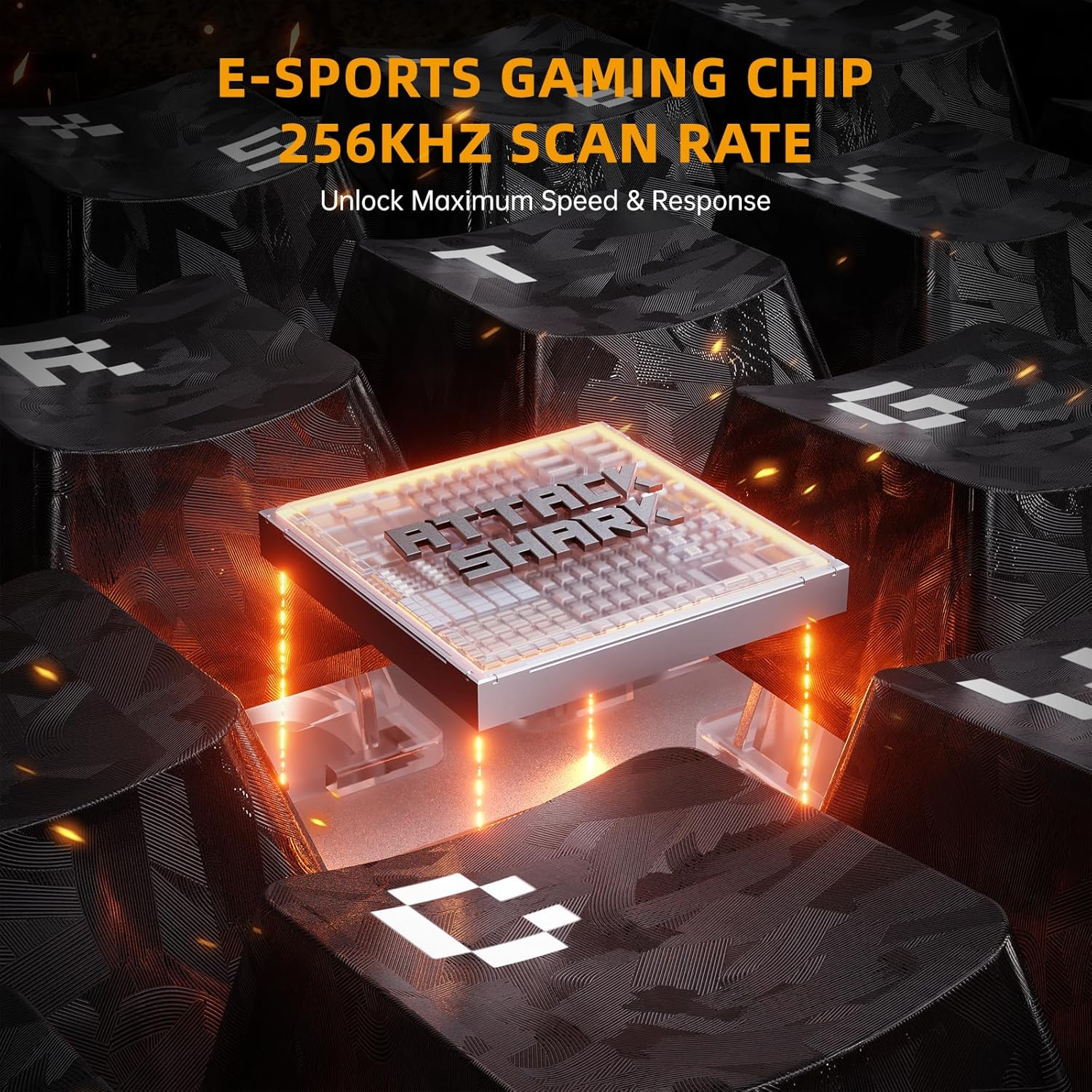
- Alta velocitat d'escaneig: Equipped with a 256K scan rate for maximum speed and response.
- Adjustable Actuation Point: Customize the actuation distance from 0.1mm to 3.4mm across the entire key travel.
- Dynamic Keystrokes: Supports advanced functions like DKS (Dynamic Key Stroke), MT (Macro Trigger), and TGL (Toggle).

Image: A composite image highlighting key features such as 8000Hz polling rate, 0.005mm RT accuracy, 256K scan rate, and adjustable actuation point.
2.2 Hall Effect Magnetic Switches
The keyboard features pre-installed custom magnetic switches that offer a smooth feel and precise actuation. These switches are hot-swappable, allowing you to replace them with 8 types of high-performance magnetic switches to suit your playstyle.
Imatge: Detallada view of a magnetic switch, illustrating its components and specifications.
2.3 Personalització de la il·luminació RGB
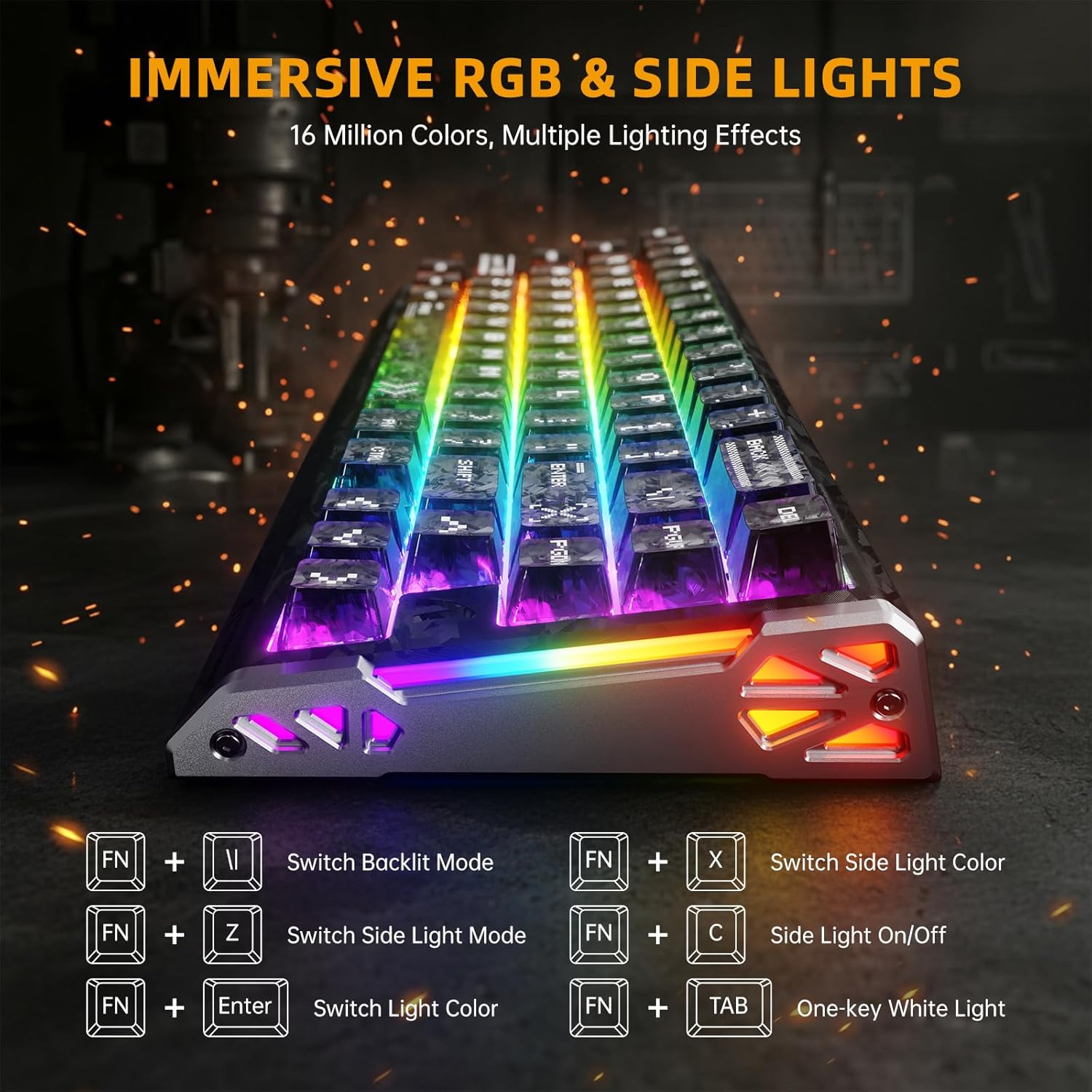
Elevate your setup with dual-sided dynamic RGB light strips and custom per-key RGB featuring 16.8 million colors. Use the following FN key combinations to control the lighting:
- FN + \|: Switch Backlit Mode
- FN + X: Switch Side Light Color
- FN + Z: Switch Side Light Mode
- FN + C: Side Light On/Off
- FN + Intro: Interruptor de color de la llum
- FN + Tab: One-key White Light
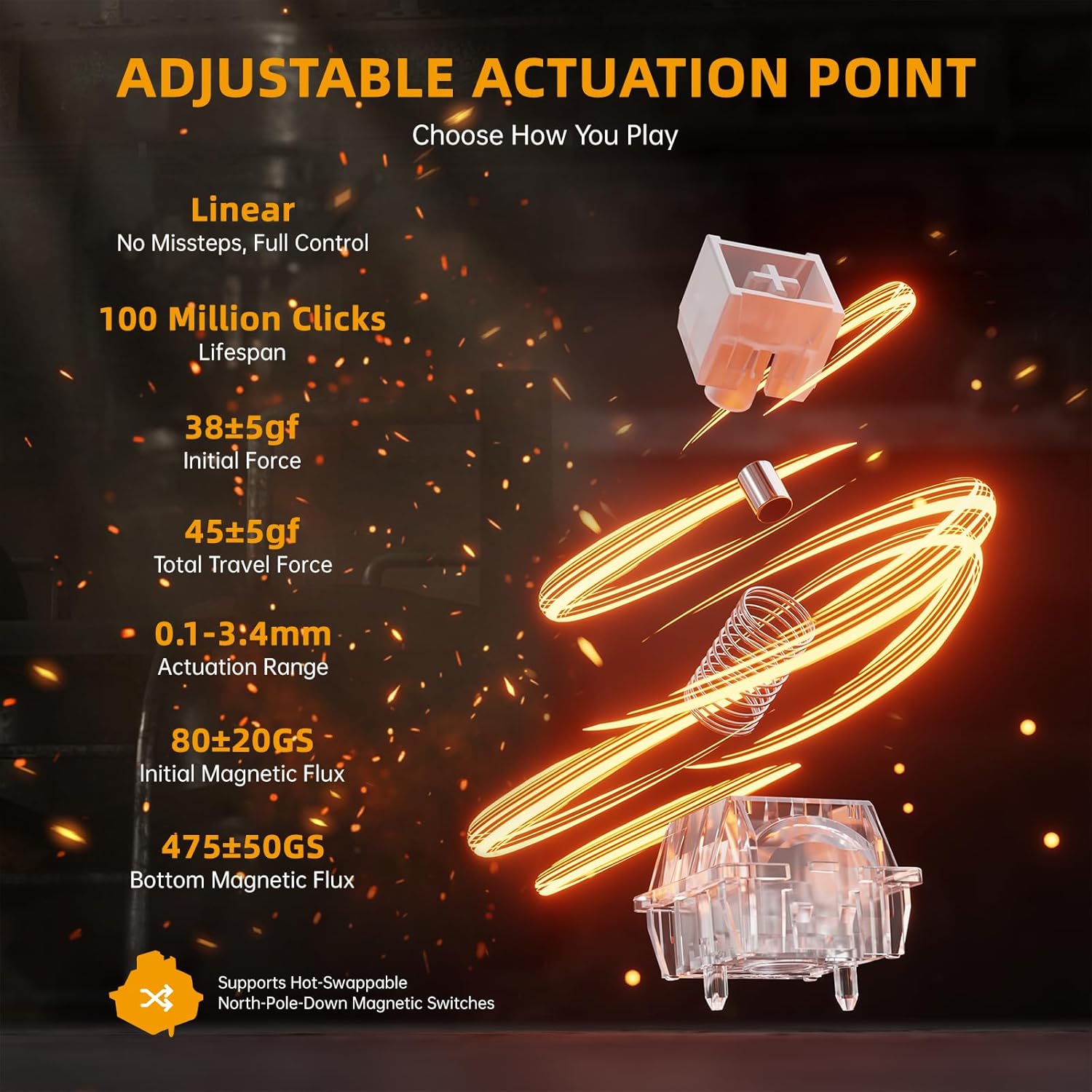
Image: The keyboard displaying various RGB lighting effects, with a diagram of FN key combinations for lighting control.
2.4 Macro Programming and Compatibility
L'intuïtiu web-based driver or downloaded software allows for full-key macro programming. Create complex macros like Rapid Trigger (RT), SOCD (Simultaneous Opposite Cardinal Directions), and other advanced functions. Your settings are saved even when you switch devices. The keyboard is compatible with Windows and Mac systems.
Vídeo: Presentació oficial del producte en vídeoasing the ATTACK SHARK R68 HE keyboard's features, including its rapid trigger, low latency, magnetic switches, and customizable RGB lighting. This video provides a visual demonstration of the keyboard's performance and design.
3. Manteniment
Un manteniment adequat garanteix la longevitat i el rendiment del teclat.
3.1 Neteja del teclat
Per netejar el teclat, desconnecteu-lo de l'ordinador. Feu servir un drap suau i sense borrissol lleugerament humit.ampNetegeu les tecles i el xassís amb aigua o una solució de neteja suau. Per a la pols i les restes entre les tecles, utilitzeu aire comprimit. Eviteu ruixar líquids directament sobre el teclat.
3.2 Cura de les tecles i els interruptors
The R68 HE features hot-swappable magnetic switches. If you wish to replace keycaps or switches, use the provided keycap puller and switch puller tools. Gently pull keycaps straight up to remove them. For switches, use the switch puller to carefully dislodge them. Ensure proper alignment when reinserting to avoid damage.
So Dampsistema entingut
The keyboard incorporates a 6-layer sound dampening system for an optimal typing sound. This internal structure is not user-serviceable and should not be disassembled.
Imatge: Una explosió view diagram of the keyboard's internal 6-layer sound dampening structure.
4. Solució De Problemes
Consulteu aquesta secció per obtenir solucions a problemes comuns.
4.1 Keyboard Not Connecting/Responding
- Comproveu la connexió del cable: Ensure the USB-C cable is securely plugged into both the keyboard and your computer. Try a different USB port.
- Reinicieu l'ordinador: Un simple reinici sovint pot resoldre problemes de connectivitat.
- Driver/Software Check: Verify that the keyboard software is installed correctly and up to date. Reinstall if necessary.
- Prova en un altre dispositiu: Si és possible, prova el teclat en un altre ordinador per determinar si el problema és del teclat o del sistema.
4.2 La il·luminació RGB no funciona correctament
- Check FN Key Combinations: Ensure you are using the correct FN key combinations to cycle through lighting modes and colors (refer to section 2.3).
- Configuració del programari: Open the keyboard software and check the RGB lighting settings. Ensure no profiles are overriding your desired effects.
- Actualització del firmware: Check for any available firmware updates for your keyboard through the official software.
4.3 Les tecles no es registren o es teclegen dues vegades
- Neteja sota les tecles: Dust or debris under the keycaps can interfere with switch operation. Refer to section 3.1 for cleaning instructions.
- Recalibrate Switches: Perform the travel calibration process as described in section 1.2.
- Comproveu si hi ha danys físics: Inspect the affected switch for any visible damage. If a switch is faulty, it may need to be replaced (refer to section 3.2).
5. Especificacions
Detailed technical specifications for the ATTACK SHARK R68 HE keyboard.
| Característica | Detall |
|---|---|
| Marca | ATACA AL TAURON |
| Model | R68 HE |
| Tecnologia de connectivitat | USB-C amb cable |
| Descripció del teclat | Mecànica |
| Tipus de canvi | Linear Hall Effect Magnetic Switch |
| Taxa de votació | 8 KHz |
| Latència | 0.08 ms |
| Precisió RT | 0.005 mm |
| Velocitat d'escaneig | 256K |
| Rang d'actuació | 0.1-3.4 mm (ajustable) |
| Material de claus | PBT (Forged Carbon Fiber Pattern) |
| Material del xassís | Carbon Fiber (top case), CNC Aluminum Alloy (side accents) |
| So Dampening | 6-Layer Filling System |
| Il·luminació de fons | Custom Per-Key RGB, Dual-sided Dynamic RGB Strips |
| Nombre de claus | 68 |
| Disposició del teclat | 60% ANSI (QWERTY) |
| Dispositius compatibles | PC, Mac, ordinador portàtil |
| Suport del sistema operatiu | Windows 10+, Mac OS 10.15+ |
6. Garantia i assistència
ATTACK SHARK products are manufactured to high-quality standards. This product comes with a standard manufacturer's warranty against defects in materials and workmanship.
6.1 Informació de la garantia
Please retain your proof of purchase for warranty claims. The warranty period typically covers manufacturing defects under normal use. Damage resulting from misuse, accidents, unauthorized modifications, or improper installation is not covered.
6.2 Atenció al client
For technical assistance, warranty claims, or product inquiries, please contact ATTACK SHARK customer support through their official website or the retailer where you purchased the product. You can also visit the Botiga ATTACK SHARK a Amazon per obtenir més informació i recursos de suport.