
1. Introducció
This manual provides essential information for the safe and efficient use of your Kyocera ECOSYS MZ3201ix A3 Laser Multifunction Printer. Please read this manual thoroughly before operating the device and keep it for future reference.
Producte acabatview
The Kyocera ECOSYS MZ3201ix is a versatile A3 laser multifunction printer designed for both office and home office environments. It offers high-resolution printing, copying, scanning, and faxing capabilities, ensuring efficient document management.
Característiques principals:
- Print resolution up to 1200 dpi.
- Print speed up to 32/17 pages A4/A3 per minute in black and white.
- 100-sheet universal feeder and 500-sheet cassette.
- Duplex unit for double-sided printing (DIN A5 - DIN A3).
- Integrated high-level security features.
- Automatic Document Feeder (ADF).
- Network-ready with Ethernet and USB connectivity.
- Scan to email functionality.
- Intuitive touch screen interface.
2. Informació de seguretat
Observeu sempre les següents precaucions de seguretat per evitar lesions o danys al dispositiu.
- Font d'alimentació: Connecteu la impressora només a una presa de corrent amb connexió a terra i el voltatge correcte.tage. No sobrecarregueu les preses de corrent.
- Col·locació: Place the printer on a stable, level surface. Ensure adequate ventilation around the device. Avoid placing it near water or heat sources.
- Manipulació: No intenteu desmuntar ni modificar la impressora. Encarregueu totes les tasques de manteniment a personal qualificat.
- Consumibles: Use only genuine Kyocera toner and parts. Keep toner cartridges out of reach of children.
- Moure el dispositiu: The printer is heavy (49 kg). Use appropriate lifting techniques or assistance when moving it to prevent injury.
3. Què hi ha a la caixa
Desembaleu la caixa amb cura i assegureu-vos que hi hagi tots els elements:
- Kyocera ECOSYS MZ3201ix Multifunction System
- Cartutx de tòner
- Contenidor de residus de tòner
- Cable d'alimentació
- Instruccions de seguretat
- Guia d'inici ràpid
If any items are missing or damaged, please contact your vendor or Kyocera support.
4. Configuració
4.1 Desembalatge i col·locació
- Traieu tots els materials d'embalatge, les cintes adhesives i les pel·lícules protectores de la impressora.
- Place the printer on a sturdy, level surface capable of supporting its weight (approximately 49 kg). Ensure there is sufficient space around the printer for ventilation and access to trays and covers.
4.2 Connexió del cable d'alimentació
- Connect the power cable to the power input on the rear of the printer.
- Connecteu l'altre extrem del cable d'alimentació a una presa de corrent amb connexió a terra.
4.3 Installing Toner and Waste Toner Container
- Obriu la coberta frontal de la impressora.
- Insert the toner cartridge according to the instructions provided on the cartridge and inside the printer.
- Insert the waste toner container into its designated slot.
- Tanqueu la coberta frontal de manera segura.
4.4 Càrrega de paper
- Pull out the paper cassette (standard 500-sheet tray or 100-sheet universal feeder).
- Adjust the paper guides to the size of the paper you are loading (supports A5 to A3).
- Carregueu la pila de paper, assegurant-vos que no superi la línia d'ompliment màxim.
- Empenyeu suaument el calaix de paper cap a dins de la impressora.
4.5 Connexió de xarxa i USB
- Per a la connexió de xarxa (Ethernet): Connect an Ethernet cable from your network router/switch to the LAN port on the printer.
- For Direct Connection (USB): Connect a USB 2.0 cable from your computer to the USB port on the printer.
4.6 Instal·lació del programari
- Enceneu la impressora amb el botó d'encesa.
- Follow the on-screen instructions on the printer's touch screen for initial setup, including language and network settings.
- On your computer, insert the driver CD (if provided) or download the latest drivers and utility software from the official Kyocera weblloc.
- Run the installer and follow the prompts to install the printer drivers and software.
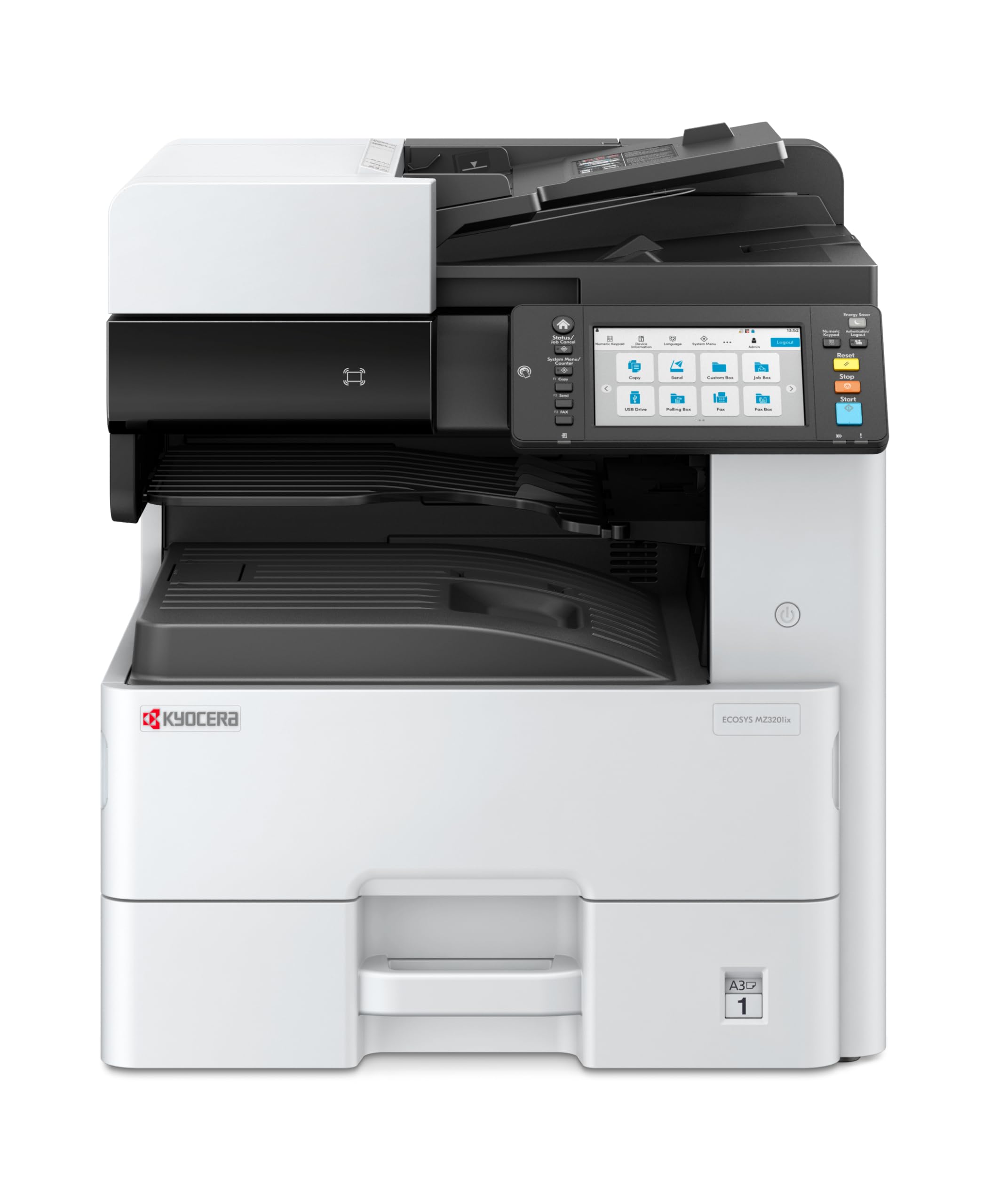
Image 1: Kyocera ECOSYS MZ3201ix A3 Laser Multifunction Printer. This image shows the front view of the printer, highlighting its compact design and the integrated touch screen panel.
5. Instruccions de funcionament
5.1 Impressió bàsica
- Obriu el document que voleu imprimir a l'ordinador.
- Seleccioneu File > Imprimeix.
- Choose the Kyocera ECOSYS MZ3201ix from the list of available printers.
- Ajusteu la configuració d'impressió (per exemple, el nombre de còpies, la mida del paper, la impressió a doble cara) segons calgui.
- Feu clic Imprimeix.
5.2 Còpia de documents
- Col·loqueu el document cara avall sobre el vidre de l'escàner o cara amunt a l'alimentador automàtic de documents (ADF).
- On the printer's touch screen, select the Còpia funció.
- Adjust settings such as number of copies (up to 999), zoom, and paper type.
- Premeu el botó Comença botó per començar a copiar.
5.3 Escaneig de documents
- Col·loqueu el document al vidre de l'escàner o a l'ADF.
- On the printer's touch screen, select the Escaneja funció.
- Choose your desired scan destination (e.g., Scan to PC, Scan to Email, Scan to USB).
- Configure scan settings such as resolution (up to 1200 x 1200 dpi), color mode, and file format.
- Premeu el botó Comença botó per començar a escanejar.
5.4 Enviament de documents per fax
(Note: Fax functionality requires a telephone line connection, not detailed in this manual.)
- Col·loqueu el document al vidre de l'escàner o a l'ADF.
- On the printer's touch screen, select the Fax funció.
- Introduïu el número de fax del destinatari amb el teclat numèric.
- Ajusteu els paràmetres de fax necessaris.
- Premeu el botó Comença botó per enviar el fax.
6. Manteniment
Un manteniment regular garanteix un rendiment òptim i allarga la vida útil de la impressora.
6.1 Neteja de la impressora
- Exterior: Netegeu les superfícies exteriors amb un damp, drap sense borrissol. No utilitzeu productes de neteja abrasius ni dissolvents.
- Vidre de l'escàner: Gently clean the scanner glass with a soft cloth and a non-abrasive glass cleaner.
- Rodets de l'ADF: Netegeu periòdicament els rodets de l'ADF amb un drap sense borrissolampened with isopropyl alcohol to prevent paper jams.
6.2 Replacing Toner Cartridge
- When the printer indicates low toner, order a new Kyocera toner cartridge.
- Obriu la coberta frontal de la impressora.
- Traieu el cartutx de tòner buit estirant-lo cap enfora.
- Desembaleu el nou cartutx de tòner i sacsegeu-lo suaument per distribuir el tòner.
- Insert the new toner cartridge firmly into its slot until it clicks into place.
- Tanqueu la coberta frontal.
6.3 Replacing Waste Toner Container
- When the printer indicates the waste toner container is full, prepare a new one.
- Open the cover that provides access to the waste toner container.
- Carefully remove the full waste toner container. Seal it in a plastic bag for proper disposal.
- Insert the new waste toner container into its slot.
- Tanqueu la coberta.
7. Solució De Problemes
Aquesta secció tracta els problemes habituals que podeu trobar amb la impressora.
7.1 Embussos de paper
- Símptoma: Printer stops, and an error message indicates a paper jam.
- Solució: Turn off the printer. Open all covers and trays. Carefully remove any jammed paper, pulling in the direction of the paper path. Ensure no small pieces of paper remain. Close all covers and restart the printer.
7.2 Mala qualitat d'impressió
- Símptoma: Faded prints, streaks, or spots on pages.
- Solució: Check toner level and replace if low. Perform a print head cleaning or calibration from the printer's maintenance menu. Ensure you are using appropriate paper for your print job.
7.3 La impressora no respon
- Símptoma: Printer is online but does not print documents sent from the computer.
- Solució: Check all cable connections (USB/Ethernet). Restart both the printer and your computer. Verify that the correct printer driver is installed and selected. Check the printer's network settings if connected via Ethernet.
7.4 Codis d'error
If an error code appears on the touch screen, refer to the comprehensive user manual (available on the Kyocera website) for specific instructions related to that code. Many codes indicate specific issues like open covers, paper jams, or consumable replacement needs.
8. Especificacions
| Característica | Especificació |
|---|---|
| Marca | Kyocera |
| Nom del model | ECOSYS MZ3201ix |
| Número de model | 110C2V3NL0 |
| Tecnologia de connectivitat | Ethernet, USB 2.0 |
| Tecnologia d'impressió | Làser |
| Característiques especials | Automatic Document Feeder, Auto-Duplex, Network Ready, Scan to Email, Touch Screen |
| Sortida de la impressora | Monocrom |
| Max Print Speed Black & White | 32 Pages per minute (A4) |
| Pes de l'article | 49 quilos |
| Dimensions del producte (PxWxH) | 58.5P x 59l x 68.8h cm |
| Max Print Resolution Black & White | 1200 x 1200 ppp |
| Resolució de l'escàner | 1200 x 1200 ppp |
| Impressió dúplex | Automàtic |
| Max Copy Count | 999 |
| Temps de sortida de la primera pàgina | 5.2 segons |
| Max Supported Paper Size | A3 |
| Capacitat màxima del full d'entrada | 1600 |
| Printing Media Type | Paper plà |
| Funcions | Copy, Fax, Scan, Print |
9. Garantia i Suport
Your Kyocera ECOSYS MZ3201ix printer comes with a standard manufacturer's warranty. For detailed information regarding warranty terms, duration, and coverage, please refer to the warranty card included with your product or visit the official Kyocera weblloc.
Atenció al client:
If you encounter any issues that cannot be resolved using this manual or require technical assistance, please contact Kyocera customer support. You can find contact information on the Kyocera weblloc web o a la documentació que s'inclou amb la impressora.
When contacting support, please have your printer's model name (ECOSYS MZ3201ix) and serial number ready. The serial number is typically located on a label on the back or bottom of the printer.