
1. Introducció
The Beelink SER5 MAX Mini PC is a compact and powerful desktop computer designed for various applications, including office work, multimedia consumption, and light gaming. It features an AMD Ryzen 7 7735U processor, 16GB LPDDR5 RAM, and a 500GB PCIe SSD, offering efficient performance in a small form factor. This manual provides essential information for setting up, operating, maintaining, and troubleshooting your device.

Figure 1: Beelink SER5 MAX Mini PC Key Features
2. Què hi ha a la caixa
Please check the contents of your package upon arrival. If any items are missing or damaged, contact customer support.
- Beelink SER5 MAX Mini PC
- Manual d'usuari
- Cable HDMI
- Adaptador d'alimentació

Figura 2: Contingut del paquet
3. Producte acabatview
Familiarize yourself with the ports and components of your Beelink SER5 MAX Mini PC.
3.1 Tauler frontal
- CLR CMOS Button: S'utilitza per esborrar la configuració del CMOS.
- USB 3.2 Gen2 (10Gbps) Ports: Ports USB d'alta velocitat per a la transferència de dades.
- Ports USB 2.0: Ports USB estàndard per a perifèrics.
- Auriculars Jack: Per a la sortida d'àudio.
- Type-C (10Gbps) Port: Supports data and video output (up to 4K 144Hz).
- Botó d'encesa: Per encendre o apagar el dispositiu.
3.2 Panell posterior
- LAN (2.5Gbps) Port: Per a la connexió de xarxa amb cable.
- USB 3.2 Gen2 (10Gbps) Ports: Ports USB d'alta velocitat per a la transferència de dades.
- Ports USB 2.0: Ports USB estàndard per a perifèrics.
- DP 1.4 Port: DisplayPort for video output (up to 4K 144Hz).
- Port HDMI 2.0: HDMI for video output (up to 4K 60Hz).
- DC-in Port: Per connectar l'adaptador de corrent.
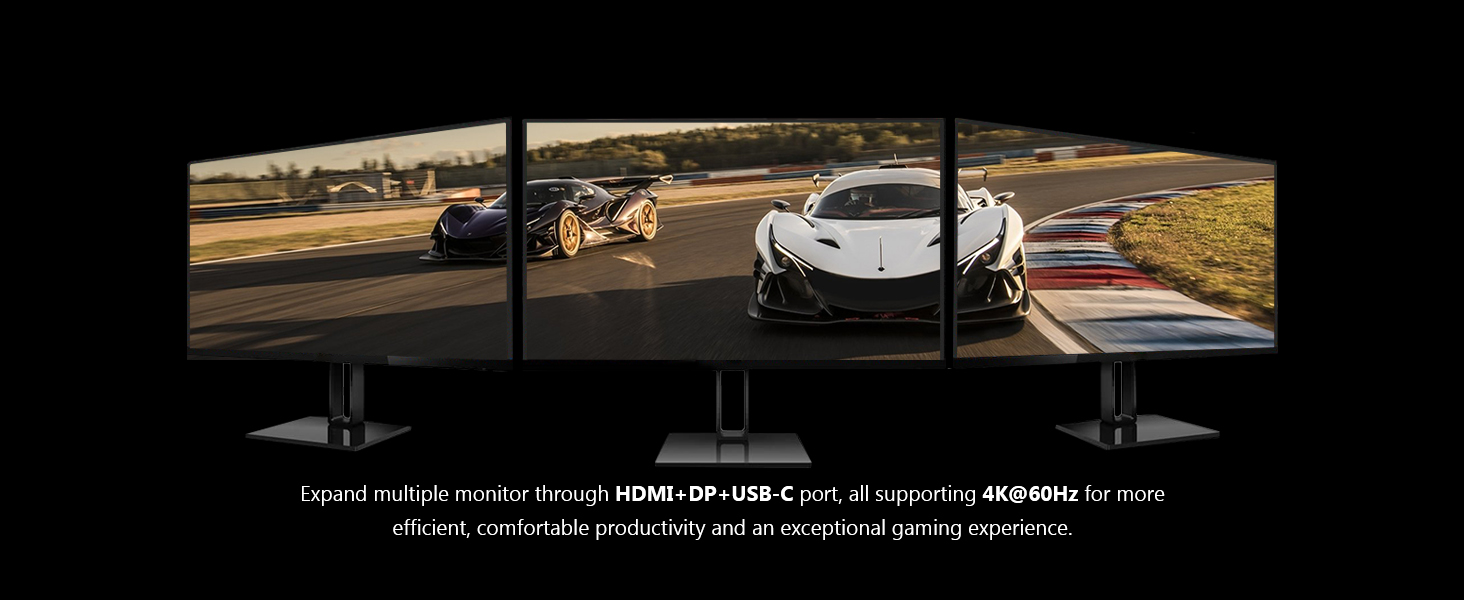
Figure 3: Front and Rear Panel Ports
4. Configuració
Follow these steps to set up your Beelink SER5 MAX Mini PC.
- Connecteu els perifèrics: Connect your monitor(s) to the HDMI, DisplayPort, or Type-C ports. Connect your keyboard and mouse to the available USB ports.
- Connecteu-vos a la xarxa: For a wired connection, plug an Ethernet cable into the LAN port. For wireless, ensure your Wi-Fi network is available.
- Connectar l'alimentació: Plug the power adapter into the DC-in port on the rear panel, then plug the adapter into a power outlet.
- Encès: Press the power button on the front panel. The device will boot up, and you should see the operating system (Windows 11 Pro) load on your monitor.
- Configuració inicial: Seguiu les instruccions que apareixen a la pantalla per completar la configuració inicial del Windows 11 Pro, incloent-hi l'idioma, la regió, la connexió de xarxa i la creació del compte d'usuari.
5. Instruccions de funcionament
5.1 Engegar/apagar i reiniciar
- Encès: Premeu el botó d'encesa.
- Apagar: From the Windows desktop, click the Start button, then Power > Shut down.
- Reinicia: From the Windows desktop, click the Start button, then Power > Restart.
5.2 Connectivitat de xarxa
- Cablejat (Ethernet): Connect an Ethernet cable to the LAN port. The system will automatically detect the connection.
- Wireless (Wi-Fi 6): Go to Windows Settings > Network & internet > Wi-Fi. Select your network and enter the password. The device supports Wi-Fi 6 for faster and more stable connections.
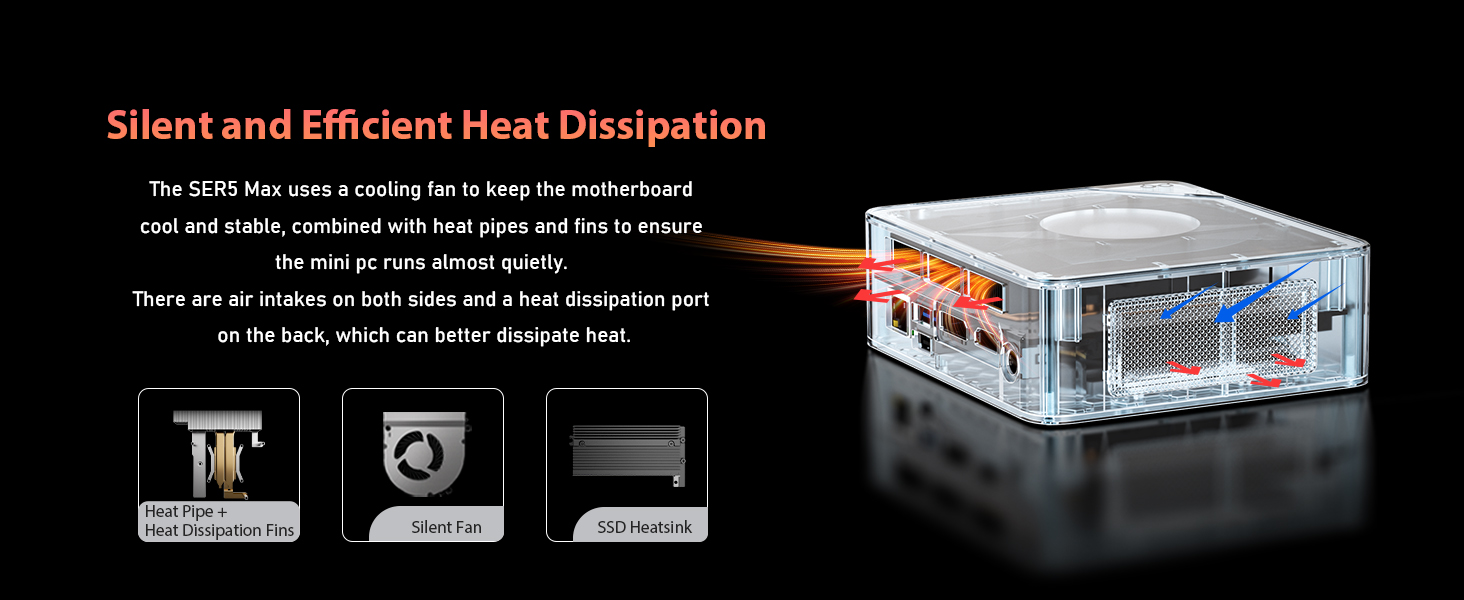
Figure 4: High-Speed Wireless Connectivity
5.3 Multiple Display Setup
The Beelink SER5 MAX supports up to three displays simultaneously via HDMI, DisplayPort, and Type-C ports, all supporting 4K resolution.
- Connect your monitors to the available video output ports.
- Feu clic amb el botó dret a l'escriptori i seleccioneu "Configuració de la pantalla".
- Detect and arrange your displays as needed (Extend, Duplicate, or Show only on one).

Figure 5: Triple Display Output
6. Manteniment
6.1 Neteja
Regularly clean the exterior of the mini PC with a soft, dry cloth. Ensure ventilation openings are free from dust to maintain optimal cooling performance. Do not use liquid cleaners directly on the device.
6.2 Expansió d'emmagatzematge
The SER5 MAX Mini PC is equipped with dual M.2 PCIe SSD slots, each supporting up to 4TB for a total of 8TB of storage. You can expand the storage by installing additional M.2 PCIe SSDs.
- Apagueu el dispositiu i desconnecteu tots els cables.
- Carefully open the chassis according to the detailed instructions in the full service manual (not included here).
- Install the M.2 PCIe SSD into an available slot.
- Secure the SSD and close the chassis.
- Power on the device. You may need to initialize and format the new drive in Windows Disk Management.

Figure 6: Dual M.2 PCIe SSD Slots for Storage Expansion
6.3 Sistema de refrigeració
The SER5 MAX features an efficient cooling system with a CPU fan, heat sink, and heat pipes to maintain optimal operating temperatures and ensure quiet operation. Ensure proper airflow around the device.

Figura 7: Sistema de refrigeració eficient
7. Solució De Problemes
Aquesta secció tracta problemes comuns que podeu trobar.
- Sense energia:
- Ensure the power adapter is securely connected to the mini PC and a working power outlet.
- Verifiqueu que la presa de corrent funciona connectant-hi un altre dispositiu.
- Sense pantalla:
- Check that the monitor is powered on and the video cable (HDMI, DP, or Type-C) is securely connected to both the mini PC and the monitor.
- Ensure the monitor's input source is set correctly.
- Try connecting to a different monitor or using a different video cable.
- Sense connexió a Internet:
- For wired connections, ensure the Ethernet cable is properly connected and your router is working.
- For Wi-Fi, check if Wi-Fi is enabled in Windows settings and if you are connected to the correct network with the correct password.
- Restart your router and the mini PC.
- Alentiment del sistema:
- Tanca les aplicacions innecessàries que s'executen en segon pla.
- Check for sufficient free storage space on your SSD.
- Ensure the cooling vents are not obstructed.
- Reset CMOS: If you encounter boot issues or incorrect BIOS settings, you can use the CLR CMOS button on the front panel. Refer to the full service manual for detailed instructions on using this feature.
8. Especificacions
Detailed technical specifications for the Beelink SER5 MAX Mini PC.

Figura 8: Especificacions del producte a continuacióview
| Característica | Especificació |
|---|---|
| Marca | Beelink |
| Model | SER5 MAX 7735U |
| Sistema operatiu | Windows 11 Pro |
| Model de CPU | AMD Ryzen 7 7735U (8 Cores/16 Threads, 3.2GHz up to 4.75GHz) |
| Coprocessador gràfic | AMD Radeon Graphics 8 Core 2200MHz |
| Memòria RAM instal·lada | 16 GB LPDDR5 6300MHz |
| Capacitat d'emmagatzematge de memòria | 500 GB SSD (M.2 PCIe) |
| Ampliació d'emmagatzematge | Dual M.2 PCIe SSD slots (up to 4TB each) |
| Sortida de vídeo | HDMI 2.0 (4K@60Hz), DisplayPort 1.4 (4K@144Hz), USB Type-C (4K@144Hz) |
| Connectivitat | Wi-Fi 6, Bluetooth 5.2, Gigabit Ethernet (2.5Gbps) |
| Ports USB | 3x USB 3.2 Gen2, 2x USB 2.0, 1x USB Type-C |
| Característiques addicionals | Wake on LAN, Auto Power On, CLR CMOS button |
| Dimensions | 126 mm x 113 mm x 42 mm (aprox.) |
| Pes de l'article | 0.8 quilos |
9. Garantia i assistència
Beelink provides comprehensive support for your product.
9.1 Informació de la garantia
This Beelink Mini PC comes with a 3 any de garantia from the date of purchase. The warranty covers manufacturing defects and hardware malfunctions under normal use. Please retain your proof of purchase for warranty claims.
9.2 Atenció al client
For technical assistance, troubleshooting, or warranty inquiries, please contact Beelink customer service. We offer 24/7 manual customer service and technical support to ensure you receive prompt assistance.
You can find contact information on the official Beelink weblloc web o a través de la vostra plataforma de compra.