Introducció
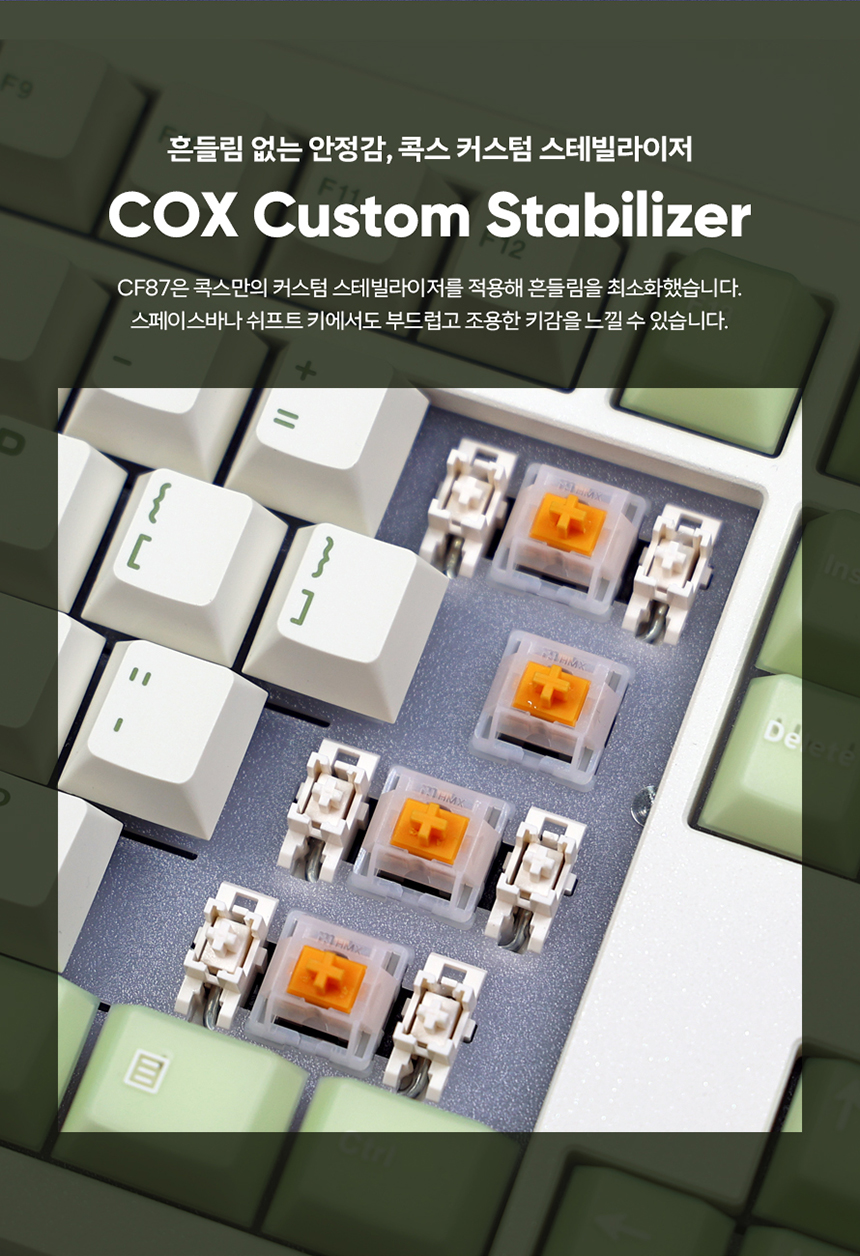
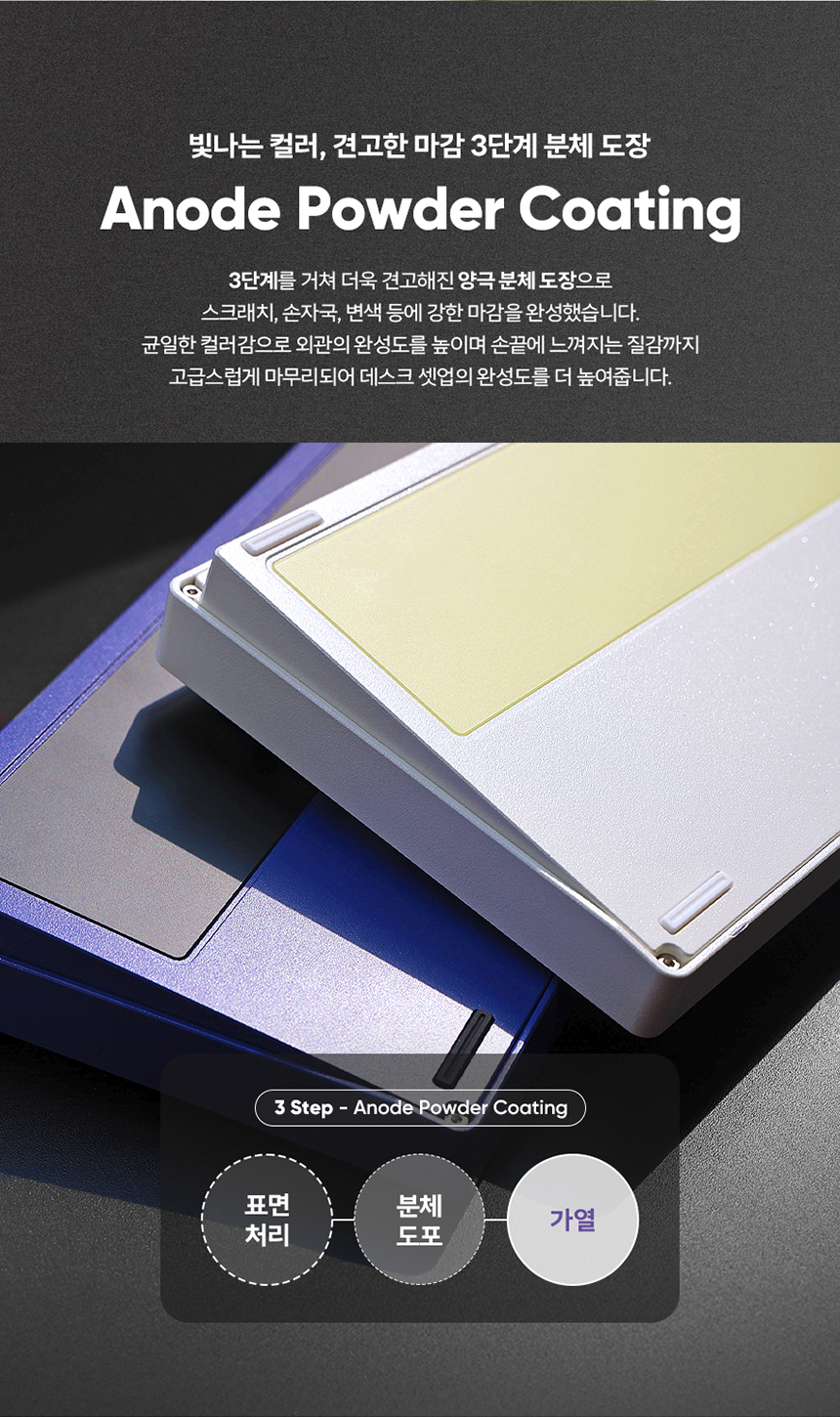
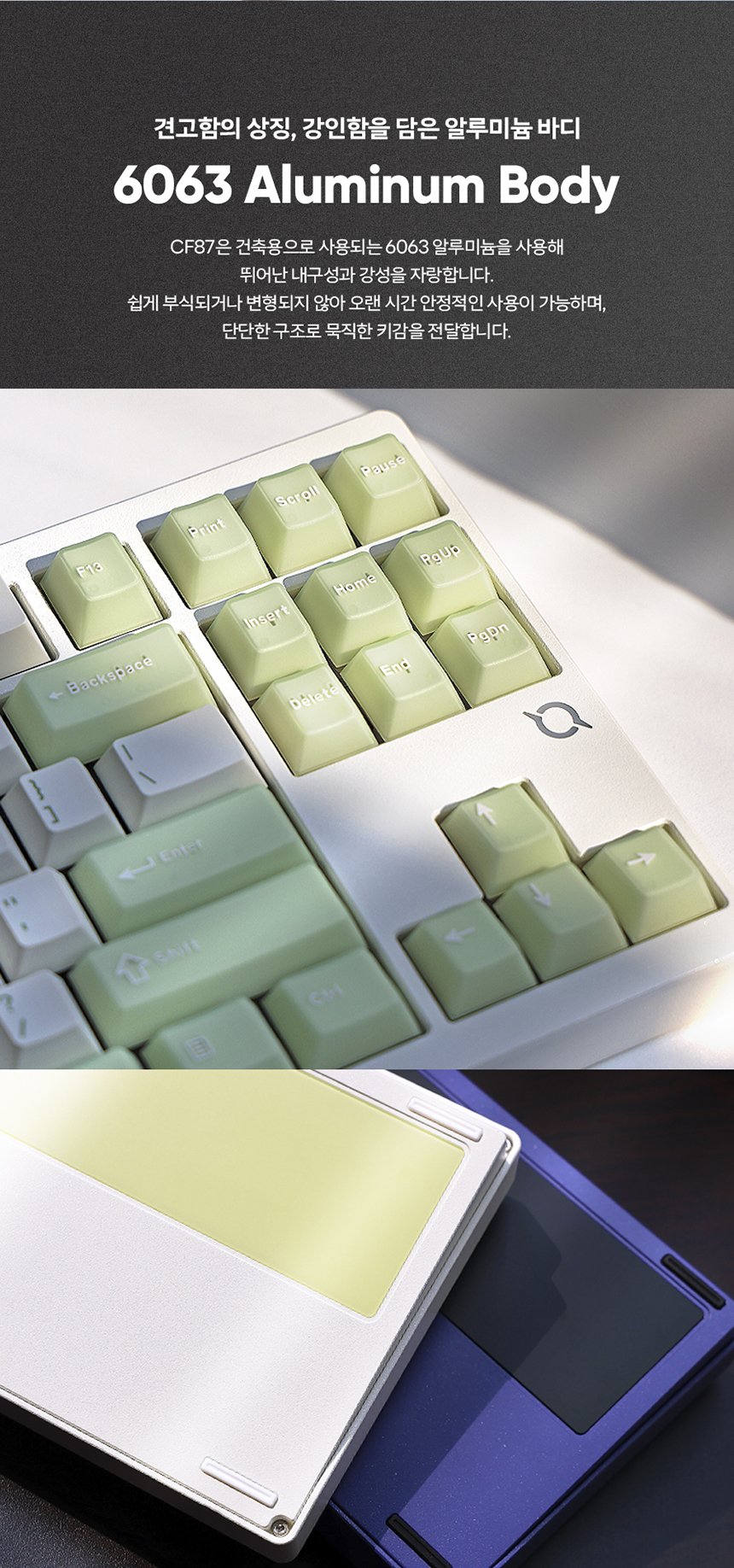
Thank you for choosing the Cox Cf87 Via Aluminum Three-Mode Mechanical Keyboard. This keyboard is designed for versatility and performance, offering wired USB, 2.4GHz wireless, and Bluetooth connectivity. Featuring an 88-key tenkeyless layout, hot-swappable switches, RGB lighting, and a durable 6063 aluminum body, the Cf87 provides a premium typing experience. This manual will guide you through the setup, operation, maintenance, and troubleshooting of your new keyboard.
Contingut del paquet
Marqueu la casella per als elements següents:
- Cox Cf87 Mechanical Keyboard
- Cable USB-Type C
- Receptor sense fils de 2.4 GHz
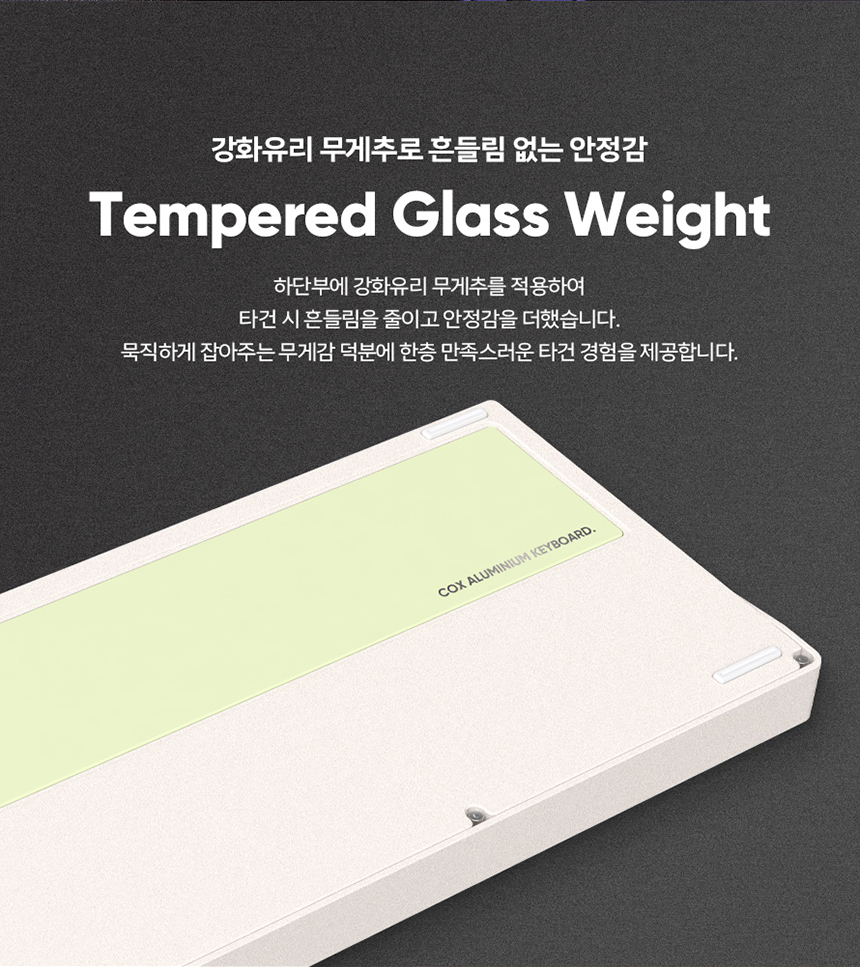
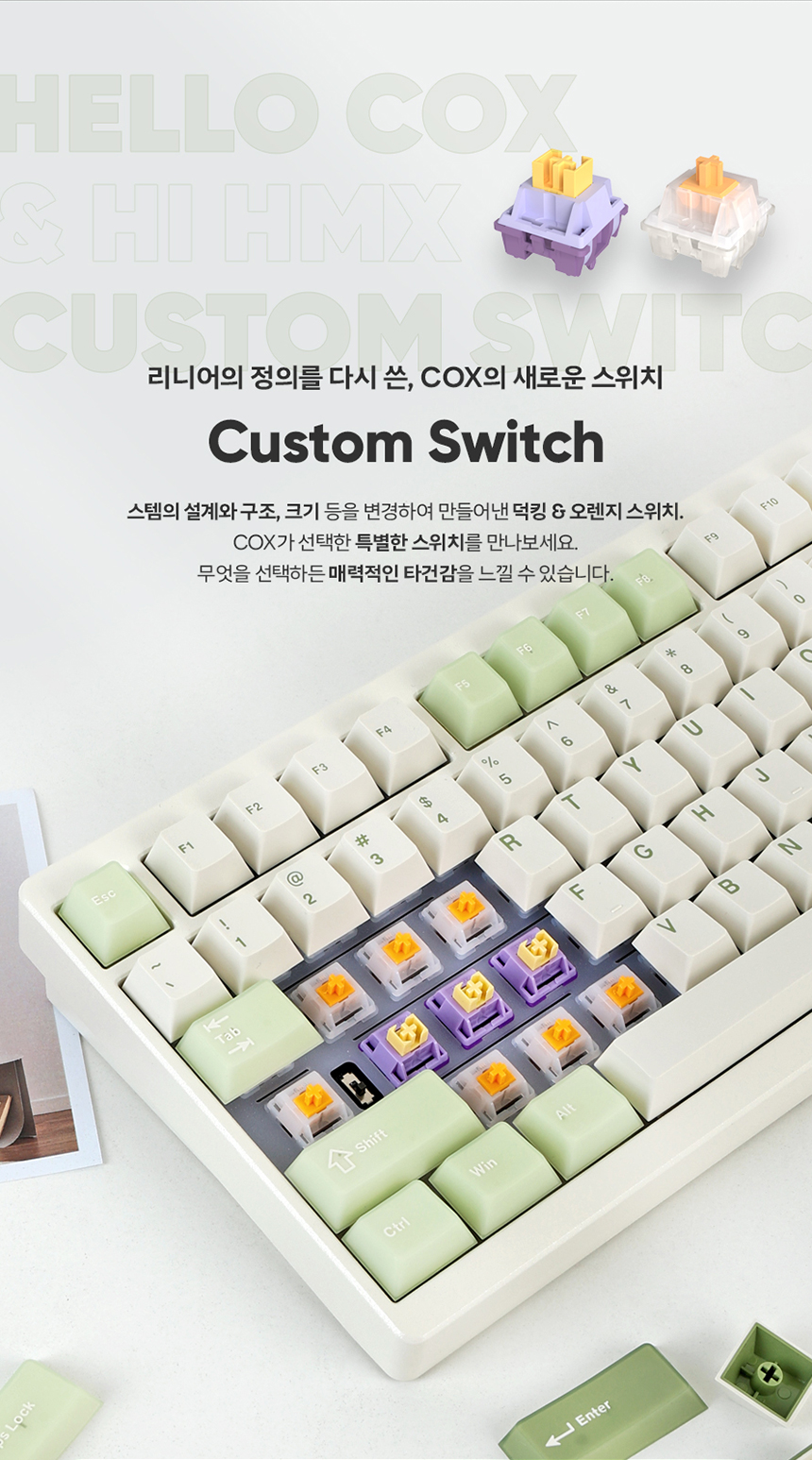
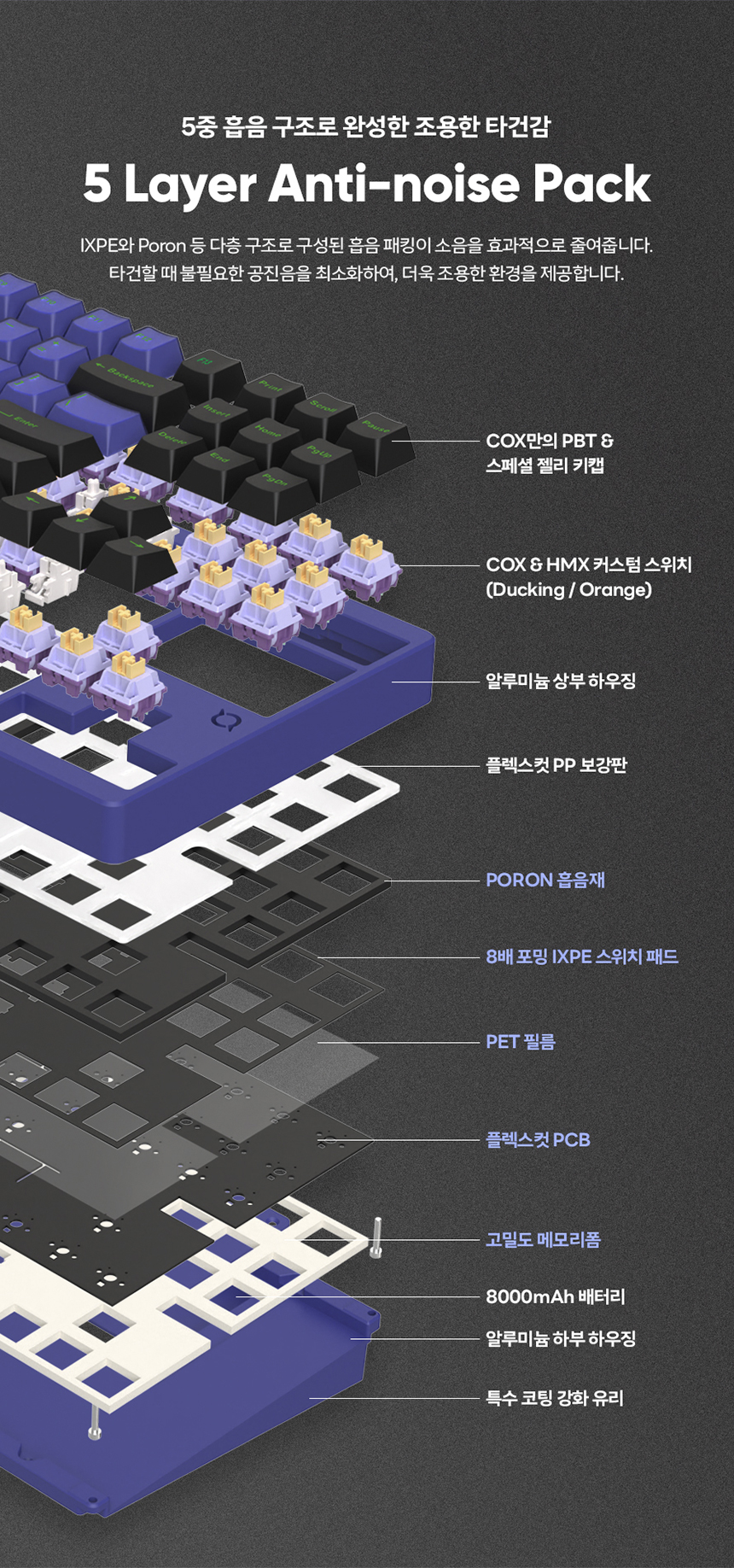
- 2 Spare Switches (HMX Ducking / Orange)
- Manual d'usuari
Configuració
1. Initial Charging & Battery Precautions
Before first use, fully charge the keyboard. The Cf87 features an 8000mAh battery for extended wireless use.
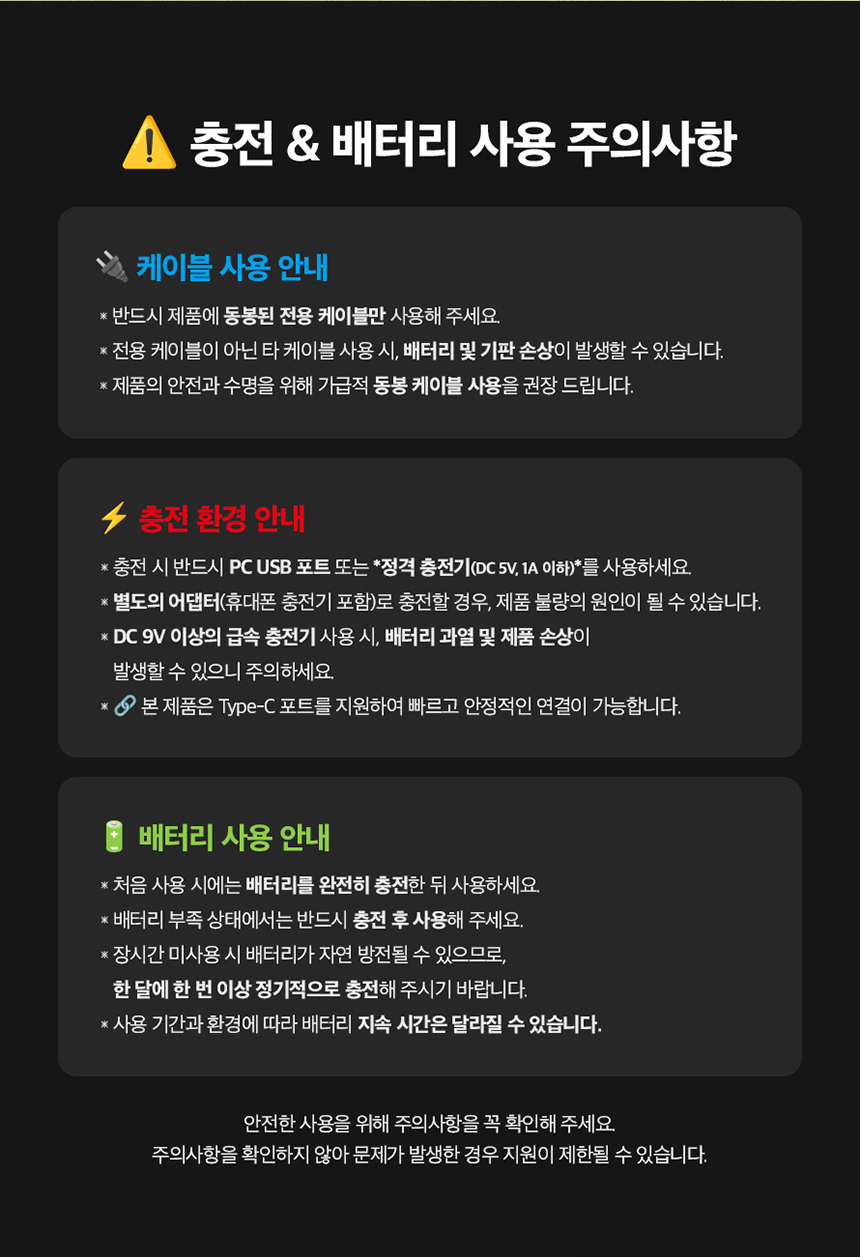
- Always use the dedicated USB Type-C cable provided with the product. Using non-dedicated cables may cause damage to the battery or PCB.
- Charge using a standard charger (DC 5V, 1A or higher) or a PC USB port. Avoid fast chargers (DC 9V or higher) as they can damage the battery and product.
- This product supports Type-C port for fast and stable connection.
- If the keyboard will not be used for a long period, charge it regularly once a month to prevent natural discharge.
2. Encendre/apagar
The power switch is located underneath the Caps Lock keycap. Remove the Caps Lock keycap to access the ON/OFF switch.
3. Connecting the Keyboard (Three Modes)
The Cf87 supports Wired, 2.4GHz Wireless, and Bluetooth connections. You can connect up to 5 devices simultaneously (1 wired, 1 x 2.4G, 3 x Bluetooth).
Mode USB per cable
- Connecteu el cable USB tipus C al teclat i a l'ordinador.
- Premeu Fn + 5 (%) for 3 seconds to enter wired USB mode.
- The LED on the number 5 key will light up in green, indicating a successful connection.
Mode sense fil de 2.4 GHz
- Inseriu el receptor de 2.4 GHz en un port USB de l'ordinador.
- Premeu Fn + 4 (%) for 3 seconds to enter 2.4GHz pairing mode.
- The LED on the number 4 key will flash green. Once paired, the LED will remain solid green.
Bluetooth Mode (Up to 3 devices)
- Premeu Fn + 1 (!), Fn + 2 (@), or Fn + 3 (#) for 3 seconds to enter Bluetooth pairing mode for the respective channel.
- The LED on the selected number key (1, 2, or 3) will flash blue, yellow, or cyan, indicating pairing readiness.
- On your device (PC, Mac, smartphone), go to Bluetooth settings and select the keyboard to connect.
- Once paired, the LED on the key will remain solid.
- You can connect up to 3 Bluetooth devices and switch between them using Fn + 1, Fn + 2, o Fn + 3.
Nota: If you experience connection issues, remove any previous keyboard pairings from your device's Bluetooth list and try again. Keep the keyboard within 30-50cm of your device during pairing.
Instruccions de funcionament
1. Key Layout
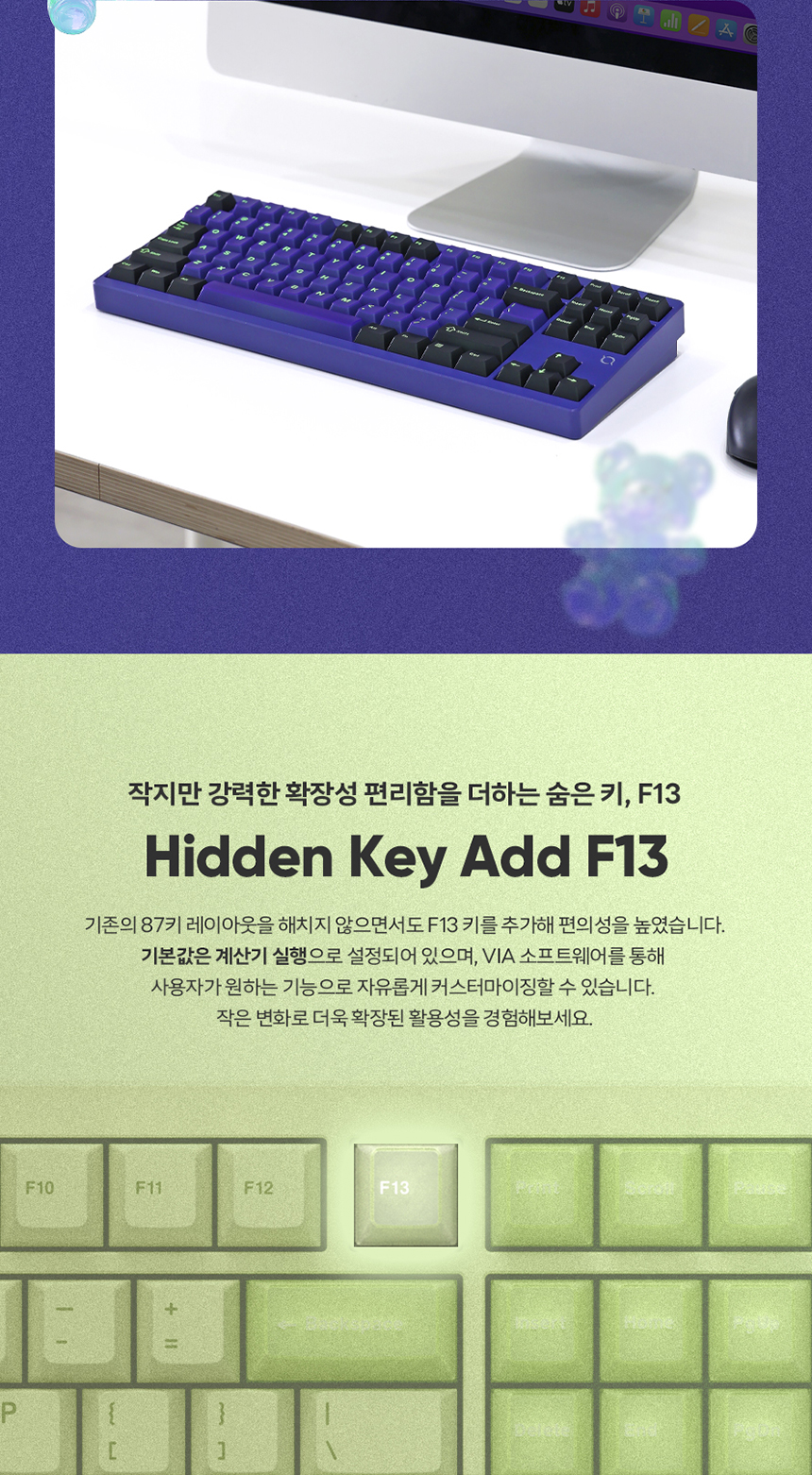
The Cf87 features an 88-key tenkeyless layout, providing a compact design while retaining essential keys for both personal and professional use.
2. Combinacions de tecles de funció (tecla Fn)
El Fn key allows access to various secondary functions and customization options:
| Combinació | Funció |
|---|---|
| Fn + F1-F12 | VIA settings |
| Fn + F13 | Calculadora |
| Fn + W | Windows mode switch |
| Fn+A | Mac mode switch |
| Fn + INS | LED effect mode change |
| Fn + Supr | Canvi de color LED |
| Fn + ← / → | LED speed adjustment |
| Fn + ↑ / ↓ | Ajust de la brillantor del LED |
| Fn + Inici | LOGO LED change |
| Fn + Desplaçament | LOGO LED brightness adjustment (6 levels) |
| Fn + Final | LOGO LED speed adjustment |
| Fn + Esc (3s) | Restabliment de fàbrica |
| Fn + Alt (R) | Battery level check (number keys display) |
| Fn + Intro | Llum de fons encès / apagat |
| Fn + Retrocés | Enter lighting mode |
3. RGB LED Effects
The keyboard features customizable RGB LED lighting. Use the Fn key combinations to change LED effects, colors, speed, and brightness to create your desired ambiance.
4. Battery Status Check & Power Saving
To check the battery level, press Fn + Alt (R). The LEDs on the number keys (1-0) will briefly light up to indicate the charge level (e.g., 1-0 for 100%, 1-7 for 70%).
The keyboard also features an automatic power-saving mode:
- 1 minute idle: LEDs turn off, but the wireless connection is maintained.
- 10 minutes idle: LEDs turn off, and the wireless connection is terminated to save power.
5. VIA Software Customization
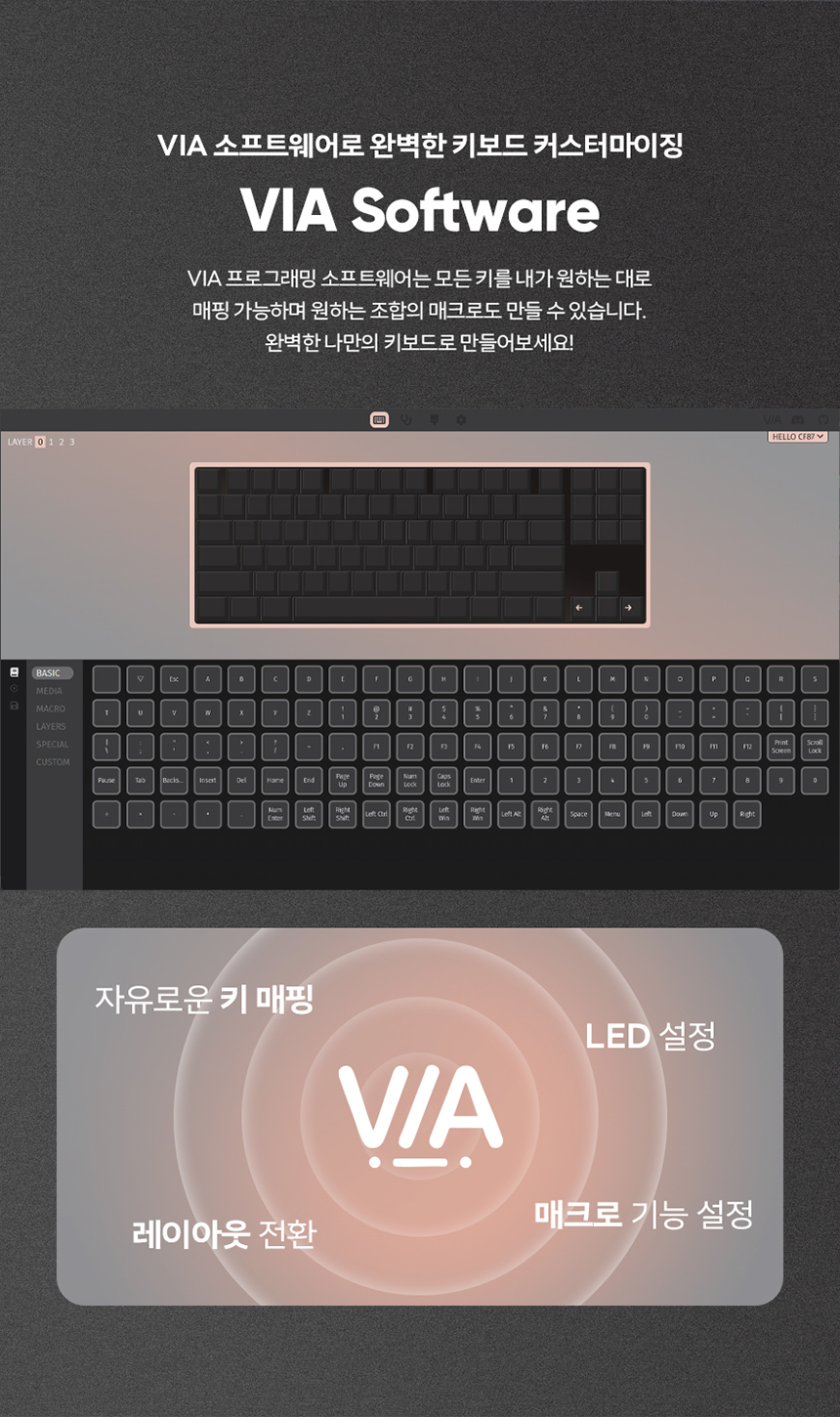
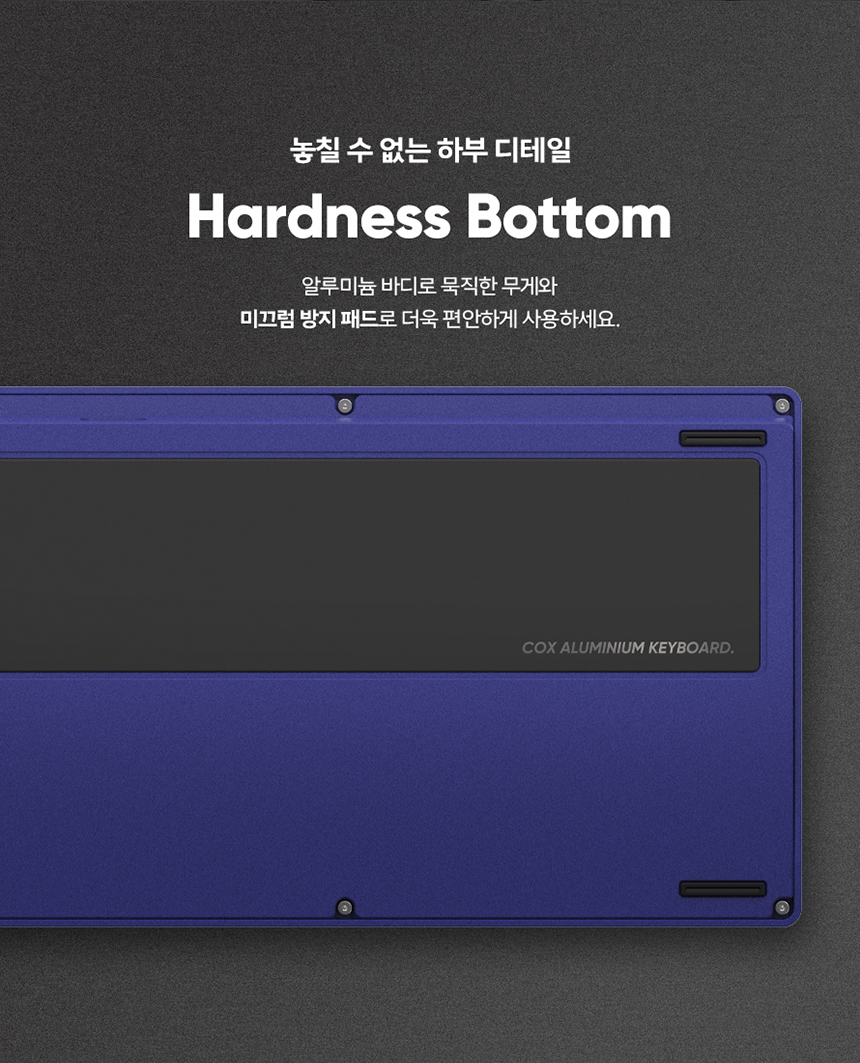
The Cf87 keyboard is compatible with VIA programming software, allowing you to fully customize key mappings, LED settings, switch layouts, and macro functions. Download the VIA software to unlock the full potential of your keyboard.
Manteniment
1. Neteja
- Regularly clean your keyboard with a soft, dry cloth.
- For deeper cleaning, you can remove keycaps using a keycap puller.
- Feu servir aire comprimit per eliminar la pols i les restes que hi ha entre les tecles.
- Avoid using harsh chemicals or abrasive materials that could damage the keycaps or keyboard finish.
2. Substitució de commutador (intercanviable en calent)
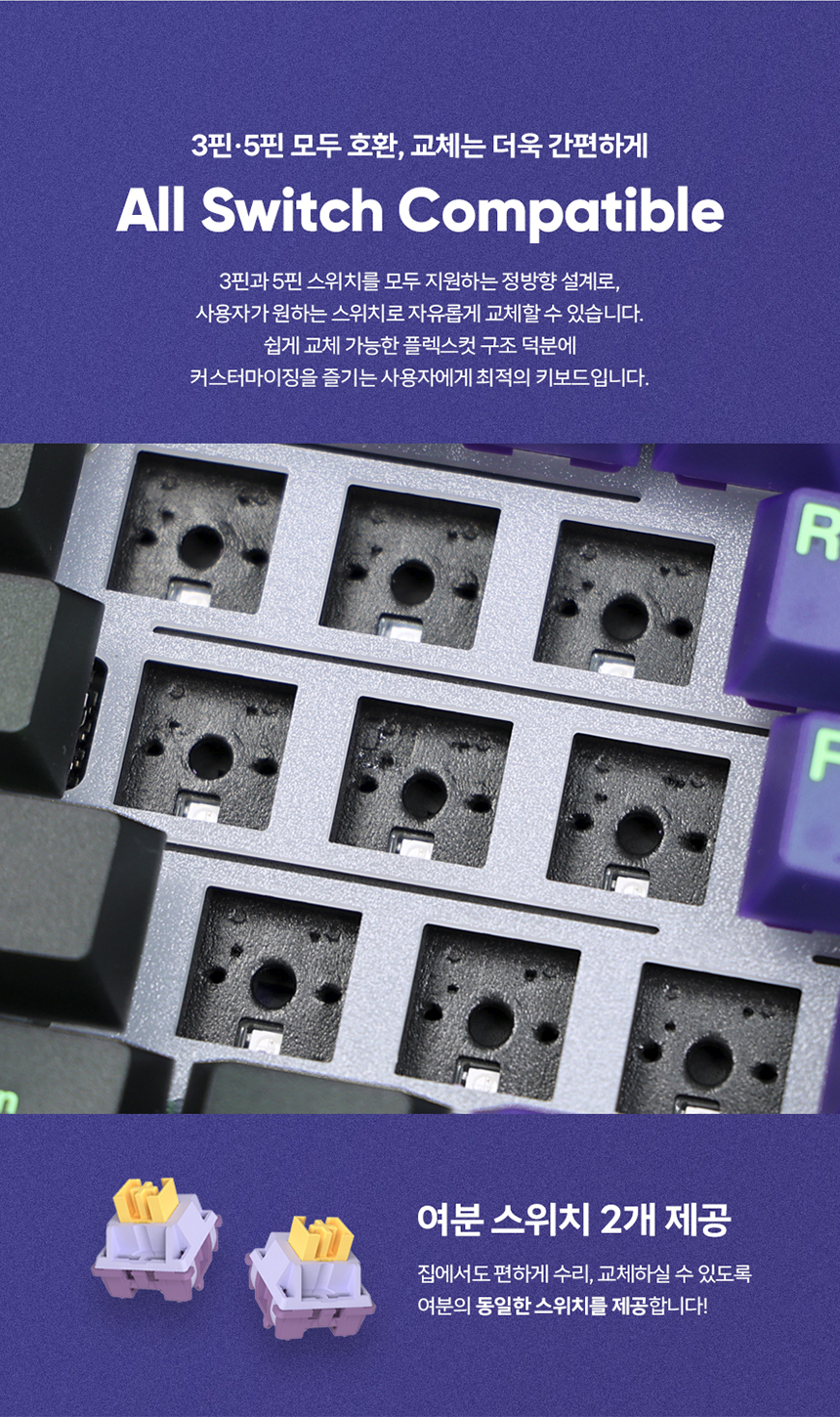
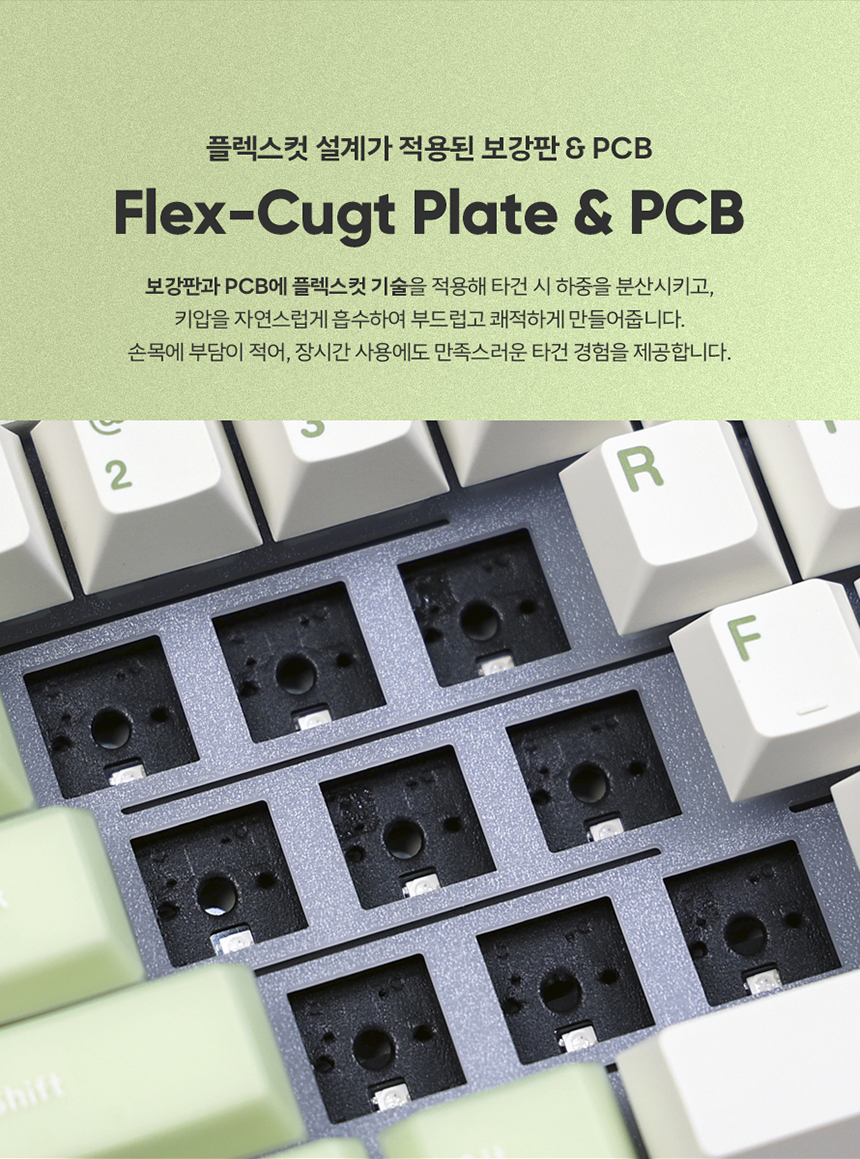
The Cf87 features hot-swappable sockets, allowing you to easily replace switches without soldering. It supports both 3-pin and 5-pin mechanical switches.
- Using a switch puller, carefully grip the switch and pull it straight up to remove it.
- Alineeu els pins del nou interruptor amb els forats de la placa de circuit imprès. Assegureu-vos que els pins estiguin rectes.
- Gently push the new switch down until it clicks into place. Do not force it to avoid bending pins.
3. Substitució de la tapa de les tecles
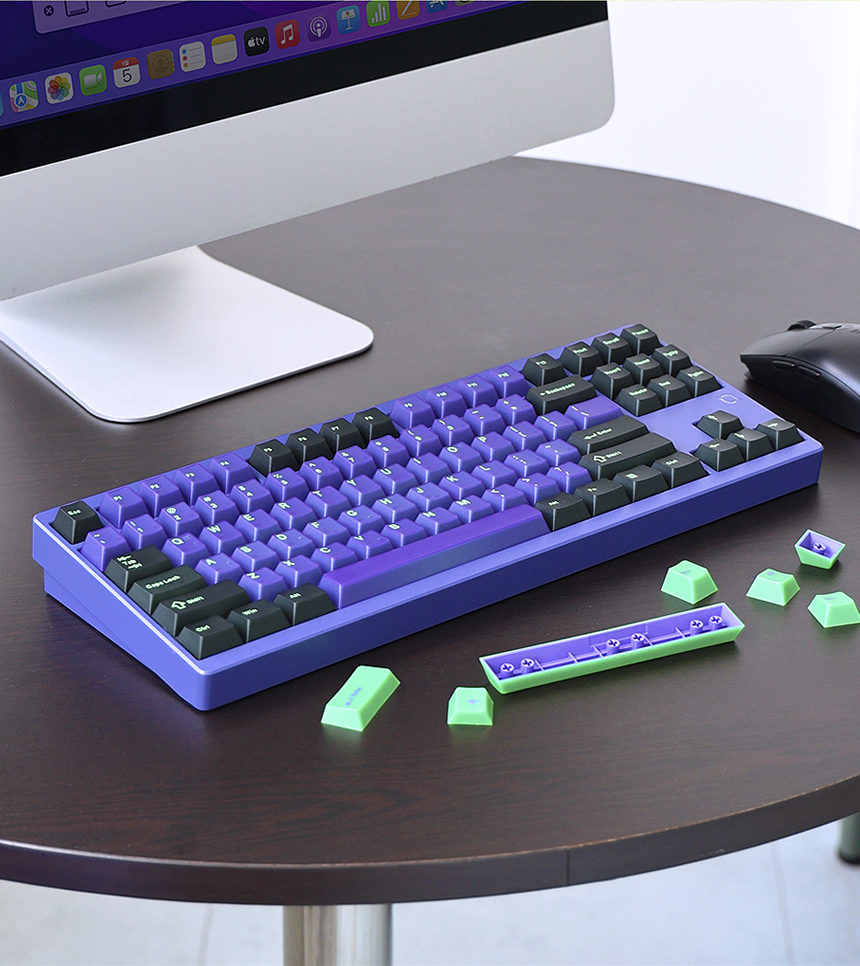
The keyboard comes with Jelly Double-Shot PBT keycaps, known for their durability and unique feel. You can replace them with other Cherry profile keycaps if desired.
- Use a keycap puller to gently remove the desired keycap by pulling it straight up.
- Align the new keycap with the switch stem and press down firmly until it is securely seated.
Resolució de problemes
- El teclat no respon (amb cable): Ensure the USB Type-C cable is securely connected to both the keyboard and your computer. Try a different USB port or cable. Confirm wired mode is active (Fn+5).
- Problemes de connexió sense fil de 2.4 GHz: Ensure the 2.4GHz receiver is properly inserted. Press Fn+4 for 3 seconds to re-enter pairing mode. Try moving the receiver to a different USB port or closer to the keyboard.
- Problemes de connexió Bluetooth: Ensure the keyboard is in Bluetooth pairing mode (Fn+1/2/3 for 3 seconds). Check your device's Bluetooth settings and remove any previous pairings for the keyboard before attempting to reconnect. Keep the keyboard within 30-50cm of your device during pairing.
- Claus que no es registren: Check if the keyboard is powered on. If a specific key is not working, try replacing the switch for that key (if you have spare switches). Perform a factory reset (Fn+Esc for 3 seconds).
- Il·luminació RGB no funciona/incorrecta: Use the Fn key combinations (Fn+INS, Fn+DEL, Fn+←/→, Fn+↑/↓) to adjust LED effects, colors, speed, and brightness. Ensure the backlight is not turned off (Fn+Enter).
- La bateria no es carrega: Ensure you are using the provided USB Type-C cable and a standard DC 5V 1A charger or a PC USB port. Avoid fast chargers.
- Keyboard frequently disconnects in wireless mode: Ensure the battery is sufficiently charged. Check for interference from other wireless devices.
Especificacions
| Característica | Detall |
|---|---|
| Model | CF87 Aluminium 3Mode Mechanical Keyboard |
| Opcions de color | Neon Mecha Violet / Matcha Cream Tea |
| Mida | 356.61 x 140.01 x 34.75 mm |
| Pes | 1.85 kg |
| Canvia el nom | Ducking V2 Switch (HMX) / Orange Switch (HMX) |
| Tecla | Jelly Double-Shot PBT (Cherry Profile) |
| Disseny de claus | 88 keys (Tenkeyless) |
| LED | RGB |
| Bateria | 8000 mAh (4000 mAh x 2) |
| Sistema operatiu | Windows, macOS |
| Interfície | 2.4GHz Wireless, Bluetooth, USB Type-C |
| Certificacions | R-R-ABS-CF87 / R-R-ABS-CF87R / YU101364-24001 |
Consells per a l'usuari
- Experimenta amb interruptors: Since the keyboard is hot-swappable, don't hesitate to try different mechanical switches to find your preferred typing feel.
- Master VIA Software: Utilize the VIA software to its full potential. Customizing keybinds and macros can significantly enhance your workflow and gaming experience.
- Optimitzar la durada de la bateria: Avançanttage of the automatic power-saving modes. For prolonged periods of inactivity, remember to fully charge the keyboard once a month to maintain battery health.
- Mantingueu-lo net: Regular cleaning of keycaps and the keyboard body will prevent dust buildup and ensure smooth operation and longevity.
- Explore RGB: Play around with the various RGB lighting effects and colors to personalize your setup and match your mood or environment.
Garantia i suport
COX provides a 1-year free After-Sales Service (A/S) for product defects that occur under normal use conditions. This service covers issues related to product performance, quality, and functionality.
Initial Defects & Paid Service Information
- Initial Defects: For products purchased from an authorized dealer, initial defects are covered by a free exchange or refund within 10 days of purchase. Proof of purchase (receipt, transaction statement, online purchase history) is required.
- Defects After 10 Days: If a product issue arises more than 10 days after purchase, it will be processed as a paid repair service according to company policy.
Nota: The warranty period is based on the initial purchase date. For specific service inquiries, please contact COX customer support.