1. Introducció
The R69Q Smart TV Box is a high-performance streaming media player designed to transform your television into a smart entertainment hub. Running on the latest Android 14 operating system, it offers a user-friendly interface, powerful Allwinner H313 Quad Core processor, and support for 4K UHD video playback at 60fps with HDR10+. With dual-band Wi-Fi (2.4G/5G), Bluetooth 5.4, and integrated Google Assistant, the R69Q provides seamless access to a wide range of streaming services, games, and applications.

Figure 1: R69Q Smart TV Box and its key features.
2. Informació de seguretat
- No exposeu el dispositiu a la pluja, la humitat ni a temperatures extremes.
- Eviteu col·locar el dispositiu a prop de fonts de calor o sota la llum solar directa.
- Feu servir només l'adaptador de corrent proporcionat per evitar danys.
- Mantingueu el dispositiu allunyat dels nens i de les mascotes.
- No intenteu obrir ni reparar el dispositiu vosaltres mateixos. Demaneu ajuda a personal de servei qualificat.
- Assegureu-vos una ventilació adequada al voltant del dispositiu per evitar el sobreescalfament.
3. Contingut del paquet
Si us plau, comproveu el paquet per veure si hi ha els elements següents:
- R69Q Smart TV Box (x1)
- Cable HDMI (x1)
- Comandament a distància (x1)
- Manual d'usuari (x1)
- Power Plug (x1)
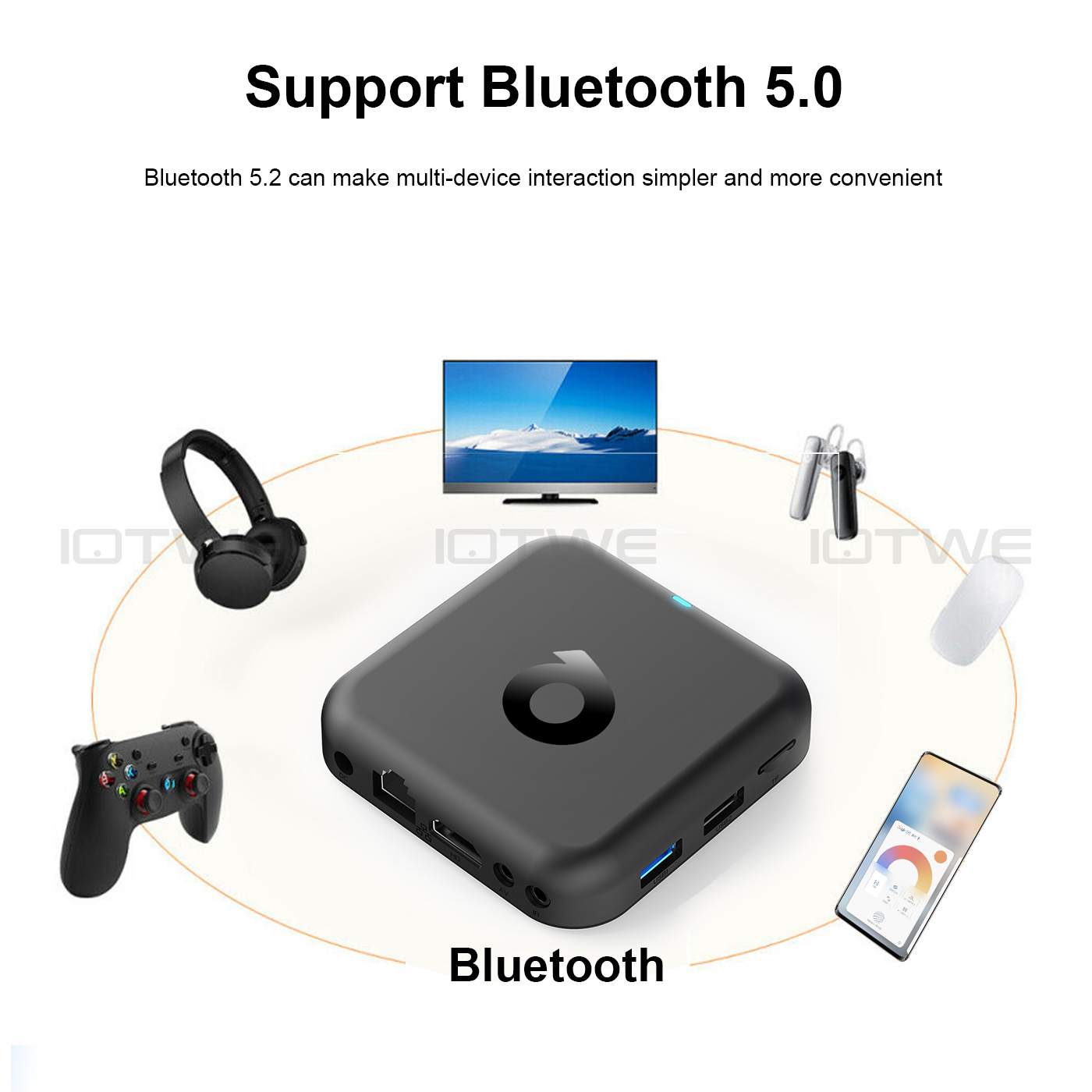
Figure 2: Included items in the R69Q Smart TV Box package.
4. Guia de configuració
4.1 Connexió del descodificador de televisió
- Connectar-se al televisor: Plug one end of the HDMI cable into the HDMI port on the R69Q TV Box and the other end into an available HDMI input on your television.
- Connectar l'alimentació: Connect the power adapter to the DC port on the TV Box and then plug the adapter into a wall outlet.
- Connexió de xarxa (opcional):
- Amb cable: For a stable connection, connect an Ethernet cable from your router to the RJ45 Ethernet port on the TV Box.
- Sense fil: The device supports 2.4G and 5G Wi-Fi. You will configure this during initial setup or via settings.
- Other Connections (Optional):
- Dispositius USB: Connect USB storage devices, keyboards, or mice to the USB ports.
- Sortida AV: If your TV does not have an HDMI port, use an AV cable (not included) to connect to the AV port.
- Extensor IR: If using an IR extender, connect it to the IR port.

Figure 3: Connection ports on the R69Q Smart TV Box.
4.2 Arrencada inicial i configuració
- Engegueu el televisor i seleccioneu la font d'entrada HDMI correcta.
- The R69Q TV Box will power on automatically when connected to power.
- Seguiu les instruccions que apareixen a la pantalla per completar la configuració inicial, que normalment inclou:
- Selecció de la llengua.
- Connecting to a Wi-Fi network (if not using Ethernet).
- Inici de sessió amb el vostre compte de Google.
- Setting up Google Assistant.
5. Instruccions de funcionament
5.1 Funcions de control remot
The R69Q Smart TV Box comes with a smart voice remote control. Familiarize yourself with its buttons for easy navigation.

Figure 4: Smart Voice Remote Control.
- Botó d'encesa: Encén/apaga el dispositiu o el posa en mode d'espera.
- Panell de navegació (botó D'acord): Use the directional arrows to navigate menus and the OK button to select.
- Botó enrere: Torna a la pantalla anterior.
- Botó d'inici: Torna a la pantalla d'inici principal.
- Botons de volum: Ajusta el volum.
- Botó de l'Assistent de Google: Activates the voice assistant for voice commands.
- Botons d'aplicació dedicats: Quick access to popular streaming services like YouTube, Netflix, and Prime Video.
5.2 Ús de l'Assistent de Google
Press the Google Assistant button on your remote and speak into the microphone to search for content, get recommendations, control smart home devices, and more. The voice remote supports multiple languages including English, German, Dutch, French, Portuguese, Spanish, Danish, Finnish, Italian, Hebrew, Japanese, Korean, Malay, Russian, Arabic, Swedish, Thai, and Turkish.

Figure 5: Smart Voice Remote Control in action with Google Assistant.
5.3 Streaming and Media Playback
The R69Q supports 4K@60fps video decoding with H.265 and HDR10+ technology, providing a lifelike viewing experience. You can access various supported internet services:
- Prime Video
- Netflix
- Hulu Plus
- Navegador
- Vudu
- Google TV
- Hulu
- YouTube
- Pandora
- Skype
- Explore 3D
- Other streaming services and apps available via Google Play Store.

Figure 6: Enhanced viewing with 4K HDR10+ technology.

Figure 7: Multi-functional application scenarios.
5.4 Connectivitat sense fil
The R69Q features dual-band Wi-Fi (2.4G & 5G) for faster and more stable signal transmission, supporting 802.11 b/g/n standards. It also includes Bluetooth 5.4 for connecting various peripherals.
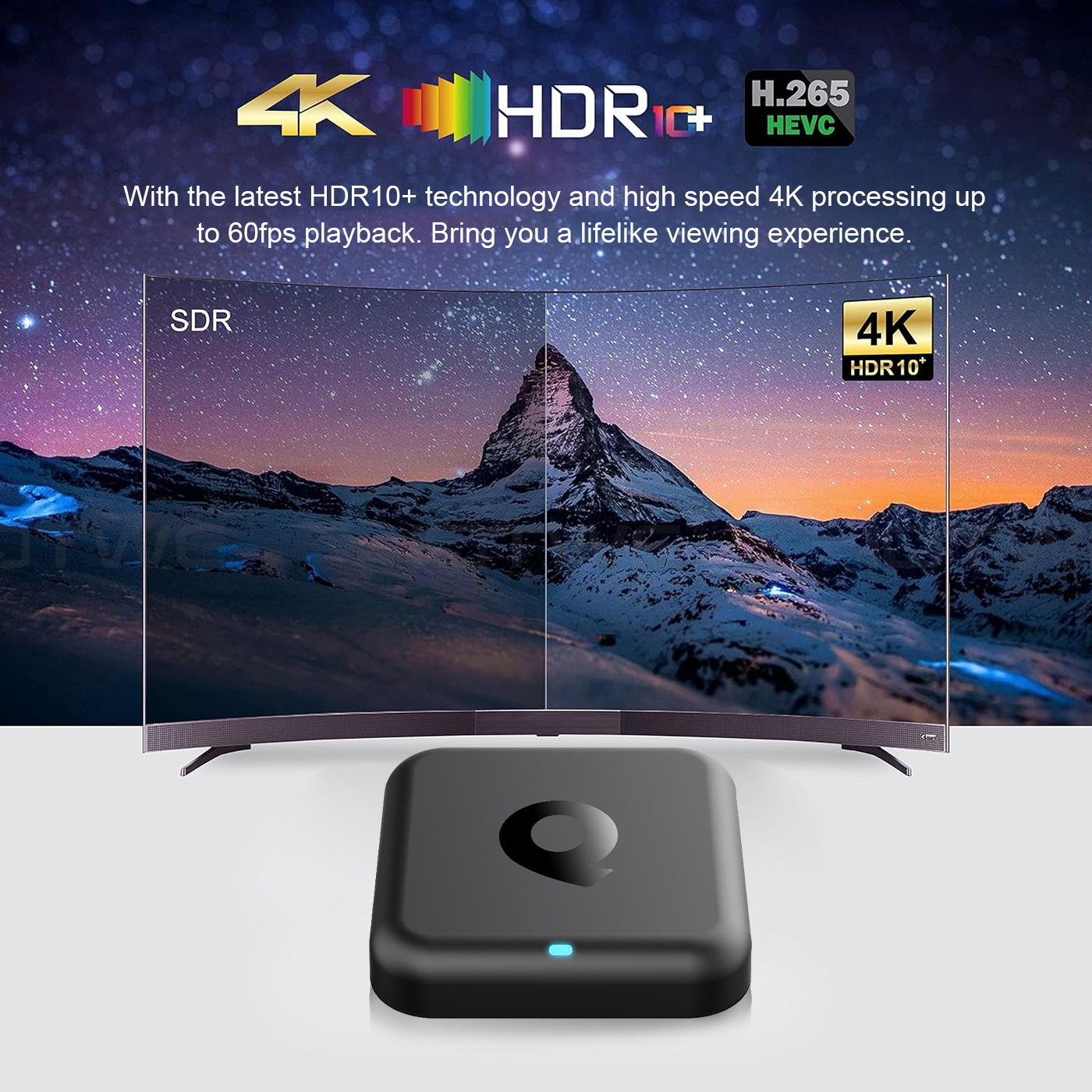
Figure 8: Dual-band Wi-Fi 2.4G & 5G support.
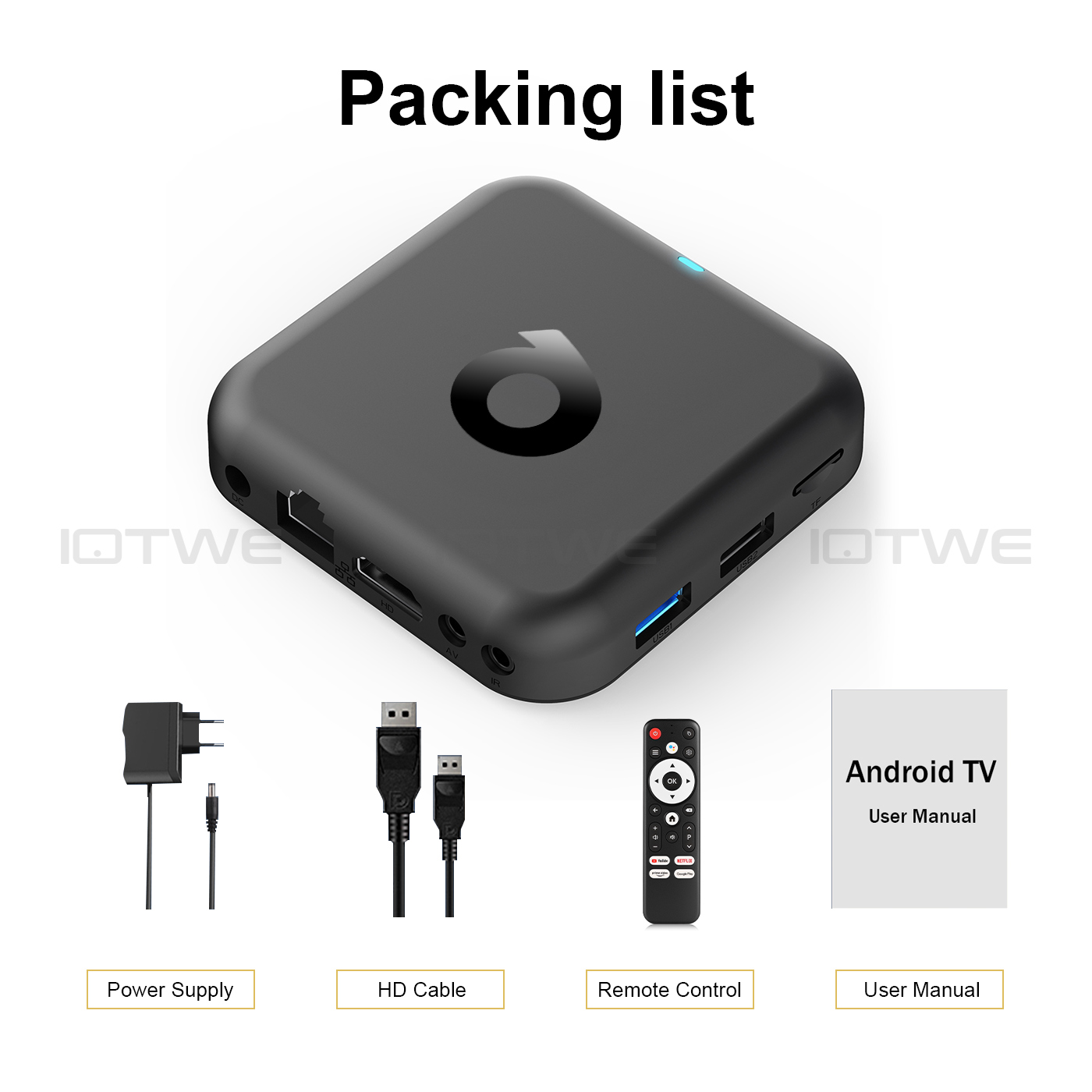
Figure 9: Bluetooth 5.0 connectivity for multiple devices.
5.5 Multi-screen Interaction
The R69Q supports Airplay, DLNA, and Miracast, allowing you to share content from your mobile phones, tablets, and other devices directly to your TV screen.
6. Manteniment
- Neteja: Feu servir un drap suau i sec per netejar el dispositiu. No utilitzeu netejadors líquids ni aerosols.
- Actualitzacions de programari: Periodically check for system updates in the device settings to ensure optimal performance and access to the latest features.
- Emmagatzematge: Quan no l'utilitzeu durant períodes prolongats, guardeu el dispositiu en un lloc fresc i sec.
7. Solució De Problemes
Problemes comuns i solucions:
- Sense energia:
- Assegureu-vos que l'adaptador de corrent estigui connectat correctament al televisor i a una presa de corrent que funcioni. Proveu una altra presa de corrent.
- Sense senyal a la televisió:
- Verify the HDMI cable is properly connected to both the TV Box and the TV. Make sure your TV is set to the correct HDMI input source.
- Problemes de connexió Wi-Fi:
- Check if your router is working correctly. Ensure the Wi-Fi password is entered correctly. Try restarting both the TV Box and your router. Move the TV Box closer to the router if possible.
- El control remot no respon:
- Check the batteries in the remote control and replace them if necessary. Ensure there are no obstructions between the remote and the TV Box. For voice commands, ensure you are speaking clearly into the remote's microphone.
- Les aplicacions es bloquegen o es bloquegen:
- Try closing and reopening the app. Clear the app's cache and data in the Android settings. If the issue persists, uninstall and reinstall the app. Ensure the TV Box has enough free storage.
8. Especificacions
| Característica | Especificació |
|---|---|
| Sistema operatiu | Android 14.0 |
| CPU | Allwinner H313 Quad Core |
| GPU | G31 OpenGL3.2 |
| Memòria (RAM) | 2 GB DDR3 |
| Internal Storage (Flash) | eMMC de 32 GB |
| Wi-Fi | 802.11 b/g/n, 2.4G + 5G Dual-band Wi-Fi |
| Bluetooth | BT5.0 |
| Ethernet | RJ45 100M |
| Sortida de vídeo | HDMI 2.0A, 4K*2K UHD Output |
| Descodificació de vídeo | 4K@60fps, H.265, HDR10+ |
| Serveis d'Internet compatibles | Prime Video, Netflix, Hulu Plus, Browser, Vudu, Google TV, Hulu, YouTube, Pandora, Skype, Explore 3D, and others |
| Interacció de múltiples pantalles | Airplay, DLNA, Miracast |
| Font d'alimentació | AC |
| Suport lingüístic | English, French, German, Spanish, Italian, Dutch, Portuguese, Hebrew, etc. (Voice remote supports many national languages) |
9. Consells d'usuari
- Optimitzar el rendiment: Regularly clear the cache of frequently used apps to maintain smooth performance. You can do this in Android Settings > Apps > [Select App] > Clear Cache.
- Manteniu-vos actualitzat: Ensure your R69Q TV Box's software is up-to-date by checking for system updates in the settings menu. This can improve stability and introduce new features.
- Voice Search Efficiency: When using Google Assistant, speak clearly and directly into the remote's microphone for best results.
10. Garantia i Suport
For warranty information and technical support, please refer to the seller or manufacturer's official channels. Keep your purchase receipt as proof of purchase. If you encounter issues not covered in this manual, please contact customer service for assistance.


