1. Producte acabatview
The D-Link Xtreme N Duo Media Router (DIR-855) is designed to provide high-performance wireless networking for your home or office. Featuring dual-band technology, it operates simultaneously on both 2.4 GHz and 5 GHz frequencies, allowing for flexible network configurations and optimized media streaming.
This router includes four Gigabit Ethernet ports for ultra-fast wired connections and supports the 802.11a/g/n wireless standards.

Figura 1: Frontal view of the D-Link DIR-855 Router.
Característiques principals:
- Wireless N Connectivity: Provides superior wireless performance, clarity, and coverage.
- Dual-band Wireless N: Operates on 2.4 GHz and 5 GHz simultaneously for enhanced throughput and reduced interference.
- Configuració protegida per Wi-Fi (WPS): Simplifies secure wireless network setup with a single button.
- Intelligent QoS Technology: Prioritizes Internet traffic for optimized gaming, VoIP, and video streaming.
- Transmissió multimèdia: Capable of streaming audio and video to compatible UPnP-enabled devices.
- Active Firewall Protection: Enhances network security.
- 4 ports Gigabit Ethernet: Offers ultra-fast wired connectivity for devices.
- Seguretat avançada: Supports WPA or WPA2 encryption for a secure wireless network.
- Compatibilitat enrere: Works with existing 802.11g and 802.11a devices.
- IPv6 Equipped: Ready for the next generation of Internet Protocol.
2. Configuració i instal·lació
2.1 Contingut del paquet
Comproveu que el vostre paquet contingui els elements següents:
- D-Link Xtreme N Duo Media Router (DIR-855)
- 3 antenes desmuntables
- Cable Ethernet CAT5
- Adaptador d'alimentació
- CD-ROM with Installation Wizard and Product Documentation
Si falta algun element o hi ha algun dany, poseu-vos en contacte amb el vostre distribuïdor o amb el servei d'assistència de D-Link.
2.2 Instal·lació de maquinari
- Posicioneu el router: Place the router in a central location to maximize wireless coverage. Avoid placing it near obstructions, metal objects, or other electronic devices that may cause interference.
- Col·loca les antenes: Carefully screw the three detachable antennas onto the connectors at the back of the router. Ensure they are securely fastened.
- Connecteu-vos a l'alimentació: Plug the power adapter into the power port on the back of the router, then plug the other end into a wall outlet or power strip. The power LED on the router should illuminate.
- Connectar-se al mòdem: Connect one end of the provided CAT5 Ethernet cable to the Internet port (WAN) on the back of the DIR-855 router. Connect the other end to your broadband modem (DSL or Cable modem).
- Connecteu dispositius amb cable (opcional): For wired connections, connect Ethernet cables from your computers or other network devices to any of the four LAN ports (1-4) on the back of the router.
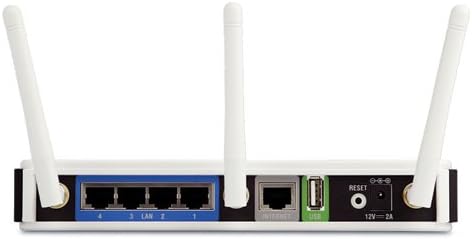
Figure 2: Rear panel connections of the D-Link DIR-855 Router.
2.3 Configuració inicial
After hardware installation, use the included CD-ROM to run the D-Link Installation Wizard. This wizard will guide you through the initial setup steps, including setting up your Internet connection and securing your wireless network.
Alternatively, you can access the router's web-based configuration utility by connecting a computer to one of the LAN ports and navigating to the default IP address (usually http://192.168.0.1) in a web browser. Refer to the product documentation on the CD-ROM for detailed instructions on webconfiguració basada en.
3. Funcionament
3.1 Dual-Band Wireless Functionality
The DIR-855 operates on two wireless frequency bands simultaneously:
- Banda de 2.4 GHz: Ideal for general internet browsing, email, and compatibility with older wireless devices (802.11g/b). This band offers wider coverage but can be more susceptible to interference from other devices.
- Banda de 5 GHz: Best suited for high-bandwidth applications such as HD video streaming and online gaming. This band offers faster speeds and less interference due to fewer devices operating on it, but typically has a shorter range.
You can connect different devices to different bands to optimize network performance. For example, stream HD movies on the 5 GHz band while browsing the internet on the 2.4 GHz band.
3.2 Intelligent QoS (Quality of Service)
D-Link's Intelligent QoS technology prioritizes network traffic to ensure smooth performance for critical applications. It analyzes and categorizes data streams (e.g., VoIP, video streaming, online gaming, web browsing) and gives priority to delay-sensitive applications. This prevents buffering and lag, even when multiple devices are actively using the network.
3.3 SharePort Technology
The DIR-855 features a USB port that supports D-Link's SharePort technology. This allows you to connect a USB printer or storage device (e.g., external hard drive, flash drive) directly to the router. Once connected, these devices become accessible to all users on your network, turning them into shared network resources. The SharePort Client Utility must be installed on client PCs to access shared USB devices.
3.4 Configuració protegida per Wi-Fi (WPS)
WPS provides a simple and secure way to add new devices to your wireless network without manually entering network names (SSIDs) or complex passwords. Press the WPS button on the router and then activate WPS on your client device within two minutes to establish a secure connection.
3.5 Suport IPv6
The DIR-855 is IPv6 Certified, ensuring compatibility with the latest Internet Protocol. This prepares your network for future internet addressing requirements and services.
4. Manteniment
4.1 actualitzacions de microprogramari
Periodically check the official D-Link support website for firmware updates for your DIR-855 router. Firmware updates can provide performance improvements, new features, and security enhancements. Follow the instructions provided by D-Link carefully when performing a firmware update to avoid damaging the device.
4.2 Seguretat de la xarxa
Ensure your wireless network is secured with WPA2 encryption. Regularly change your Wi-Fi password to a strong, unique combination of letters, numbers, and symbols. Access the router's web-based configuration utility to manage security settings.
4.3 Atenció física
Keep the router in a well-ventilated area, free from dust and direct sunlight. Do not block the ventilation openings. Clean the exterior with a soft, dry cloth. Avoid using liquid or aerosol cleaners.
5. Solució De Problemes
This section provides solutions to common issues you might encounter with your DIR-855 router.
5.1 Sense connexió a Internet
- Comproveu els cables: Ensure all Ethernet cables are securely connected to the router, modem, and computer. Verify the Internet port cable is connected to your modem.
- Cicle d'alimentació: Turn off your modem and router. Wait 30 seconds, then turn on the modem first. Once the modem is fully online (indicated by stable lights), turn on the router.
- Estat del mòdem: Check the status lights on your modem to ensure it has an active internet connection.
- Configuració del router: Accedir al router web-based configuration utility to verify your Internet connection settings (e.g., PPPoE, DHCP, Static IP) are correctly configured according to your Internet Service Provider (ISP).
5.2 Weak or Intermittent Wireless Signal
- Col·locació del router: Relocate the router to a more central location, away from walls, large metal objects, and other electronic devices (cordless phones, microwaves) that can cause interference.
- Antenes: Ensure the antennas are securely attached and oriented for optimal signal.
- Interferència de canal: En el router web-based configuration, try changing the wireless channel for both 2.4 GHz and 5 GHz bands. Use a Wi-Fi analyzer tool (available for smartphones) to identify less congested channels.
- 5 GHz Range: The 5 GHz band offers higher speeds but generally has a shorter range and is more susceptible to obstacles like walls. If experiencing issues on 5 GHz, try moving closer to the router or switching to the 2.4 GHz band for better coverage.
5.3 Devices Cannot Connect to Wi-Fi
- Contrasenya: Double-check that you are entering the correct Wi-Fi password (network key).
- Transmissió SSID: Ensure the router is broadcasting its SSID (network name). This can be checked in the wireless settings of the router's configuration utility.
- WPS: If using WPS, ensure it is activated on both the router and the client device within the allowed timeframe.
- Restabliment de fàbrica: As a last resort, you can perform a factory reset. Locate the reset button on the back of the router (often a small pinhole). With the router powered on, use a paperclip to press and hold the reset button for 10-15 seconds. This will restore the router to its default factory settings, requiring you to reconfigure it from scratch.
6. Especificacions
| Dimensions del producte | 7.88 x 4.75 x 1.25 polzades |
| Pes de l'article | 0.01 unces |
| Número de model | DIR-855 |
| Marca | D-Link |
| Característica especial | QoS, WPS |
| Classe de banda de freqüència | Doble banda (2.4 GHz, 5 GHz) |
| Estàndard sense fils | 802.11a/b/g/n |
| Tecnologia de connectivitat | Amb cable, sense fil |
| Ports Ethernet | 4 x RJ-45 Gigabit LAN, 1 x RJ-45 Gigabit WAN |
| Protocol de seguretat | WPA-PSK, WPA2-PSK, WPS |
| Dispositius compatibles | Gaming Console, Printer |
| Usos recomanats | Gaming, HD Video Streaming |
| Fabricant | D-Link Systems, Inc. |
| Primera data disponible | 4 de gener de 2008 |
7. Garantia i Suport
7.1 Informació de la garantia
For detailed warranty information regarding your D-Link DIR-855 router, please refer to the warranty card included in your product package or visit the official D-Link weblloc web. Els termes i condicions de la garantia poden variar segons la regió i la data de compra.
7.2 Suport tècnic
If you encounter issues that cannot be resolved using this manual, or require further assistance, please contact D-Link Technical Support. You can find contact information, FAQs, and additional resources on the official D-Link support weblloc:
Visita el servei d'assistència de D-Link Weblloc
Before contacting support, it is helpful to have your router's model number (DIR-855) and serial number ready.


