1. Producte acabatview
The Verbatim Acclaim 1TB USB 2.0 Portable External Hard Drive (Model 97393) is a compact and high-capacity storage solution designed for convenient data backup and transfer. This device offers 1 terabyte of storage and connects via a standard USB 2.0 interface, ensuring broad compatibility with various computer systems.
Característiques principals:
- 1 TB storage capacity.
- USB 2.0 High-Speed connectivity (up to 480 Mb/s), backward compatible with USB 1.1.
- Disseny compacte i portàtil.
- Compatible amb els sistemes operatius Windows i Mac.
- Includes Nero BackItUp & Burn Essentials software for backup and restore functions.
- Includes a bonus Norton Online Backup (5GB) offer.
- Backed by a 7-year limited warranty.

Figura 1.1: A dalt view of the Verbatim Acclaim 1TB portable hard drive. This image displays the device's sleek piano black finish and the prominent Verbatim logo, highlighting its compact and minimalist design.
2. Configuració i instal·lació
2.1. Connecting the Hard Drive
- Locate an available USB port on your computer. The Verbatim Acclaim drive is compatible with both USB 2.0 and USB 1.1 ports. For optimal performance, use a USB 2.0 port.
- Connect the small end of the provided USB cable to the USB port on the Verbatim Acclaim hard drive.
- Connecteu l'extrem més gran del cable USB a un port USB disponible de l'ordinador.
- The drive will automatically power on and be detected by your operating system. For Windows, drivers will typically install automatically. For Mac, the drive should appear on your desktop or in Finder.

Figura 2.1: lateral view of the Verbatim Acclaim hard drive. This image highlights the USB port located on the side of the device, indicating where the USB cable should be connected for power and data transfer.
2.2. Initial Formatting (Optional)
The drive comes pre-formatted, typically in FAT32, which is compatible with both Windows and Mac. However, FAT32 has a limitation on individual file size (maximum 4GB). If you plan to store files larger than 4GB (e.g., high-definition video files), it is recommended to reformat the drive to NTFS (for Windows) or HFS+ (for Mac).
Avís: Reformatting the drive will erase all existing data. Ensure you back up any important files abans de continuar.
Per a Windows:
- Open "Disk Management" (Right-click "My Computer" or "This PC" > "Manage" > "Disk Management").
- Locate the Verbatim Acclaim drive (it will be listed as a removable disk).
- Right-click on the drive's partition and select "Format".
- Choose "NTFS" as the file system and click "OK".
Per a Mac:
- Open "Disk Utility" (Applications > Utilities > Disk Utility).
- Select the Verbatim Acclaim drive from the sidebar.
- Click the "Erase" tab.
- Choose "Mac OS Extended (Journaled)" (HFS+) as the format and click "Erase".
2.3. Instal·lació de programari
The Verbatim Acclaim drive includes Nero BackItUp & Burn Essentials software and a bonus offer for Norton Online Backup. These software packages are typically located on the drive itself or can be downloaded from the Verbatim support weblloc.
- Access the drive's contents via "My Computer" / "This PC" (Windows) or Finder (Mac).
- Locate the installer files for Nero BackItUp & Burn Essentials. Follow the on-screen instructions to complete the installation.
- Refer to the included documentation or the Verbatim website for details on activating the Norton Online Backup offer.
3. Funcionament del disc dur
3.1. Transferència Files
Once connected, the Verbatim Acclaim drive functions like any other external storage device.
- Arrossegar i deixar anar: Simplement arrossegueu files or folders from your computer to the drive's icon or an open folder on the drive.
- Copiar i enganxar: Feu clic amb el botó dret a sobre files/folders on your computer, select "Copy," then navigate to the external drive, right-click in an empty area, and select "Paste."
- Programari de còpia de seguretat: Utilize the included Nero BackItUp & Burn Essentials software for automated backups and system recovery.
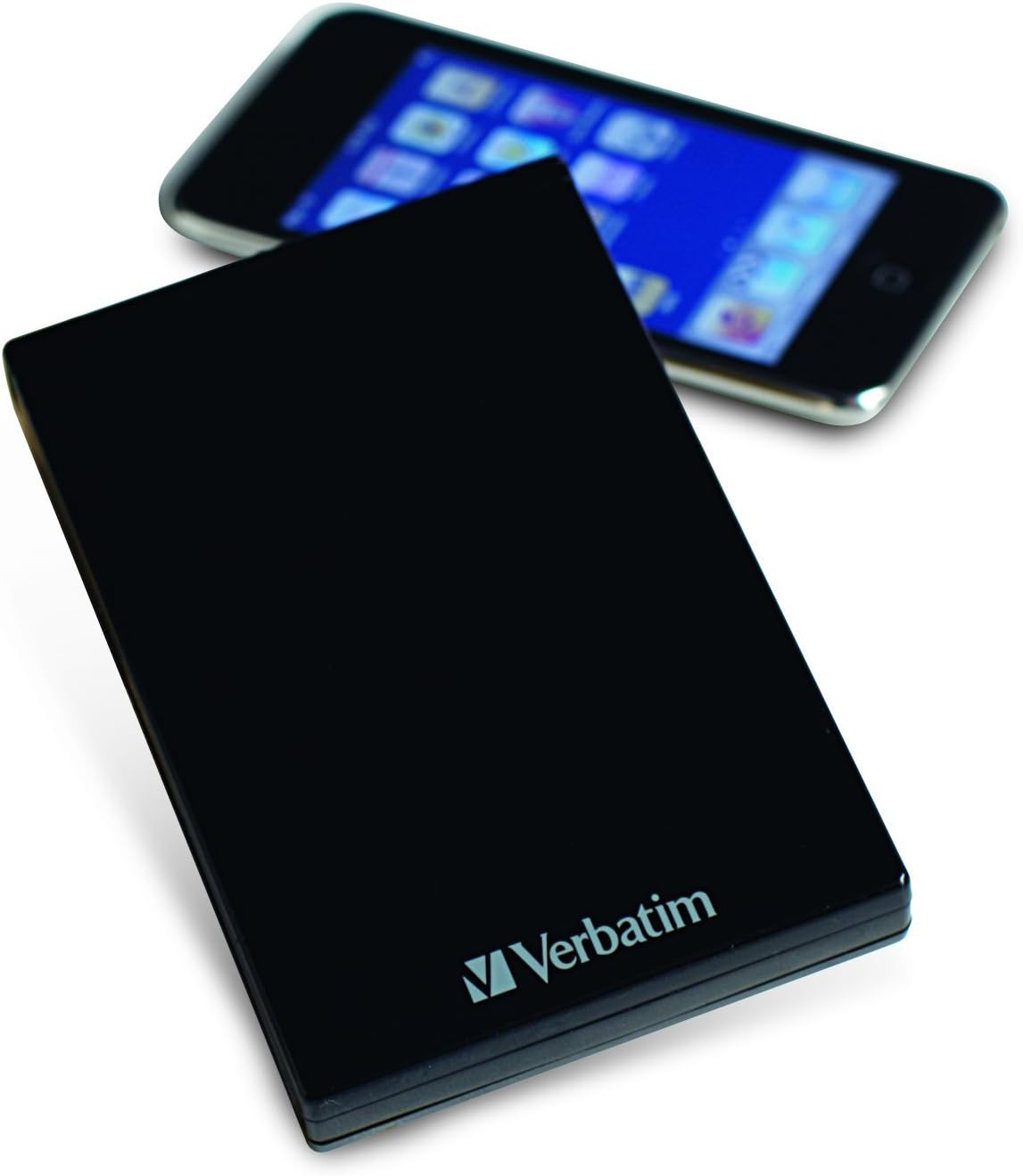
Figura 3.1: The Verbatim Acclaim hard drive shown next to a smartphone. This image provides a visual reference for the drive's compact and portable dimensions, making it easy to carry.
3.2. Safely Removing the Drive
To prevent data corruption, always safely eject the hard drive before disconnecting it from your computer.
Per a Windows:
- Click the "Safely Remove Hardware and Eject Media" icon in the system tray (bottom-right corner).
- Select the Verbatim Acclaim drive from the list.
- Wait for the "Safe to Remove Hardware" notification before disconnecting the USB cable.
Per a Mac:
- Drag the drive's icon from your desktop to the Trash icon in the Dock (the Trash icon will change to an Eject icon).
- Alternatively, right-click (or Control-click) the drive icon on the desktop and select "Eject [Drive Name]".
- Wait for the drive icon to disappear from your desktop before disconnecting the USB cable.
4. Manteniment
Proper maintenance ensures the longevity and reliable performance of your Verbatim Acclaim hard drive.
- Cura física: Handle the drive with care. Avoid dropping it or exposing it to excessive shock, as this can damage the internal components.
- Neteja: Use a soft, dry, lint-free cloth to clean the exterior of the drive. Avoid using liquid cleaners or abrasive materials.
- Temperatura i medi ambient: Store and operate the drive in a cool, dry environment, away from direct sunlight, extreme temperatures, and high humidity.
- Còpies de seguretat periòdiques: While the Acclaim drive is excellent for storing data, it is crucial to maintain multiple copies of important files. No single storage device is infallible.
- Expulsió segura: Always follow the safe removal procedures outlined in Section 3.2 to prevent data corruption.
5. Solució De Problemes
If you encounter issues with your Verbatim Acclaim hard drive, try the following troubleshooting steps:
- Unitat no detectada:
- Assegureu-vos que el cable USB estigui connectat correctament tant a la unitat com a l'ordinador.
- Prova de connectar la unitat a un port USB diferent de l'ordinador.
- Test the drive with a different USB cable, if available.
- Restart your computer and try connecting the drive again.
- Transferència lenta de dades:
- Ensure you are connected to a USB 2.0 port for optimal speed. USB 1.1 ports will result in significantly slower transfers.
- Tanqueu totes les aplicacions innecessàries que s'executen en segon pla i que puguin estar consumint recursos del sistema.
- Check your computer's disk for errors or fragmentation.
- File System Errors / Drive Unresponsive:
- Always safely eject the drive before disconnecting. Abrupt disconnection can lead to file corrupció del sistema.
- Run a disk check utility (e.g., "Error Checking" in Windows or "First Aid" in Disk Utility on Mac) to scan and repair minor file errors del sistema.
- If errors persist and data is backed up, consider reformatting the drive as described in Section 2.2.
- Drive Gets Warm:
It is normal for the drive to generate some heat during operation, especially during prolonged data transfers. Ensure adequate airflow around the device.
6. Especificacions
| Característica | Detall |
|---|---|
| Número de model | 97393 |
| Capacitat d'emmagatzematge digital | 1 TB |
| Interfície de disc dur | USB 2.0 (High-Speed), USB 1.1 (Full Speed) |
| Tecnologia de connectivitat | USB |
| Marca | Verbatim |
| Factor de forma del disc dur | 2.5 polzades |
| Descripció del disc dur | Portàtil |
| Dispositius compatibles | Desktop (Windows & Mac) |
| Tipus d'instal·lació | Disc dur extern |
| Color | Piano negre |
| Dimensions del producte | 5.51 x 1.89 x 7.09 polzades |
| Pes de l'article | 10.8 unces |
| Fabricant | Verbatim |
| Data de primera disponibilitat | 25 de juliol de 2010 |
7. Garantia i Suport
7.1. Garantia limitada
The Verbatim Acclaim 1TB USB 2.0 Portable External Hard Drive is backed by a Garantia limitada d'7 any. This warranty covers defects in materials and workmanship under normal use. Please retain your proof of purchase for warranty claims. For full terms and conditions of the warranty, please refer to the documentation included with your product or visit the official Verbatim weblloc.
7.2. Suport tècnic
For technical assistance, troubleshooting beyond the scope of this manual, or warranty inquiries, please contact Verbatim customer support.
- Visit the official Verbatim weblloc web amb recursos de suport, preguntes freqüents i informació de contacte.
- Have your product model number (97393) and proof of purchase ready when contacting support.