1. Introducció
The Motorola ARRIS SURFboard SBG6580 is an integrated home networking solution combining a DOCSIS 3.0 cable modem, a four-port 10/100/1000 Ethernet switch with advanced firewall capabilities, and an 802.11n Wi-Fi access point. This device is designed to provide ultra-broadband data and multimedia services, as well as high-bandwidth home networking, allowing users to share a single internet connection, files, and networked peripherals via wired or Wi-Fi connectivity.
2. Contingut del paquet
Upon opening the retail packaging, ensure the following items are included:
- ARRIS SURFboard SBG6580 Cable Modem/Wi-Fi Router
- Cable d'alimentació
- Cable Ethernet
- Manual d'instruccions (aquest document)
3. Dispositiu acabatview
3.1 Indicadors del panell frontal
The front panel of the SBG6580 features several LED indicators that provide status information about the device's operation. These lights help in monitoring the connection status and identifying potential issues.
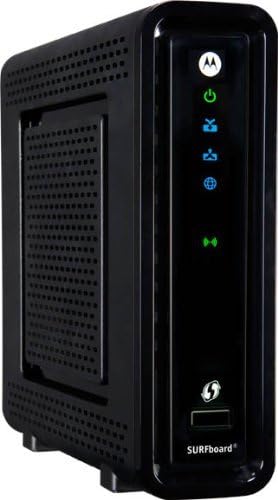
Figura 1: Frontal view of the ARRIS SURFboard SBG6580 showing indicator lights.
- Potència (verd): Indica que el dispositiu està encès.
- Receive (Blue/Green): Indicates downstream channel bonding (blue) or single channel connection (green).
- Send (Blue/Green): Indicates upstream channel bonding (blue) or single channel connection (green).
- Online (Green): Indicates successful internet connection.
- Wi-Fi (Green): Indica que la funcionalitat Wi-Fi està activa.
3.2 Ports del panell posterior
The rear panel provides all the necessary connection ports for the cable modem and router functionalities.

Figura 2: posterior view of the ARRIS SURFboard SBG6580 with various ports.
- COAX (Blue): Es connecta al cable coaxial del proveïdor de serveis de cable.
- Ethernet Ports (Yellow, 1-4): Four Gigabit Ethernet ports for wired connections to computers, gaming consoles, or other network devices.
- Potència (verd): Es connecta a l'adaptador de corrent.
- Botó de restabliment: Used to reset the device to factory default settings (recessed button).
4. Configuració
4.1 Comprovacions prèvies a la instal·lació
- Verify compatibility with your Internet Service Provider (ISP). The SBG6580 is compatible with major U.S. cable operators like Comcast Xfinity, Time Warner Cable, Charter, Cox, and Cablevision. Contact your ISP if not listed.
- Ensure you have an active cable internet service subscription.
- Gather your ISP account information, including account number and contact details.
4.2 Connecting the Modem/Router
- Connect one end of the coaxial cable to the COAX port on the SBG6580 and the other end to a cable wall outlet. Ensure the connection is finger-tight.
- Connect the Ethernet cable from one of the Ethernet ports (1-4) on the SBG6580 to the Ethernet port on your computer (optional for initial setup, Wi-Fi can also be used).
- Connect the power cord to the Power port on the SBG6580 and then plug the other end into an electrical outlet.
- Allow the device several minutes to power on and establish a connection. The front panel lights will cycle through various states before settling.
4.3 Activating with ISP
After connecting the hardware, you will need to activate the SBG6580 with your ISP. This typically involves:
- Calling your ISP's customer service.
- Providing them with the MAC address (CM MAC) and Serial Number (SN) located on the label on the bottom or back of your SBG6580.
- Following their instructions to complete the activation process.
5. Funcionament
5.1 Comprensió dels llums indicadors
Once fully operational, the front panel LEDs should display the following status:
- Potència: Verd sòlid
- Rebre: Solid Blue (for bonded channels) or Solid Green (for single channel)
- Envia: Solid Blue (for bonded channels) or Solid Green (for single channel)
- En línia: Verd sòlid
- Wi-Fi: Verd sòlid
If any lights are blinking or off when they should be solid, refer to the Troubleshooting section.
5.2 Accés a Web Interfície
To configure advanced settings, including Wi-Fi network name and password, you can access the SBG6580's web interfície:
- Obre a web navegador (per exemple, Chrome, Firefox, Edge).
- A la barra d'adreces, escriviu
192.168.0.1or192.168.100.1i premeu Intro. - When prompted, enter the default username
admini contrasenyamotorola(or the password printed on the device label if different). - You will now have access to the modem/router's configuration pages.
5.3 Configuració bàsica de Wi-Fi
Des del web interface, navigate to the Wireless section to configure your Wi-Fi network:
- SSID (nom de la xarxa): Change the default SSID to a unique name for your network.
- Security Key (Password): Set a strong, unique password for your Wi-Fi network. WPA2-PSK (AES) is recommended for optimal security.
- Banda dual: The SBG6580 supports dual-band Wi-Fi (2.4GHz and 5GHz). You can configure separate SSIDs and passwords for each band or use a single SSID for both if supported by your devices.
- Disabling SSID Broadcasting: To hide your network name, navigate to the 'Wireless' section, then 'Primary Network'. Under 'Automatic Security Configuration', click 'Disabled'. In the 'Closed Network' section, set it to 'Enabled'. Save and exit.
5.4 Connexions per cable
Use the four Gigabit Ethernet ports on the rear panel to connect devices that require a stable, high-speed wired connection, such as desktop computers, smart TVs, or gaming consoles. Simply plug an Ethernet cable from the device into any of the numbered Ethernet ports on the SBG6580.
6. Manteniment
6.1 actualitzacions de microprogramari
Firmware updates for the SBG6580 are typically managed and pushed by your Internet Service Provider (ISP). It is generally not recommended to attempt manual firmware updates unless instructed by your ISP, as incorrect updates can cause device malfunction.
6.2 Restabliment del dispositiu
If you experience persistent issues or wish to restore the device to its factory default settings, you can perform a factory reset:
- With the SBG6580 powered on, use a paperclip or a similar pointed object to press and hold the recessed Reset button on the rear panel for at least 10-15 seconds.
- Release the button. The device will restart and revert to its original factory settings. You will need to reconfigure your Wi-Fi settings and potentially reactivate with your ISP.
6.3 Atenció física
- Place the device in a well-ventilated area to prevent overheating. Avoid enclosed spaces.
- Mantingueu el dispositiu allunyat de la humitat, la llum solar directa i les temperatures extremes.
- Netegeu l'exterior amb un drap suau i sec. No utilitzeu netejadors líquids ni aerosols.
7. Solució De Problemes
Aquesta secció tracta problemes comuns i les seves possibles solucions.
7.1 Intermittent Disconnections or Slow Speed
One common cause for intermittent disconnections or slow internet speeds is improper signal power levels. You can check these levels via the modem's web interfície:
- Access the SBG6580 web interfície (vegeu la secció 5.2).
- Navigate to the 'Connection' or 'Status' page. Look for tables displaying 'Downstream Bonded Channels' and 'Upstream Channels'.
- Downstream Power Levels: Check the 'Power' column. Optimal range is typically between -8 dBmV and +8 dBmV. Values outside this range (e.g., -9 dBmV or +9 dBmV) may indicate a problem.
- Upstream Power Levels: Check the 'Power' column. Optimal range is typically up to 52 dBmV. Values higher than this (e.g., 55 dBmV or 57 dBmV) may indicate a problem.
- Also, ensure all channels (typically 8 downstream and 4 upstream) are locked. If only one upstream channel is locked, it can indicate an issue.
If power levels are outside the optimal range or channels are not locked, contact your ISP. They may need to send a technician to inspect your cable lines or adjust signal strength from their end. Remote fixes may offer temporary relief, but a physical inspection is often required for a lasting solution.
7.2 Sense connexió a Internet
- Comproveu totes les connexions dels cables (coaxials, Ethernet, alimentació) per assegurar-vos que estiguin ben fixades.
- Restart the modem by unplugging the power cord for 10 seconds and then plugging it back in.
- Verify that the 'Online' LED on the front panel is solid green. If it's blinking or off, the modem is not establishing an internet connection.
- Poseu-vos en contacte amb el vostre proveïdor d'Internet per confirmar l'estat del servei i l'activació del mòdem.
7.3 El Wi-Fi no funciona
- Ensure the 'Wi-Fi' LED on the front panel is solid green.
- Check your device's Wi-Fi settings to ensure it's connected to the correct SSID and using the correct password.
- Try restarting the modem/router.
- Accedeix al web interface (Section 5.2) to verify Wi-Fi settings are correctly configured and not disabled.
7.4 Contactar amb l'assistència
If troubleshooting steps do not resolve your issue, contact your Internet Service Provider for assistance. For hardware-related inquiries, you may contact Motorola/ARRIS support.
8. Especificacions
| Característica | Especificació |
|---|---|
| Model | SBG6580 |
| Estàndard DOCSIS | DOCSIS 3.0 |
| Wi-Fi estàndard | 802.11n (N300 Dual Band) |
| Ports Ethernet | 4 x Gigabit Ethernet (10/100/1000 Mbps) |
| Max Downstream Data Rate | 343 Mbps (8 bonded channels) |
| Max Upstream Data Rate | 131 Mbps (4 bonded channels) |
| Interval de freqüència | DOCSIS and EuroDOCSIS 108 to 1002 MHz |
| Dimensions (L x A x A) | 5.9" x 1.77" x 6.69" |
| Pes | 15.04 unces |
| Color | Negre |
9. Producte acabatview Vídeo
Mireu aquest vídeo per obtenir una visió generalview of the ARRIS SURFboard SBG6580 Cable Modem & Wi-Fi Router features and benefits.
Video: ARRIS SURFboard SBG6580 DOCSIS 3.0 Cable Modem/ Wi-Fi N300 2.4Ghz + N300 5GHz Dual Band Router Overview. This video highlights the device's capabilities and integrated features.
10. Garantia i Suport
The Motorola ARRIS SURFboard SBG6580 comes with a 1-Year Full Coverage Warranty. For warranty claims or technical support, please refer to the contact information provided by your retailer or Internet Service Provider. You may also visit the official Motorola support weblloc per obtenir recursos addicionals.


