1. Introducció
The ZyXEL MWR102 is a compact and versatile 3-in-1 wireless device designed for portable internet access. It functions as a Wireless Router, Access Point, and Client Bridge, providing IEEE 802.11n wireless connectivity with data transfer rates up to 150 Mbps. Its small form factor and flexible USB power option make it ideal for use in various environments, including hotels, conference rooms, or any location with a wired broadband connection.
This manual provides detailed instructions for setting up, operating, and maintaining your ZyXEL MWR102 Wireless Router. Please read this manual thoroughly before using the device.
2. Contingut del paquet
Comproveu que el vostre paquet contingui els elements següents:
- ZyXEL MWR102 Wireless Router
- Cable Ethernet
- Cable d'alimentació USB
- AC Power Adapter (for USB cable)
- Guia d'inici ràpid (no inclosa en aquest manual digital)
3. Maquinari acabatview
3.1 Indicadors del panell frontal

Figure 1: Front panel of the ZyXEL MWR102 with LED indicators.
- LED WAN: Indicates connection status of the WAN port.
- LED LAN: Indicates connection status of the LAN port.
- LED WLAN: Indicates wireless activity.
- LED WPS: Indica l'estat de la configuració protegida de Wi-Fi.
- LED PWR: Indica l'estat d'alimentació.
3.2 Ports del panell posterior

Figure 2: Rear panel of the ZyXEL MWR102 showing the WAN (blue), LAN (black), and Mini-USB (DC 5V) ports.
- Port WAN (blau): Connects to a broadband modem or an Ethernet wall jack for internet access.
- LAN Port (Black): Connects to a wired device such as a computer or network switch.
- DC 5V (Mini-USB) Port: Connects to the USB power cable for power supply.
3.3 Side Panel Switch
The side panel features a switch to select between Encaminador i AP (punt d'accés) modes.
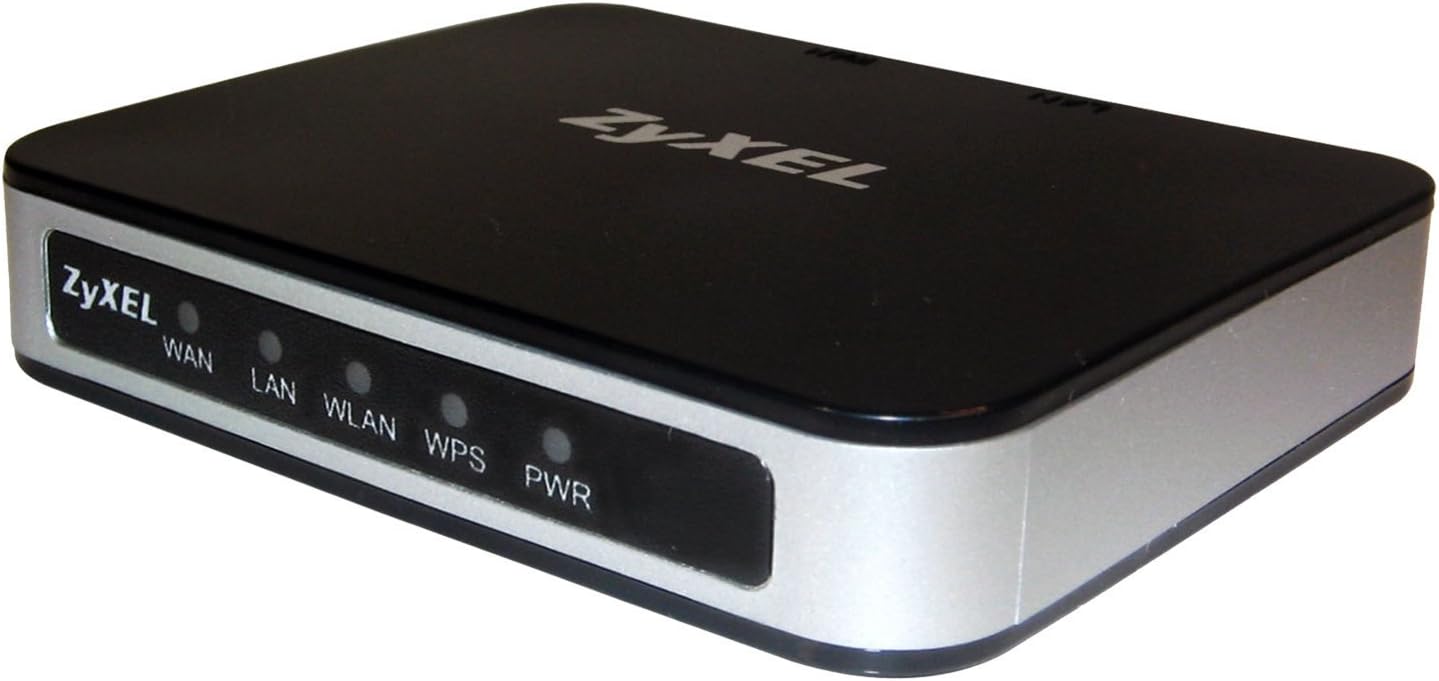
Figura 3: global view of the ZyXEL MWR102 router.
The device's compact dimensions are approximately 2.3 x 2.91 x 0.59 inches, making it highly portable.
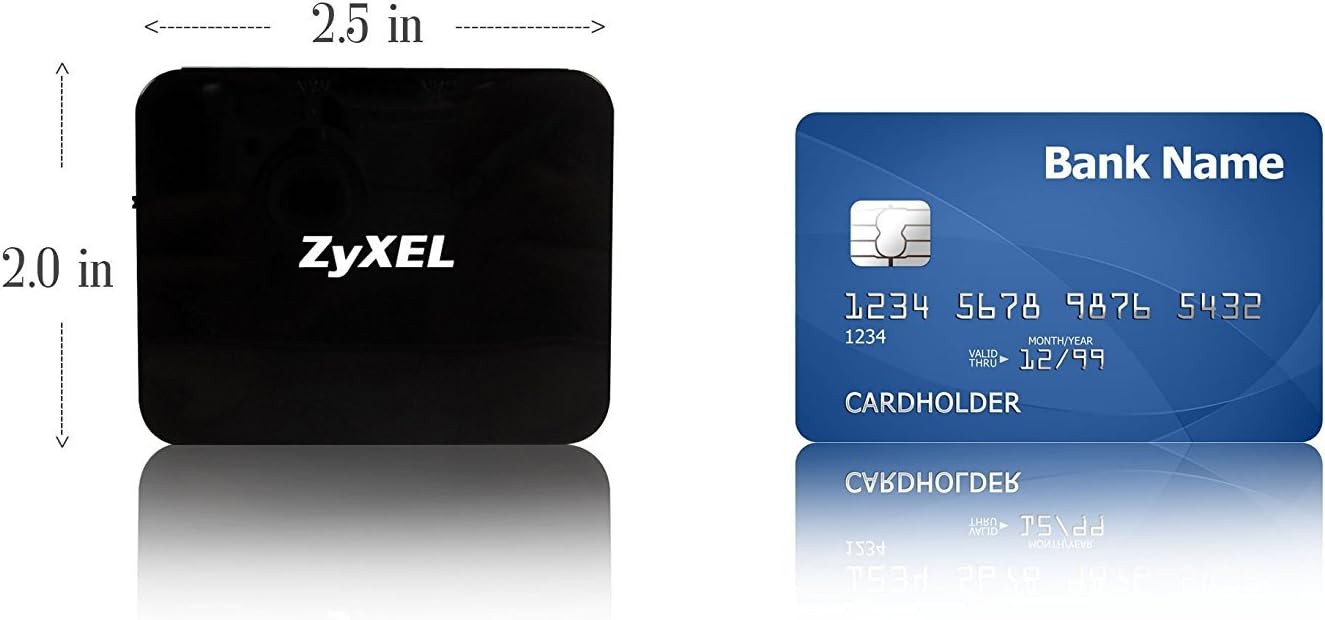
Figure 4: Size comparison of the ZyXEL MWR102 router.
4. Configuració
4.1 Alimentació del dispositiu
- Connect the USB power cable to the DC 5V port on the rear of the MWR102.
- Connect the other end of the USB cable to either:
- The included AC power adapter, then plug into a wall outlet.
- A USB port on a computer or other USB power source.
- The PWR LED on the front panel will illuminate when the device is powered on.
4.2 Accés a la configuració inicial
The MWR102 comes with a default SSID and encryption key printed on the bottom of the device. The default IP address for accessing the configuration webpàgina és 192.168.100.1.
- Ensure the MWR102 is powered on.
- Connect your computer or wireless device to the MWR102's default Wi-Fi network using the SSID and password found on the device's bottom label.
- Obre a web navegador i entreu
http://192.168.100.1a la barra d'adreces. - Enter the default username and password (also found on the device's bottom label) to access the configuration interface.
- It is recommended to change the default Wi-Fi password and router login credentials for security.
5. Modes de funcionament
The ZyXEL MWR102 supports three operating modes: Router, Access Point, and Client Bridge. The primary mode is selected via the physical switch on the side of the device.
5.1 Mode d'encaminador
In Router mode, the MWR102 shares a single wired internet connection wirelessly with multiple devices. This is ideal for hotel rooms or conference centers where only a single Ethernet port is available.
- Set the side switch to Encaminador.
- Connect an Ethernet cable from the internet source (e.g., hotel Ethernet jack, modem) to the port WAN blau a l'MWR102.
- Enceneu el dispositiu.
- Connect your wireless devices to the MWR102's Wi-Fi network.
5.2 Mode de punt d'accés (PA)
In AP mode, the MWR102 extends an existing wired network by creating a new wireless network. This is useful for adding Wi-Fi capability to a wired-only network.
- Set the side switch to AP.
- Connect an Ethernet cable from your existing wired network (e.g., a router's LAN port) to the black LAN port a l'MWR102.
- Enceneu el dispositiu.
- Connect your wireless devices to the MWR102's Wi-Fi network.
5.3 Client Bridge Mode
Client Bridge mode allows you to connect a wired-only device (like a smart TV, gaming console, or desktop PC) to an existing wireless network. The MWR102 acts as a wireless adapter for the wired device.
Note: To enable Client Bridge mode, you must first set the physical switch to AP mode, then access the MWR102's web configuration interface (http://192.168.100.1) to configure the Client Bridge settings. Refer to the online documentation or search for "ZyXEL MWR102 Client Bridge" for detailed instructions on configuring this advanced mode.
- Set the side switch to AP.
- Access the MWR102's web interfície de configuració.
- Navigate to the wireless settings and configure the device to connect to your desired existing wireless network as a client.
- Connecteu un cable Ethernet des del black LAN port on the MWR102 to the wired-only device.
- Power on the device. The wired device will now have network access via the MWR102's wireless connection.
6. Característiques de seguretat
The ZyXEL MWR102 incorporates several security features to protect your network and data:
- Xifratge sense fils: Supports WEP, WPA, and WPA2 encryption protocols to secure your wireless network. It is highly recommended to use WPA2 for the strongest security.
- Firewall Features: Includes Network Address Translation (NAT), VPN pass-through, and Stateful Packet Inspection (SPI) to prevent unauthorized access and attacks from the internet.
- WPS (Configuració protegida per Wi-Fi): Allows for easy and secure establishment of a wireless connection with compatible devices by pressing a button.
7. Manteniment
To ensure optimal performance and longevity of your MWR102 router:
- Keep the device in a well-ventilated area, away from direct sunlight and heat sources.
- Eviteu exposar el dispositiu a la humitat o a temperatures extremes.
- Netegeu l'exterior amb un drap suau i sec. No utilitzeu netejadors líquids.
- Comproveu periòdicament el suport de ZyXEL website for firmware updates to ensure your device has the latest features and security enhancements.
8. Solució De Problemes
If you encounter issues with your ZyXEL MWR102, refer to the following common troubleshooting steps:
- Sense energia: Ensure the USB power cable is securely connected to the device and a working power source. Check if the PWR LED is illuminated.
- No puc accedir a Internet:
- Verify that the WAN cable is securely connected to the blue WAN port and the internet source is active.
- In Router mode, check the WAN LED status.
- Ensure your device is connected to the MWR102's Wi-Fi network.
- Accedir al router web configuració (
http://192.168.100.1) and check the internet connection status.
- No es pot connectar a Wi-Fi:
- Ensure the WLAN LED is active.
- Verify you are using the correct Wi-Fi network name (SSID) and password. These are printed on the bottom of the device.
- Try restarting the MWR102 and your wireless device.
- Heu oblidat la contrasenya d'inici de sessió: Si no podeu accedir a web configuration interface, you may need to perform a factory reset. Locate the reset button (often a small pinhole) on the device, press and hold it for 10-15 seconds while the device is powered on. This will restore all settings to their factory defaults, including the login credentials and Wi-Fi settings found on the device's bottom label.
9. Especificacions
| Nom del model | ZyXEL MWR102 Wireless Router |
| Estàndard sense fils | IEEE 802.11n, compatible with 802.11b/g |
| Velocitat sense fil | Fins a 150 Mbps |
| Banda de freqüència | 2.4 GHz (monobanda) |
| Ports | 1x WAN (Ethernet), 1x LAN (Ethernet), 1x Mini-USB (DC 5V Power) |
| Modes de funcionament | Router, Access Point, Client Bridge |
| Seguretat | WEP, WPA, WPA2, NAT, VPN Pass-through, SPI |
| Dimensions (LxWxH) | 2.3 x 2.91 x 0.59 polzades (5.84 x 7.39 x 1.5 cm) |
| Pes | 12.8 unces (aproximadament 363 grams) |
| Entrada de potència | DC 5V via Mini-USB |
| Sistema operatiu | ZyNOS |
10. Garantia i Suport
For warranty information and technical support, please refer to the official ZyXEL website or contact ZyXEL customer service. Keep your purchase receipt for warranty claims.
Suport de ZyXEL Weblloc: https://www.zyxel.com/us/en/support