Introducció
This manual provides essential information for setting up, operating, and maintaining your HP F3510 e-All-in-One printer. The HP F3510 is a versatile device designed for printing, scanning, and copying everyday documents and photos. It features wireless connectivity for convenient use within your network.
Informació de seguretat
Seguiu sempre les precaucions bàsiques de seguretat quan feu servir aquest producte per reduir el risc de lesions per incendi o descàrrega elèctrica.
- Llegeix i entén totes les instruccions d'aquest manual.
- Feu servir només el cable d'alimentació i l'adaptador que s'inclouen amb la impressora.
- Do not place the printer in a location where the cord can be damaged.
- Keep the printer away from water or moist environments.
- No intenteu fer la reparació de la impressora vosaltres mateixos. Envieu totes les tasques de reparació a personal de servei qualificat.
Què hi ha a la caixa
Verifiqueu que tots els components siguin presents abans de continuar amb la configuració.
- HP F3510 e-All-in-One Printer
- Cable d'alimentació
- Configuració dels cartutxos de tinta (negre i tricolor)
- Software CD (may vary by region)
- Guia de configuració
- Sobres
Configuració
1. Desembalatge de la impressora
Carefully remove the printer from its packaging. Remove all packing materials, tapes, and protective films from the exterior and interior of the printer. Open the cartridge access door to ensure all internal packing materials are removed.
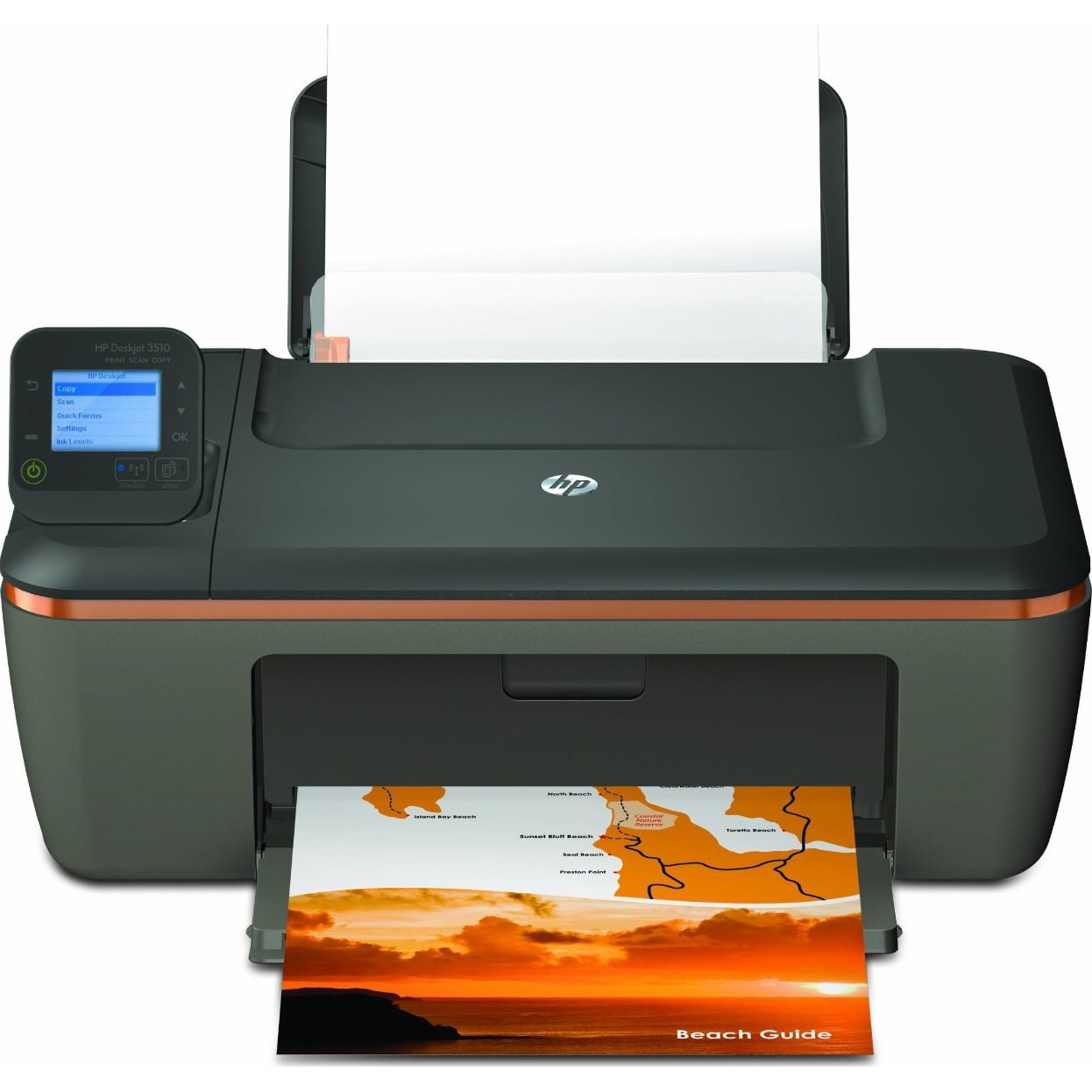
Image: The HP F3510 printer, showing its compact design with the paper input tray visible at the back and the output tray extended at the front. The scanner lid is closed on top.
2. Connexió a l'alimentació
Connect the power cord to the back of the printer and then plug the other end into a grounded electrical outlet. Press the Power button to turn on the printer.
3. Instal·lació de cartutxos de tinta
- Obriu la porta d'accés al cartutx de tinta. El carro es mourà cap al centre.
- Espereu fins que el carro estigui inactiu i silenciós.
- Gently press down on the cartridge to release it, then pull it out of its slot.
- Remove the new cartridge from its packaging. Pull the orange pull tab to remove the protective tape. No toqueu els contactes de color coure ni els brocs de tinta.
- Slide the new cartridge into its slot until it clicks into place. Ensure the color cartridge goes into the left slot and the black cartridge into the right slot.
- Close the ink cartridge access door. The printer will perform an alignment page print.
4. Carregant paper
Load plain white paper into the input tray. Adjust the paper guides to fit the paper size snugly. The printer supports standard letter size (8.5 x 11 inches).
5. Configuració sense fil
The HP F3510 features HP Auto Wireless Connect, simplifying the process of connecting to your wireless network.
- Install the printer software on your computer using the provided CD or by downloading it from the official HP support weblloc.
- During the software installation, select the "Wireless" connection option.
- Follow the on-screen prompts. The HP Auto Wireless Connect feature will attempt to automatically connect your printer to your wireless network.
- If prompted, enter your network name (SSID) and password (WPA key or WEP key).
- Once connected, the wireless indicator light on the printer will be solid blue.
For mobile printing, you can use HP ePrint. Register your printer with HP ePrint to assign it an email address, allowing you to print documents by sending them to the printer's email address from any internet-connected device.
Instruccions de funcionament
Impressió de documents
- Des d'un ordinador: Open the document or image you wish to print. Select "Print" from the application's File menu. Choose your HP F3510 printer, adjust settings (e.g., paper size, print quality, color/grayscale), and click "Print".
- Impressió sense fils: Ensure your computer or mobile device is connected to the same wireless network as your printer. Use the HP ePrint app or other compatible mobile printing solutions for direct printing from smartphones and tablets.
- Automatic 2-sided Printing: The HP F3510 supports automatic duplex printing. In your print settings, look for an option to print on both sides of the paper and select it. This feature helps reduce paper consumption.
Escaneig de documents i fotos
- Place the original document or photo face-down on the scanner glass, aligning it with the guide.
- Tanqueu la tapa de l'escàner.
- On your computer, open the HP printer software or a scanning application.
- Select "Scan a Document or Photo" and choose your desired settings (e.g., document type, resolution, destination).
- Click "Scan" to begin the process. The scanned image will appear on your computer.
Còpia de documents
- Col·loqueu el document original cara avall sobre el vidre de l'escàner.
- Tanqueu la tapa de l'escàner.
- On the printer's control panel, press the "Black Copy" button for a black and white copy or the "Color Copy" button for a color copy.
- To make multiple copies, press the respective copy button multiple times or use the control panel options if available to specify the number of copies.
Manteniment
Substitució de cartutxos de tinta
When an ink cartridge runs low or is empty, replace it promptly to ensure optimal print quality. Refer to the "Installing Ink Cartridges" section in Setup for detailed steps. Use genuine HP ink cartridges for best results.
Neteja de la impressora
- Exterior: Netegeu les superfícies exteriors de la impressora amb un drap suau i sense borrissol. No utilitzeu productes de neteja abrasius.
- Vidre de l'escàner: Netegeu el vidre de l'escàner amb un drap suau suaumentampNetegeu amb netejador de vidres. Eviteu ruixar el netejador directament sobre el vidre.
- Neteja del capçal d'impressió: If print quality issues (streaks, faded colors) occur, use the printer software to initiate a printhead cleaning cycle. This helps clear clogged nozzles.
Resolució de problemes
This section addresses common issues you might encounter with your HP F3510 printer.
La impressora no respon
- Ensure the printer is powered on and connected to a working electrical outlet.
- Check the USB cable connection (if using USB) or wireless network connection.
- Restart both the printer and your computer/router.
- Verify that the correct printer is selected in your computer's print dialog.
Problemes de connexió sense fil
- Confirm your router is on and broadcasting a signal.
- Check the wireless indicator light on the printer; if it's blinking, it's not connected.
- Run the Wireless Setup Wizard from the printer's control panel or through the HP software.
- Assegureu-vos que la impressora estigui dins de l'abast del vostre encaminador sense fil.
Poca qualitat d'impressió
- Comproveu els nivells de tinta i substituïu els cartutxos buits o amb pocs nivells de tinta.
- Perform a printhead cleaning cycle and print an alignment page using the printer software.
- Assegureu-vos que feu servir el paper adequat per a la vostra tasca d'impressió.
- Check print settings to ensure they match your desired quality (e.g., "Best" quality for photos).
Embussos de paper
- Apagueu la impressora i desconnecteu-la.
- Carefully remove any jammed paper from the input tray, output tray, or inside the printer. Pull paper slowly and evenly to avoid tearing.
- Assegureu-vos que el paper estigui carregat correctament i que no hi hagi massa paper a la safata d'entrada.
- Remove any foreign objects from the paper path.
Especificacions
| Característica | Especificació |
|---|---|
| Número de model | F3510 |
| Funcions | Imprimir, escanejar, copiar |
| Tecnologia d'impressió | Injecció de tinta |
| Connectivitat | Sense fil (Wi-Fi), USB 2.0 |
| Velocitat màxima d'impressió (negre) | Fins a 14 ppm |
| Velocitat màxima d'impressió (color) | Fins a 16 ppm |
| Maximum Print Resolution (Black) | 300 ppp |
| Resolució màxima d'impressió (color) | 300 ppp |
| Tipus d'escàner | Flatbed with Auto Document Feeder (ADF) |
| Maximum Scan Resolution | 300 ppp |
| Maximum Copy Resolution (Black/Color) | 300 ppp |
| Mida màxima del suport | 8.5 x 11 inches (Letter) |
| Capacitat de la safata d'entrada | 100 fulls |
| Capacitat de la safata de sortida | 50 fulls |
| Impressió dúplex | Automàtic (a dues cares) |
| Pes de l'article | 8.59 lliures |
Garantia i Suport
Your HP F3510 printer comes with a limited warranty. For specific warranty terms and conditions, please refer to the documentation included with your product or visit the official HP support weblloc.
For technical assistance, driver downloads, or further troubleshooting, visit the HP support website or contact HP customer service. Have your printer's model number (F3510) and serial number ready when contacting support.
Assistència en línia: support.hp.com