1. Introducció
This manual provides detailed instructions for the installation, configuration, and operation of your TP-Link N600 Wireless Dual Band Gigabit Router, model TL-WDR3600. This device offers simultaneous 2.4GHz and 5GHz wireless connections, Gigabit Ethernet ports, and USB ports for enhanced network functionality. Please read this manual thoroughly to ensure proper use and optimal performance of your router.
2. Producte acabatview
2.1 Característiques clau
- Simultaneous 2.4GHz 300Mbps and 5GHz 300Mbps connections for 600Mbps total available bandwidth.
- Two USB ports for sharing printers, files, or media locally or over the Internet.
- Full Gigabit Ethernet ports for ultimate wired transfer speeds.
- Hardware NAT for WAN to LAN throughput exceeding 800Mbps.
- Built-in media server for sharing music, video, and photos with devices like Windows Media Player, PS3, or Xbox 360.
- Built-in print server for wireless printing from various computers by connecting a USB printer.
- Simple wireless security encryption via the WPS button.
- External detachable antennas for improved alignment and potential upgrades.
2.2 Contingut del paquet
Els elements següents s'han d'incloure al paquet del producte:
- TP-Link TL-WDR3600 Wireless N600 Dual Band Router
- Adaptador d'alimentació
- Cable Ethernet
- Guia d'instal·lació ràpida
- CD de recursos
2.3 Producte Views

Imatge 1: Davant view of the TP-Link TL-WDR3600 N600 Wireless Dual Band Gigabit Router, showing the status indicator lights and the TP-Link logo.
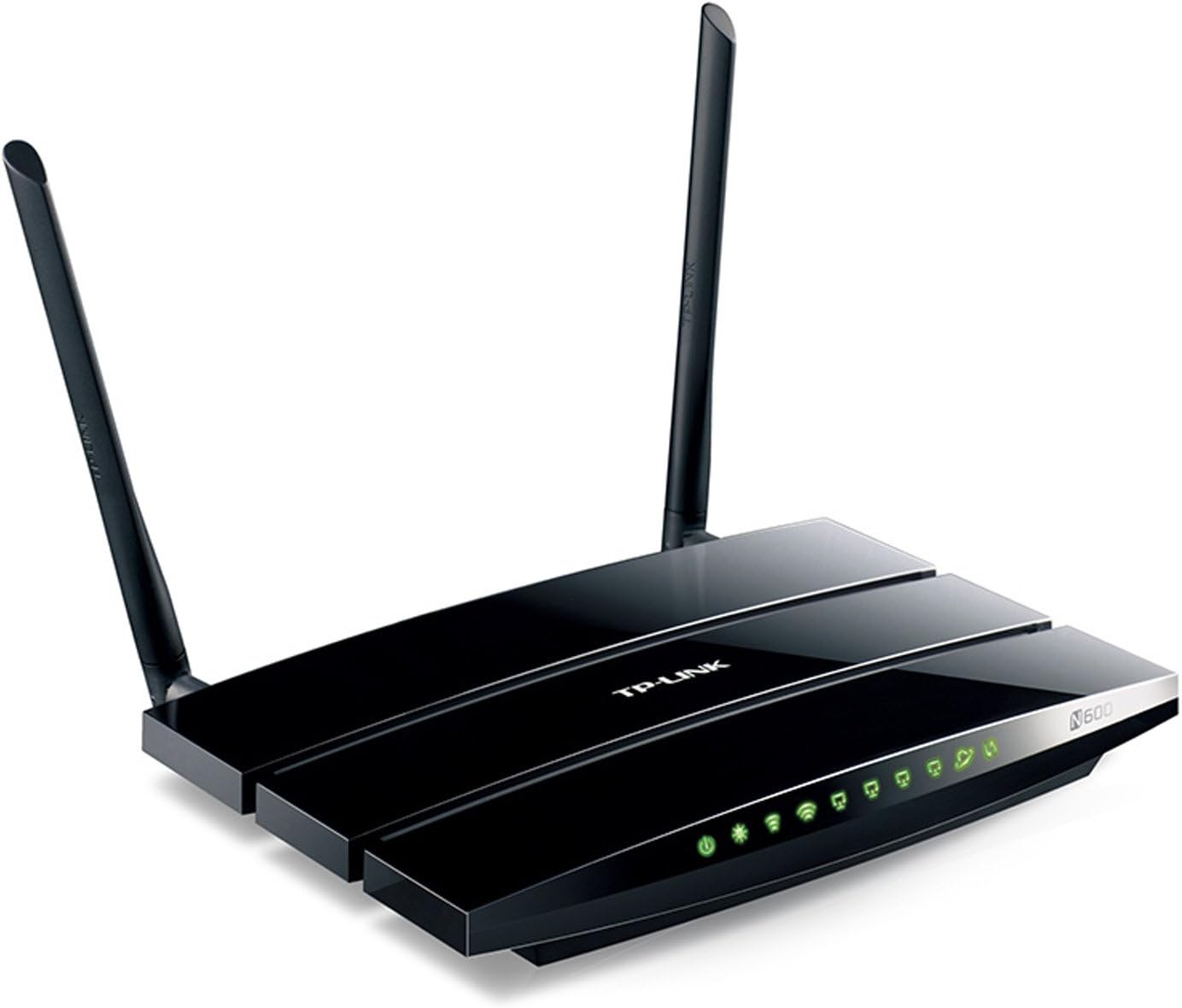
Imatge 2: En angle view of the TP-Link TL-WDR3600 N600 Wireless Dual Band Gigabit Router, highlighting the two external detachable antennas and the rear ports.
3. Guia de configuració
Follow these steps to set up your TP-Link TL-WDR3600 router:
- Apagueu el mòdem: Desconnecta l'alimentació del mòdem actual.
- Connecteu el router:
- Connect one end of the Ethernet cable to the WAN port (usually blue) on the router.
- Connecteu l'altre extrem del cable Ethernet al port Ethernet del mòdem.
- Connect your computer to one of the LAN ports (yellow) on the router using another Ethernet cable, or connect wirelessly using the default Wi-Fi name (SSID) and password found on the router's label.
- Dispositius d'encesa: First, power on your modem and wait for it to fully boot up (usually indicated by stable lights). Then, power on your TP-Link router.
- Access the Router's Web Interfície:
- Obre a web navegador (per exemple, Chrome, Firefox, Edge).
- Type the default access address (e.g., tplinkwifi.net or 192.168.0.1) a la barra d'adreces i premeu Intro.
- Introduïu el nom d'usuari i la contrasenya predeterminats (normalment admin for both, found on the router's label).
- Executeu l'Auxiliar de configuració ràpida: Follow the on-screen instructions of the Quick Setup Wizard to configure your Internet connection, wireless network names (SSIDs), and passwords. It is highly recommended to change the default login password for security.
- Connecteu els vostres dispositius: Once configured, connect your wireless devices to the new Wi-Fi networks (2.4GHz or 5GHz) using the passwords you set.
4. Instruccions de funcionament
4.1 Connectivitat sense fil
The TL-WDR3600 supports dual-band Wi-Fi, allowing you to connect devices to either the 2.4GHz or 5GHz network.
- Banda de 2.4 GHz: Offers wider coverage and better penetration through walls, suitable for general internet use and older devices.
- Banda de 5 GHz: Provides faster speeds and less interference, ideal for bandwidth-intensive activities like online gaming and HD video streaming, especially for newer devices.
To connect a device, select the appropriate Wi-Fi network (SSID) from your device's Wi-Fi settings and enter the password.
4.2 USB Port Functionality
The router features two USB 2.0 ports for versatile functionality:
- Compartició d'emmagatzematge: Connecteu un dispositiu d'emmagatzematge USB (per exemple, una unitat flaix, un disc dur extern) per compartir files across your network or remotely via FTP. Configure this feature in the router's web interface under "USB Settings" or "Storage Sharing."
- Compartició d'impressores: Connect a USB printer to the router to enable wireless printing from any computer on your network. You will need to install the TP-Link USB Printer Controller Utility on each computer that will use the shared printer.
- Servidor de mitjans: Utilize the built-in media server to stream media files (music, videos, photos) from a connected USB storage device to DLNA-compatible devices such as smart TVs, game consoles (PS3, Xbox 360), or media players.
4.3 Xarxa de convidats
The Guest Network feature allows you to provide internet access to guests without giving them access to your main network resources. This enhances security. You can enable and configure separate SSIDs and passwords for guest networks via the router's web interfície.
5. Manteniment
- Actualitzacions de firmware: Revisa regularment el TP-Link website for firmware updates. Updating the firmware can improve performance, add new features, and fix security vulnerabilities. Download the correct firmware for your model and follow the instructions provided on the TP-Link support page for installation.
- Col·locació del router: Place the router in a central location, away from obstructions (e.g., thick walls, metal objects) and sources of interference (e.g., microwaves, cordless phones) to maximize wireless coverage and signal strength.
- Neteja: Keep the router clean and free from dust. Ensure proper ventilation to prevent overheating.
- Reinicis regulars: Periodically rebooting your router (power cycling) can help resolve minor network issues and improve performance.
6. Solució De Problemes
6.1 Sense accés a Internet
- Check all cable connections between the modem, router, and computer. Ensure they are secure.
- Verify that your modem is working correctly by connecting a computer directly to it.
- Reboot your modem and router in sequence: first the modem, then the router.
- Accedir al router web interface and check the WAN status. Ensure your Internet Service Provider (ISP) settings are correctly configured.
- If your ISP requires MAC Address Cloning, configure this in the router's WAN settings.
6.2 Velocitat sense fil lenta
- Ensure your devices are connected to the appropriate band (5GHz for faster speeds, if supported).
- Reduce interference by placing the router away from other electronic devices.
- Change the wireless channel in the router's settings to avoid congestion with neighboring networks. Use a Wi-Fi analyzer tool to find less crowded channels.
- Update the wireless adapter drivers on your client devices.
6.3 No es pot accedir als encaminadors Web Interfície
- Ensure your computer is connected to the router via Ethernet or Wi-Fi.
- Verify that you are using the correct IP address or domain name (e.g., tplinkwifi.net, 192.168.0.1).
- Esborra la memòria cau i les galetes del navegador o prova un altre navegador.
- Desactiveu temporalment qualsevol tallafocs o programari antivirus del vostre ordinador.
- If you forgot the login password, you may need to perform a factory reset on the router. Locate the reset button (usually a small pinhole) on the router, press and hold it for about 10 seconds while the router is powered on, then release. This will restore the router to its default settings.
7. Especificacions
| Marca | TP-Link |
| Nom del model | TL-WDR3600 |
| Tipus sense fil | 802.11n |
| Classe de banda de freqüència | Doble banda (2.4 GHz i 5 GHz) |
| Velocitat sense fil | Fins a 300 Mbps (2.4 GHz) + 300 Mbps (5 GHz) |
| Ports Ethernet | 4x LAN Gigabit, 1x WAN Gigabit |
| Ports USB | 2x USB 2.0 |
| Antenes | 2x Detachable External Antennas |
| Dimensions (LxWxH) | 12.4 x 2.76 x 9.45 polzades |
| Compatibilitat de sistemes operatius | Windows, Mac |
| Voltage | 12 Volts |
8. Garantia i suport tècnic
For warranty information, technical support, firmware updates, and additional resources, please visit the official TP-Link website. You can typically find support contact details, FAQs, and product documentation specific to the TL-WDR3600 model on their support pages.
Oficial de TP-Link Weblloc: www.tp-link.com


