1. Introducció
The Cisco 5500 Series Wireless LAN Controller (WLC) is a highly scalable and flexible platform designed to enable system-wide services for mission-critical wireless deployments in medium to large-sized enterprises and campus environments. This controller, specifically the AIR-CT5508-50-K9 model, is optimized for 802.11n performance and maximum scalability, supporting up to 50 Cisco Access Points simultaneously.
It provides enhanced uptime, superior performance for reliable streaming video and toll-quality voice, and improved fault recovery for a consistent mobility experience. This manual will guide you through the installation, configuration, and maintenance of your Cisco 5508 WLC.
2. Producte acabatview
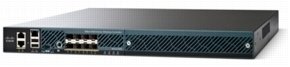
Figura 2.1: Cisco 5508 Wireless LAN Controller (AIR-CT5508-50-K9)
This image displays the Cisco 5508 Wireless LAN Controller from a slightly elevated front-right perspective. The front panel features ventilation grilles. The rear panel, visible on the left, includes multiple Ethernet ports, console ports, and USB ports. The device has a dark grey or black casing.
2.1 Característiques clau
- Supports up to 50 Cisco Access Points.
- Optimized for 802.11n wireless standards.
- High scalability for medium to large enterprise networks.
- Enhanced uptime and fault recovery.
- Superior performance for real-time applications like voice and video.
3. Configuració i instal·lació
3.1 Unpacking the Controller
Carefully unpack the Cisco 5508 WLC from its shipping container. Verify that all components listed in the packing list are present and undamaged. Retain the packaging materials for future transport or storage.
3.2 Instal·lació física
The Cisco 5508 WLC is designed for rack mounting. Ensure adequate ventilation around the unit. Follow these steps for installation:
- Mount the controller securely in a standard 19-inch equipment rack using the provided rack-mount kit.
- Ensure proper grounding of the rack and the controller.
- Connect the power cord to the controller's power input and then to a grounded AC power outlet.
3.3 Connexions de xarxa
Connect the necessary network cables to the controller's rear panel ports:
- Ports Gigabit Ethernet: Connect to your network switch infrastructure. These ports handle data traffic from access points and client devices.
- Port de gestió: Use this dedicated port for out-of-band management access.
- Port de la consola: Connect a serial cable from a management workstation to this port for initial configuration and command-line interface (CLI) access.
- Ports USB: For future use or specific accessory connections.
4. Funcionament del controlador
4.1 Configuració inicial
After physical installation and power-up, the controller requires initial configuration. This is typically done via the console port using a terminal emulator (e.g., PuTTY, Tera Term) with the following settings: 9600 baud, 8 data bits, no parity, 1 stop bit, no flow control.
Follow the on-screen prompts to set up basic network parameters, administrator credentials, and management interfaces.
4.2 Management Interfaces
- Command-Line Interface (CLI): Accessible via the console port or SSH/Telnet. Provides full control over the controller's functions.
- Interfície gràfica d'usuari (GUI): Accessible via a web browser. Provides an intuitive interface for configuration, monitoring, and troubleshooting. Navigate to the controller's IP address in your web navegador.
4.3 Access Point Management
The Cisco 5508 WLC automatically discovers and manages Cisco Access Points (APs). Once an AP connects to the network and discovers the controller, it will download its configuration and begin serving wireless clients. Ensure proper network connectivity and firewall rules to allow APs to communicate with the controller.
5. Manteniment
5.1 actualitzacions de microprogramari
Consulteu regularment el suport tècnic de Cisco website for the latest firmware versions. Firmware updates provide new features, bug fixes, and security enhancements. Follow the official Cisco documentation for the correct firmware upgrade procedure to avoid service interruptions.
5.2 Còpia de seguretat i restauració de la configuració
It is critical to regularly back up your controller's configuration. This allows for quick recovery in case of a system failure or misconfiguration. Configuration files can typically be backed up to an external TFTP, FTP, or SFTP server.
5.3 Consideracions ambientals
Maintain the operating environment within specified temperature and humidity ranges to ensure optimal performance and longevity of the device. Ensure proper airflow and keep ventilation openings clear of obstructions.
6. Solució De Problemes
6.1 Problemes comuns
- Sense energia: Verify power cord connection, power outlet, and power supply status. Check power LED indicators.
- Connectivitat de xarxa: Ensure Ethernet cables are properly connected and network switches are operational. Check port status LEDs.
- Access Points Not Registering: Verify network reachability between APs and the controller, check firewall rules, and ensure correct controller discovery methods are configured on the APs.
- Problemes d'inici de sessió: Confirm correct username and password. If forgotten, refer to Cisco documentation for password recovery procedures.
6.2 Indicadors LED
Refer to the controller's front panel LEDs for quick status checks. Common LEDs include Power, System Status, and Port Status. Consult the Cisco 5500 Series documentation for a detailed explanation of each LED's behavior.
6.3 Passos bàsics de diagnòstic
- Comproveu les connexions físiques.
- Verify power and system status LEDs.
- Ping the controller's IP address from a management workstation.
- Access the CLI via console and check system logs for error messages.
7. Especificacions
| Atribut | Valor |
|---|---|
| Nom de marca | Cisco |
| Model de producte | AIR-CT5508-50-K9 |
| Tipus de producte | Controlador de LAN sense fil |
| Port Gigabit Ethernet | Sí |
| Port de gestió | Sí |
| USB | Sí |
| Font d'alimentació | Font d'alimentació |
| Pes de l'article | 28.6 lliures |
| Data de primera disponibilitat | 15 de maig de 2014 |
8. Garantia i Suport
Cisco products typically come with a standard limited hardware warranty. For specific warranty terms and conditions applicable to your Cisco 5508 Wireless LAN Controller, please refer to the warranty documentation included with your purchase or visit the official Cisco weblloc.
For technical support, software downloads, and additional documentation, please visit the Cisco Support Community or contact Cisco Technical Assistance Center (TAC) through your service contract. Ensure you have your product serial number and relevant network details ready when contacting support.
Suport de Cisco Weblloc: https://www.cisco.com/c/en/us/support/index.html


