1. Introducció
This manual provides comprehensive instructions for the installation, operation, and maintenance of your Swann SWDVK-163208S-US 3200S 16-Channel 960H DVR Security System. Please read this manual thoroughly before using the product to ensure proper setup and functionality. Keep this manual for future reference.
The system includes a 16-channel 960H Digital Video Recorder (DVR) with a pre-installed 1TB hard drive and eight 700TVL security cameras designed for both indoor and outdoor use. It supports continuous recording, motion detection, and remote viewcapacitats d'ingrés.
2. Informació de seguretat
- Ensure all power connections are secure and correctly rated for the device.
- Do not expose the DVR or cameras to water or excessive moisture.
- Avoid placing the DVR in direct sunlight or near heat sources.
- Use only the power adapters supplied with the system.
- Do not attempt to open or service the DVR or cameras yourself. Refer all servicing to qualified personnel.
- Keep cables organized to prevent tripping hazards and ensure proper ventilation.
3. Contingut del paquet
Verify that all items listed below are present in your package. If any items are missing or damaged, contact Swann customer support.
- Swann SWDVK-163208S-US 16-Channel 960H DVR with 1TB HDD
- 8 x 700TVL Security Cameras
- 8 x BNC Cables (60ft/18m)
- Power Adapters for DVR and Cameras
- Cable Ethernet
- Cable HDMI
- Ratolí USB
- Cargols i taps de muntatge
- Guia d'inici ràpid
- Adhesius dissuasius contra el robatori
4. S'ha acabat el sistemaview
4.1 DVR Front Panel
The front panel of the DVR provides access to essential controls and indicators.
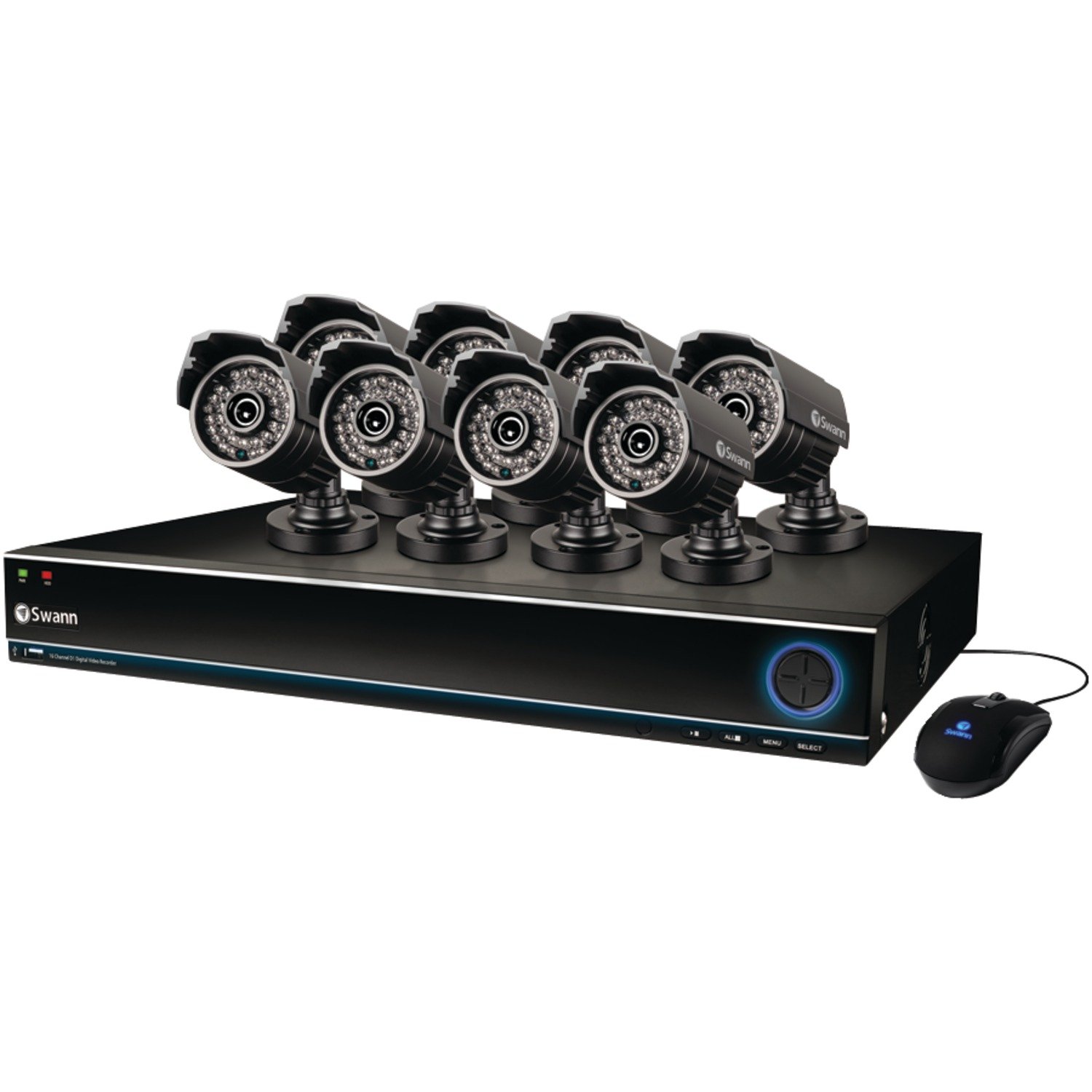
Image: The Swann SWDVK-163208S-US security system, showing the DVR unit and several cameras. The DVR features a blue-lit front panel with control buttons and status indicators.
- Indicador d'alimentació: Illuminates when the DVR is powered on.
- Indicador HDD: Parpelleja quan el disc dur està actiu.
- Indicador de xarxa: Indica la connectivitat de xarxa.
- Port USB: Per connectar un ratolí USB o per fer una còpia de seguretat de dades.
- Botons de control: Navigate menus and control playback.
4.2 DVR Rear Panel
The rear panel contains all the necessary ports for connecting cameras, monitors, and network cables.
- Video Input (BNC): 16 ports for connecting security cameras.
- Video Output (HDMI/VGA): For connecting a monitor or TV.
- Audio Input/Output (RCA): For connecting microphones and speakers (if supported).
- Port Ethernet (RJ45): Per a connexió a la xarxa.
- Ports USB: Ports USB addicionals per a perifèrics.
- eSATA Port: For connecting an external hard drive for expanded storage.
- Entrada d'alimentació: For connecting the DVR power adapter.
4.3 Característiques de la càmera
The included 700TVL cameras offer clear video surveillance with night vision capabilities.
- Resolució: 700TVL (Television Lines) for detailed images.
- Visió nocturna: Infrared LEDs provide visibility up to 82ft (25m) in low light or complete darkness.
- Resistent a la intempèrie: Designed for both indoor and outdoor installation.
- Muntatge: Adjustable brackets for flexible positioning.
5. Configuració
5.1 Connecting the DVR
- Connect the included USB mouse to one of the USB ports on the DVR.
- Connect the HDMI cable from the DVR's HDMI output to an HDMI input on your TV or monitor. Alternatively, use a VGA cable for VGA connections.
- Per a comandament a distància viewing, connect an Ethernet cable from the DVR's Ethernet port to your router or network switch.
5.2 Connecting Cameras
- Mount each camera in your desired location using the provided screws and plugs. Ensure the camera has a clear field of view and is protected from direct impact.
- Connect one end of the BNC cable to the camera's video output.
- Connect the other end of the BNC cable to a video input port on the DVR (e.g., Video In 1, Video In 2, etc.).
- Connect the camera's power input to the power splitter cable, then connect the power adapter to the splitter and a power outlet.
5.3 Encès
- Connect the DVR power adapter to the DVR's power input and then to a power outlet.
- The DVR will power on automatically. The power indicator light on the front panel will illuminate.
- Wait for the system to boot up. The Swann logo will appear on your connected monitor, followed by the live view visualització.
5.4 Configuració inicial
Upon first boot-up, the DVR will guide you through an initial setup wizard.
- Selecció d'idioma: Trieu el vostre idioma preferit.
- Data i hora: Set the correct date, time, and time zone. This is crucial for accurate recording timestamps.
- Configuració de la xarxa: Configure network settings (DHCP is usually sufficient for automatic setup).
- Configuració de la contrasenya: Create a strong password for the administrator account to secure your system.
- Format del disc dur: The system may prompt to format the hard drive. Confirm to proceed.
6. Funcionament del sistema
6.1 Viu View
Després de la configuració inicial, el DVR mostrarà la imatge en directe view de totes les càmeres connectades. Podeu canviar entre una sola càmera view, multi-camera grids (e.g., 4-channel, 8-channel, 16-channel), and sequence modes using the on-screen menu or front panel controls.
6.2 Modes d'enregistrament
The DVR supports various recording modes:
- Gravació contínua: Registres 24/7, sobreescrivint el menjar més antictage quan el disc dur està ple.
- Gravació de detecció de moviment: Records only when motion is detected in the camera's view. This conserves hard drive space. Sensitivity and detection areas can be configured for each camera.
- Enregistrament programat: Registres durant moments específics del dia o de la setmana.
- Enregistrament manual: Start and stop recording manually from the DVR interface.
Access recording settings via the DVR's main menu: Menu > Record > Record Schedule.
6.3 Reproducció
Per tornarview foo gravattage:
- Del directe view, right-click with the mouse to open the main menu.
- Seleccioneu Reproducció.
- Choose the desired date and camera channel(s).
- Use the timeline to navigate through recorded events. Different colors on the timeline indicate different recording types (e.g., continuous, motion).
- Use the playback controls (play, pause, fast forward, rewind) to review footage.
6.4 Còpia de seguretat
You can back up important video footage to a USB flash drive or external hard drive.
- Insert a USB storage device into a USB port on the DVR.
- Vés a Menu > Backup.
- Select the camera channel, date, and time range for the footage you wish to back up.
- Choose the backup device and file format (e.g., AVI).
- Feu clic Comença to begin the backup process.
6.5 Remot Viewing (SwannLink & SwannView)
The SwannLink and SwannView applications allow you to view your cameras remotely from a smartphone or tablet.
- Ensure your DVR is connected to the internet via the Ethernet port.
- Download the SwannView aplicació des de la botiga d'aplicacions del dispositiu.
- Open the app and follow the on-screen instructions to add your DVR. This typically involves scanning a QR code displayed on the DVR's monitor (Menu > Network > SwannLink) o introduint manualment l'ID del dispositiu.
- Enter the DVR's username and password when prompted.
- Ara hauríeu de poder fer-ho view viu footage and access playback remotely.
7. Manteniment
7.1 Gestió del disc dur
The 1TB hard drive will automatically overwrite the oldest footage when full. To ensure optimal performance, it is recommended to periodically check the hard drive status via Menu > HDD > Disk Manage. You can also connect an external hard drive to the eSATA port for additional storage capacity.
7.2 Cleaning Cameras
Netegeu periòdicament les lents de la càmera amb un drap suau i sec.amp drap per eliminar la pols, la brutícia o les taques d'aigua que puguin enfosquir view. Do not use harsh chemicals or abrasive materials.
7.3 actualitzacions de microprogramari
Swann may release firmware updates to improve system performance or add new features. Check the Swann support website for the latest firmware for your model. Follow the instructions provided with the firmware update carefully to avoid damaging the DVR.
8. Solució De Problemes
| Problema | Causa possible | Solució |
|---|---|---|
| No hi ha imatge al monitor | Loose video cable, incorrect input selected on monitor, DVR not powered on. | Comproveu les connexions del cable HDMI/VGA. Assegureu-vos que el monitor estigui a l'entrada correcta. Verifiqueu l'alimentació del DVR. |
| Sense imatge de càmera | Loose BNC cable, camera power issue, faulty camera. | Check BNC and power connections for the specific camera. Test camera with a known working cable/power supply. |
| DVR not recording | Recording schedule not set, hard drive full or faulty, motion detection not configured. | Check recording schedule. Verify hard drive status. Ensure motion detection is enabled and configured correctly. |
| No es pot view a distància | No network connection, incorrect network settings, app configuration error. | Verify DVR has internet access. Check network settings (DHCP). Reconfigure the DVR in the SwannView aplicació. |
| Purple image on camera | IR filter stuck, camera malfunction. | Power cycle the camera. If the issue persists, the camera may be faulty and require replacement. |
9. Especificacions
- Número de model: SWDVK-163208S-US
- Entrades de vídeo: 16 Channels BNC
- Sortida de vídeo: HDMI, VGA
- Resolució de visualització: Up to 1080p (HDMI)
- Resolució de gravació: 960H (960x576/960x480)
- Disc dur: 1TB SATA HDD (expandable via eSATA)
- Format de compressió: H.264
- Interfície de xarxa: Port Ethernet RJ45
- Interfície USB: 3 x ports USB 2.0
- Resolució de la càmera: 700TVL
- Camera Night Vision: Fins a 82 peus (25 m)
- Camera Weatherproof Rating: IP66 (per a ús exterior)
- Dimensions (DVR): 22.5 x 15.3 x 8.1 polzades (aproximadament)
- Weight (DVR): 14 lliures (aproximadament)
- Font d'alimentació: DC 12V
10. Informació de la garantia
Swann products are covered by a limited warranty. The specific terms and duration of your warranty may vary by region and product. Please refer to the warranty card included with your product or visit the official Swann weblloc web per obtenir informació detallada sobre la garantia i els procediments de registre. Conserveu el comprovant de compra per a reclamacions de garantia.
11. Suport
For technical assistance, product support, or to download the latest software and manuals, please visit the official Swann support website. You can typically find FAQs, troubleshooting guides, and contact information for customer service there. Have your product model number (SWDVK-163208S-US) ready when contacting support.
Suport de Swann Weblloc: https://www.swann.com/us/support


