1. Introducció
The D-Link DCS-5222L is a versatile wireless network camera designed for surveillance and monitoring. It features pan and tilt functionality, night vision capabilities, and high-definition video capture, allowing for comprehensive coverage and clear imaging in various lighting conditions. This manual provides detailed instructions for setting up, operating, and maintaining your DCS-5222L camera.
Contingut del paquet
- D-Link DCS-5222L Network Camera
- Adaptador d'alimentació
- Cable Ethernet
- Mounting Kit (screws, wall plugs)
- Guia d'instal·lació ràpida
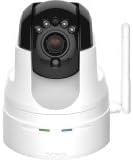
Figura 1: D-Link DCS-5222L Network Camera. This image displays the front view of the camera, highlighting its lens, infrared LEDs for night vision, and the wireless antenna on the side. The camera is white with a black top section, indicating its pan/tilt mechanism.
2. Configuració
2.1 Instal·lació física
- Trieu una ubicació: Select a suitable location for your camera, ensuring it has a clear view of the area you wish to monitor and is within range of your Wi-Fi network or an Ethernet connection.
- Muntatge (opcional): If mounting, use the provided mounting kit to secure the camera to a wall or ceiling. Ensure the camera is securely fastened.
- Connectar l'alimentació: Plug the power adapter into the camera's power port and then into a power outlet. The camera will begin to power on.
2.2 Connexió de xarxa
The DCS-5222L supports both wireless (Wi-Fi) and wired (Ethernet) connections.
Wired Connection (Recommended for initial setup)
- Connect one end of the Ethernet cable to the camera's Ethernet port and the other end to an available LAN port on your router.
Connexió sense fil (Wi-Fi)
- Ensure your camera is powered on and within range of your Wi-Fi router.
- Proceed to the mydlink App Setup for wireless configuration.
2.3 mydlink App Setup
- Baixeu l'aplicació mydlink: Cerca "mydlink" in your smartphone's app store (compatible with Android and iPhone devices) and install the application.
- Create/Log In to mydlink Account: Open the app and follow the on-screen instructions to create a new mydlink account or log in with an existing one.
- Afegeix la teva càmera: In the mydlink app, tap the "Add a New Device" or "+" icon. Follow the guided steps to add your DCS-5222L camera. This typically involves scanning a QR code on the camera or manually entering its setup PIN.
- Configure Wi-Fi (if applicable): If setting up wirelessly, the app will guide you through connecting the camera to your home Wi-Fi network.
- Configuració completa: Once connected, you can name your camera and adjust initial settings.
3. Funcionament de la càmera
3.1 Accés a la càmera
- mydlink App: Open the mydlink app on your smartphone or tablet. Your camera should appear in the device list. Tap on it to view the live feed and access controls.
- Web Navegador: For advanced settings, you can access the camera's web interfície introduint la seva adreça IP a a web browser on a computer connected to the same network. Refer to your router's client list or the mydlink app for the camera's IP address.
3.2 Panoràmica, inclinació i zoom digital
The DCS-5222L features motorized pan and tilt functionality, allowing you to remotely adjust the camera's viewangle de ing.
- Using the mydlink App: En directe view screen, use the on-screen controls (usually directional arrows or a joystick icon) to pan (move horizontally) and tilt (move vertically) the camera lens.
- Zoom digital: Pinch-to-zoom on the live feed within the mydlink app to digitally zoom in or out.
3.3 Visió nocturna
The camera is equipped with infrared (IR) LEDs for night vision, providing clear video in low-light or no-light conditions up to 26 feet.
- Activació automàtica: The camera's night vision typically activates automatically when ambient light levels drop below a certain threshold.
- Control manual: Some settings within the mydlink app or web interface may allow you to manually enable or disable night vision.
3.4 Recording and Motion Detection
Configure your camera to record video based on motion detection or continuously.
- Detecció de moviment: Set up motion detection zones and sensitivity levels in the mydlink app or web interface. When motion is detected, the camera can trigger recording, send notifications, or both.
- Opcions de gravació: Recordings can be saved to a microSD card (if installed), a network attached storage (NAS) device, or the mydlink cloud (subscription may be required).
4. Manteniment
4.1 Neteja
- Lent de la càmera: Gently wipe the camera lens with a soft, dry, lint-free cloth. Avoid using harsh chemicals or abrasive materials that could scratch the lens.
- Cos de la càmera: Utilitzeu una mica damp cloth to clean the exterior of the camera. Ensure no moisture enters the device.
4.2 actualitzacions de microprogramari
Comproveu i instal·leu regularment si hi ha actualitzacions de firmware per garantir un rendiment òptim, seguretat i accés a noves funcions.
- mydlink App: The mydlink app will typically notify you of available firmware updates and guide you through the installation process.
- D-Link Weblloc: You can also visit the official D-Link support website for your specific model (DCS-5222L) to download the latest firmware and instructions for manual updates.
5. Solució De Problemes
This section addresses common issues you might encounter with your D-Link DCS-5222L camera.
| Problema | Solució |
|---|---|
| La càmera no es connecta a la Wi-Fi. | Ensure the camera is within range of your router. Verify Wi-Fi password. Try restarting both the camera and your router. If issues persist, try a wired connection for initial setup. |
| Poor video quality or frequent disconnections. | Check your internet connection speed. Ensure the camera has a strong Wi-Fi signal. Reduce video resolution settings if necessary. Ensure no obstructions are blocking the signal. |
| Night vision not activating. | Ensure the camera is in a dark environment. Check settings in the mydlink app or web interface to confirm automatic night vision is enabled. Ensure the IR LEDs are not physically obstructed. |
| Pan/Tilt controls are unresponsive. | Verify the camera has a stable network connection. Restart the camera. Ensure the camera's movement mechanism is not physically obstructed. |
| Cannot access camera via mydlink app. | Ensure your smartphone has an active internet connection. Verify you are logged into the correct mydlink account. Try force-closing and reopening the app. Check if the camera is online. |
6. Especificacions
| Característica | Detall |
|---|---|
| Nom del model | DCS-5222L |
| Resolució de captura de vídeo | 720p (1280 x 720) |
| Tecnologia de connectivitat | Wireless (Wi-Fi), Wired (Fast Ethernet) |
| Gamma de visió nocturna | 26 Feet (Infrared) |
| Característiques especials | Night Vision, Pan/Tilt, Motion Detection |
| Dispositius compatibles | Smartphone (Android, iPhone), Tablet |
| Font d'alimentació | Corded Electric (10.50W) |
| Dimensions del producte | 41.81 x 27.61 x 14.4 cm (Likely package dimensions) |
| Pes de l'article | 499 g |
| Color | Blanc |
7. Garantia i Suport
D-Link products are backed by a limited warranty. For specific warranty terms and conditions applicable to your region and product, please refer to the warranty card included with your product or visit the official D-Link weblloc.
For technical support, product registration, or to access additional resources such as FAQs and updated drivers/firmware, please visit the D-Link support portal:
When contacting support, please have your product model (DCS-5222L) and serial number ready.