1. Introducció
Thank you for choosing the Rapoo E6500 Bluetooth Multi-Media Ultra-Slim Wireless Keyboard. This manual provides detailed instructions on how to set up, operate, and maintain your new keyboard. Please read this manual carefully before use to ensure optimal performance and longevity of your device.
The Rapoo E6500 is designed for seamless connectivity with Android devices, offering a compact and portable typing solution with integrated multimedia functions.
2. Característiques clau
- Disseny ultra prim: With a thickness of only 5.6mm, this keyboard is exceptionally portable.
- Connectivitat Bluetooth: Provides a stable and reliable wireless connection to your Android devices.
- Multi-Media Hotkeys: Dedicated keys for quick access to media controls and other functions.
- Disseny compacte: Efficient design for comfortable typing on the go.
- Construcció duradora: Built with quality materials for long-lasting use.

Figura 2.1: De dalt a baix view of the Rapoo E6500 Bluetooth Keyboard, showcasing its full key layout and multimedia function keys.
3. Contingut del paquet
Si us plau, comproveu el contingut del paquet en desembalar-lo. Si falta algun article o hi ha algun dany, poseu-vos en contacte amb el vostre distribuïdor.
- Rapoo E6500 Bluetooth Keyboard
- Cable de càrrega USB (si escau)
- Manual d'usuari (aquest document)
4. Guia de configuració
4.1. Charging the Keyboard (if applicable)
If your keyboard has a built-in rechargeable battery, connect the provided USB charging cable to the keyboard's charging port and the other end to a USB power source (e.g., computer USB port, USB wall adapter). The charging indicator light will illuminate during charging and turn off when fully charged.
4.2. Pairing with Your Android Device
- Ensure the keyboard is sufficiently charged or has fresh batteries installed.
- Turn on the keyboard by sliding the power switch (usually located on the side or back) to the "ON" position.
- Press and hold the Bluetooth pairing button (often labeled with a Bluetooth icon or "Connect") for a few seconds until the Bluetooth indicator light starts blinking. This indicates the keyboard is in pairing mode.
- Al teu dispositiu Android, vés a Configuració > Dispositius connectats > Bluetooth.
- Ensure Bluetooth is turned "ON" on your Android device.
- Your device will scan for available Bluetooth devices. Select "Rapoo E6500" or a similar name from the list of found devices.
- If prompted, enter the pairing code displayed on your Android device using the Rapoo E6500 keyboard, then press Entra.
- Once paired, the Bluetooth indicator light on the keyboard will stop blinking and remain solid or turn off, indicating a successful connection.
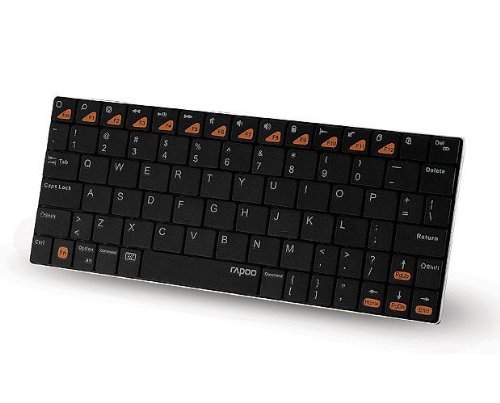
Figura 4.1: Angle view of the Rapoo E6500 keyboard, highlighting its slim profile and key layout.
5. Instruccions de funcionament
5.1. Mecanografia bàsica
Once paired, you can use the Rapoo E6500 keyboard like any standard keyboard. Simply open any text input field on your Android device and begin typing.
5.2. Ús de les tecles d'accés directe multimèdia
The Rapoo E6500 features dedicated multimedia hotkeys (F1-F12) that provide quick access to various functions. These functions are typically activated by pressing the Fn simultàniament amb la tecla de funció desitjada.
| Combinació de tecles d'accés directe | Funció |
|---|---|
| Fn + F1 | Pantalla d'inici |
| Fn + F2 | Cerca |
| Fn + F3 | Enrere |
| Fn + F4 | Menú |
| Fn + F5 | Reproduir/Pausa |
| Fn + F6 | Pista anterior |
| Fn + F7 | Pista següent |
| Fn + F8 | Silenciar |
| Fn + F9 | Baixa el volum |
| Fn + F10 | Puja el volum |
| Fn + F11 | Pantalla de bloqueig |
| Fn + F12 | Browser/Web |
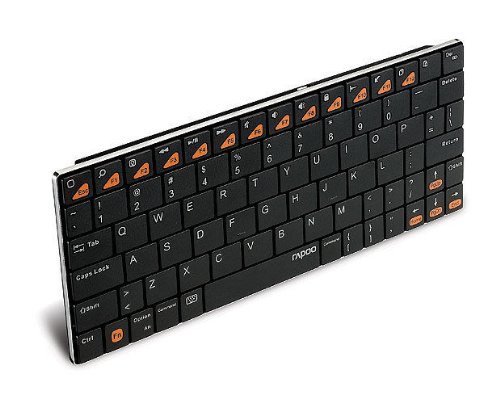
Figura 5.1: lateral view of the Rapoo E6500 keyboard, emphasizing its thin profile.
6. Manteniment i cura
To ensure the longevity and optimal performance of your Rapoo E6500 keyboard, follow these maintenance guidelines:
- Neteja: Feu servir un drap suau, sec i sense borrissol per netejar la superfície del teclat. Per a la brutícia persistent, netegeu lleugeramentampNetegeu el drap amb aigua o un netejador suau i no abrasiu. Eviteu la humitat excessiva.
- Emmagatzematge: When not in use for extended periods, turn off the keyboard to conserve battery life. Store it in a cool, dry place away from direct sunlight and extreme temperatures.
- Eviteu líquids: Do not expose the keyboard to liquids. Spills can cause permanent damage.
- Manejar amb cura: Eviteu deixar caure el teclat ni sotmetre'l a impactes forts.
7. Solució De Problemes
If you encounter issues with your Rapoo E6500 keyboard, please refer to the following common problems and solutions:
| Problema | Causa possible | Solució |
|---|---|---|
| El teclat no s'encén. | Bateria baixa o l'interruptor d'alimentació està apagat. | Charge the keyboard. Ensure the power switch is in the "ON" position. |
| Keyboard does not connect to device. | Bluetooth not enabled on device, keyboard not in pairing mode, or already paired with another device. | Ensure Bluetooth is enabled on your Android device. Put the keyboard into pairing mode. Forget the device on your Android device and re-pair. Ensure no other devices are actively connected to the keyboard. |
| Les tecles no responen o s'escriuen incorrectament. | Low battery, connection issue, or software glitch. | Charge the keyboard. Re-pair the keyboard with your device. Restart your Android device. |
| Multimedia hotkeys not working. | Not pressing the Fn key, or device software incompatibility. | Assegureu-vos que esteu prement el botó Fn key simultaneously with the desired function key. Some Android versions or apps may have limited support for certain hotkeys. |
If the problem persists after trying these solutions, please contact Rapoo customer support for further assistance.
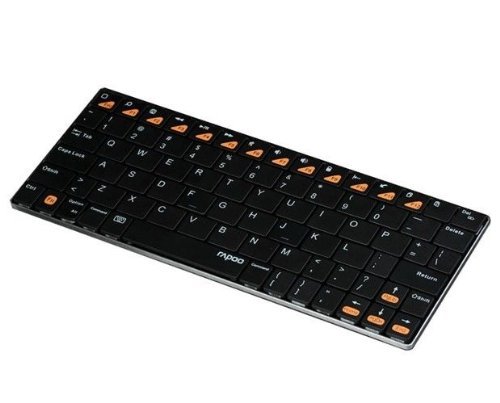
Figure 7.1: Another angled top-down view of the Rapoo E6500 keyboard, showing the full key layout.
8. Especificacions del producte
| Característica | Detall |
|---|---|
| Número de model | 14207-ARE6500BK-K07 |
| Connectivitat | Bluetooth |
| Compatibilitat de sistemes operatius | Android |
| Color | Negre |
| Dimensions (LxWxH) | 21.1 x 9.7 x 1.5 cm (aprox. 8.3 x 3.8 x 0.6 polzades) |
| Pes de l'article | 220 g (aprox. 0.48 lliures) |
| Característica especial | Wireless, Multi-Media Keys |
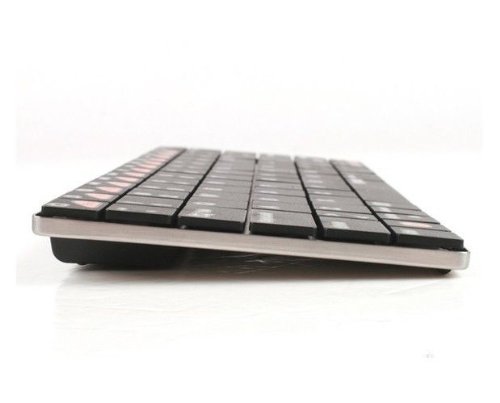
Figura 8.1: Frontal view of the Rapoo E6500 keyboard, showing its slim profile des de la part davantera.
9. Garantia i Suport
Rapoo products are designed and manufactured to the highest quality standards. For information regarding warranty coverage, terms, and conditions, please refer to the warranty card included with your product or visit the official Rapoo weblloc.
For technical support, troubleshooting assistance beyond this manual, or to inquire about replacement parts, please contact Rapoo customer service through their official channels. Details can typically be found on the product packaging or the Rapoo weblloc.
Important: Conserveu el rebut de compra com a comprovant de compra per a reclamacions de garantia.


