Introducció
This manual provides essential instructions for the safe and efficient use of your EMTEC Mobile & Go 2-in-1 Flash Drive. This device offers a convenient solution for transferring and storing data between various devices, featuring both USB 3.0 and Micro-USB connectors.
Si us plau, llegiu aquest manual detingudament abans d'utilitzar el producte i conserveu-lo per a futures consultes.
Informació de seguretat
- No exposeu el dispositiu a temperatures extremes, llum solar directa ni humitat elevada.
- Eviteu deixar caure o sotmetre el dispositiu a forts impactes.
- Mantingueu el dispositiu allunyat de l'aigua i altres líquids.
- No intenteu desmuntar ni modificar el dispositiu. Això anul·larà la garantia.
- Ensure proper ejection of the device from your computer or mobile device before removal to prevent data loss.
Producte acabatview
The EMTEC Mobile & Go Flash Drive is designed for versatility, featuring two distinct connectors:
- Connector USB 3.0: For high-speed data transfer with computers and other USB 3.0 compatible devices. It is also backwards compatible with USB 2.0 ports.
- Micro-USB Connector: For direct connection to compatible smartphones and tablets that support USB On-The-Go (OTG) functionality.

Image: The EMTEC Mobile & Go 2-in-1 Flash Drive, displaying its USB 3.0 connector on one end and its Micro-USB connector on the other. The device is compact and features a black casing with a red indicator dot.
The packaging illustrates the product's key features and compatibility:
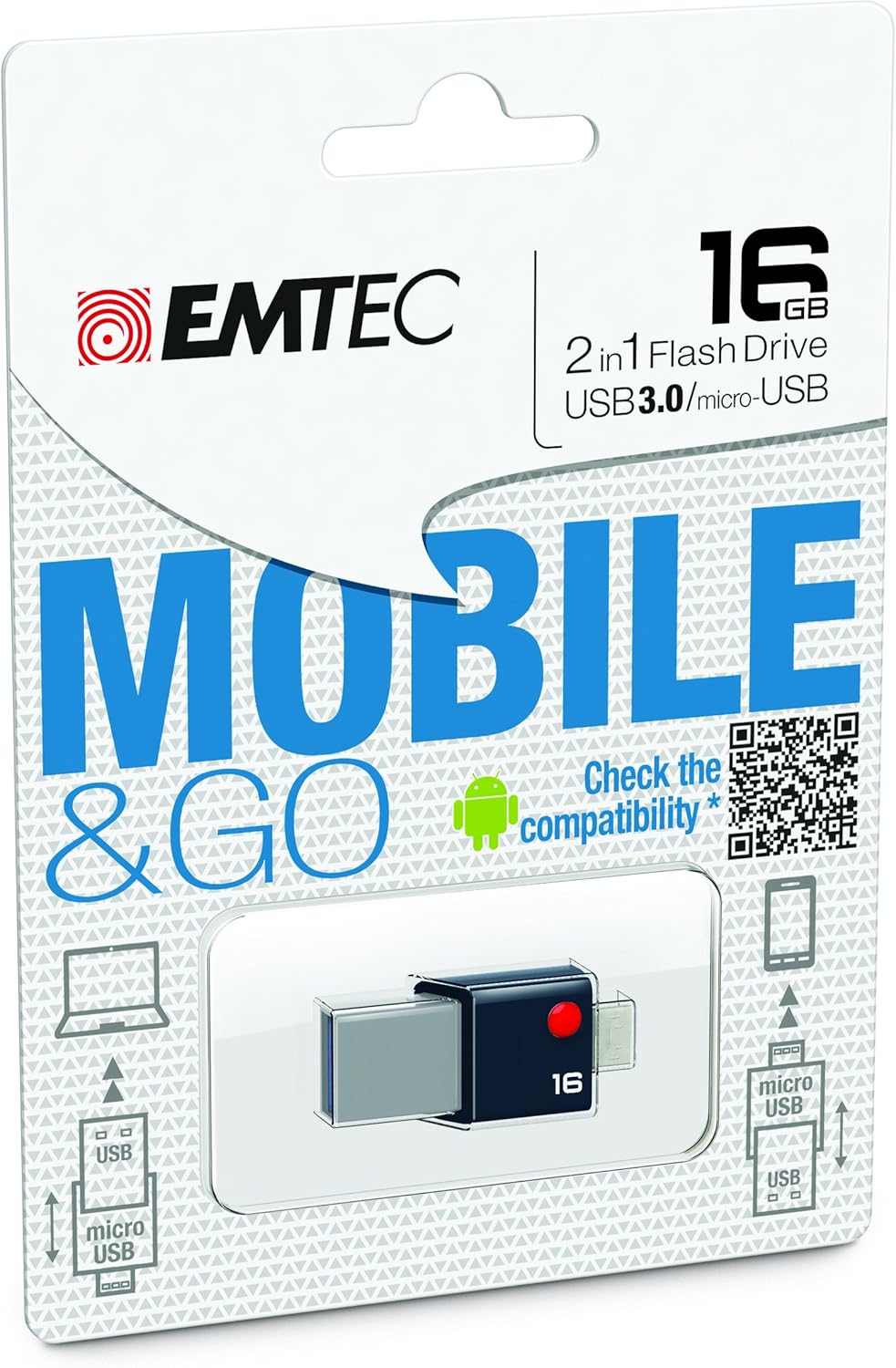
Image: Retail packaging for the EMTEC Mobile & Go 2-in-1 Flash Drive, highlighting its 16 GB capacity, USB 3.0, and Micro-USB features. The packaging also includes a QR code for compatibility checking.
Configuració
Connecting to a Computer (USB 3.0)
- Locate an available USB port on your computer. For optimal performance, use a USB 3.0 port (often identified by a blue insert).
- Insert the USB 3.0 end of the flash drive firmly into the USB port.
- Your computer's operating system (Windows, macOS, Linux) should automatically detect the device. A new drive letter or icon will appear in your file explorador.
Connecting to a Mobile Device (Micro-USB)
- Ensure your smartphone or tablet supports USB On-The-Go (OTG) functionality. Not all devices are compatible.
- For compatibility information, refer to the official EMTEC OTG compatibility list: EMTEC OTG Compatibility List.
- Locate the Micro-USB port on your mobile device.
- Insert the Micro-USB end of the flash drive firmly into the mobile device's port.
- Your mobile device should detect the flash drive. You may receive a notification or find the drive listed in your device's storage settings or file manager application.
Instruccions de funcionament
Transferència Files
- From Computer to Flash Drive: Obriu el del vostre ordinador file explorer, navigate to the files you wish to transfer, and drag-and-drop them into the flash drive's folder.
- From Flash Drive to Computer: Open the flash drive's folder, select the desired files, and drag-and-drop them to a location on your computer.
- Between Mobile Device and Flash Drive: Use your mobile device's file manager application to copy or move files between the device's internal storage/SD card and the connected flash drive.
Using as Additional Storage
The EMTEC Mobile & Go Flash Drive can serve as an extension of your mobile device's storage, allowing you to store photos, videos, music, and documents directly on the drive, freeing up internal memory.
Manteniment
- Neteja: Use a soft, dry, lint-free cloth to gently wipe the exterior of the flash drive. Do not use liquid cleaners or solvents.
- Emmagatzematge: When not in use, store the flash drive in a cool, dry place, away from dust and direct sunlight.
- Eliminació segura: Always safely eject the flash drive from your computer or mobile device before physically removing it.
- Windows: Right-click the drive icon in "This PC" or the taskbar icon, then select "Eject".
- macOS: Arrossega la icona de la unitat a la paperera o fes clic al botó Expulsar que hi ha al costat de la unitat al Finder.
- Android: Go to Storage settings, find the USB drive, and tap "Eject" or "Unmount".
Resolució de problemes
- Problem: Flash drive not recognized by computer.
- Proveu un port USB diferent a l'ordinador.
- Ensure the flash drive is fully inserted.
- Reinicieu l'ordinador.
- Consulteu el Gestor de dispositius (Windows) o la Informació del sistema (macOS) per veure si el dispositiu apareix a la llista.
- Problem: Flash drive not recognized by mobile device.
- Verify your mobile device supports USB OTG functionality. Refer to your device's manual or the EMTEC OTG Compatibility List.
- Ensure the Micro-USB end is fully inserted.
- Try restarting your mobile device.
- Some mobile devices require a file manager app to access external storage.
- Problema: Velocitat de transferència de dades lenta.
- Ensure you are connected to a USB 3.0 port on your computer for optimal speeds. USB 2.0 ports will operate at slower speeds.
- Transferint molts petits files can be slower than transferring a few large files.
- Tanqueu altres aplicacions que puguin estar utilitzant recursos del sistema.
Especificacions
| Característica | Detall |
|---|---|
| Marca | Emtec |
| Número de model | ECMMD16GT203 |
| Capacitat d'emmagatzematge de memòria | 16 GB |
| Interfície del maquinari | USB 3.0, Micro-USB |
| Tecnologia de connectivitat | USB |
| Compatibilitat de sistemes operatius | Windows 8, 7, Vista, XP, Me, 2000 / Mac OS X / Linux 2.6x |
| Plataforma de maquinari | PC, Mac |
| Dimensions del producte (LxWxH) | 1.42 x 0.31 x 0.63 polzades |
| Pes de l'article | 0.352 unces |
| UPC | 846143005294 |
Garantia i Suport
EMTEC products are designed and manufactured to the highest quality standards. For information regarding warranty coverage and technical support, please refer to the official EMTEC weblloc o poseu-vos en contacte amb el seu departament d'atenció al client.
Podeu visitar el Emtec Store on Amazon per obtenir més informació sobre el producte.


