Introducció
The TP-Link EAP110 is a N300 Ceiling Mount Wireless Access Point designed for high-density business environments such as schools, hotels, and enterprises. It features an easy mounting design, Power over Ethernet (PoE) support, and centralized management capabilities through the EAP Controller software. This manual provides essential information for the setup, operation, and maintenance of your EAP110 device.
Característiques principals:
- EAP Controller Software: Enables administrators to easily manage hundreds of EAPs from a single location.
- Passive PoE Support: Allows for convenient installation up to 100 meters using a single Ethernet cable for both power and data.
- Ceiling Mounting Design: Features a chassis that facilitates easy deployment on a wall or ceiling for optimal coverage.
- Portal captiu: Provides a secure and convenient method of authentication for Wi-Fi guests.
- Multi-SSID: Divides multiple wireless networks for different users, enhancing network segmentation and security.
- Enterprise-Class Wi-Fi Security: Incorporates robust security features to protect against network threats.
Què hi ha a la caixa
Verifiqueu que el vostre paquet contingui tots els elements següents:
- TP-Link N300 Ceiling Mount Wireless Access Point (EAP110)
- Adaptador PoE passiu
- Cable d'alimentació
- Kit de muntatge
- Guia d'instal·lació

Image: TP-Link EAP110 product packaging, showing the device and key features on the box.
Configuració i instal·lació
This section guides you through the physical installation and initial software setup of your EAP110 Access Point.
Instal·lació física:
- Trieu una ubicació de muntatge: Select a central location on a ceiling or wall for optimal wireless coverage. Ensure the location is within 100 meters of a power source for the Passive PoE adapter.
- Muntar el dispositiu: Use the provided mounting kit to securely attach the EAP110 to your chosen surface. The device is designed for easy deployment.
- Connect Ethernet and Power: Connect an Ethernet cable from your network to the Passive PoE adapter's LAN port. Then, connect another Ethernet cable from the PoE adapter's PoE port to the EAP110's Ethernet port. Finally, connect the power cord to the PoE adapter and a power outlet.
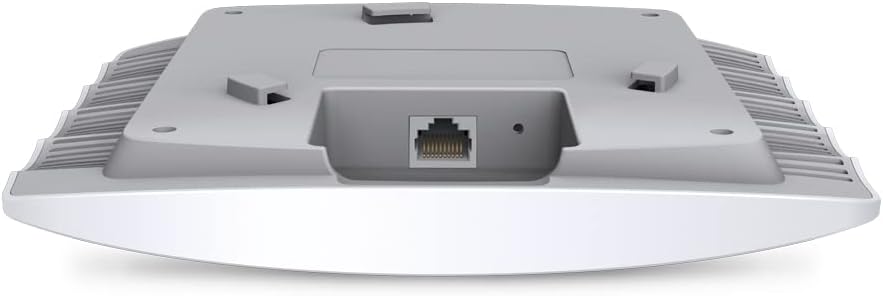
Imatge: Part inferior view of the EAP110, highlighting the Ethernet port for network and PoE connection.
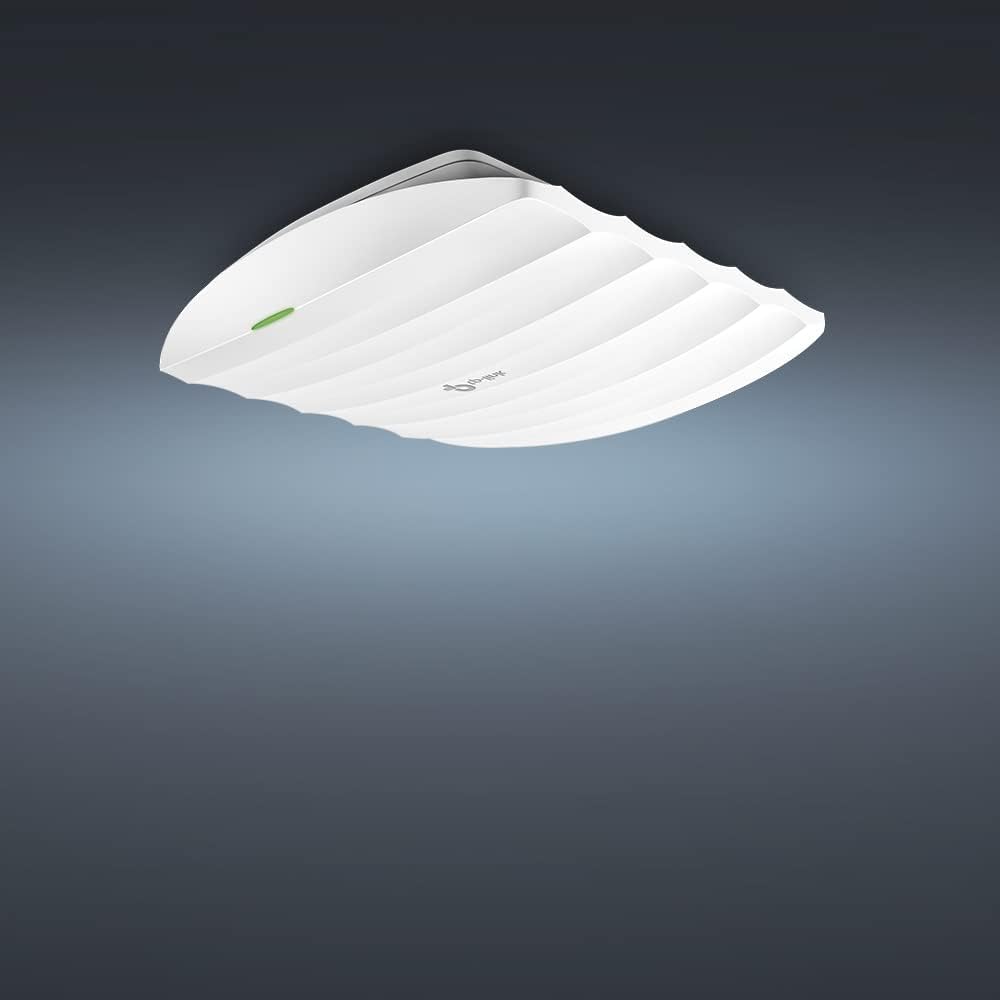
Image: The EAP110 device mounted on a ceiling, demonstrating its discreet installation.
EAP Controller Software Setup:
The EAP Controller software is essential for managing your EAP110. Follow these steps to download, install, and configure the software.
Video: A detailed guide on how to download, install, and set up the TP-Link EAP Controller software for managing your EAP110 Access Point.
- Download the Software: Visita el servei d'assistència de TP-Link website for the EAP110 model. Navigate to the 'Download Center' and locate the 'EAP Controller' tab to download the latest software version.
- Preparació per a la instal·lació: Before running the installer, temporarily deactivate any antivirus software or firewall on your computer. This prevents potential interference with the installation process.
- Executeu l'instal·lador: Double-click the downloaded EAP Controller installation package to launch the installation wizard. Follow the on-screen prompts. You may choose a custom installation path if desired.
- Launch and Initialize: After installation, double-click the 'EAP Controller' icon on your desktop. Allow the controller to initialize.
- Address Security Certificate Warning: Your browser may display a security certificate warning. Select the option to 'Continue to this webpage' to proceed.
- Configuració inicial:
- Selecció de regió: On the first page of the setup wizard, select your geographical region.
- Configuració sense fil: Establish a unified SSID (network name) and password for your wireless network. This will apply to all EAPs managed by this controller.
- Administrator Account: Create an administrator username and password. Provide a valid email address for password recovery purposes.
- Configuració completa: Review the summary of your settings and click 'Finish' to complete the initial setup. You can now log into the EAP Controller using your newly created administrator credentials.
Operating the EAP110
Once installed and configured, the EAP110 operates as a wireless access point providing Wi-Fi connectivity. Management is primarily done through the EAP Controller software.
Gestió centralitzada:
The EAP Controller software allows you to manage multiple EAP devices from a single interface. This includes:
- Monitoring network status and client connections.
- Configuring wireless settings, including SSIDs, security protocols, and radio settings.
- Implementing Captive Portal for guest authentication.
- Managing firmware updates for all connected EAPs.
- Setting up Multi-SSID networks for different user groups or purposes.
Passive PoE Functionality:
The EAP110 supports Passive PoE, which simplifies deployment by allowing power and data to be transmitted over a single Ethernet cable. Ensure you use the provided Passive PoE adapter or a compatible Passive PoE switch.
Manteniment
Regular maintenance ensures optimal performance and security for your EAP110.
- Actualitzacions de firmware: Comproveu periòdicament el suport de TP-Link website for new firmware versions. Updating the firmware can provide performance improvements, new features, and security enhancements.
- Seguiment periòdic: Use the EAP Controller software to monitor network traffic, client connections, and device health.
- Neteja física: Keep the device free from dust and obstructions to ensure proper ventilation.
- Configuració de còpia de seguretat: Regularly back up your EAP Controller configuration settings to prevent data loss.
Resolució de problemes
If you encounter issues with your EAP110, consider the following troubleshooting steps:
- Sense energia: Ensure the Passive PoE adapter is correctly connected to a power source and the EAP110. Check all cable connections.
- Sense senyal sense fil: Verify that the EAP110 is powered on and its indicator light is active. Check the EAP Controller software to ensure the wireless network is enabled and broadcasting.
- Cannot Access EAP Controller: Confirm that your computer's network settings are correct and that no firewall or antivirus software is blocking access. Ensure the EAP Controller service is running.
- Rendiment baix: Check for potential sources of interference (e.g., other wireless devices, microwaves). Consider adjusting the EAP's channel or power settings via the controller.
- Contrasenya d'administrador oblidada: Use the password recovery option within the EAP Controller login interface, which will send recovery instructions to the email address provided during setup.
Especificacions
| Model | EAP110 |
| Tipus sense fil | 802.11n |
| Classe de banda de freqüència | Banda única |
| Tecnologia de connectivitat | Sense fil |
| Tipus d'antena | Interna |
| Pes de l'article | 8.8 unces |
| Dimensions del producte (LxWxH) | 12.01 x 9.13 x 2.95 polzades |
| Operating System (for Controller) | Windows 7, Mac OS |
| Usos recomanats | Interior/Exterior |
Garantia i Suport
Per obtenir informació sobre la garantia, assistència tècnica i recursos addicionals, visiteu el lloc web oficial de TP-Link. weblloc web o poseu-vos en contacte amb el servei d'atenció al client. Conserveu el rebut de compra per a reclamacions de garantia.


