1. Introducció
This manual provides essential information for the proper setup, operation, and maintenance of your ELECOM DEFT M-DT2URBK Wired Trackball Mouse. Please read it thoroughly before using the product.
Contingut del paquet
- ELECOM DEFT M-DT2URBK Wired Trackball Mouse
- Manual d'anglès
- Japanese Manual

Image: The ELECOM DEFT M-DT2URBK trackball mouse and included manuals.
2. Configuració
Requisits del sistema
- Operating System: Windows 8, Windows 10, Windows 11 or later; macOS 10.10 or later.
- Hardware Platform: Mac, PC
- Port USB disponible
Connecting the Trackball Mouse
- Localitzeu un port USB disponible al vostre ordinador.
- Plug the USB connector of the ELECOM DEFT M-DT2URBK trackball mouse into the USB port.
- El sistema operatiu hauria de detectar i instal·lar automàticament els controladors necessaris.
Installing ELECOM Mouse Assistant Software (Optional)
For advanced customization of buttons and functions, download and install the ELECOM Mouse Assistant software. This software allows you to remap buttons, adjust scrolling behavior, and fine-tune pointer speed.
- Visita l'ELECOM oficial website or refer to the product page for the Mouse Assistant download link.
- Baixeu la versió adequada per al vostre sistema operatiu (Windows o macOS).
- Executeu l'instal·lador i seguiu les instruccions a la pantalla.

Image: Screenshot illustrating the ELECOM Mouse Assistant software download page.

Image: Screenshot of the ELECOM Mouse Assistant software interface for button customization.
3. Instruccions de funcionament
Ergonomic Design and Finger Control
The ELECOM DEFT M-DT2URBK is designed for index finger operation, providing precise cursor movement and reducing wrist strain. Its ergonomic shape supports the hand in a natural, angled position for extended comfort.
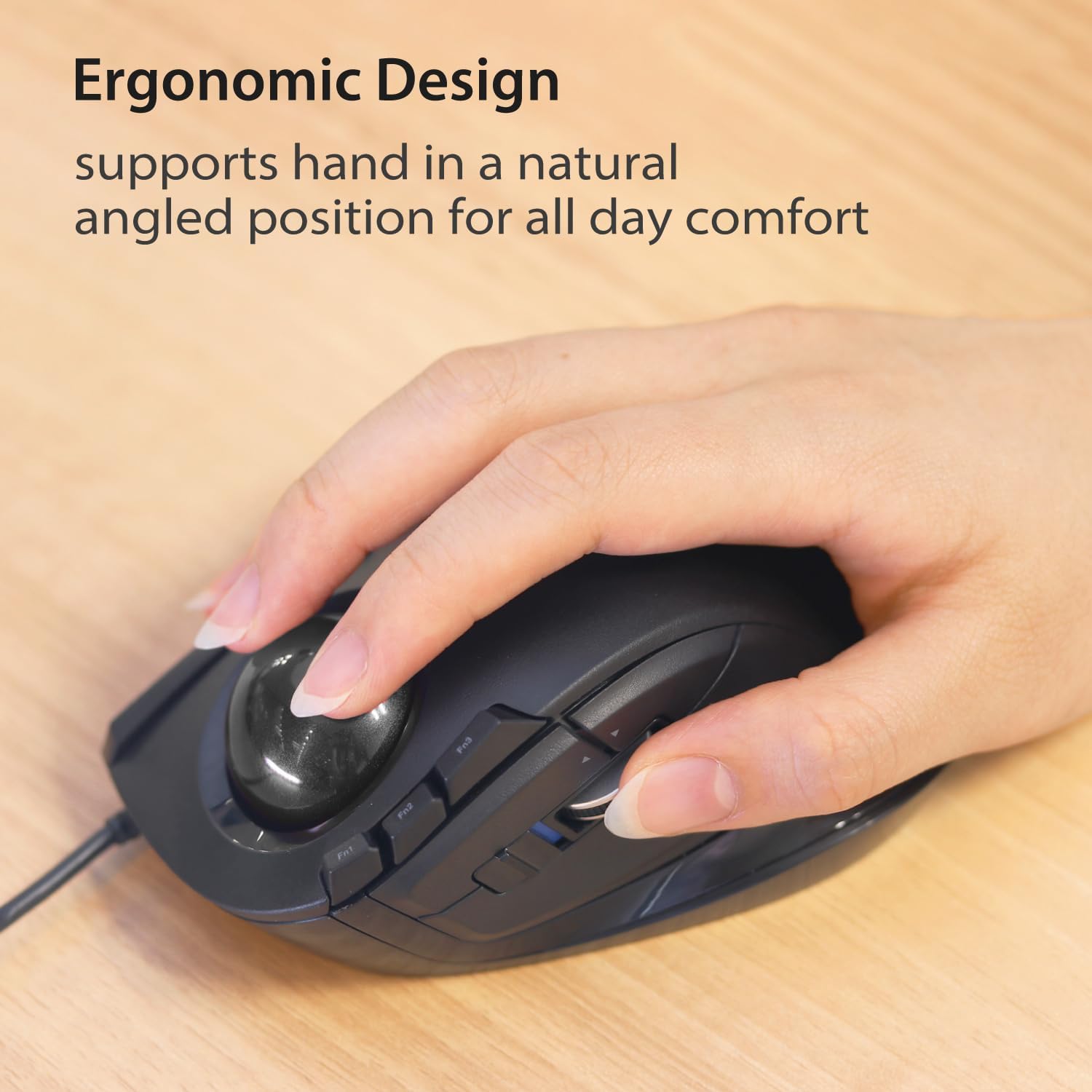
Image: A hand comfortably resting on the trackball mouse, highlighting its ergonomic design.

Imatge: Un primer pla view of an index finger precisely controlling the trackball.
Funcions del botó
The trackball mouse features 8 physical buttons and a tilt wheel, offering a total of 10 customizable functions. The default functions are:

Image: A detailed diagram labeling the Right Click, 34mm ball, Function buttons, Back/Forward buttons, Tilt Wheel, Left Click, and Ball Removal Hole.
- Clic esquerre: Botó de selecció principal.
- Clic dret: Secondary click for context menus.
- Roda de desplaçament: Desplaçament vertical.
- Tilt Wheel (Left/Right): Horizontal scrolling (may require Mouse Assistant software or specific OS support).
- Function Buttons (Fn1, Fn2, Fn3): Botons personalitzables.
- Botons Enrere/Endavant: Navega web pàgines o carpetes.
- Botó DPI: Switches between 500 DPI (LOW) and 1500 DPI (HIGH) for cursor speed adjustment.
Ajust de DPI (velocitat del cursor)
The DPI button, typically located near the trackball, allows you to instantly switch between two cursor speeds:
- 500 DPI (LOW): For precise, slower cursor movements.
- 1500 DPI (HIGH): For faster cursor movements across the screen.
Press the DPI button once to toggle between these two settings.
4. Manteniment
Neteja del trackball
Regular cleaning of the trackball and its housing is essential for maintaining smooth and accurate cursor movement. Dust and debris can accumulate around the ball bearings.
- Disconnect the trackball mouse from your computer.
- Locate the ball removal hole on the underside of the mouse.
- Gently push the trackball out through this hole using a non-abrasive tool (e.g., the blunt end of a pen).
- Netegeu el trackball amb un drap suau i sense borrissol.
- Use a cotton swab or compressed air to clean any dust or debris from the ball bearings and the trackball housing.
- Torneu a inserir el trackball a la seva carcassa fins que encaixi correctament al seu lloc.
5. Solució De Problemes
Cursor Not Moving or Moving Erratically
- Comprova la connexió: Ensure the USB cable is securely plugged into your computer's USB port. Try a different USB port.
- Trackball net: Dust or debris around the trackball can impede movement. Refer to the "Cleaning the Trackball" section.
- Reinicieu l'ordinador: A system restart can resolve temporary software conflicts.
- Prova en un altre ordinador: If possible, test the trackball on another computer to determine if the issue is with the device or your system.
Els botons no responen
- Comprova el programari: If using the ELECOM Mouse Assistant, ensure button assignments are correct and the software is running properly.
- Torneu a instal·lar els controladors: Disconnect the mouse, uninstall any ELECOM drivers or software, restart your computer, and then reconnect the mouse to allow the OS to reinstall generic drivers. Reinstall Mouse Assistant if desired.
Horizontal Scrolling Not Working
- Configuració del programari: Ensure horizontal scrolling is enabled and configured correctly in the ELECOM Mouse Assistant software.
- Suport del sistema operatiu: Note that horizontal scrolling functionality may not be fully supported on older operating systems like Windows RT8.1.
6. Especificacions
| Característica | Detall |
|---|---|
| Número de model | M-DT2URBK |
| Connectivitat | Amb cable (USB) |
| Detecció de moviment | Trackball òptic |
| Configuració de DPI | 500 DPI (LOW), 1500 DPI (HIGH) |
| Botons | 8 physical buttons + Tilt Wheel (10 customizable functions) |
| Dimensions (LxWxH) | 4.9 x 3.7 x 1.9 polzades (124.4 x 94.7 x 47.9 mm) |
| Pes | 4 oz (113 g) |
| Suport del sistema operatiu | Windows 8, 10, 11; macOS 10.10 or later |

Image: Diagram illustrating the length, width, and height of the trackball mouse.
7. Garantia i Suport
ELECOM products are designed for reliability and performance. For specific warranty details, please refer to the warranty card included with your product or visit the official ELECOM website. If you encounter any issues not covered in this manual, please contact ELECOM customer support for assistance.
For further support and driver downloads, please visit the official ELECOM weblloc: www.elecom.co.jp/global/


