1. Introducció
The Edimax BR-6478AC V2 is a versatile AC1200 Gigabit Dual-Band Wi-Fi router designed to provide reliable and high-speed wireless connectivity. This device supports multiple operating modes, including Router, Access Point, Range Extender, Bridge, and WISP, making it adaptable to various networking needs. It features high-gain antennas for extended coverage, a USB port for network storage (FTP/file server) and printer sharing, and VPN capabilities for secure remote access and enhanced privacy.

Figura 1: Frontal view of the Edimax BR-6478AC V2 Wi-Fi Router, showcasing its sleek design and two external antennas.
2. Contingut del paquet
Verifiqueu que tots els elements siguin presents al paquet:
- Edimax BR-6478AC V2 AC1200 Dual-Band Wi-Fi Router
- Adaptador d'alimentació
- Cable Ethernet
- Guia d'instal·lació ràpida
3. Producte acabatview
Familiarize yourself with the physical components of your Edimax BR-6478AC V2 router.
3.1 Tauler frontal
The front panel typically features LED indicators that display the status of power, internet connection, Wi-Fi activity for both 2.4GHz and 5GHz bands, and LAN port activity.

Figura 2: Frontal view of the router, highlighting the LED indicators for system status.
3.2 Panell posterior
The rear panel houses all the physical ports and buttons for connectivity and control.

Figura 3: posterior view of the router, showing the power input, Internet (WAN) port, LAN ports, USB port, and reset/WPS button.
- Power Input (DC IN 12V): Connects to the included power adapter.
- Port d'Internet (WAN).: Connects to your modem for internet access.
- Ports LAN (1-4): Gigabit Ethernet ports for connecting wired devices.
- Port USB: For connecting USB storage devices (FTP/file server) or a USB printer (print server).
- Botó Reset / WPS: Press briefly for WPS function; press and hold for factory reset.
4. Configuració
Follow these steps to set up your Edimax BR-6478AC V2 router.
- Connectar el maquinari:
- Connecteu el cable Ethernet del mòdem al port del router Internet (WAN) port.
- Connecteu l'adaptador de corrent al router Entrada de potència i connecteu-lo a una presa de corrent.
- Wait for the router to power on and the indicator LEDs to stabilize.
- Connecteu-vos al router:
- Connexió sense fil: Cerca the default Wi-Fi network name (SSID) printed on the router's label and connect using the provided password.
- Connexió per cable: Connect an Ethernet cable from one of the router's Ports LAN al teu ordinador.
- Run Smart iQ Setup:
- Obre a web navegador al dispositiu connectat.
- Type the default router IP address (e.g.,
http://edimax.setupor192.168.2.1) a la barra d'adreces i premeu Intro. - Follow the on-screen instructions of the Smart iQ Setup wizard to configure your internet connection and Wi-Fi settings. No CD is required for this process.
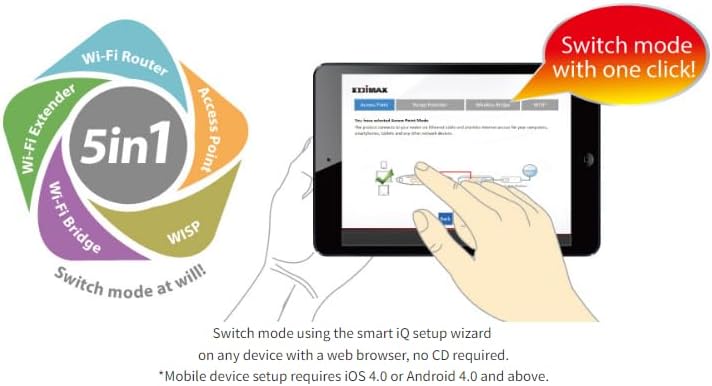
Figure 4: The Smart iQ Setup wizard, accessible via a web browser on various devices, simplifies the initial configuration.
5. Modes de funcionament
The Edimax BR-6478AC V2 offers five distinct operating modes to suit different networking requirements. You can switch between these modes using the Smart iQ Setup wizard.

Figure 5: Visual representation of the five versatile operating modes available with the Edimax BR-6478AC V2.
- Mode d'encaminador: Connects to your modem to share internet access with multiple wired and wireless devices. This is the default mode for most home networks.
- Mode de punt d'accés (AP).: Converts a wired network connection into a wireless network, extending Wi-Fi coverage without routing functions.
- Wi-Fi Range Extender Mode: Boosts the signal of an existing Wi-Fi network to eliminate dead zones and improve coverage.
- Mode pont Wi-Fi: Connects two wired networks wirelessly, useful for connecting devices like gaming consoles or smart TVs to a Wi-Fi network.
- WISP (Wireless Internet Service Provider) Mode: Connects to a public Wi-Fi hotspot or a WISP network and shares the internet connection with local devices.
6. Funcions avançades
The BR-6478AC V2 includes several advanced features to enhance your network experience.
- Dual-Band Wi-Fi (AC1200): Supports both 2.4GHz and 5GHz wireless bands, offering faster speeds and reduced interference on the 5GHz band while maintaining compatibility with older devices on 2.4GHz.
- Ports Gigabit Ethernet: Equipped with five Gigabit Ethernet ports (1 WAN, 4 LAN) for high-speed wired connections, ideal for gaming, streaming, and network storage.
- VPN-Ready: Allows for setting up Virtual Private Network connections, enabling secure remote access to your network and bypassing internet censorship.
- Multiple SSIDs & VLANs: In Access Point mode, the router supports up to 10 SSIDs (5 for 2.4GHz, 5 for 5GHz) and VLANs, providing enhanced security by segmenting network resources.
- USB Port for FTP/File/Print Server: Connect a USB storage device to create a private cloud (FTP/file server) or share a USB printer across your network.
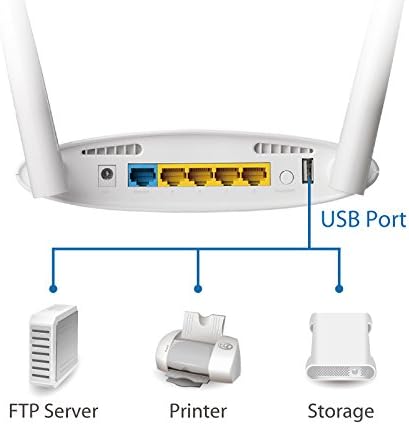
Figure 6: The USB port enables versatile functions such as FTP server, printer sharing, and network storage.
- Xarxa de convidats: In Router mode, create a separate guest Wi-Fi network to provide internet access to visitors while isolating them from your primary network for security.
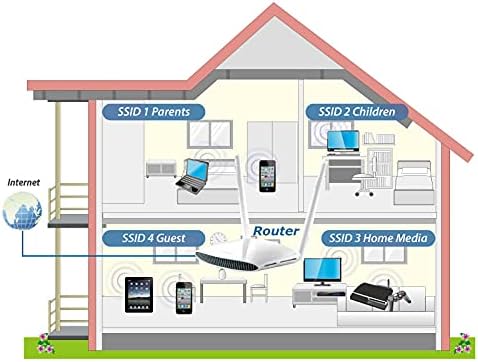
Figure 7: Illustration of a secure main Wi-Fi network and a separate guest Wi-Fi network within a home environment.
- iQoS Bandwidth Management: Intelligently manages internet bandwidth to prioritize critical traffic, ensuring smoother performance for important applications.
- Antenes d'alt guany: Equipped with high-gain antennas to ensure strong and stable Wi-Fi signals throughout your home or office.

Figure 8: High gain antennas enhance Wi-Fi signal strength and coverage for both 2.4GHz and 5GHz bands.
7. Manteniment
Un manteniment regular ajuda a garantir un rendiment òptim i una llarga vida útil del vostre encaminador.
- Actualitzacions de firmware: Periodically check the Edimax weblloc web per obtenir les darreres actualitzacions de firmware. L'actualització del firmware pot millorar el rendiment, afegir noves funcions i solucionar vulnerabilitats de seguretat.
- Reinici normal: Rebooting your router every few weeks can help clear its memory and resolve minor performance issues. Simply unplug the power adapter, wait 10 seconds, and plug it back in.
- Neteja física: Keep the router in a well-ventilated area and periodically clean dust from its vents to prevent overheating. Use a soft, dry cloth.
- Col·locació segura: Place the router in a central location, away from obstructions and sources of interference (e.g., microwaves, cordless phones) to maximize Wi-Fi coverage.
8. Solució De Problemes
Si teniu problemes amb el vostre encaminador, proveu els passos següents per resoldre problemes:
- Sense accés a Internet:
- Comproveu totes les connexions de cable entre el mòdem i l'encaminador, i entre l'encaminador i els vostres dispositius.
- Power cycle both your modem and router. Unplug them, wait 30 seconds, then plug in the modem first, wait for it to fully boot, then plug in the router.
- Verifiqueu que la connexió del vostre proveïdor de serveis d'Internet (ISP) estigui activa.
- Wi-Fi Signal Issues:
- Ensure the router is placed centrally and away from obstacles or interference.
- Check if the Wi-Fi LEDs on the router are lit.
- Try changing the Wi-Fi channel in the router's settings to avoid interference from neighboring networks.
- No puc accedir a la configuració del router:
- Assegureu-vos que el dispositiu estigui connectat al router (amb cable o sense fil).
- Verify you are typing the correct IP address or domain (e.g.,
http://edimax.setupor192.168.2.1) al vostre navegador. - Esborra la memòria cau del navegador o prova un altre navegador.
- Restabliment de fàbrica: If all else fails, perform a factory reset. With the router powered on, press and hold the Reset/WPS button for approximately 10 seconds until the LEDs flash. This will revert all settings to their factory defaults, requiring you to reconfigure the router.
9. Especificacions
Key technical specifications for the Edimax BR-6478AC V2 router.
| Característica | Especificació |
|---|---|
| Nom del model | BR-6478AC_V2 |
| Tipus sense fil | 802.11a/b/g/n, 802.11ac |
| Classe de banda de freqüència | Doble banda (2.4 GHz / 5 GHz) |
| Ports Ethernet | 5 Gigabit Ethernet (1 WAN, 4 LAN) |
| Característiques especials | Access Point Mode, WPS, VPN-Ready, USB Port (FTP/Print Server) |
| Tipus d'antena | Fixed High-Gain Antennas |
| Sistema operatiu | EDIMAX proprietary firmware |
| Dimensions del producte (LxWxH) | 7.52 x 1.69 x 6.81 polzades |
| Pes de l'article | 11.4 unces |
| Color | Blanc |
10. Informació de la garantia
For detailed warranty terms and conditions, please refer to the warranty card included with your product packaging or visit the official Edimax weblloc. La cobertura de la garantia normalment inclou defectes de materials i de fabricació en condicions d'ús normal.
11. Suport tècnic
If you require further assistance or have questions not covered in this manual, please contact Edimax technical support. Support resources, FAQs, and contact information can be found on the official Edimax weblloc:
Assistència d'Edimax Weblloc: www.edimax.com


