Introducció
The IOGEAR GWU637 Universal Ethernet to Wi-Fi N Adapter is designed to enable compatible Ethernet-only devices to connect to a Wi-Fi network. This adapter provides wireless access for devices such as smart TVs, gaming consoles, network printers, and other Ethernet-enabled electronics, allowing them to join your home or office wireless network without requiring a direct Ethernet cable connection to the router. It supports Wi-Fi N speeds up to 300Mbps on the 2.4GHz band, offering sufficient bandwidth for various multimedia applications including streaming and online gaming.

Image: The IOGEAR GWU637 adapter, showing its compact black design with the IOGEAR logo, WPS button, and Ethernet port.
Què hi ha a la caixa
Upon opening the product packaging, please verify that all the following components are included:
- 1 x adaptador sense fil universal Ethernet-2-WiFi
- Cable d’alimentació 1 x USB
- 1 x adaptador d'alimentació USB
- 1 x cable Ethernet (3 peus)
- 1 x Guia d'inici ràpid
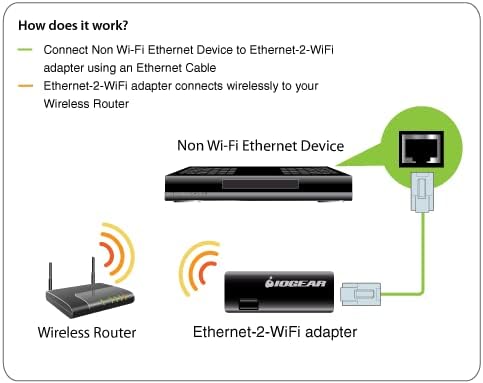
Image: The IOGEAR GWU637 adapter alongside its included USB power cable, USB power adapter, and Ethernet cable.
Instruccions de configuració
The IOGEAR GWU637 adapter can be configured using two primary methods: Wi-Fi Protected Setup (WPS) for quick connection, or a manual setup process via a web navegador.
WPS Setup (Recommended for compatible routers)
- Ensure your wireless router supports WPS and that the WPS function is enabled.
- Connect the IOGEAR GWU637 adapter to a power source using the provided USB cable and power adapter.
- Press and hold the WPS button on your wireless router to initiate the WPS pairing process.
- Within two minutes, press and hold the WPS button on the IOGEAR GWU637 adapter until the WLAN LED begins to flash. This indicates the adapter is attempting to connect to your router.
- Once the WLAN LED on the adapter becomes solid, the connection is established.
Nota: Pressing the WPS button on the adapter will erase and replace any previously saved configurations.

Image: A user's hand pressing the WPS button on the IOGEAR GWU637 adapter, illustrating the WPS setup process.
Manual Setup (For routers without WPS or specific configurations)
- Connect the IOGEAR GWU637 adapter to a power source using the provided USB cable and power adapter.
- Connect the adapter to a computer (PC or Mac) using the provided Ethernet cable. Ensure the computer's Wi-Fi is temporarily disabled to prevent conflicts during setup.
- Obre a web browser (Firefox, Internet Explorer on Windows, or Safari on macOS) and navigate to the adapter's default IP address (refer to the Quick Start Guide for the specific IP address, typically 192.168.1.252).
- Seguiu les instruccions que apareixen a la pantalla web interface to scan for available Wi-Fi networks, select your desired network, and enter the Wi-Fi password (security key).
- Save the settings and disconnect the adapter from the computer. The adapter is now configured for your Wi-Fi network.
Nota: Pressing the WPS button on the adapter will erase and replace any previously saved configurations, including those from manual setup.

Image: The IOGEAR GWU637 adapter connected to a laptop via an Ethernet cable, demonstrating the manual setup process.
Instruccions de funcionament
Once the IOGEAR GWU637 adapter is successfully configured to your Wi-Fi network, it functions as a bridge, allowing any Ethernet-enabled device to connect wirelessly.
- Ensure the adapter is powered on via its USB connection. It can be powered by a USB port on your device (e.g., TV, gaming console) or the included USB power adapter.
- Connect one end of the Ethernet cable (provided) to the Ethernet port on the IOGEAR GWU637 adapter.
- Connect the other end of the Ethernet cable to the Ethernet (LAN) port of the device you wish to connect to Wi-Fi (e.g., smart TV, Blu-ray player, network printer, desktop PC).
- The device should now have network access via the Wi-Fi connection established by the IOGEAR GWU637 adapter. No additional drivers or software are required on the connected device.

Image: A diagram illustrating the connection flow: a 2.4GHz Wi-Fi Wireless Router connects wirelessly to the Ethernet to Wi-Fi Adapter, which then connects via an RJ-45 Ethernet cable to a non-wireless Ethernet device.
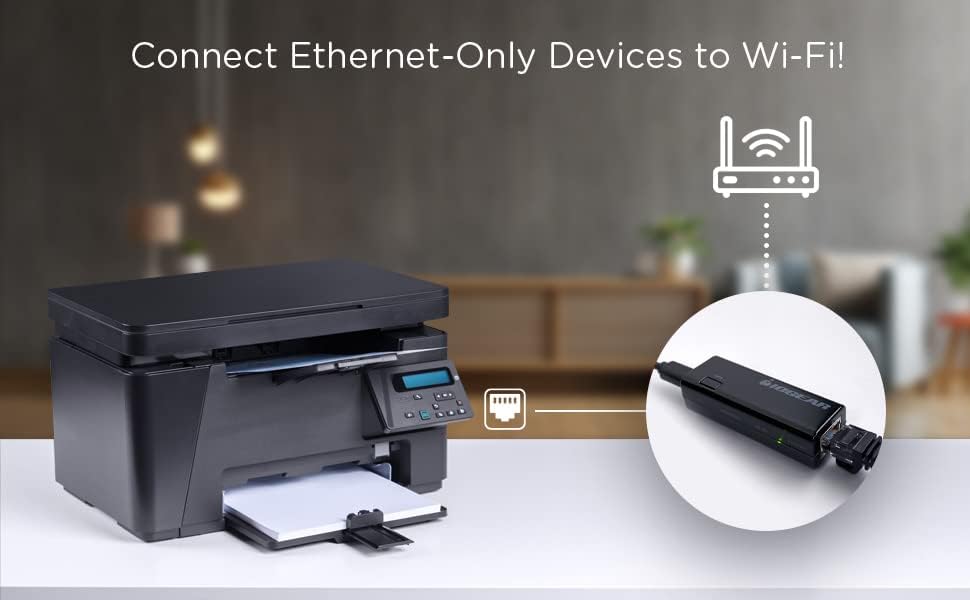
Image: The IOGEAR GWU637 adapter connected to a printer, demonstrating its use in providing wireless connectivity to Ethernet-only devices.
Compatibilitat i consideracions importants
Abans de la compraasing or setting up the IOGEAR GWU637, please note the following important compatibility details:
- Tipus de xarxa: This adapter is designed to connect directly to a traditional 2.4GHz wireless router. It is no compatible with Enterprise Authentication networks or Mesh Wi-Fi Networks (networks with multiple nodes).
- Hotspots/Repeaters: This device will no create a hotspot or a secondary network. Hotspots, repeaters, and access points are not guaranteed to function properly with this adapter.
- Banda de freqüència: The adapter operates exclusively on the 2.4GHz Wi-Fi band. It will not work with 5GHz networks.
- Potència: The device is powered by a USB port (5 Volts). No external power outlet is required if a USB port is available on the connected device.
- Temperatura de funcionament: Due to its compact design, it is normal for the adapter to reach temperatures of approximately 122 degrees Fahrenheit (50 degrees Celsius) during operation.

Image: A visual guide indicating that the IOGEAR GWU637 is compatible with traditional 2.4GHz wireless routers but not with Mesh Wi-Fi router systems.
Especificacions
| Característica | Detall |
|---|---|
| Número de model | GWU637 |
| Tipus sense fil | 802.11bgn (Wi-Fi N) |
| Banda de freqüència | 2.4 GHz |
| Velocitat de transferència de dades | Fins a 300 Mbps |
| Interfície del maquinari | Ethernet (RJ-45), USB (for power) |
| Dispositius compatibles | Audio Video Receivers, Desktop PCs, Laptops, Printers, VOIP Phones, DVRs, NVRs, Legacy TV/AV Equipment |
| Compatible OS Family | MacOS, Windows (for setup via browser) |
| Font d'alimentació | USB (5 volts) |
| Dimensions del producte (LxWxH) | 2.56 x 0.75 x 1 polzades (6.5 x 1.9 x 2.5 cm) |
| Pes de l'article | 0.8 unces (22.68 g) |
| Color | Negre |
| Protocols de seguretat | WEP, WPA, WPA2, TKIP, AES encryption |
Resolució de problemes
- Sense connexió de xarxa:
- Ensure the adapter is properly powered via USB.
- Verify the Ethernet cable is securely connected between the adapter and your device.
- Confirm the adapter is successfully connected to your Wi-Fi network (check WLAN LED status). If not, re-attempt WPS or manual setup.
- Check your router's settings to ensure it is broadcasting a 2.4GHz signal and that the adapter's MAC address is not blocked if MAC filtering is enabled.
- Velocitat de connexió lenta:
- Ensure the adapter is within optimal range of your wireless router. Obstacles like walls can degrade signal strength.
- Minimize interference from other 2.4GHz devices (e.g., cordless phones, microwaves).
- Verify your internet service provider's speed and your router's capabilities. The adapter's maximum speed is 300Mbps, but actual speeds depend on your network environment.
- La configuració de WPS ha fallat:
- Ensure your router's WPS function is active and you are pressing the correct WPS button on both the router and the adapter within the allowed timeframe.
- If WPS continues to fail, use the manual setup method via a web navegador.
- L'adaptador s'escalfa:
- It is normal for the adapter to become warm during operation, reaching temperatures up to approximately 122°F (50°C). This does not indicate a malfunction.
For more detailed troubleshooting steps and support, please refer to the official IOGEAR support website or the full user manual PDF available for download.
Manteniment
The IOGEAR GWU637 adapter requires minimal maintenance to ensure optimal performance and longevity:
- Neteja: Use a soft, dry cloth to clean the exterior of the adapter. Avoid using liquid cleaners, aerosols, or abrasive solvents.
- Medi ambient: Keep the adapter in a dry environment, away from excessive heat, humidity, and direct sunlight.
- Actualitzacions de firmware: Periodically check the IOGEAR official website for any available firmware updates for the GWU637 model. Firmware updates can improve performance, add features, or resolve issues.
- Emmagatzematge: If storing the adapter for an extended period, disconnect it from power and store it in a cool, dry place.
Garantia i Suport
IOGEAR products are backed by a limited warranty. For specific warranty terms and conditions applicable to the GWU637, please refer to the warranty information provided in the original product packaging or visit the official IOGEAR weblloc.
For technical support, product registration, or to download the complete user manual (PDF), please visit the IOGEAR support section online. You can also find additional resources and FAQs there.
Manual d'usuari oficial (PDF): Descarrega aquí


