1. Introducció
This user manual provides comprehensive instructions for the j5create USB C Hub Multi-Adapter Docking Station (Model: JCA374). This versatile hub is designed to expand the connectivity of your USB Type-C enabled devices, such as MacBooks, Chromebooks, and other laptops, by adding essential ports for display, data transfer, and network connectivity.
Please read this manual thoroughly before using the product to ensure proper operation and to maximize its capabilities.
2. Producte acabatview i Característiques
The j5create JCA374 is a compact and powerful multi-adapter designed to enhance your device's connectivity. Key features include:
- USB 3.0 SuperSpeed Ports: Equipped with two USB 3.0 SuperSpeed ports, offering data transfer speeds of up to 5Gbps. These ports are backwards compatible with USB 2.0 and USB 1.1 devices.
- HDMI 4K Output: Supports display resolutions up to 4K@30Hz or 1080P@60Hz, allowing you to connect an external monitor for extended desktop or mirroring.
- Port Gigabit Ethernet: Provides a stable and fast wired network connection through a Gigabit Ethernet port. A driver download may be required for LAN usage.
- Entrega d'energia 2.0: Supports power delivery to charge your connected USB Type-C laptop while using the hub.
- Àmplia compatibilitat: Ideal for MacBook, Chromebook, and other laptops with a USB Type-C port.

Figure 2.1: The j5create USB C Hub Multi-Adapter Docking Station, showcasinel seu disseny compacte i els seus diversos ports.

Figura 2.2: Detall view of the j5create hub's ports, including USB, Ethernet, and HDMI.
3. Instruccions de configuració
Follow these steps to set up your j5create USB C Hub:
- Connecteu el concentrador al vostre dispositiu: Plug the USB Type-C connector of the j5create hub into an available USB Type-C port on your laptop (e.g., MacBook, Chromebook).
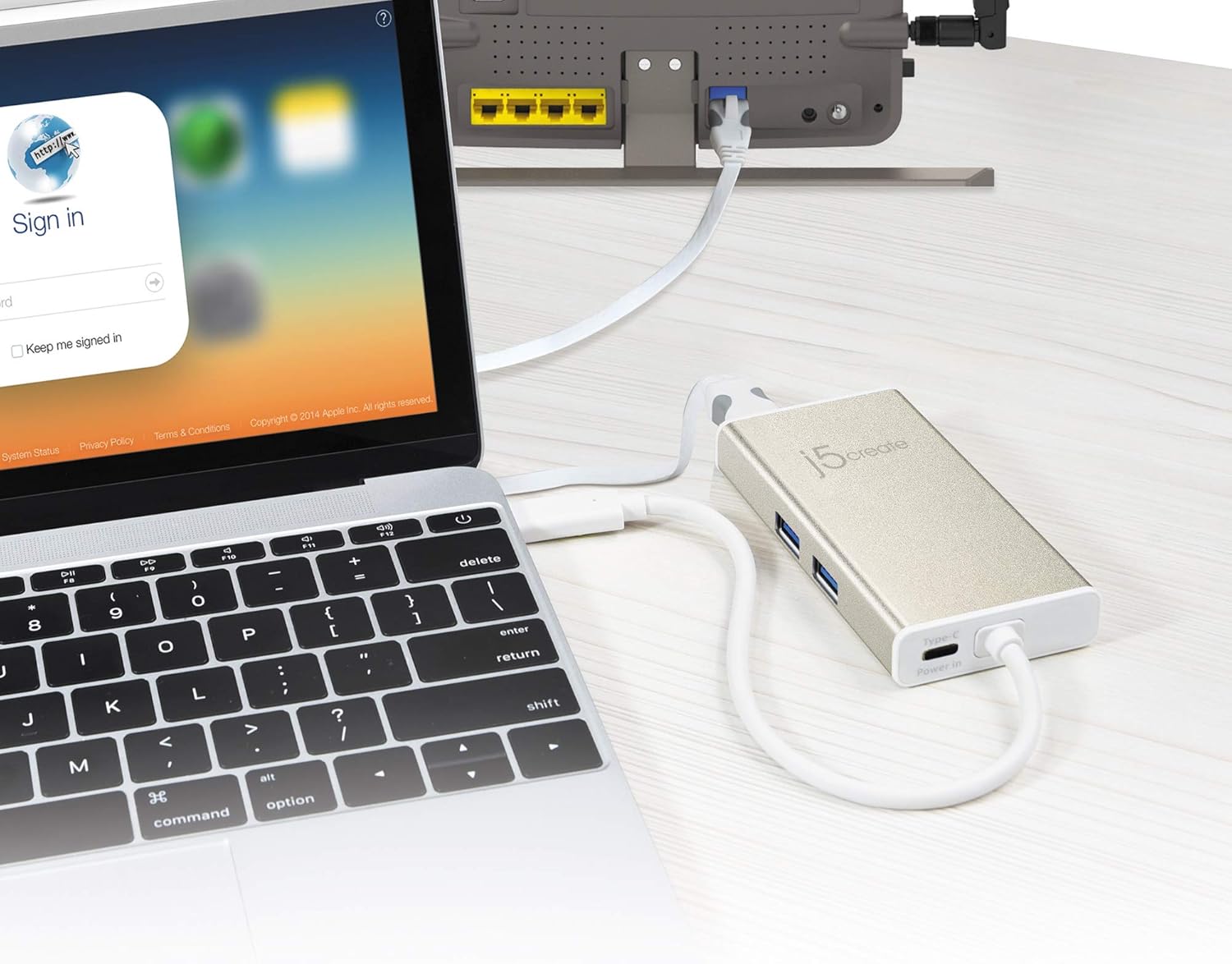
Figure 3.1: The j5create hub connected to a laptop, ready for use.
- Connecteu la pantalla externa (opcional): If you wish to connect an external monitor, use an HDMI cable to connect the monitor to the HDMI port on the j5create hub. Ensure your monitor is set to the correct input source.

Figure 3.2: A laptop connected to an external 4K UHD monitor through the j5create hub, demonstrating display extension.
- Connecteu perifèrics USB (opcional): Plug your USB devices (e.g., mouse, keyboard, USB flash drive) into the USB 3.0 SuperSpeed ports on the hub.

Figure 3.3: Multiple peripherals, including a USB mouse and flash drive, connected to the j5create hub, expanding connectivity options.
- Connectar-se a la xarxa (opcional): For a wired internet connection, connect an Ethernet cable from your router or modem to the Gigabit Ethernet port on the hub.
Nota: For LAN functionality, you may need to download and install a driver. Please visit the j5create official website for the latest drivers specific to your operating system.
- Lliurament d'energia (opcional): If your laptop supports USB Power Delivery, you can connect your laptop's USB-C power adapter to the Power Delivery port on the hub to charge your laptop while using the hub.

Figure 3.4: The j5create hub connected to a laptop and a power adapter, illustrating simultaneous charging and peripheral use.
- General Connections Overview:

Figura 3.5: Un excésview of the j5create hub connected with various cables, demonstrating its multi-functional capabilities.
4. Instruccions de funcionament
The j5create USB C Hub is designed for plug-and-play functionality. Once connected, your operating system should automatically detect the connected devices and external display.
- Configuració de la pantalla: For external displays, you may need to adjust display settings within your operating system (e.g., extend display, duplicate display, resolution). Refer to your operating system's help documentation for specific instructions.
- USB Device Recognition: USB devices connected to the hub should be recognized automatically. If a device is not recognized, try reconnecting it or restarting your computer.
- Connexió Ethernet: After connecting the Ethernet cable and installing any necessary drivers, your computer should establish a wired network connection. Verify network status in your system settings.

Figure 4.1: A tablet connected to an external monitor and charging via the j5create hub, demonstrating multi-device compatibility.
5. Manteniment
To ensure the longevity and optimal performance of your j5create USB C Hub, follow these maintenance guidelines:
- Neteja: Feu servir un drap suau i sec per netejar la superfície del cub. Eviteu utilitzar netejadors líquids o materials abrasius.
- Emmagatzematge: When not in use, store the hub in a cool, dry place, away from direct sunlight and extreme temperatures.

Figure 5.1: The compact j5create hub easily fits into a laptop bag, highlighting its portability and ease of storage.
- Manejar amb cura: Avoid dropping the device or subjecting it to strong impacts. Do not bend or pull the integrated USB-C cable excessively.
- Ventilació: Assegureu-vos que el centre de distribució tingui una ventilació adequada durant el funcionament per evitar el sobreescalfament.
6. Solució De Problemes
If you encounter issues with your j5create USB C Hub, please refer to the following common solutions:
| Problema | Possible solució |
|---|---|
| No es mostra cap pantalla al monitor extern. |
|
| No es reconeixen els dispositius USB. |
|
| Ethernet connection is not working. |
|
| Laptop is not charging via Power Delivery. |
|
| General connectivity issues or intermittent problems. |
|
7. Especificacions
| Característica | Detall |
|---|---|
| Dimensions del producte | 5.21 x 0.78 x 0.23 polzades |
| Pes de l'article | 7.7 unces |
| Fabricant | j5crear |
| Número de model | JCA374 |
| Marca | j5crear |
| Color | Blanc |
| Interfície del maquinari | HDMI, USB, Ethernet |
| Característica especial | Fast Charging (Power Delivery) |
| Dispositius compatibles | PC, Monitors, Laptops |
| Resolució HDMI | 4K@30Hz / 1080P@60Hz |
| Ports USB | 2x USB 3.0 SuperSpeed (5Gbps) |
8. Informació de la garantia
Specific warranty details for the j5create USB C Hub (Model: JCA374) are typically provided with the product packaging or can be found on the official j5create weblloc web. Consulteu aquests recursos per obtenir els termes i condicions de garantia més precisos i actualitzats.
9. Atenció al client
For technical support, driver downloads, or further assistance with your j5create USB C Hub, please visit the official j5create support website or contact their customer service. Contact information and support resources are usually available on the manufacturer's weblloc.
Nota: No official seller videos were available for direct embedding in this manual.


