1. Introducció
This manual provides detailed instructions for the setup, operation, maintenance, and troubleshooting of your EXCELVAN E300 Portable Thermal Printer. Please read this manual carefully before using the printer to ensure proper function and longevity of the device.
The EXCELVAN E300 is a compact and efficient thermal printer designed for printing receipts and tickets. It features high-speed printing, a durable print head, and versatile connectivity options including Bluetooth and USB, making it suitable for various point-of-sale (POS) environments.
2. Producte acabatview
2.1 Contingut del paquet
En desempaquetar, comproveu que hi hagi tots els elements que s'enumeren a continuació:
- 1 x 80mm Thermal Printer
- 1 x adaptador de corrent
- 1 x bateria de liti
- 1 x cable USB (110 cm)
- 1 x Rotlle de paper tèrmic
- 1 x Manual d'usuari (aquest document)
- 1 x CD (containing drivers and software)
2.2 Components de la impressora
Familiarize yourself with the main components of your EXCELVAN E300 printer:

Figura 1: Davant view of the EXCELVAN E300 printer with key components labeled.
- Paper Warehouse Cover: Protects the paper roll compartment.
- Botó d'alimentació: Fa avançar el paper.
- Indicador de càrrega: Lights up when the battery is charging.
- Indicador de capacitat de la bateria: Mostra el nivell de bateria actual.
- Indicador d'error: Lights up to indicate an error (e.g., paper out, cover open).
- Botó d'encesa: Encén/apaga la impressora.
3. Configuració
3.1 Instal·lació de la bateria
- Open the battery compartment cover located on the bottom of the printer.
- Insert the provided lithium battery, ensuring the contacts align correctly.
- Important: Remove any insulating tape from the battery contacts before installation or charging.
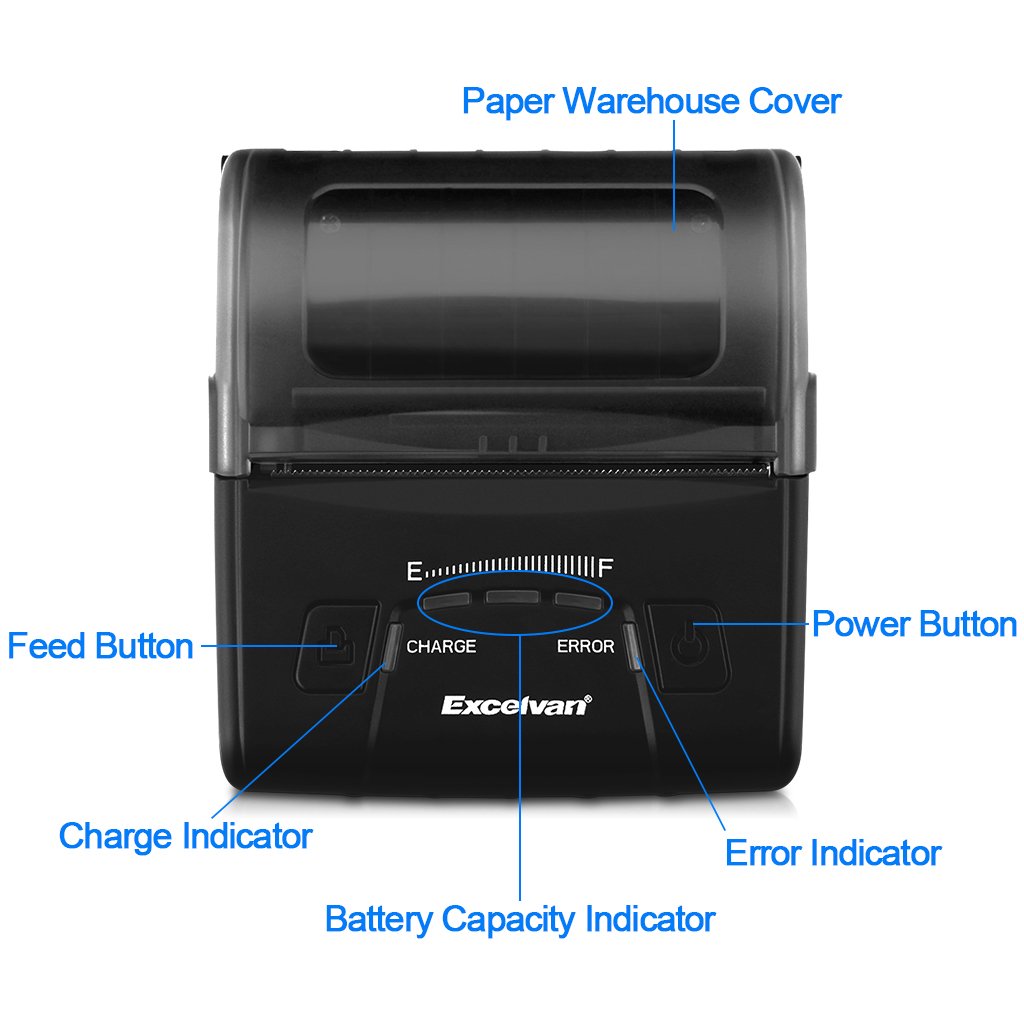
Figura 2: Battery installation and warning to remove insulating tape.
- Tanqueu bé la tapa del compartiment de la bateria.
3.2 Càrrega de la bateria
Before first use, fully charge the printer battery.
- Connect the power adapter to the printer's DC IN 9V port.
- Connecteu l'adaptador de corrent a una presa de corrent.
- The Charge Indicator light will illuminate during charging. It will turn off or change color (depending on model) when fully charged.
- Nota: The USB cable is for data connection to a computer only and does not charge the device.
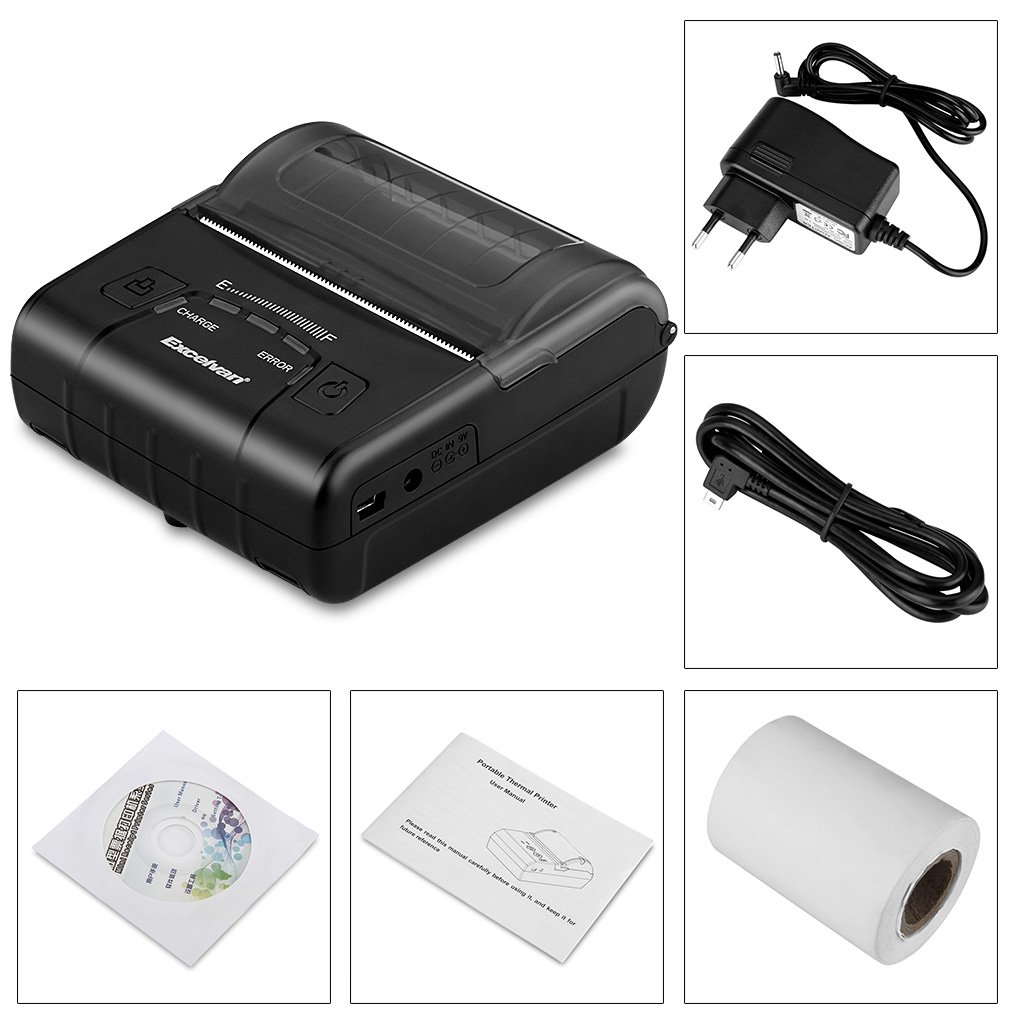
Figura 3: Charging port and USB port. Use the power adapter for charging.
3.3 Càrrega de paper tèrmic
The printer uses 80mm wide thermal paper rolls.
- Open the Paper Warehouse Cover by gently lifting it.
- Insert the thermal paper roll into the compartment, ensuring the paper feeds from the bottom and the leading edge comes out towards the front of the printer.
- Estireu una petita quantitat de paper més enllà de la vora de tall.
- Close the Paper Warehouse Cover firmly until it clicks into place.
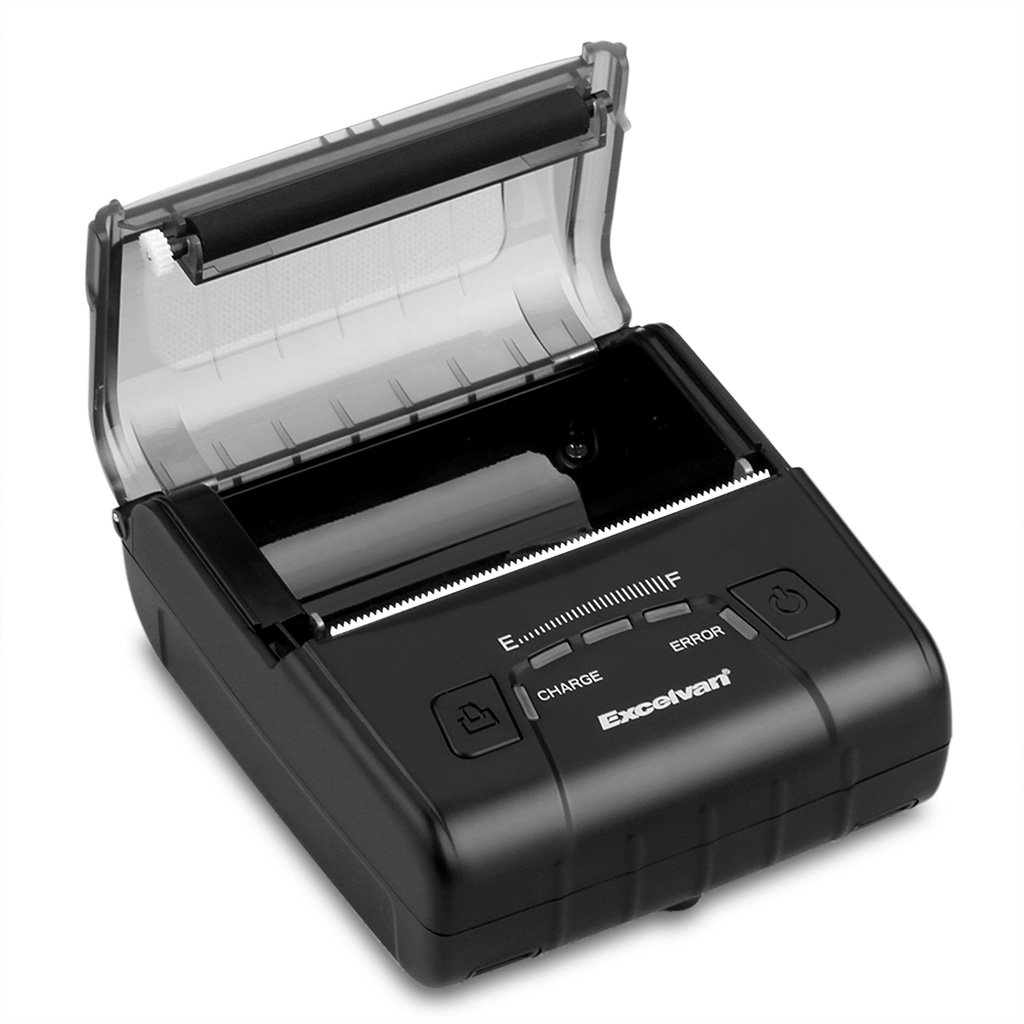
Figura 4: Loading thermal paper into the printer.
4. Instruccions de funcionament
4.1 Encès/Apagat
- Per encendre: Press and hold the Power Button until the indicator lights illuminate.
- Per apagar: Press and hold the Power Button until the indicator lights turn off.
4.2 Instal·lació del controlador
Install the appropriate drivers for your operating system from the provided CD or download them from the official EXCELVAN weblloc (si està disponible).
- Supported Operating Systems: Android, iOS, Linux, Windows (2000, 2003, XP, 7, 8, 8.1, 10).
4.3 Connexió de la impressora
The EXCELVAN E300 supports both Bluetooth and USB connectivity.
4.3.1 Connexió Bluetooth
- Assegureu-vos que la impressora estigui engegada.
- Al dispositiu (telèfon intel·ligent, tauleta, ordinador), activeu el Bluetooth i cerqueu els dispositius disponibles.
- Select "EXCELVAN E300" or a similar name from the list.
- Enter the pairing PIN (usually "0000" or "1234") if prompted.
- Once paired, you can select the printer from your application's print settings.
4.3.2 Connexió USB
- Connecteu un extrem del cable USB al port USB de la impressora.
- Connecteu l'altre extrem a un port USB disponible de l'ordinador.
- Ensure the necessary drivers are installed. The printer should appear as an available printing device in your system settings.
4.4 Impressió
Once connected and drivers are installed, you can initiate printing from your application.

Figura 5: The printer in operation, producing a receipt.
- Use the Feed Button to advance paper manually if needed.
- The printer supports ESC/POS commands for advanced control.
- Graphic printing, including bitmaps and QR codes, is supported.
5. Manteniment
5.1 Neteja del capçal d'impressió
La neteja regular del capçal d'impressió garanteix una qualitat d'impressió òptima i allarga la vida útil de la impressora.
- Apagueu la impressora i desconnecteu l'adaptador de corrent.
- Open the Paper Warehouse Cover.
- Feu servir un bastonet de cotó lleugeramentampened with isopropyl alcohol to gently wipe the thermal print head (the dark strip inside the cover).
- Deixeu que el capçal d'impressió s'assequi completament abans de tancar la tapa i engegar la impressora.
5.2 Cura de la bateria
- Eviteu descarregar completament la bateria amb freqüència.
- Charge the battery regularly, even if the printer is not in use for extended periods.
- Guardeu la impressora en un lloc fresc i sec quan no la feu servir.
6. Solució De Problemes
This section addresses common issues you might encounter with your EXCELVAN E300 printer.
| Problema | Causa possible | Solució |
|---|---|---|
| La impressora no s'encén. | Bateria baixa o sense energia. | Charge the battery using the power adapter. Ensure the power adapter is correctly connected. |
| No paper output. | Paper out, paper jam, or cover not closed. | Check if the paper roll is empty and replace if necessary. Clear any paper jams. Ensure the Paper Warehouse Cover is securely closed. |
| Error Indicator is lit. | Paper out, cover open, or print head overheating. | Check paper status and cover. If the printer has been printing continuously, allow it to cool down. |
| Poca qualitat d'impressió. | Dirty print head, low battery, or incorrect paper. | Clean the print head (see Section 5.1). Ensure the battery is sufficiently charged. Use high-quality thermal paper. |
| No es pot connectar per Bluetooth. | Bluetooth not enabled, incorrect pairing, or interference. | Ensure Bluetooth is enabled on both devices. Re-attempt pairing. Move closer to the printer and away from other wireless devices. |
7. Especificacions
Detailed technical specifications for the EXCELVAN E300 Thermal Printer:
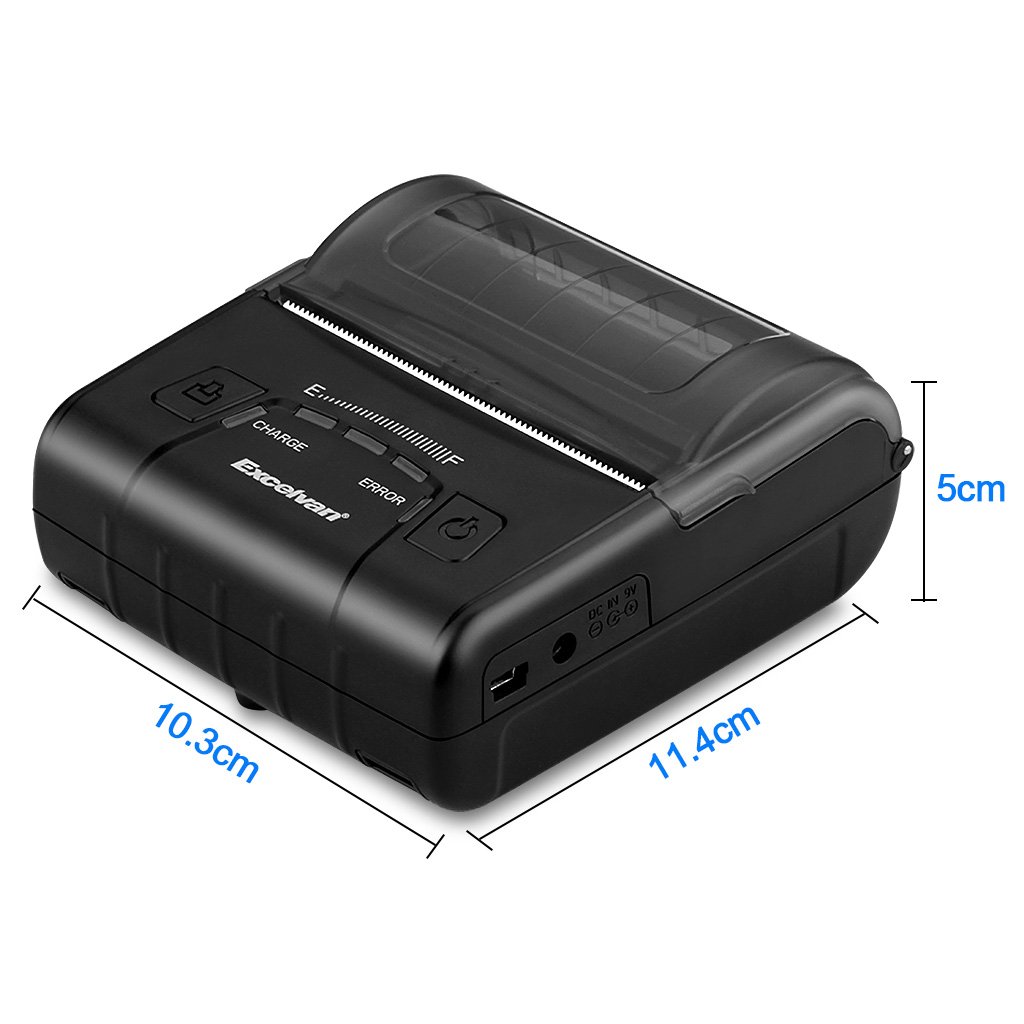
Figura 6: EXCELVAN E300 Printer Dimensions.
| Característica | Especificació |
|---|---|
| Mètode d'impressió | Impressió de línia tèrmica |
| Amplada d'impressió efectiva | 72 mm |
| Resolució | 384 punts/línia |
| Velocitat d'impressió | 90 mm/s |
| Interfície | USB, Bluetooth |
| Tipus de paper | Paper tèrmic |
| Amplada del paper | 79.5 ± 0.5 mm |
| Diàmetre del paper | ≤ 43 mm (40 mm recommended) |
| Ordres | ESC/POS compatible |
| Font d'alimentació | Bateria recarregable de polímer de liti |
| Capacitat de la bateria | 2500 mAh / 7.4 V |
| Sortida de l'adaptador de corrent | 9.0 V / 2 A |
| Programari del controlador | Android, iOS, Linux, Win2000/2003/XP/7/8/8.1/10 |
| Vida del capçal d’impressió | 50 km (Print Density ≤ 12.5) |
| Temperatura de funcionament | 5 °C ~ 45 °C |
| Humitat de funcionament | 10% ~ 80% |
| Dimensions (L x A x A) | 11 x 5 x 10 cm (aproximadament) |
| Pes | 285 grams |
8. Garantia i Suport
8.1 Informació de la garantia
The EXCELVAN E300 printer comes with a standard manufacturer's warranty. Please refer to the warranty card included in your package or contact your retailer for specific terms and conditions regarding warranty coverage and duration.
8.2 Atenció al client
For technical assistance, troubleshooting not covered in this manual, or inquiries about your product, please contact EXCELVAN customer support or your authorized dealer. Contact information can typically be found on the product packaging or the official EXCELVAN weblloc.


