Introducció
The Logitech M720 Triathlon Multi-Device Wireless Mouse is designed for endurance, versatility, and comfort, allowing seamless navigation across multiple screens and operating systems. This manual provides detailed instructions for setting up, operating, maintaining, and troubleshooting your M720 mouse to ensure optimal performance.

Figura 1: superior view of the Logitech M720 Triathlon Multi-Device Wireless Mouse.
Configuració
Què hi ha a la caixa
- Logitech M720 Triathlon Multi-Device Wireless Mouse
- Receptor unificador Logitech
- 1 pila AA (preinstal·lada)
- Documentació d'usuari (aquest manual)
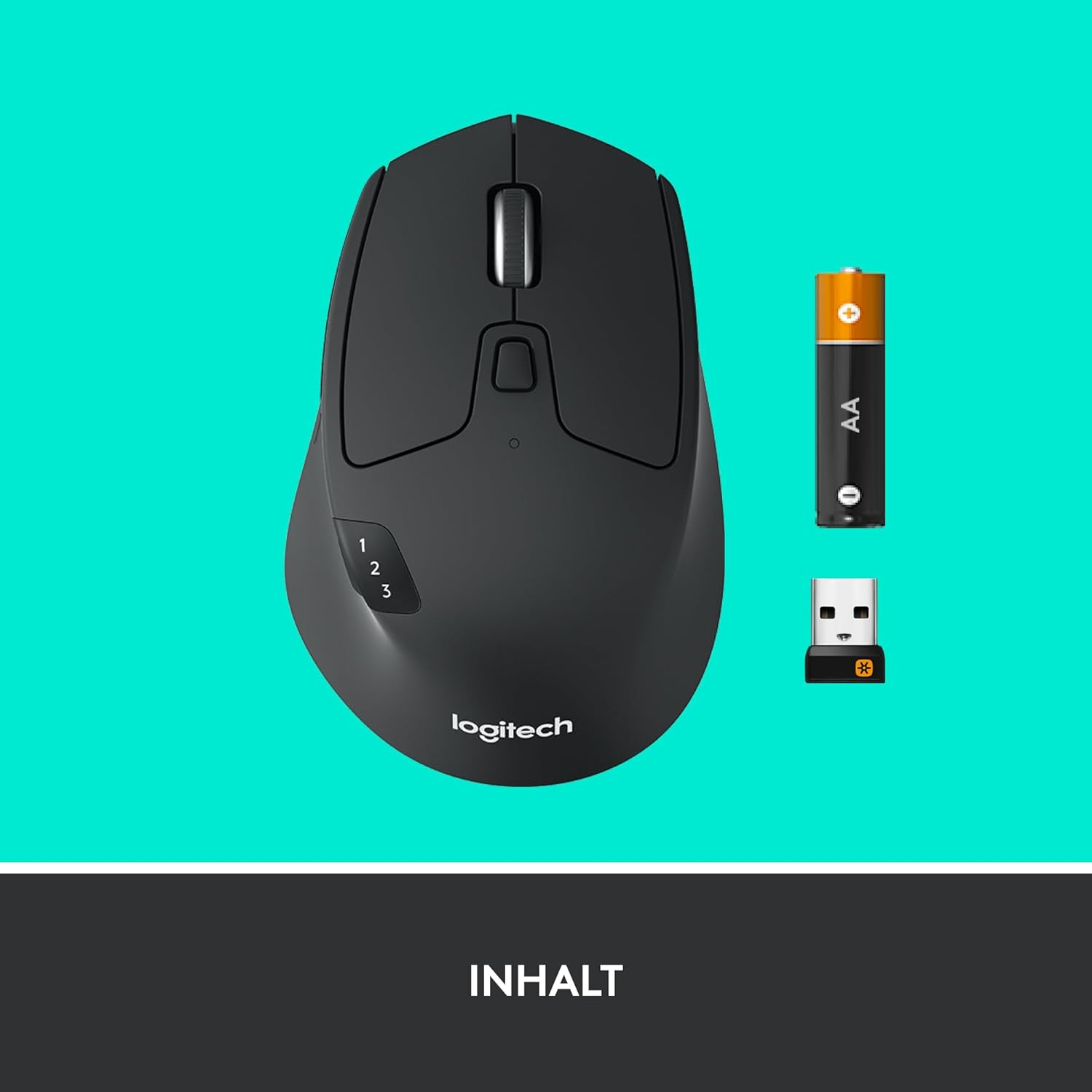
Figure 2: Included components: mouse, AA battery, and Unifying receiver.
Instal·lació de la bateria
The M720 mouse comes with one AA battery pre-installed. To activate the mouse, simply pull the battery tab. If replacing the battery, open the battery compartment on the underside of the mouse, insert a new AA battery, ensuring correct polarity, and close the compartment. The mouse is designed for a 24-month battery life.
Connectant el ratolí
The M720 Triathlon mouse offers two connection options: the Logitech Unifying Receiver or Bluetooth Smart technology. You can pair the mouse with up to three different devices and switch between them using the Easy-Switch button.

Figure 3: The M720 supports both Bluetooth and Logitech Unifying USB receiver connections.
Using the Unifying Receiver
- Plug the Logitech Unifying Receiver into an available USB port on your computer.
- Turn on the mouse using the On/Off switch on the underside.
- Press the Easy-Switch button (labeled 1, 2, or 3) on the side of the mouse to select an available channel. The LED indicator for the selected channel will blink rapidly.
- The mouse should automatically connect to the Unifying Receiver. If not, download and use the Logitech Unifying Software to complete the pairing process.
Using Bluetooth Smart Technology
- Turn on the mouse using the On/Off switch on the underside.
- Press the Easy-Switch button (labeled 1, 2, or 3) on the side of the mouse to select an available channel. The LED indicator for the selected channel will blink rapidly.
- Press and hold the selected Easy-Switch button for three seconds until the LED starts blinking rapidly, indicating pairing mode.
- On your computer or device, open Bluetooth settings and select "Logitech M720" from the list of available devices to complete the pairing.
Instal·lació del programari Logitech Options
To unlock the full potential of your M720 mouse, including customizing buttons, adjusting pointer speed, and enabling Logitech FLOW, download and install the Logitech Options software from the official Logitech website. This software is compatible with Windows, macOS, and Chrome OS.

Figure 4: Enhance productivity by customizing buttons with Logitech Options software.
Funcionament
Key Features and Buttons

Figure 5: Key features of the M720 Triathlon mouse.
- Botons de clic esquerre/dret: Funcions estàndard del ratolí.
- Roda de desplaçament: Provides both hyper-fast scrolling and click-to-click precision. Can also be tilted left/right for horizontal scrolling.
- Scroll Mode Shift Button: Located behind the scroll wheel, toggles between hyper-fast and click-to-click scrolling modes.
- Easy-Switch Button (1, 2, 3): Located on the side, allows instant switching between up to three paired devices.
- Thumb Buttons (Forward/Back): Located above the Easy-Switch buttons, typically used for navigation in web navegadors o file exploradors.
- Hidden Thumb Button: Located below the thumb buttons, can be customized for gesture controls or other functions via Logitech Options.
- Indicador d'estat de la bateria: A small LED that indicates battery level.
Multi-Device Switching (Easy-Switch)
The M720 Triathlon mouse allows you to pair with up to three different computers or devices. To switch between them, simply press the Easy-Switch button corresponding to the desired device (1, 2, or 3). The mouse will instantly connect to that device.
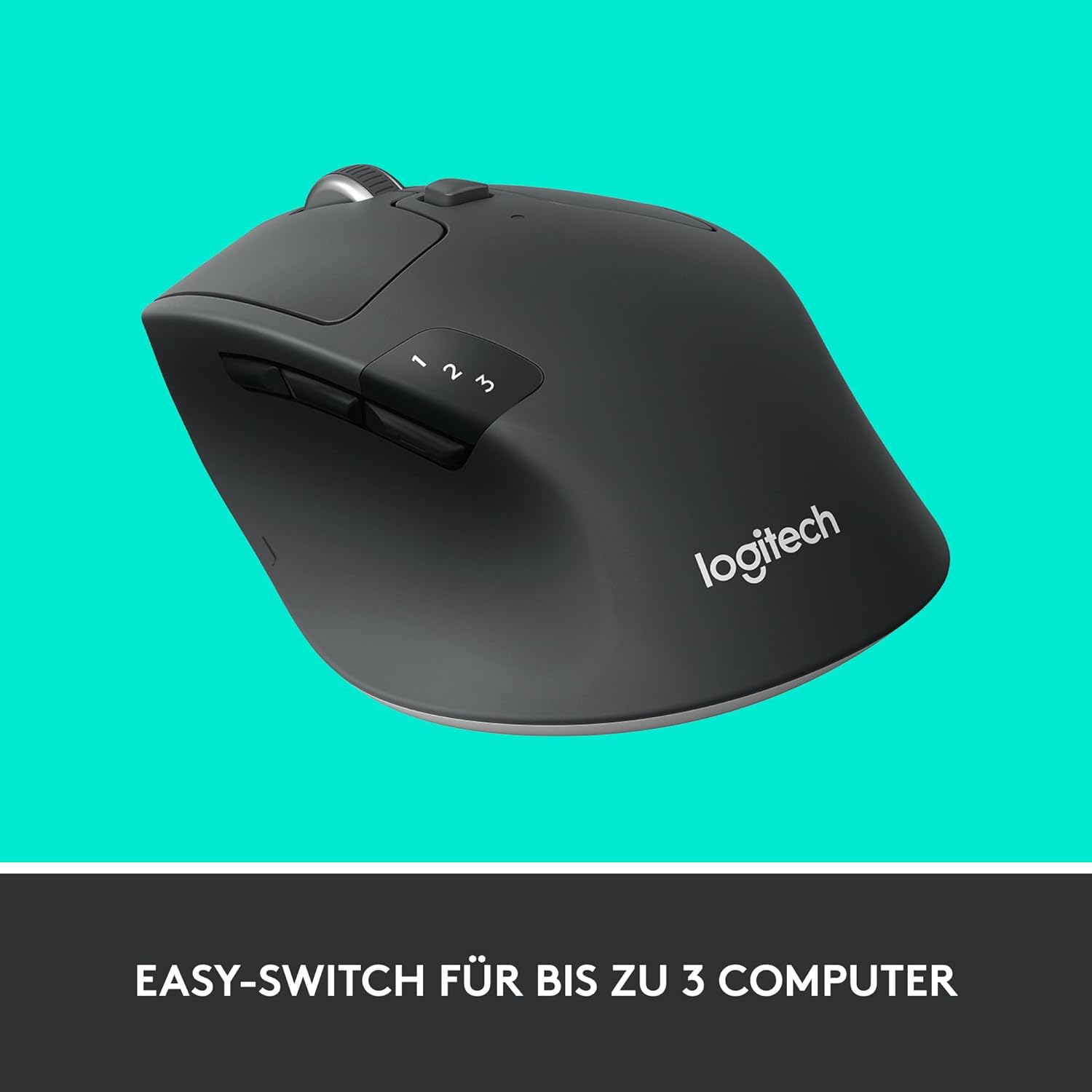
Figure 6: Easy-Switch functionality for seamless multi-device control.
Hyper-Fast Scrolling
The M720 features a dual-mode scroll wheel. In hyper-fast mode, the wheel spins freely, allowing you to quickly scroll through long documents and web pages. Press the scroll mode shift button to switch to click-to-click (ratchet) mode for precise navigation, ideal for spreadsheets or image editing.
Customizing Your Mouse
Utilize the Logitech Options software to customize the functions of the M720's buttons, including the thumb buttons and the hidden thumb button. You can assign specific actions, keyboard shortcuts, or even application-specific functions to enhance your workflow.
Logitech FLOW
If you have multiple computers on the same network and Logitech Options installed on all of them, you can enable Logitech FLOW. This feature allows you to seamlessly move your mouse cursor across screens, copy and paste text, images, and files between computers as if they were a single desktop. This requires both computers to be connected to the same network and have Logitech Options installed.

Figure 7: Seamlessly work across multiple computers with Logitech FLOW.
Manteniment
Neteja del ratolí
To clean your M720 mouse, use a soft, lint-free cloth lightly dampened with water or a mild cleaning solution. Avoid using harsh chemicals or abrasive materials, as these can damage the mouse's surface or internal components. Ensure no liquid enters the mouse.
Canvi de bateria
When the battery indicator light signals low power, or if the mouse performance degrades, it's time to replace the AA battery. Open the battery compartment on the underside of the mouse, remove the old battery, and insert a new AA battery, observing the polarity markings. Dispose of used batteries responsibly.
Resolució de problemes
Problemes comuns i solucions
- El ratolí no respon:
- Assegureu-vos que el ratolí estigui encès.
- Comproveu el nivell de la bateria i substituïu-la si cal.
- For Unifying Receiver: Try plugging the receiver into a different USB port.
- For Bluetooth: Ensure Bluetooth is enabled on your device and the mouse is paired. Try re-pairing the mouse.
- Move the mouse closer to the receiver or Bluetooth device to reduce interference.
- Connexió intermitent:
- Reduce wireless interference by moving other electronic devices away from the mouse and receiver.
- Ensure the mouse is on a stable surface and not too far from the computer.
- Buttons or scroll wheel not working correctly:
- Clean the mouse, especially around the buttons and scroll wheel, to remove any debris.
- Ensure Logitech Options software is up to date.
- Reset the mouse by turning it off and on again.
- Logitech FLOW not working:
- Ensure all computers are on the same network (Wi-Fi or Ethernet).
- Verify Logitech Options is installed and running on all computers.
- Check firewall settings on all computers to ensure they are not blocking FLOW communication.
Especificacions tècniques
| Nom del model | M720 Triathlon |
| Número de model | 910-004791 |
| Dimensions (A x A x P) | 115 x 74 x 45 mm (4.5 x 2.9 x 1.8 polzades) |
| Pes (amb bateria) | 135 g (4.8 oz) |
| La tecnologia de sensors | Seguiment òptic avançat |
| DPI (mínim/màx.) | 1000 DPI |
| Nombre de botons | 8 (including scroll wheel click and tilt) |
| Connectivitat | Logitech Unifying Receiver (2.4 GHz wireless), Bluetooth Smart |
| abast sense fils | Fins a 10 metres (33 peus) |
| Tipus de bateria | 1 bateria AA |
| Durada de la bateria | Fins a 24 mesos (pot variar segons l'ús) |
| Compatibilitat | Windows 10 or higher, macOS 10.5 or higher, Chrome OS, Linux Kernel 2.6+, Android 5.0 or higher, iPadOS 13.4 or higher |

Figure 8: Physical dimensions and weight of the M720 mouse.
Garantia i Suport
Logitech products are manufactured to the highest quality standards. The Logitech M720 Triathlon Multi-Device Wireless Mouse typically comes with a limited hardware warranty. Please refer to the warranty information provided with your product packaging or visit the official Logitech support weblloc web per conèixer els termes i condicions de garantia específics aplicables a la vostra regió.
For technical support, frequently asked questions, driver downloads, and additional resources, please visit the Logitech support weblloc web. També hi podeu trobar informació de contacte per al servei d'atenció al client.


