1. Introducció
This manual provides detailed instructions for setting up, operating, maintaining, and troubleshooting your Logitech MK850 Combo, a multi-device wireless keyboard and mouse set. Designed for optimal comfort and productivity, this combo allows seamless switching between multiple devices using either the Logitech Unifying™ receiver or Bluetooth connectivity.

Image: The Logitech MK850 wireless keyboard and mouse combo, along with the USB Unifying receiver.
2. Configuració
2.1. Contingut del paquet
Abans de començar, assegureu-vos que tots els elements estiguin presents al paquet:
- Teclat sense fil Logitech MK850
- Ratolí sense fil Logitech MK850
- Logitech Unifying™ USB Receiver
- 2 piles AAA (per al teclat)
- 1 pila AA (per al ratolí)
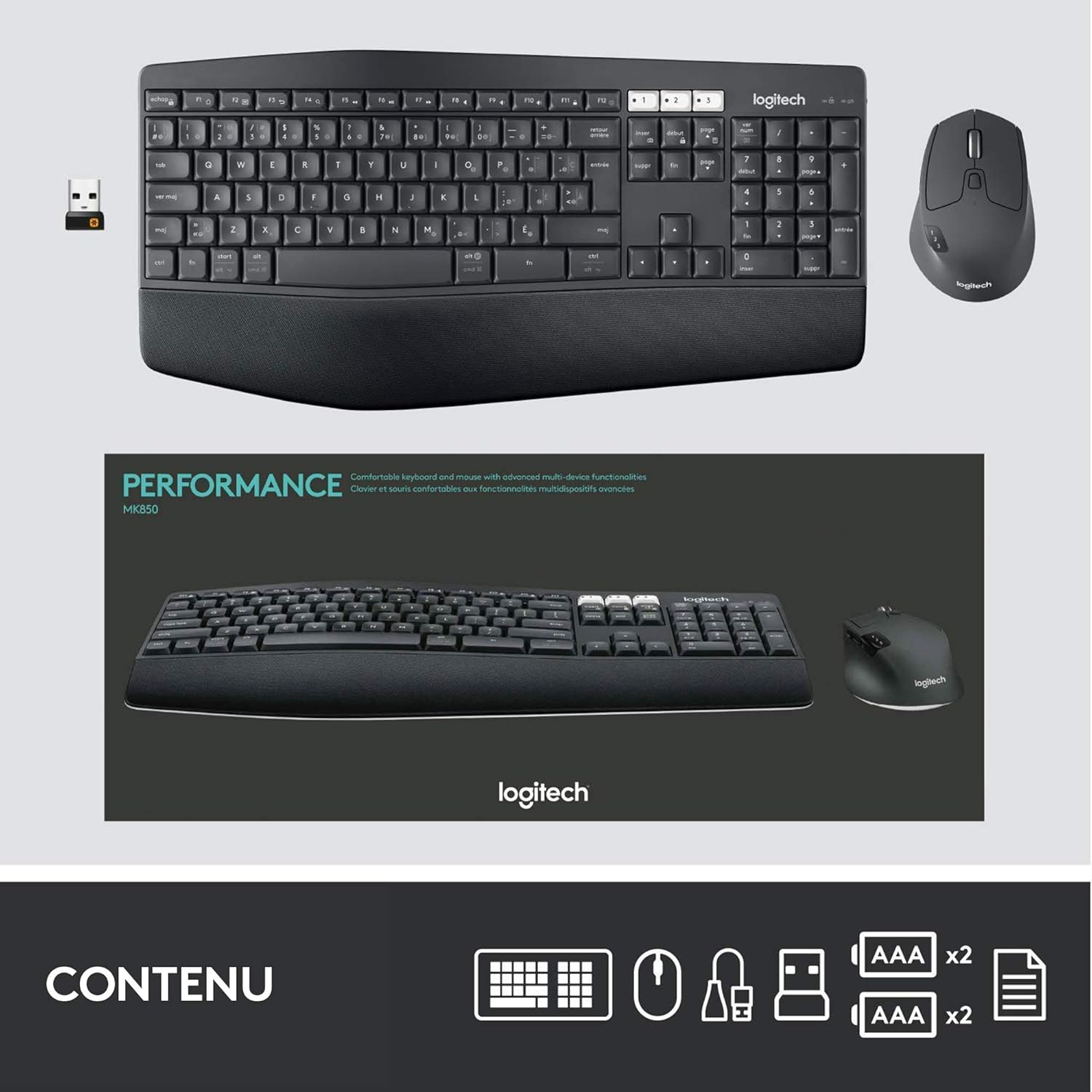
Image: An illustration showing the complete contents of the Logitech MK850 Combo package, including the keyboard, mouse, Unifying receiver, and batteries.
2.2. Instal·lació de la bateria
The keyboard requires two AAA batteries, and the mouse requires one AA battery. Batteries are included.
- Localitzeu els compartiments de les piles a la part inferior del teclat i del ratolí.
- Open the compartments and insert the batteries, ensuring correct polarity (+/-).
- Tanqueu els compartiments de la bateria de manera segura.
2.3. Connexió dels dispositius
The MK850 Combo offers two connection methods: Logitech Unifying™ USB receiver or Bluetooth.
2.3.1. Via Logitech Unifying™ USB Receiver
This method provides a robust 2.4 GHz wireless connection.
- Plug the Logitech Unifying™ USB receiver into an available USB port on your computer.
- Engegueu el teclat i el ratolí utilitzant els seus respectius interruptors d'alimentació.
- The devices should automatically connect to the receiver. If not, use the Logitech Options software to pair them.

Image: A close-up diagram of the Logitech Unifying USB receiver, highlighting its compact design and functionality for connecting multiple devices.
2.3.2. Mitjançant Bluetooth
Connect your devices directly to Bluetooth-enabled computers, tablets, or smartphones.
- Enceneu el teclat i el ratolí.
- On both the keyboard and mouse, press and hold one of the Easy-Switch buttons (1, 2, or 3) for 3 seconds until the LED light next to the button starts blinking rapidly. This indicates pairing mode.
- On your computer, tablet, or smartphone, open Bluetooth settings and select 'Logitech MK850 Keyboard' or 'Logitech MK850 Mouse' from the list of available devices to pair.
- Seguiu les indicacions de la pantalla per completar el procés de vinculació.
2.4. Funcionalitat Easy-Switch
The MK850 Combo allows you to connect and switch between up to three different devices seamlessly.
- On the keyboard, use the dedicated Easy-Switch buttons (1, 2, 3) located above the numeric keypad to instantly switch between paired devices.
- On the mouse, use the Easy-Switch button located on the side to cycle through paired devices.

Image: A visual representation of the multi-device control feature, showing the ability to connect and switch between a desktop PC, a laptop, and a tablet using the MK850 combo.
3. Funcionament del vostre MK850 Combo
3.1. Característiques del teclat
- Disseny ergonòmic: The keyboard features a curved layout and a cushioned palm rest for comfortable typing over extended periods.
- Potes inclinables ajustables: Two sets of tilt legs allow you to choose between 0, 4, or 7 degrees of tilt for your preferred typing angle.
- Escriptura silenciosa: Sculpted, deep keys provide a familiar and comfortable typing sensation with reduced noise.
- Tecles programables: Customize function keys and other shortcuts using the Logitech Options software.
- Logitech DuoLink: When used with Logitech Options, DuoLink allows you to assign different functions to mouse buttons when holding down the keyboard's Fn key, enhancing productivity.

Image: A user's hands positioned comfortably on the Logitech MK850 keyboard, demonstrating its ergonomic design and cushioned palm rest.

Image: Three side-profile views of the Logitech MK850 keyboard, illustrating its adjustable tilt legs and different typing angles.
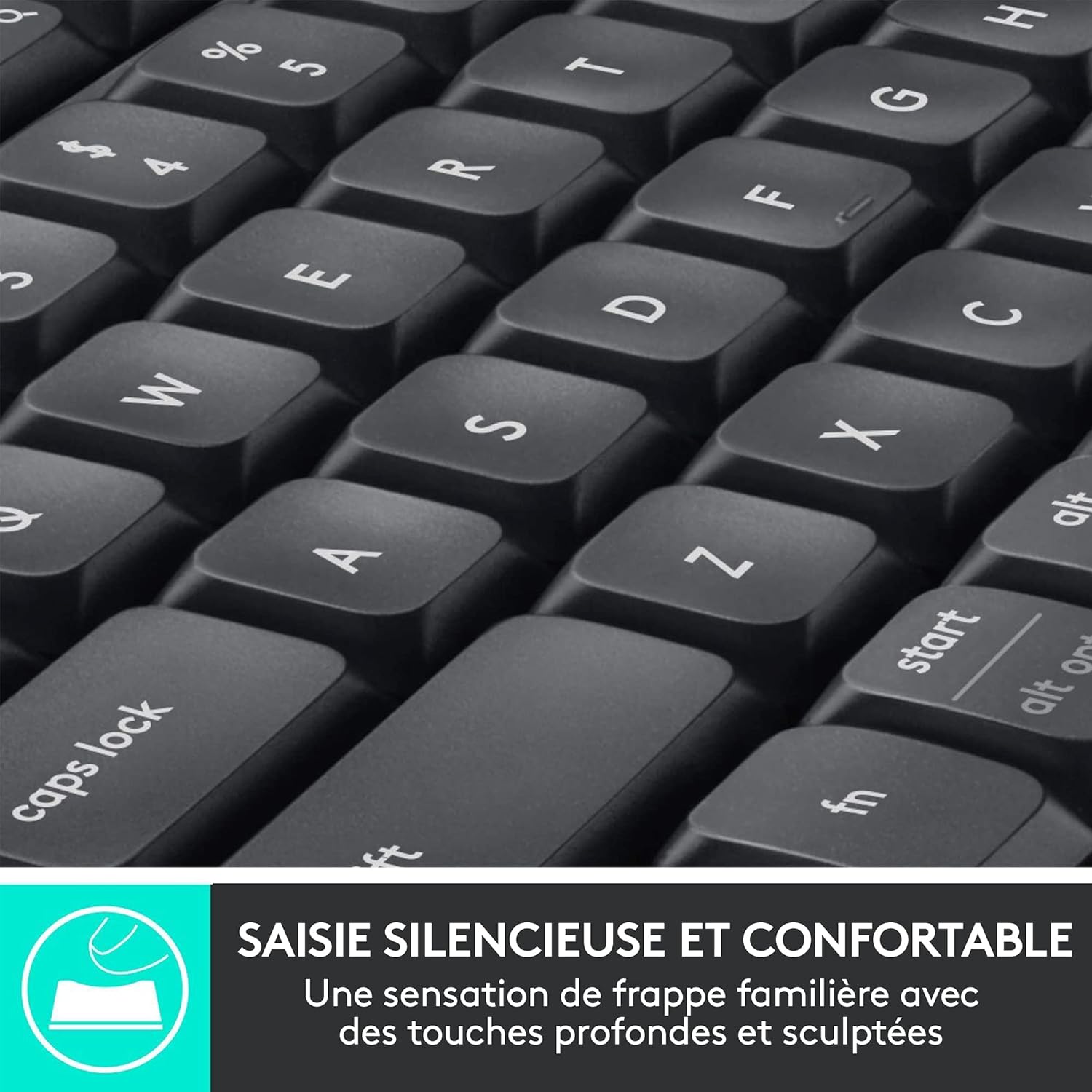
Imatge: Un primer pla view of the Logitech MK850 keyboard keys, emphasizing their sculpted design for quiet and comfortable typing.
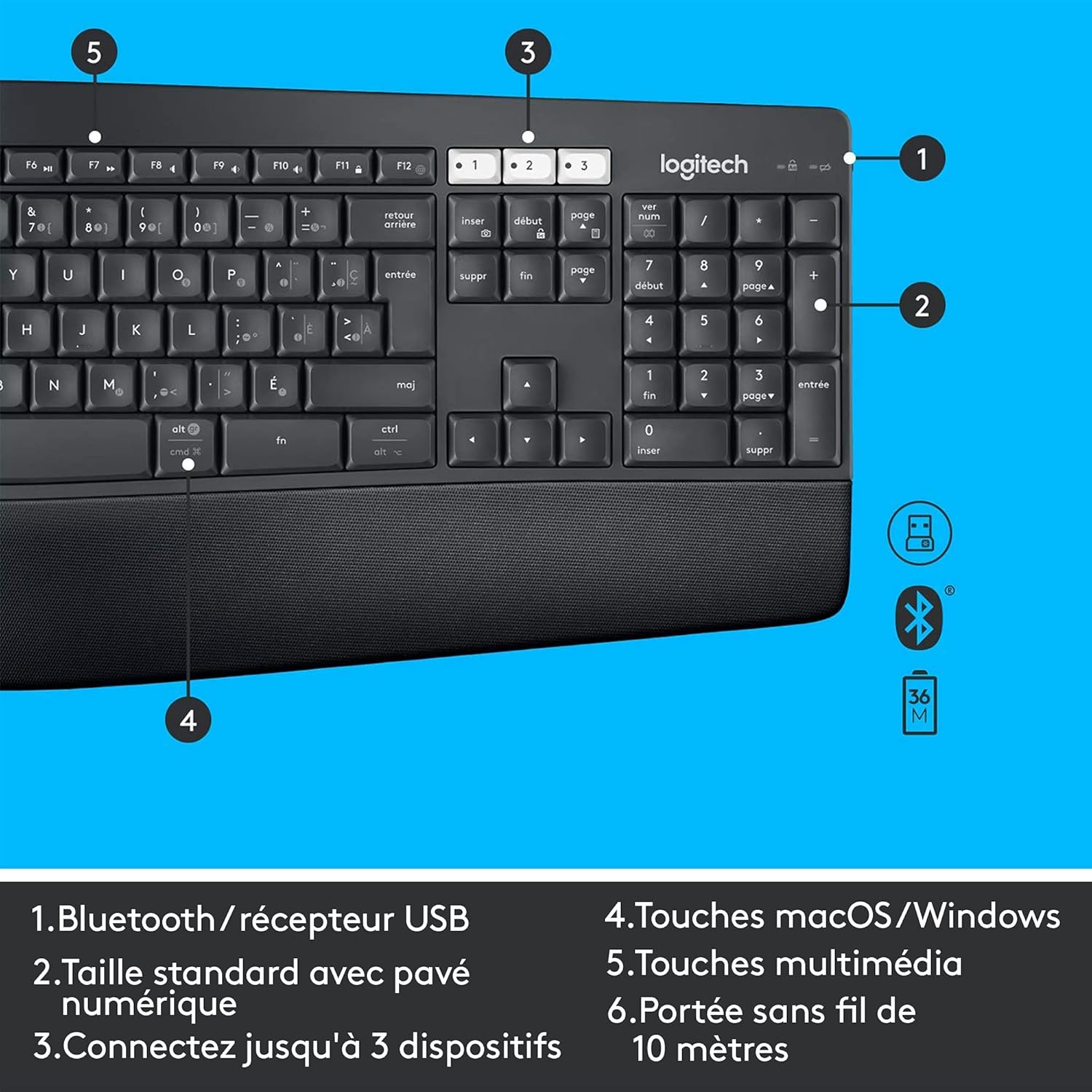
Image: An annotated diagram of the Logitech MK850 keyboard, pointing out key features such as Bluetooth/USB receiver, full-size layout, multi-device connectivity, macOS/Windows keys, multimedia keys, and wireless range.
3.2. Característiques del ratolí
- Roda de desplaçament hiperràpida: Navigate long documents and web pages quickly with the precision scroll wheel, which can switch between hyper-fast and click-to-click scrolling.
- Disseny contornejat: The mouse is shaped to fit comfortably in your palm, providing excellent support.
- Botons programables: The mouse features 8 customizable buttons that can be assigned various functions using the Logitech Options software.
- Logitech FLOW: Control multiple computers with a single mouse by seamlessly moving your cursor between screens. You can even copy and paste text, images, and files entre ordinadors.
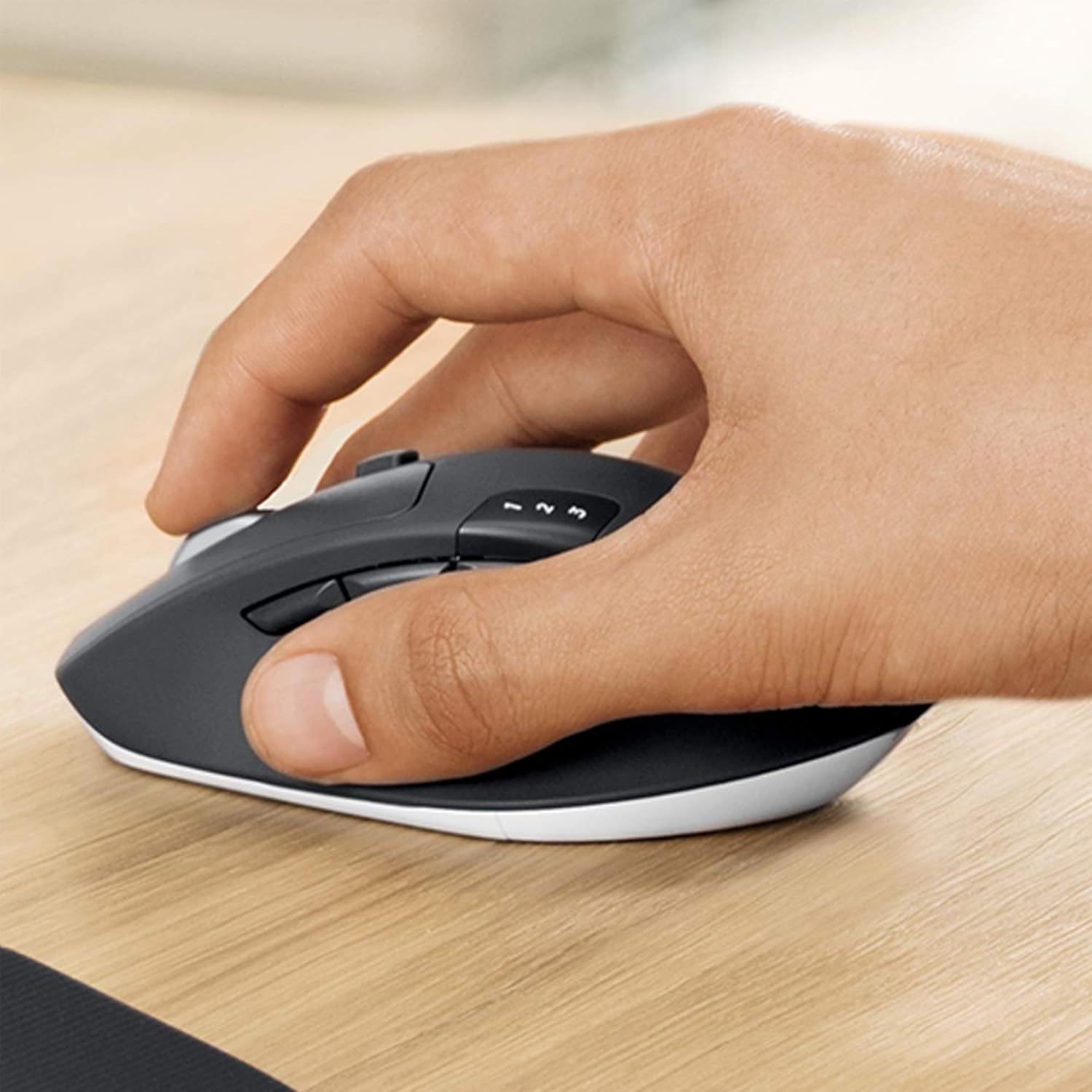
Image: A hand gripping the Logitech MK850 mouse, showcasing its contoured shape designed for comfortable palm support.

Image: A screenshot of the Logitech Options software interface on a MacBook, demonstrating how to customize mouse buttons and settings for enhanced productivity.

Image: Two computers side-by-side with the Logitech MK850 mouse, illustrating the Logitech FLOW feature that allows seamless control and file sharing between multiple systems.

Image: An annotated diagram of the Logitech MK850 mouse, highlighting its hyper-fast scroll wheel, multi-device connectivity, Bluetooth/USB receiver options, customizable buttons, high-precision tracking, and FLOW software compatibility.
4. Manteniment
4.1. Substitució de la bateria
The MK850 Combo is designed for long battery life, but eventually, batteries will need replacement.
- Teclat: Approximately 3 years battery life (2 x AAA batteries). Replace when the battery indicator light turns red or performance degrades.
- Ratolí: Approximately 2 years battery life (1 x AA battery). Replace when the battery indicator light turns red or performance degrades.
To replace batteries, open the battery compartment on the underside of each device and insert new batteries, ensuring correct polarity.
4.2. Neteja
To maintain optimal performance and hygiene, clean your devices regularly.
- Utilitzeu un drap suau i sense pelusa lleugerament dampamb aigua o una solució de neteja suau.
- Avoid harsh chemicals, abrasive cleaners, or excessive moisture.
- For the keyboard, you can use compressed air to remove debris from between the keys.
5. Solució De Problemes
5.1. Problemes de connectivitat
- Dispositius que no es connecten: Ensure both keyboard and mouse are powered on. Check battery levels and replace if necessary. For Unifying receiver, ensure it's securely plugged into a working USB port. For Bluetooth, ensure Bluetooth is enabled on your host device and the devices are in pairing mode.
- Interferència: Move the devices closer to the receiver or host device. Avoid placing them near other wireless devices or large metal objects that might cause interference.
- Torna a emparellar: If connection is lost, try re-pairing the devices using the instructions in Section 2.3. You may need to use the Logitech Options software for Unifying receiver re-pairing.
5.2. Problemes de rendiment
- Retard/No respon: Ensure sufficient battery power. Check for any background processes on your computer that might be consuming resources.
- Programari: Ensure you have the latest version of Logitech Options installed, as it often includes performance improvements and bug fixes.
5.3. Consells generals
- Restart your computer and the MK850 devices.
- Try connecting the Unifying receiver to a different USB port.
- If using Bluetooth, try removing the device from your computer's Bluetooth list and re-pairing it.
6. Especificacions
| Característica | Detall |
|---|---|
| Número de model | 920-008222 |
| Connectivitat | Logitech Unifying™ (2.4 GHz wireless), Bluetooth Smart |
| abast sense fils | Fins a 10 metres (33 peus) |
| Keyboard Dimensions (H x W x D) | 25 mm x 430 mm x 210 mm (0.98 polzades x 16.93 polzades x 8.27 polzades) |
| Pes del teclat | 733 g (including 2xAAA batteries) |
| Mouse Dimensions (H x W x D) | 45 mm x 74 mm x 115 mm (1.77 polzades x 2.91 polzades x 4.53 polzades) |
| Pes del ratolí | 135 g (including 1xAA battery) |
| Tipus de bateria del teclat | 2 x AAA alcalí |
| Durada de la bateria del teclat | Fins a 36 mesos |
| Tipus de bateria del ratolí | 1 x AA alcalí |
| Durada de la bateria del ratolí | Fins a 24 mesos |
| Mouse Sensor Resolution | 1000 ppp |
| Number of Mouse Buttons | 8 (personalitzable) |
| System Requirements (Unifying) | Windows 10 or later, Windows 8, Windows 7, Chrome OS |
| System Requirements (Bluetooth) | Windows 10 or later, Windows 8, macOS X 10.10 or later, iOS 5 or later, Chrome OS, Android 5.0 or later |
| Color | Negre |
| Disposició del teclat | AZERTY (French) |
7. Garantia i Suport
The Logitech MK850 Combo comes with a Garantia del fabricant de 2 anys. Aquesta garantia cobreix els defectes de materials i de mà d'obra en ús normal.
For technical support, warranty claims, or additional information, please visit the official Logitech support website or contact their customer service through the channels provided with your product packaging.


