1. Introducció
The Ewent EW7014 USB 3.1 Gen-1 Dual Docking Station provides a convenient solution for connecting and accessing 2.5-inch and 3.5-inch SATA hard drives or Solid State Drives (SSDs). This device supports high-speed data transfer via USB 3.1 Gen-1 and features a standalone cloning function, allowing you to duplicate drives without a computer connection.
1.1. Producte acabatview

Image 1.1: Ewent EW7014 Dual Docking Station with two hard drives.
1.2. Contingut del paquet
- Ewent EW7014 Dual Docking Station
- USB 3.1 Gen-1 Cable
- Adaptador d'alimentació

Image 1.2: Contents of the Ewent EW7014 package.
2. Característiques clau
- Disseny de doble badia: Supports two 2.5-inch or 3.5-inch SATA I/II/III HDDs/SSDs simultaneously, up to 12.5 mm thickness.
- USB 3.1 Gen-1 Connectivity: Offers Super Speed data transfer rates up to 5 Gbps (backward compatible with USB 2.0).
- Standalone Cloning Function: Duplicate hard drives without requiring a computer connection.
- Indicadors LED: Provides status LEDs for power, data activity, and cloning progress.
- Plug and Play: No cal instal·lar cap controlador per a la majoria de sistemes operatius.

Image 2.1: Visual representation of the docking station's backup and cloning capabilities.
3. Instruccions de configuració
3.1. Connexió de l'estació d'acoblament
- Connect the provided power adapter to the 'Power' input port on the rear of the docking station. Plug the other end into a power outlet.
- Connect one end of the supplied USB 3.1 Gen-1 cable to the 'USB 3.1' port on the rear of the docking station.
- Connecteu l'altre extrem del cable USB a un port USB disponible de l'ordinador.
- Ensure the 'ON/OFF' switch on the rear of the docking station is in the 'OFF' position before inserting drives.
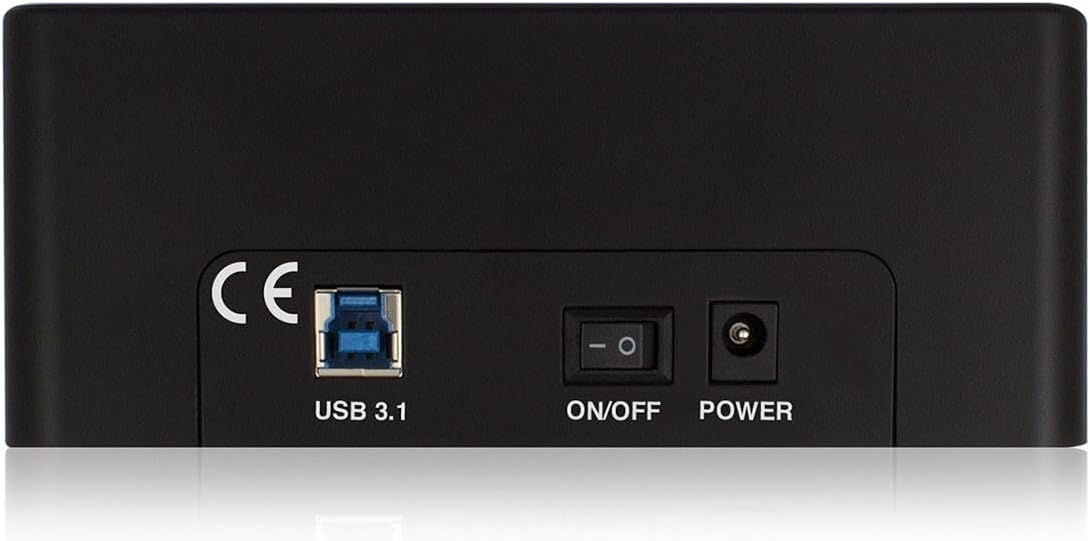
Image 3.1: Rear panel connections of the docking station.
3.2. Inserting Hard Drives / SSDs
- Gently slide your 2.5-inch or 3.5-inch SATA HDD/SSD into an available drive bay (HDD1 or HDD2) until it is firmly seated. Ensure the SATA connector on the drive aligns with the connector in the bay.
- If using 2.5-inch drives, ensure they are securely placed within the bay.
- Once drives are inserted, switch the 'ON/OFF' button to the 'ON' position. The power LED will illuminate.
4. Instruccions de funcionament
4.1. Data Transfer Mode (PC Connection)
When connected to a computer via USB, the docking station functions as an external drive enclosure. Inserted drives will appear as removable storage devices in your operating system.
- Ensure the docking station is powered on and connected to your computer.
- Insert your SATA HDD/SSD into either drive bay.
- Your operating system should automatically detect the drive(s). You can then access, copy, or move files as you would with any other external storage device.
- The data activity LEDs (HDD1, HDD2) will flash during read/write operations.
- Expulseu sempre les unitats del sistema operatiu de manera segura abans d'apagar la base d'acoblament o de treure les unitats.
4.2. Standalone Cloning Function
The cloning function allows you to duplicate the contents of a source drive to a target drive without a computer connection. The target drive must be equal to or larger in capacity than the source drive.

Image 4.1: Top panel with drive bays and LED indicators for cloning progress.
Warning: All data on the target drive will be erased during the cloning process. Ensure you have backed up any important data from the target drive before proceeding.
- Ensure the docking station is powered off and disconnected from your computer.
- Inseriu el unitat d'origen (la unitat DES de la qual voleu copiar) al HDD1 badia.
- Inseriu el unitat objectiu (la unitat A la qual voleu copiar) al HDD2 badia.
- Power on the docking station using the 'ON/OFF' switch.
- Press and hold the 'Clone' button (usually located near the drive bays) for approximately 3-5 seconds until the cloning progress LEDs (25%, 50%, 75%, 100%) begin to flash.
- Release the 'Clone' button. The cloning process will begin. The progress LEDs will illuminate sequentially to indicate the completion percentage.
- Un cop tots els LED de progrés estiguin il·luminats de manera fixa, el procés de clonació s'ha completat.
- Power off the docking station and safely remove both drives.
5. Especificacions tècniques
| Número de model | EW7014 |
| Unitats compatibles | Disc dur/SSD SATA I/II/III de 2.5 polzades / 3.5 polzades |
| Maximum Drive Thickness | 12.5 mm |
| Interfície | USB 3.1 Gen-1 (USB 3.0) |
| Velocitat de transferència de dades | Up to 5 Gbps (USB 3.1 Gen-1) |
| Nombre de badies | 2 |
| Funció de clonació | Standalone (PC-less) |
| Dimensions (L x A x A) | 5.87 x 2.4 x 4.61 polzades (14.9 x 6.1 x 11.7 cm) |
| Pes | 1.41 lliures (0.64 kg) |
| Font d'alimentació | Adaptador de CA extern |
| Sistemes operatius compatibles | Windows, macOS, Linux (driver-free) |
6. Solució De Problemes
6.1. Drive Not Detected by Computer
- Assegureu-vos que l'estació d'acoblament estigui engegada i que l'adaptador de corrent estigui connectat correctament.
- Verify the USB cable is firmly connected to both the docking station and your computer. Try a different USB port on your computer.
- Check if the hard drive/SSD is properly seated in the bay. Remove and re-insert it.
- If it's a new drive, it might need to be initialized, partitioned, and formatted in your operating system's Disk Management (Windows) or Disk Utility (macOS).
- Test with a different known-good hard drive/SSD to rule out a drive issue.
6.2. Cloning Process Does Not Start
- Ensure the docking station is disconnected from the computer before initiating cloning.
- Verify that the source drive is in HDD1 and the target drive is in HDD2.
- Confirmeu que la capacitat de la unitat de destinació és igual o superior a la capacitat de la unitat d'origen.
- Press and hold the 'Clone' button for the required duration (3-5 seconds) until the progress LEDs start flashing.
- Ensure both drives are properly inserted and detected by the docking station (power on, then check if drive LEDs briefly illuminate).
6.3. Slow Data Transfer Speeds
- Ensure you are connected to a USB 3.1 Gen-1 (USB 3.0) port on your computer. Connecting to a USB 2.0 port will result in slower speeds.
- Verify that your computer's USB 3.1 Gen-1 drivers are up to date.
- The actual transfer speed can be limited by the speed of the hard drive/SSD itself.
- Eviteu transferir moltes petites files simultaneously, as this can reduce overall transfer speed.
7. Manteniment
- Mantingueu neta l'estació d'acoblament amb un drap suau i sec. Eviteu utilitzar netejadors líquids o dissolvents.
- Ensure the device is kept in a dry environment, away from direct sunlight and extreme temperatures.
- Do not block the ventilation openings (if any) to prevent overheating.
- Handle hard drives and SSDs with care when inserting or removing them to prevent damage to the connectors.
8. Informació sobre garantia i assistència
For warranty information and technical support, please refer to the documentation provided with your purchase or visit the official Ewent weblloc web. Conserveu el comprovant de compra per a reclamacions de garantia.
Ewent is committed to providing reliable products and customer assistance. If you encounter issues not covered in this manual, please contact Ewent customer support for further assistance.


