Introducció
The FOXWELL NT201 OBD2 Scanner is a professional diagnostic tool designed to assist vehicle owners in quickly identifying and resolving issues related to their vehicle's engine system. This device allows for reading and clearing diagnostic trouble codes (DTCs), viewing live sensor data, and performing emissions readiness tests. Its user-friendly interface and robust features make it an essential tool for maintaining vehicle health and avoiding unnecessary mechanic visits.
This manual provides detailed instructions on how to set up, operate, and maintain your NT201 scanner, along with troubleshooting tips and product specifications.
Contingut del paquet
- 1 x NT201 OBDII/EOBD Code Reader
- 1 x NT201 User's Guide (this document)
- 1 x cable USB
Configuració
To begin using your FOXWELL NT201 scanner, follow these steps:
- Localitza el port OBDII: The OBDII (On-Board Diagnostics II) port is typically located under the dashboard on the driver's side of the vehicle. Refer to your vehicle's owner's manual if you cannot locate it.
- Connecteu l'escàner: Plug the NT201's diagnostic cable into the vehicle's OBDII port. The scanner will power on automatically, as it draws power directly from the vehicle's battery.
- Engegar l'encesa: Turn the vehicle's ignition to the 'ON' position without starting the engine. This ensures the vehicle's computer system is active and ready for communication.
- Escolliu l'idioma: Upon first use or after a reset, you may need to select your preferred language. Navigate to the 'Setup' menu and choose 'Language' to set English or other available options.

Figure 1: Connecting the NT201 scanner to a vehicle's OBDII port.
Instruccions de funcionament
The NT201 offers several diagnostic functions accessible through its main menu.
1. Read and Clear Fault Codes
This function allows you to retrieve and erase Diagnostic Trouble Codes (DTCs) that illuminate the Check Engine Light (MIL).
- Lectura de codis: From the main menu, select 'Read Codes'. The scanner will display any active, pending, or permanent codes stored in the vehicle's ECU.
- Clearing Codes: After addressing the underlying issue, select 'Erase Codes' from the menu. Confirm the action to turn off the Check Engine Light. Note that permanent codes will remain until the vehicle's self-monitoring system confirms the fault is resolved.
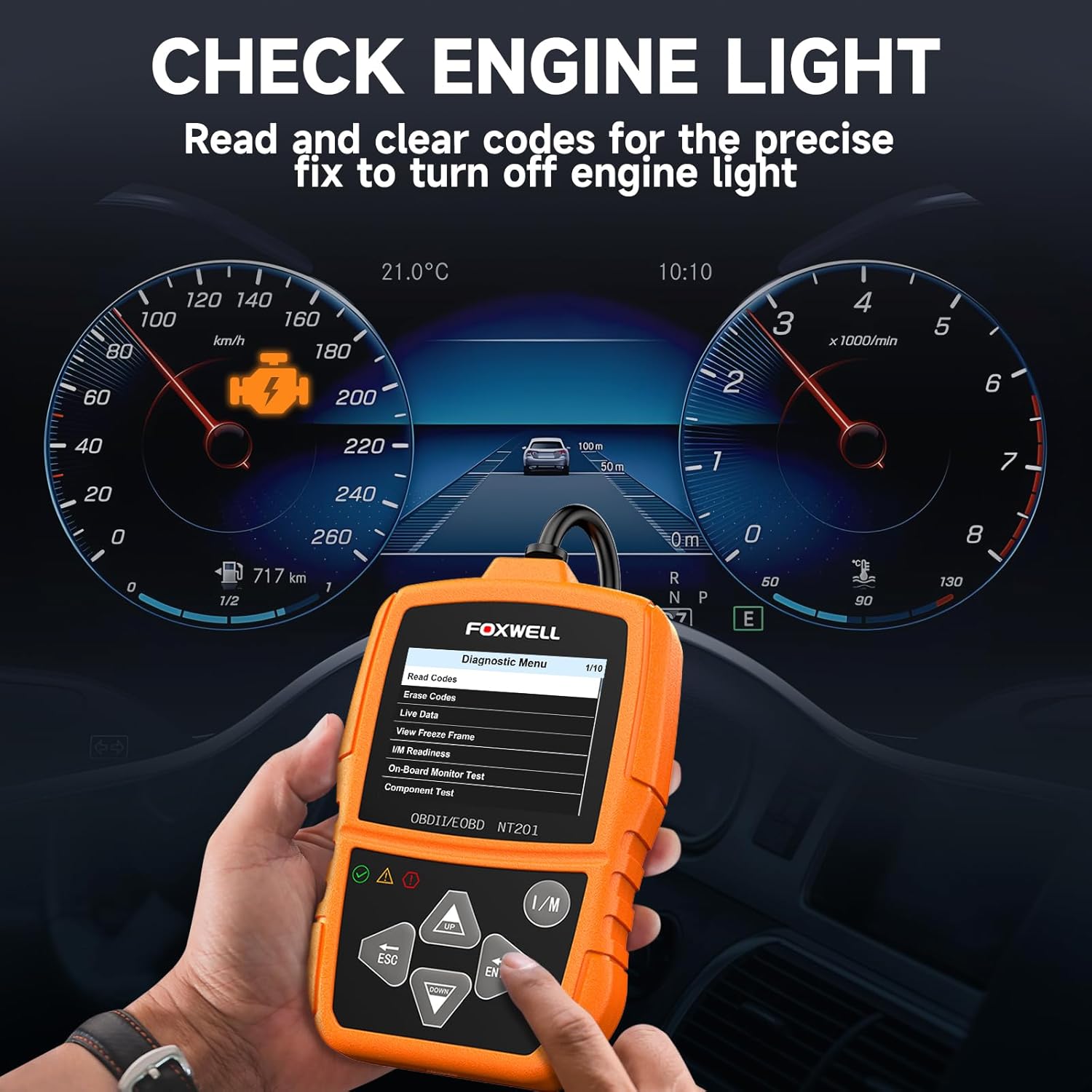
Figure 2: Reading fault codes to diagnose the Check Engine Light.

Figure 3: Confirmation of codes being cleared from the vehicle's system.
2. Flux de dades en directe
View real-time parameters from the vehicle's sensors, such as engine RPM, vehicle speed, coolant temperature, and more. This data can be displayed in text or graph format.
- Accessing Live Data: Select 'Live Data' from the main menu. You can scroll through various data points.
- Gràfic View: Some parameters can be viewed graphically to observe trends and fluctuations, aiding in diagnosis.

Figure 4: Monitoring real-time vehicle sensor data.
3. Cerca DTC
The NT201 includes a built-in library of Diagnostic Trouble Code definitions. When a code is displayed, you can select it to view a detailed description, helping you understand the nature of the problem.

Figure 5: Using the built-in DTC lookup feature.
4. Prova de preparació I/M
This function checks the status of the vehicle's emission-related monitoring systems to determine if they are ready for an emissions test. It provides visual indicators (red/yellow/green lights) for quick assessment.
- Performing Test: Press the dedicated I/M readiness hotkey on the scanner. The device will display the status of various monitors.
- Indicadors: A green light indicates all monitors are complete, yellow suggests some are incomplete, and red indicates a major issue or incomplete monitors.

Figure 6: Performing a one-key I/M Readiness test.
5. Vehicle Information (AutoVIN)
The scanner can retrieve the Vehicle Identification Number (VIN), Calibration ID (CALID), and Calibration Verification Number (CVN) from the vehicle's ECU.

Figure 7: Automatic Vehicle Identification Number (AutoVIN) retrieval.
6. Data Record and Replay
The NT201 allows you to record live sensor data during a drive cycle and play it back later for detailed analysis. This is useful for intermittent issues that may not be present during a static scan.

Figure 8: Recording and reviewing diagnostic data history.
7. Compatibilitat del vehicle
The NT201 is compatible with all OBDII/EOBD compliant vehicles manufactured from 1996 onwards (for America), and from 2000 onwards (for Europe and Asia). This includes most cars, light trucks, SUVs, minivans, and hybrids that use gasoline or 12V diesel fuel.

Figure 9: Broad compatibility with various vehicle types and regions.
Manteniment
To ensure optimal performance and longevity of your FOXWELL NT201 scanner, regular maintenance is recommended.
- Neteja: Use a soft, dry cloth to clean the scanner's exterior. Avoid using abrasive cleaners or solvents.
- Emmagatzematge: Guardeu el dispositiu en un entorn net i sec, allunyat de temperatures extremes i de la llum solar directa.
- Actualitzacions de programari: FOXWELL provides free lifetime software updates for the NT201. These updates ensure compatibility with newer vehicle models and improve diagnostic capabilities.
Performing Software Updates
Per actualitzar el programari de l'escàner:
- Visit the official FOXWELL website (foxwelltech.us).
- Navigate to the 'Support' section and download the 'NT Wonder' update tool.
- Install the NT Wonder software on a computer running Windows 98/NT, ME, 2000, XP, Vista, Windows 7, 8, or 10 (32 or 64-bit OS).
- Connect the NT201 scanner to your computer using the provided USB cable.
- Follow the on-screen instructions in the NT Wonder software to download and install the latest firmware and software updates to your device.

Figure 10: Process for updating the NT201 scanner software.
Resolució de problemes
If you encounter issues while using your FOXWELL NT201 scanner, consider the following common problems and solutions:
- L'escàner no s'encén: Ensure the diagnostic cable is securely connected to the vehicle's OBDII port and the vehicle's ignition is in the 'ON' position. The scanner draws power directly from the vehicle.
- Error de comunicació: Verify that the vehicle is OBDII compliant (1996 or newer for America, 2000 or newer for Europe/Asia). Check the connection to the OBDII port. Try connecting to a different OBDII compliant vehicle to rule out a vehicle-specific issue.
- El llum de revisió del motor roman encès després d'esborrar els codis: This may occur if the underlying fault has not been fully repaired, or if the vehicle's monitoring systems have not yet completed their diagnostic cycles. Drive the vehicle under various conditions to allow monitors to run. Permanent codes will not clear until the fault is confirmed fixed by the vehicle's system.
- Incorrect or no data displayed: Ensure the vehicle's ignition is on and the scanner is properly connected. Some data parameters may not be supported by all vehicles.
- Software update issues: Ensure your computer meets the operating system requirements (Windows 98/NT, ME, 2000, XP, Vista, Windows 7, 8, 10). Verify a stable internet connection. Reinstall the NT Wonder software if necessary.
For persistent issues, refer to the detailed user manual PDF available online or contact FOXWELL customer support.
Especificacions
| Marca | FOXWELL |
| Model | NT201 |
| Dimensions del producte | 3 cm de llargada x 0.8 cm d'amplada x 4.7 cm d'alçada |
| Pes de l'article | 8.4 unces |
| Resolució de visualització | 320 x 240 |
| Sistema operatiu (per a actualitzacions) | Win98/NT, Win ME, Win2000, Win XP, VISTA, Windows 7, 8, 10 (32 or 64 bit OS) |
| Entrada nominal | 8-18V DC |
| Temperatura de funcionament | 0 °C - 60 °C (32 °F - 140 °F) |
| Temperatura d'emmagatzematge | -20 °C - 70 °C (-4 °F - 158 °F) |
Garantia i Suport
The FOXWELL NT201 comes with a commitment to customer satisfaction, including lifetime free software updates to ensure your device remains current with the latest vehicle technologies and diagnostic capabilities. No subscription fees are required for these updates.
For additional support, technical assistance, or to confirm vehicle compatibility, please refer to the official FOXWELL website or the comprehensive User Manual (PDF) provided with your product. You can also find the User Guide (PDF) at https://manuals.plus/m/e9231b02c386836f6554a0cdaf83e95c3c5201ed26a93a6f6799197dc706988f.
Avís legal: Any car brand logo and car brand name appeared in the detail page is to describe that the FOXWELL NT201 scanner is compatible with these vehicles. We are not selling products manufactured or sold by any car brand.