Introducció
The Logitech Brio 4K Pro Webcam is designed to deliver exceptional video quality for streaming, recording, and video conferencing. Featuring Ultra HD 4K resolution, advanced autofocus, and a wide field of view, it provides a professional-grade visual experience. This manual provides instructions for setting up, operating, maintaining, and troubleshooting your Brio weblleva.
Característiques clau
- Resolució Ultra HD 4K: Capture video in stunning 4096 x 2160 resolution at 30 frames per second (fps), or 1080p at 60 fps, and 720p at 90 fps.
- Enfocament automàtic: Ensures sharp, clear images even when moving closer or further from the camera.
- Zoom digital 5X: Zoom in on details without losing clarity.
- RightLight 3 with HDR: Automatically adjusts exposure and contrast to compensate for glare and backlighting, ensuring you always look your best.
- Multiple Fields of View: Choose from 65°, 78°, or 90° diagonal fields of view to perfectly frame your video.
- Infrared Face Recognition: Supports Windows Hello for secure facial recognition login.
- Dual Integrated Microphones: Omnidirectional microphones with noise-canceling technology capture clear audio.
- Connectivitat USB 3.0: High-speed data transfer for smooth 4K video.
Contingut del paquet
- Logitech Brio 4K Pro Weblleva
- Detachable Universal Mounting Clip
- USB 3.0 Cable (compatible with USB 2.0)
- Obturador de privadesa
- Bossa de transport
- Documentació d'usuari
Configuració
1. Muntatge del Weblleva
The Brio webcam comes with a universal mounting clip that allows it to be securely placed on a monitor, laptop, or tripod.
- Adjunta el clip: Ensure the universal mounting clip is securely attached to the weblleva.
- Posició al monitor: Obriu el clip i col·loqueu-lo webcam on top of your monitor or laptop screen. Adjust the flexible base to ensure it sits flush with the back of your device.
- Muntatge del trípode: The universal mounting clip also features a standard tripod thread. Remove the clip from the webcam and screw the webcam directly onto a tripod if preferred.

Image: Logitech Brio 4K Pro Webcam, front view with monitor clip extended, illustrating how the clip unfolds for placement.
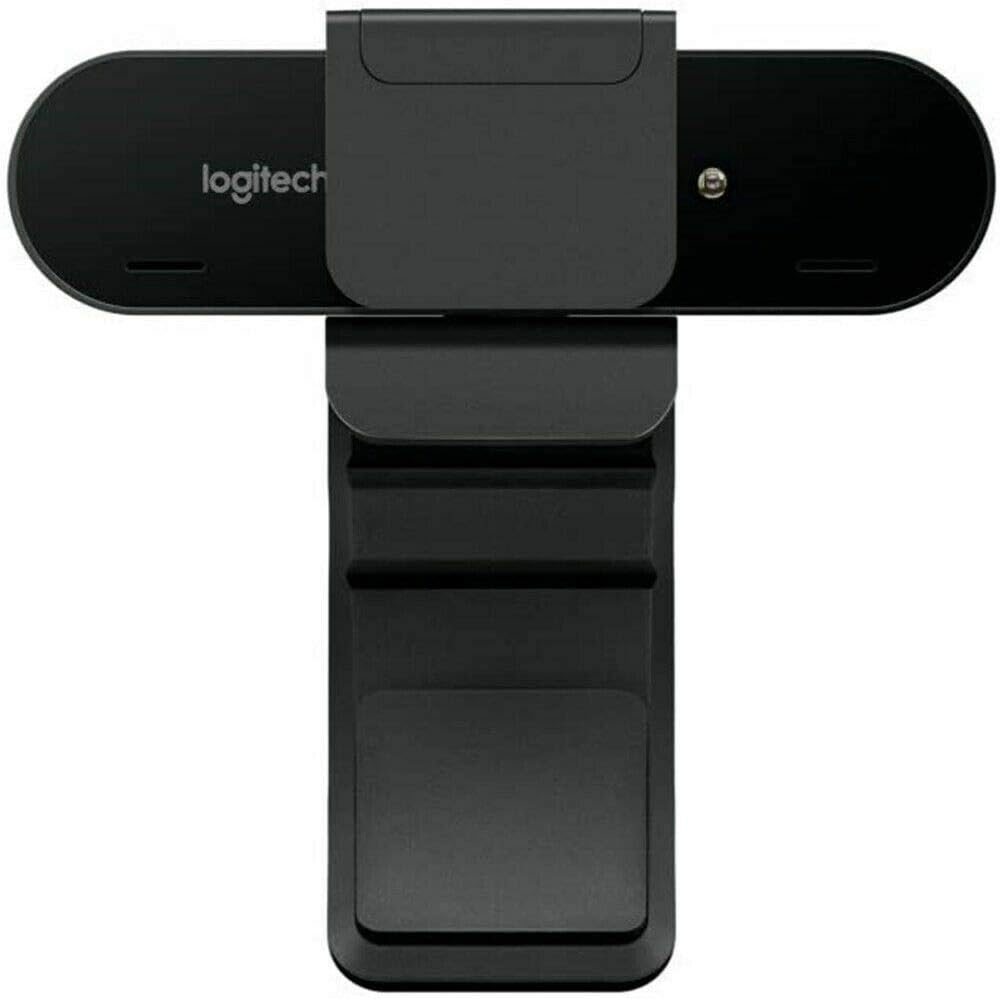
Image: Logitech Brio 4K Pro Webcam, rear view with monitor clip extended, showing the adjustable hinge for monitor placement.
2. Connexió a l'ordinador
Connecteu el webcàmera a l'ordinador mitjançant el cable USB proporcionat.
- Plug the USB-C end of the cable into the weblleva.
- Plug the USB-A end of the cable into an available USB 3.0 port on your computer for optimal performance. The webcam is also compatible with USB 2.0 ports.
El webcam is plug-and-play and should be automatically recognized by your operating system (Windows, macOS, Linux).

Image: Logitech Brio 4K Pro Webcam mounted on a monitor, ready for use, with a computer screen displaying a login prompt.
Instruccions de funcionament
1. Instal·lació de programari (opcional)
While the Brio webcam functions as a standard webcam without additional software, installing the Logitech Capture software (available from the Logitech website) unlocks advanced features and customization options, including:
- Adjusting field of view (65°, 78°, 90°)
- Customizing resolution and frame rate
- Enabling RightLight 3 with HDR
- Digital pan, tilt, and zoom controls
- Image adjustments (brightness, contrast, color intensity)
2. Ús de l'obturador de privacitat
The included privacy shutter can be attached to the front of the webcam to physically block the lens when not in use, ensuring privacy.
3. Video Conferencing and Streaming
Once connected, select the Logitech Brio 4K Pro Webcam as your video and audio input device within your preferred video conferencing, streaming, or recording application.

Image: A person conducting a video call using the Logitech Brio 4K Pro Webcam, demonstrating its application in professional communication.

Image: The Logitech Brio 4K Pro Webcam positioned in a meeting room, illustrating its capability to maintain high performance regardless of ambient lighting.

Image: The Logitech Brio 4K Pro Webcam displaying its 4K HD resolution during a video conference, ensuring clear visual communication.
Manteniment
- Neteja de la lent: Feu servir un drap suau i sense borrissol dissenyat específicament per a òptica per netejar suaument el webcam lens. Avoid abrasive materials or harsh chemicals.
- Neteja general: Netegeu el cos de la weblleva amb un suau, damp tela. No submergiu el webcame a l'aigua o utilitzeu una humitat excessiva.
- Emmagatzematge: Quan no s’utilitzi, emmagatzemeu el fitxer webcam in the provided carrying pouch to protect it from dust and scratches.
Resolució de problemes
- Webcàmera no detectada:
- Assegureu-vos que el cable USB estigui connectat correctament a tots dos webcàmera i l'ordinador.
- Try connecting to a different USB port, preferably a USB 3.0 port.
- Reinicieu l'ordinador.
- Consulteu el gestor de dispositius del vostre sistema operatiu per veure si el webLa càmera està a la llista.
- Poca qualitat de vídeo:
- Assegureu-vos que hi hagi una il·luminació adequada al vostre entorn.
- Netegeu el weblent de càmera.
- Verify that your application is set to the desired resolution and frame rate.
- Install Logitech Capture software for advanced image adjustments.
- No Audio from Webcam Microphone:
- Ensure the Logitech Brio microphone is selected as the input device in your application and operating system sound settings.
- Revisa la configuració de privadesa del micròfon al teu sistema operatiu.
- Problemes d'enfocament automàtic:
- Ensure there is sufficient light.
- Avoid placing objects too close to the lens that might interfere with autofocus.
- If using Logitech Capture, ensure autofocus is enabled.
Especificacions
| Número de model de l'article | 960-001178 |
| Resolució de captura de vídeo | 4K Ultra HD (4096 x 2160) at 30 fps, 1080p at 60 fps, 720p at 90 fps |
| Tecnologia del sensor fotogràfic | CMOS BSI |
| Enfocament automàtic | Sí |
| Zoom digital | 5X |
| Camp de View | Adjustable (65°, 78°, 90°) |
| Micròfon | Dual integrated omnidirectional with noise cancellation |
| Tecnologia de connectivitat | USB 3.0 (compatible amb USB 2.0) |
| Compatibilitat de sistemes operatius | Windows, macOS, Linux |
| Pes de l'article | 2.22 unces (63 grams) |
| Dimensions del producte | 4.02 x 1.06 x 1.06 polzades (10.2 x 2.7 x 2.7 cm) |
| Color | Negre |
Informació de la garantia
Logitech products are manufactured to high quality standards and are subject to a limited hardware warranty. Please refer to the official Logitech website or your product packaging for specific warranty terms and conditions applicable to your region.
Suport
For further assistance, driver downloads, software updates, or frequently asked questions, please visit the official Logitech support website. You can find detailed product information and contact customer support there.
Suport Logitech Weblloc: www.logitech.com/support


