1. Introducció
This manual provides essential instructions for the safe and efficient operation of your Intermec CN75E Mobile Computer. Please read this manual thoroughly before using the device to ensure proper functionality and to prevent damage. Keep this manual for future reference.
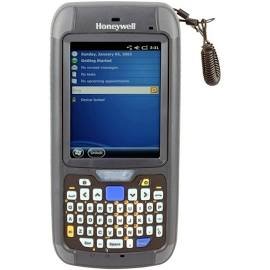
Un front view of the Intermec CN75E mobile computer, featuring a full QWERTY keyboard, a color display showing a user interface, and a wrist strap attached to the top right. This image illustrates the device's physical appearance.
2. Configuració
2.1 Contingut del paquet
Verifiqueu que tots els elements siguin presents al paquet:
- Intermec CN75E Mobile Computer
- Rechargeable Battery (may be pre-installed)
- Adaptador de corrent alterna
- Cable de comunicació USB
- Guia d'inici ràpid i informació de seguretat
2.2 Instal·lació de la bateria
If the battery is not pre-installed, locate the battery compartment cover on the rear of the device. Remove the cover, insert the battery with the contacts aligned, and then replace the cover securely. Refer to the Quick Start Guide for detailed diagrams.
2.3 Càrrega del dispositiu
Connect the AC power adapter to the charging port on the device. Plug the adapter into a standard electrical outlet. The charging indicator light will illuminate. Allow the device to charge fully before initial use. A full charge typically takes several hours.
2.4 Engegada/apagada
To power on the device, press and hold the Power button until the display illuminates. To power off, press and hold the Power button, then follow the on-screen prompts to shut down the device.
3. Funcionament del dispositiu
3.1 Keyboard and Display
The CN75E features a full QWERTY keyboard for efficient data entry. The color display operates on Windows Embedded Handheld 6.5, providing a familiar interface for navigation and application use. Use the stylus or your finger for touch screen interaction.
3.2 Captura de dades
The device is equipped with an EA30 stand-range imager for barcode scanning and a camera for image capture. To activate the imager, press the designated scan button. For camera operation, access the camera application from the device's main menu.
3.3 Connectivitat
The CN75E supports various connectivity options:
- Wi-Fi (802.11abgn): Connect to wireless networks for data communication. Access Wi-Fi settings through the device's control panel.
- Bluetooth (BT): Pair with compatible Bluetooth devices such as headsets or printers. Bluetooth settings are available in the device's control panel.
- GPS: Utilize the integrated GPS for location-based services and navigation. Ensure GPS is enabled in the system settings for applications requiring location data.
- Flex Radio: The device includes a Flex Radio for specific communication needs. Refer to your network administrator or specific application documentation for configuration and usage.
4. Manteniment
4.1 Neteja
To clean the device, use a soft, lint-free cloth lightly dampened with water or a mild, non-abrasive cleaning solution. Do not use harsh chemicals, solvents, or abrasive materials. Avoid spraying liquids directly onto the device. Ensure all ports are closed before cleaning.
4.2 Emmagatzematge
Store the device in a cool, dry environment away from direct sunlight and extreme temperatures. If storing for an extended period, ensure the battery is partially charged (around 50%) to prolong its lifespan. Remove the battery if the device will not be used for several months.
5. Solució De Problemes
5.1 Problemes comuns i solucions
- El dispositiu no s'encén: Ensure the battery is properly installed and charged. Connect the device to the AC adapter and attempt to power on.
- La bateria no es carrega: Verify that the AC adapter is securely connected to both the device and a working power outlet. Check for any damage to the cable or adapter.
- Problemes de connectivitat (Wi-Fi/Bluetooth): Confirm that Wi-Fi or Bluetooth is enabled in the device settings. Check network availability and credentials. Restart the device and the access point/paired device if necessary.
- L'escàner no llegeix els codis de barres: Ensure the barcode is clean and undamaged. Check the scanner's settings to confirm it is enabled and configured for the barcode type being scanned. Ensure adequate lighting.
If problems persist, perform a soft reset (refer to the Quick Start Guide for instructions) or contact technical support.
6. Especificacions
- Model: CN75EQ6KCF2W6100
- Teclat: QWERTY
- Imatger: EA30 Stand Range
- Càmera: Sí
- Connectivitat sense fils: 802.11abgn, Bluetooth (BT)
- Ràdio: Ràdio Flex
- Navegació: GPS
- Sistema operatiu: Windows Embedded Handheld 6.5
- Idioma: Worldwide English (Ww English)
- Compliment normatiu: FCC
- Dimensions del paquet: 15 x 14 x 14 polzades
- Pes del paquet: 1.1 lliures
- Fabricant: Intermec
- Data de primera disponibilitat: 19 de maig de 2017
7. Garantia i Suport
For detailed warranty information, terms, and conditions, please refer to the warranty card or documentation included with your Intermec CN75E Mobile Computer. For technical assistance, product support, or service inquiries, please visit the official Intermec (now Honeywell) website or contact your authorized reseller. Support resources typically include FAQs, driver downloads, and contact information for customer service.


