1. Introducció
Gràcies per la compraasing the ExquizOn S6 Mini Cube Pico DLP Projector. This compact and portable projector is designed to provide a versatile viewing experience, supporting up to 1080P resolution with wireless connectivity options. Please read this manual thoroughly before operating the device to ensure proper use and maintenance.

Image: The ExquizOn S6 Mini Cube Pico Projector, demonstrating its small, portable size when held in a hand.
2. Informació de seguretat
Per garantir un funcionament segur i evitar danys, observeu les precaucions següents:
- No mireu directament a la lent del projector quan estigui encès.amp està activat.
- Do not place the projector in direct sunlight or near heat sources.
- Avoid placing the projector in areas with excessive dust, humidity, or vibrations.
- Feu servir només l'adaptador de corrent que s'inclou amb el projector.
- No intenteu desmuntar ni modificar el projector. Encarregueu totes les tasques de manteniment a personal qualificat.
- Mantingueu el projector allunyat de l'aigua o altres líquids.
- Assegureu-vos una ventilació adequada al voltant del projector per evitar el sobreescalfament.
3. Contingut del paquet
Marqueu la casella per als elements següents:
- ExquizOn S6 Mini Cube Pico Projector
- Cable HDMI
- Micro HDMI Connector
- Cable d'alimentació
- Adaptador d'alimentació
- Mini trípode
- Control remot
- Manual d'usuari (aquest document)

Image: A visual representation of the ExquizOn S6 projector and its accompanying accessories, including cables, adapter, tripod, and remote control.
4. Producte acabatview
4.1. Projector Components
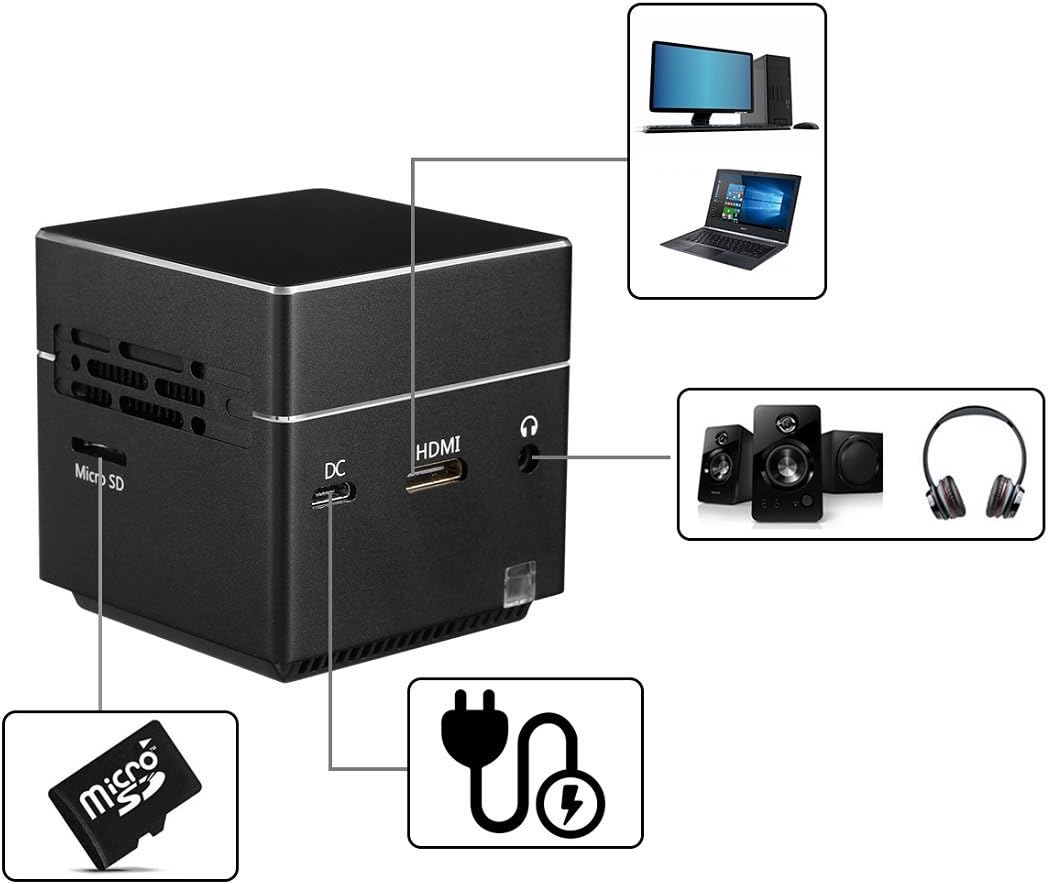
Imatge: Una imatge detallada view of the ExquizOn S6 projector's side panel, highlighting the Micro SD card slot, DC power input, HDMI input, and 3.5mm audio output jack.
The ExquizOn S6 projector features a compact design with essential ports for connectivity:
- Lent del projector: Emits the image.
- Roda de focus: Ajusta la claredat de la imatge.
- Botó d'encesa: Encén/apaga el projector.
- Botons de volum (+/-): Ajusta el volum de l'àudio.
- Botó Enter: Confirma les seleccions.
- Ranura Micro SD: For multimedia playback from a Micro SD card.
- Entrada de corrent continu: Es connecta a l'adaptador de corrent per a la càrrega i el funcionament.
- Entrada mini HDMI: Connects to HDMI-enabled devices (e.g., laptops, game consoles).
- Sortida d'àudio de 3.5 mm: Es connecta a altaveus externs o auriculars.
5. Configuració
5.1. Càrrega del projector
Before first use, fully charge the projector. Connect the power adapter to the DC input port on the projector and plug it into a power outlet. The charging indicator light will show the charging status.
5.2. Placement and Positioning
Place the projector on a stable, flat surface. For optimal image quality, project onto a smooth, light-colored wall or a projector screen. The included mini tripod can be attached to the bottom of the projector for adjustable positioning.
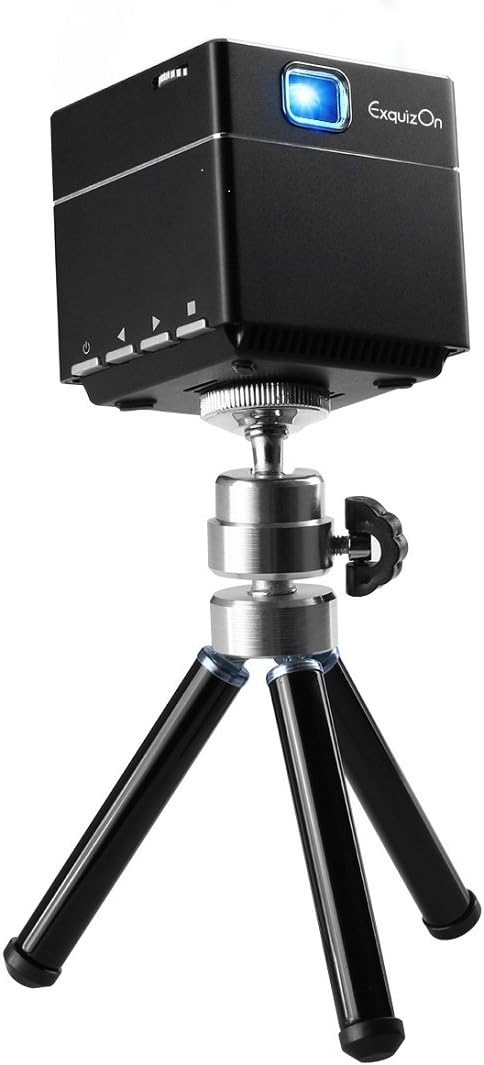
Image: The ExquizOn S6 projector securely mounted on its compact mini tripod, ready for stable projection.
5.3. Encès / apagat
Press and hold the Power button on the projector or remote control to turn the device on or off.
6. Funcionament
6.1. Ajust d'enfocament
Rotate the focus wheel located near the lens until the projected image appears clear and sharp.
6.2. Dispositius de connexió
El projector admet diverses fonts d'entrada:
- HDMI: Connect your laptop, game console, TV box, or other HDMI-enabled devices using the provided HDMI cable and Micro HDMI connector.
- Targeta micro SD: Insert a Micro SD card into the designated slot for direct multimedia playback.

Image: An illustration demonstrating the ExquizOn S6 projector's compatibility with a wide range of devices, including game consoles, Micro SD cards, smartphones, tablets, laptops, cameras, and TV boxes.
6.3. Wireless Mirroring (Screen Mirroring)
The projector supports wireless mirroring for compatible devices:
- For Android OS Devices: Use Miracast to mirror your screen.
- For iOS Devices (iOS 9.0, 10): Use AirPlay to mirror your screen.
Refer to your device's manual for specific instructions on enabling Miracast or AirPlay.
6.4. Enjoying the Bigger Screen
The projector can create a screen size from 7 inches up to 100 inches, providing a flexible viewing experience for various environments.

Image: A visual comparison illustrating the significant difference in size between a standard 32-inch television screen and a 100-inch image projected by the ExquizOn S6 projector.
The projector supports resolutions up to 1080P, offering clear and vibrant images.

Image: A side-by-side comparison demonstrating the enhanced image clarity and detail achieved by the ExquizOn S6 projector (bottom) compared to a generic projector (top), particularly noticeable in landscape scenes.
6.5. Escenaris d'ús
The portable design allows for versatile use, from home entertainment to outdoor activities.
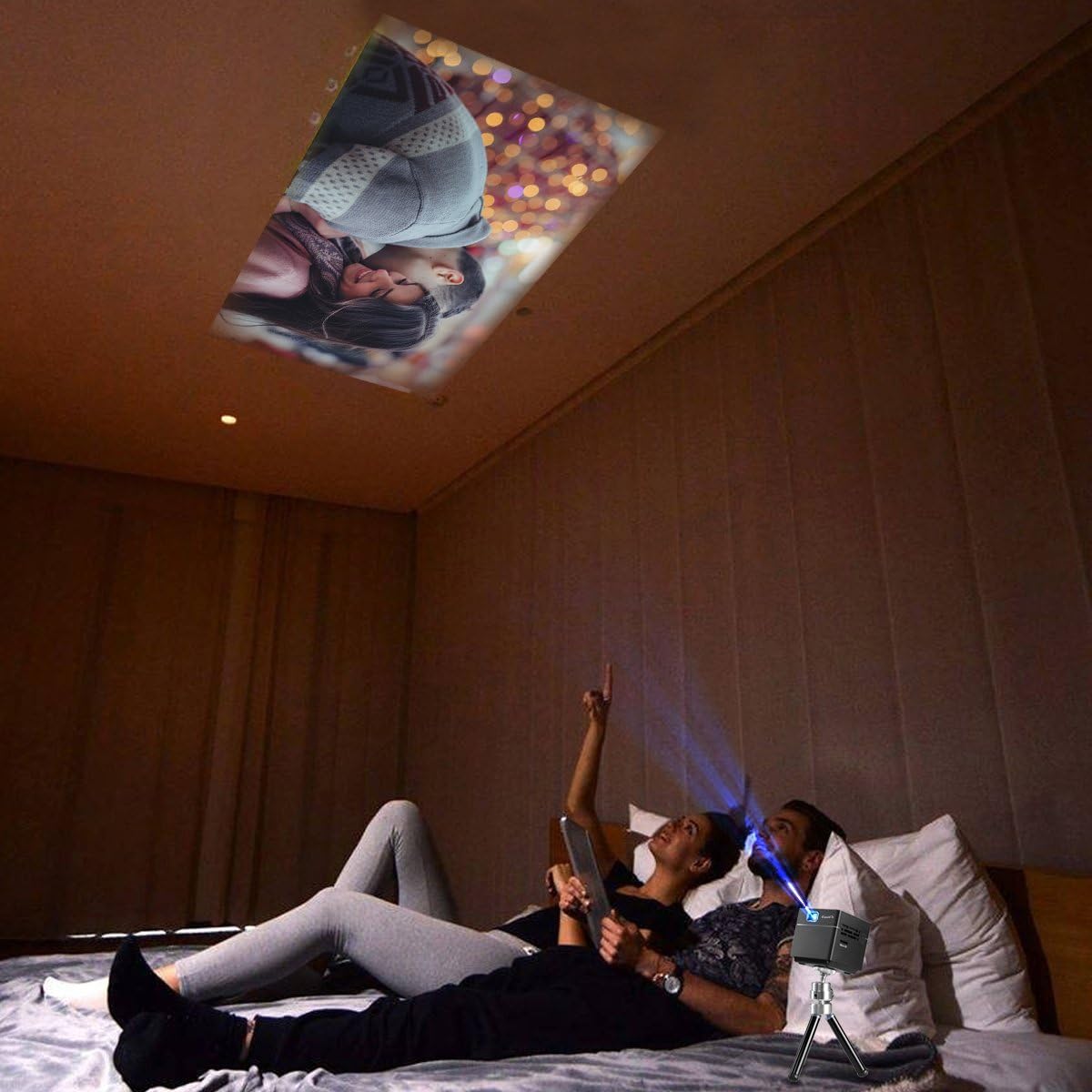
Image: A couple relaxing in bed, enjoying a movie projected onto the ceiling by the ExquizOn S6 projector, illustrating a comfortable indoor viewexperiència.

Image: Individuals enjoying a projected movie on the inside wall of a tent during a camping trip, showcasing the projector's portability for outdoor entertainment.
7. Manteniment
7.1. Neteja de la lent
Feu servir un drap suau i sense borrissol dissenyat específicament per a lents òptiques per netejar suaument la lent del projector. No utilitzeu productes de neteja abrasius ni dissolvents.
7.2. Neteja del cos del projector
Netegeu l'exterior del projector amb un drap suau i sec. Per a marques difícils, netegeu lleugeramentamp es pot fer servir un drap, seguit d'un drap sec.
7.3. Emmagatzematge
Quan no l'utilitzeu durant períodes prolongats, guardeu el projector en un lloc fresc i sec, allunyat de la llum solar directa i de temperatures extremes. Feu servir l'embalatge original o una funda protectora per evitar l'acumulació de pols i els danys.
8. Solució De Problemes
| Problema | Causa possible | Solució |
|---|---|---|
| No es projecta cap imatge |
|
|
| La imatge és borrosa |
|
|
| Sense so |
|
|
| Wireless mirroring not working |
|
|
9. Especificacions
| Característica | Detall |
|---|---|
| Tecnologia de visualització | DLP |
| Brillantor | 100 lúmens |
| Resolució nativa | FWVGA (854 x 480) |
| Resolució compatible | 640 x 480 - 1920 x 1080 (up to 1080p) |
| Font de llum | RGB LED OSRAM |
| LED Working Life | +30,000 hores |
| Relació de contrast | 1000:1 |
| Ràtio de pantalla | 16:9 |
| Relació de llançament | 1.2:1 |
| Freqüència d'actualització | 60 Hz |
| Mida de la pantalla de projecció | 7" - 100" |
| Altaveu incorporat | 8 ohm 1.5W (x1) |
| Bateria incorporada | Li-polymer, 2500mAh |
| Working Time (Battery) | Aprox. 2 hores |
| Mirall sense fils | Miracast (Android), AirPlay (iOS 9.0, 10) |
| Interfícies | Mini HDMI x 1 (1.4 Line), Micro SD x 1, DC x 1, 3.5mm Stereo Audio Output x 1 |
| Dimensions del producte | 5.49 x 5.49 x 5.49 cm |
| Pes de l'article | 172.37 grams |
10. Garantia i Suport
For warranty information and technical support, please refer to the official ExquizOn weblloc web o poseu-vos en contacte amb el vostre distribuïdor local. Conserveu el rebut de compra com a comprovant de compra per a reclamacions de garantia.
Informació de contacte: Si us plau, visiteu www.exquizon.com per obtenir la informació de suport i les dades de contacte més recents.


