1. Introducció
This manual provides detailed instructions for the setup, operation, and maintenance of your Xerox VersaLink C505/X Color Laser Multifunction Printer. The C505/X is designed for efficient performance in fast-paced work environments, offering print, copy, scan, and fax functionalities.
Key features include a customizable 7-inch color touchscreen for intuitive control, mobile and cloud connectivity, and robust security measures.
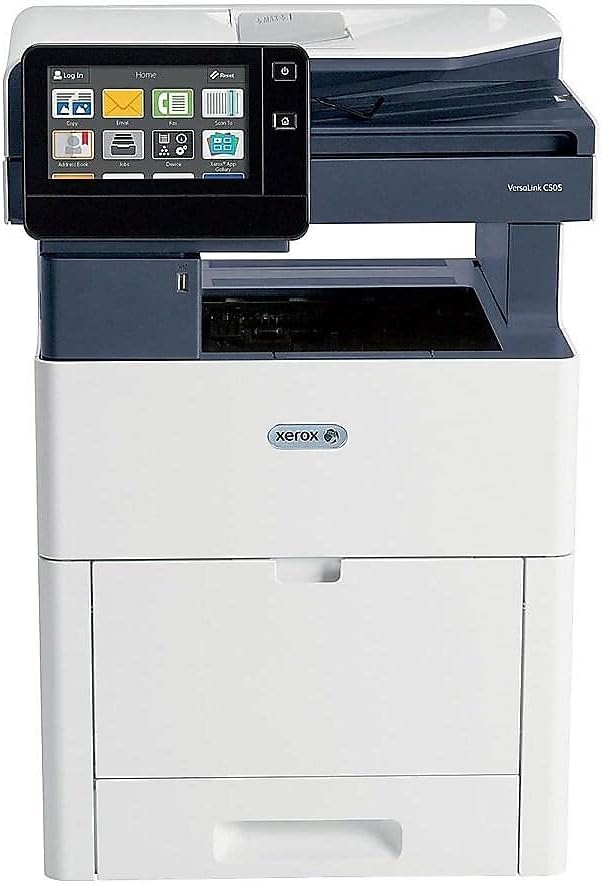
Figura 1: Frontal view of the Xerox VersaLink C505/X Multifunction Printer.
2. Configuració
2.1 Desembalatge i inspecció inicial
Carefully remove the printer from its packaging. Verify that all components listed below are present and undamaged:
- Xerox VersaLink C505 Color MFP
- Starter capacity toner cartridges (one each of cyan, magenta, yellow: 2,400 capacity; black: 5,000 capacity)
- CD de programari i documentació
- Guia d'instal·lació
- Quick User Guides
- Cable d'alimentació
2.2 Connexió d'alimentació
- Col·loqueu la impressora sobre una superfície estable i anivellada.
- Connecteu el cable d'alimentació proporcionat a l'entrada d'alimentació de la impressora i després a una presa de corrent amb connexió a terra.
- Do not power on the device until all other connections are made.
2.3 Instal·lació del cartutx de tòner
Install the starter toner cartridges into their respective slots. Refer to the Quick User Guides for specific instructions on opening the toner access panel and inserting cartridges.

Figure 2: Toner cartridge access panel open, showing toner installation.
2.4 Connexió de xarxa i USB
La impressora admet connectivitat Ethernet i USB.
- Ethernet: Connecteu un cable Ethernet des del port Ethernet de la impressora al vostre encaminador o commutador de xarxa.
- USB: Connect a USB cable from the printer's USB port to your computer.
2.5 Instal·lació del programari
Insert the provided software and documentation CD into your computer's CD/DVD drive. Follow the on-screen instructions to install the necessary drivers and utilities. Alternatively, visit the official Xerox support weblloc per als darrers controladors.
3. Funcionament de la impressora
3.1 Interfície de pantalla tàctil
The 7-inch color touchscreen provides access to all printer functions. Navigate through menus by tapping and swiping, similar to a smartphone. The home screen displays icons for various functions such as Print, Copy, Scan, and Fax.

Figure 3: Close-up of the 7-inch color touchscreen control panel.
3.2 Impressió
Per imprimir documents:
- Assegureu-vos que la impressora estigui connectada a l'ordinador o a la xarxa.
- Open the document on your computer and select the print option.
- Choose the Xerox VersaLink C505/X from the list of available printers.
- Adjust print settings (e.g., color/monochrome, duplex printing, paper size) as needed. The printer supports up to 43 ppm color and 45 ppm monochrome, with automatic duplexing.
- Confirm the print job.
3.3 Còpia
Per fer còpies:
- Place the original document on the scanner glass or in the automatic document feeder (ADF).
- On the touchscreen, tap the "Copy" icon.
- Select desired settings such as number of copies, color/black and white, and two-sided copying. The maximum copy speed is 45 ppm (black & white) with resolutions up to 1200 x 2400 dpi.
- Premeu el botó "Inici".
3.4 Escaneig
To scan documents:
- Col·loqueu el document al vidre de l'escàner o a l'ADF.
- On the touchscreen, tap the "Scan" icon.
- Choose the scan destination (e.g., email, network folder, USB drive) and adjust scan settings.
- Premeu el botó "Inici".
3.5 Enviament de faxos
Per enviar un fax:
- Col·loqueu el document al vidre de l'escàner o a l'ADF.
- On the touchscreen, tap the "Fax" icon.
- Introduïu el número de fax del destinatari.
- Ajusteu els paràmetres de fax necessaris.
- Premeu el botó "Inici".
3.6 Mobile and Cloud Connectivity
The VersaLink C505/X offers out-of-the-box connectivity to cloud services like Google Drive, Microsoft OneDrive, and DropBox. Additional options are available through the Xerox App Gallery, allowing for flexible workflow integration.
4. Manteniment
4.1 Substitució del cartutx de tòner
When a toner cartridge is low or empty, the printer's display will indicate which cartridge needs replacement. Always use genuine Xerox toner cartridges for optimal performance and print quality.
- Obriu el panell d'accés frontal de la impressora.
- Carefully remove the empty toner cartridge by pulling it straight out.
- Desembaleu el cartutx de tòner nou i sacsegeu-lo suaument per distribuir el tòner.
- Introduïu el cartutx nou a la ranura corresponent fins que encaixi al seu lloc.
- Close the front access panel.
4.2 Neteja
Una neteja regular ajuda a mantenir la qualitat d'impressió i allarga la vida útil de la impressora.
- Exterior: Netegeu les superfícies exteriors amb un damp, drap sense pelusa.
- Vidre de l'escàner: Use a soft cloth moistened with glass cleaner to clean the scanner glass. Ensure no residue remains.
- Components interns: Refer to the detailed user manual on the software and documentation CD for instructions on cleaning internal components, such as the print heads or rollers, if necessary.
5. Solució De Problemes
This section addresses common issues you might encounter with your Xerox VersaLink C505/X. For more complex problems, consult the full user manual or contact support.
5.1 Embussos de paper
If a paper jam occurs, the touchscreen will display an error message indicating the location of the jam. Follow the on-screen instructions to clear the jammed paper. Always pull paper in the direction of the paper path to avoid tearing.
5.2 Problemes de qualitat d'impressió
If printouts show streaks, faded areas, or incorrect colors:
- Comproveu els nivells de tòner i substituïu els cartutxos que tinguin poc tòner.
- Assegureu-vos que feu servir el paper adequat per a la vostra tasca d'impressió.
- Realitzeu un diagnòstic de la qualitat d'impressió des del tauler de control de la impressora.
- Clean the print heads or other internal components as instructed in the detailed manual.
5.3 Problemes de connectivitat
If the printer is not communicating with your computer or network:
- Verify that all cables (power, USB, Ethernet) are securely connected.
- Reinicieu la impressora i l'ordinador/encaminador.
- Check network settings on the printer's touchscreen.
- Ensure the correct printer drivers are installed on your computer.
6. Especificacions
| Característica | Detall |
|---|---|
| Nom del model | Xerox C505/X VersaLink |
| Funcions | Imprimeix, Còpia, Escaneja, Fax |
| Tecnologia d'impressió | Làser de color |
| Velocitat màxima d'impressió (monocrom) | 45 ppm |
| Velocitat màxima d'impressió (color) | 43 ppm |
| Resolució màxima d'impressió (blanc i negre) | 2400 ppp |
| Resolució màxima d'impressió (color) | 1200 x 2400 ppp |
| Impressió dúplex | Automàtic |
| Tipus d'escàner | Document |
| Velocitat màxima de còpia (blanc i negre) | 45 ppm |
| Resolució màxima de còpia (color) | Fins a 1200 x 2400 dpi |
| Mètode de control | App, Touch (7-inch display) |
| Connectivitat | USB, Ethernet |
| Capacitat màxima del full d'entrada | 3250 fulls |
| Safates estàndard | 2 (550 Sheet Tray, 150 Sheet Multi Purpose Tray) |
| Mides de suports admesos | Letter (8.5 x 11 inches), Legal (8.5 x 14 inches) |
| Tipus de tinta | Toner (Black, Cyan, Magenta, Yellow) |
| Capacitat d'emmagatzematge de memòria | 4096 MB |
| Dimensions del producte | 26 "P x 23" W x 31" H |
| Pes de l'article | 77.2 lliures |
| Wattage | 600 watts |
7. Garantia i Suport
7.1 Garantia del producte
The Xerox VersaLink C505/X Color Laser MFP comes with a standard one-year full warranty from the date of purchase. This warranty covers defects in materials and workmanship under normal use. For detailed terms and conditions, please refer to the warranty documentation included with your product or visit the official Xerox weblloc.
7.2 Atenció al client
For technical assistance, troubleshooting, or service requests, please contact Xerox customer support. Support contact information can be found on the Xerox weblloc web o a la documentació que s'inclou amb la impressora.
Recursos en línia: Visit the official Xerox support website for FAQs, driver downloads, and additional user guides.


