Introducció i mésview
The Plustek PS186 Desktop Document Scanner is designed for efficient and reliable document digitization. It features a 50-page Automatic Document Feeder (ADF) for batch scanning and supports various advanced functions to streamline your workflow.
Les característiques clau inclouen:
- Customizable scan settings with "Single Touch" functionality (up to 255 profiles).
- Ability to convert paper documents into searchable and editable files, including searchable PDFs, with integrated OCR (Optical Character Recognition).
- Info Barcode function for automatic categorization of documents based on 1D or 2D barcodes.
- Intelligent image adjustments such as Auto Rotate, Crop, Deskew, and blank page removal using Plustek Image Processing Technology.
- Direct transfer of scanned files to FTP servers or personal Network Attached Storage (NAS) in various formats (PDF, JPEG, TIFF, PNG).
Configuració i instal·lació
Before operating your Plustek PS186 scanner, ensure proper installation of hardware and software components.
Configuració física
The scanner has compact dimensions for desktop use. Its dimensions are approximately 10.36 inches (W) x 5.02 inches (D) x 5.83 inches (H) when closed, and it weighs about 3.66 pounds. Ensure adequate space for document feeding and output.

Figure 1: Plustek PS186 Desktop Document Scanner with included software box and documents being scanned.

Figure 2: Dimensions of the Plustek PS186 scanner, showing its compact size when closed and expanded for use.
Connect the scanner to your computer using the provided USB cable. The scanner is powered via an external power adapter.
Instal·lació de programari
The necessary scanner drivers and software can be downloaded from the official Plustek website. The scanner supports Windows 7, 8, 10, and 11 (Intel/AMD only). Follow the on-screen instructions during the installation process.
Instruccions de funcionament
The Plustek PS186 is designed for user-friendly operation, offering various scanning modes and file opcions de gestió.
Càrrega de documents
The Automatic Document Feeder (ADF) can hold up to 50 pages. Ensure documents are properly aligned before feeding. The scanner can process documents at a speed of approximately 2.4 seconds per page for certain settings.

Figure 3: The 50-page Automatic Document Feeder (ADF) capacity and scanning speed of 2.4 seconds per page for multi-page PDF output.
Using "Single Touch" Scan Buttons
The scanner features customizable "Single Touch" buttons, allowing you to pre-set up to 255 different scan profiles. Aquests profiles can include settings for file format, color mode, saving destination, and more, simplifying repetitive scanning tasks.

Figure 4: Illustration of the three-step process for easy scanning with the PS186 button: Add Scan Profile, Setting, and Double Click to save.

Figura 5: Mésview of 255 customizable preference records, allowing one-button access to specific settings for various document types like forms, financial documents, and driver licenses.
File Formats and OCR
Scanned documents can be saved in various common file formats, including PDF (Multi-PDF, Searchable PDF), JPEG, PNG, and TIFF. The integrated OCR function allows you to convert scanned images into searchable and editable text.

Figure 6: Visual representation of the supported output file formats (PDF, JPEG, PNG, TIFF) and the OCR capability of the scanner.
Barcode Functionality
The Info Barcode function enables automatic categorization of complex documentation and data using 1D or 2D barcodes. This feature helps in organizing and naming scanned files eficientment.

Figure 7: Demonstration of the barcode scan feature, showing how documents with barcodes are automatically separated and named into individual PDF files.
Intelligent Image Adjustments
The scanner incorporates Plustek Image Processing Technology for intelligent color and image adjustments. Features include automatic rotation, cropping, deskewing, and removal of blank pages, ensuring high-quality scans.

Figure 8: Visual guide to various image processing features such as auto rotate, auto crop, auto deskew, character enhancement, continue scan, remove blank page, and remove punch holes.
File Naming and Management
The DocAction II software provides various options for naming your scanned files, including date and time, user-defined prefixes/suffixes, and barcode-based naming. You can also add additional index information to filenames for better organization.
Video 1: Tutorial on how to name a scanned file using the Plustek DocAction II software, demonstrating various naming formats and indexing options.
Escanejat files can be easily sent to an FTP server or personal NAS for centralized storage and sharing.

Figure 9: Interface showing how to configure FTP settings to easily send scanned files to designated FTP groups.
Manteniment
Un manteniment regular garanteix un rendiment òptim i una llarga vida útil de l'escàner.
Neteja
Periodically clean the scanner's rollers and glass surfaces to prevent dust and debris from affecting scan quality. Use a soft, lint-free cloth and a mild, non-abrasive cleaner. Refer to the full user guide for detailed cleaning instructions.
Calibració
If scan quality degrades (e.g., lines appear on scans), recalibration may be necessary. Consult the software's help section or the full user guide for the calibration procedure.
Resolució de problemes
This section addresses common issues you might encounter with your Plustek PS186 scanner.
Problemes comuns i solucions
- Scanner not recognized or not turning on: Ensure all cables are securely connected and the power adapter is plugged in. Verify that the correct drivers are installed.
- Poor scan quality (e.g., lines, blurry images): Clean the scanner's glass and rollers. Perform a calibration. Check the document feeding for proper alignment.
- Documents not feeding properly: Ensure the document feeder is not overloaded and documents are not creased or damaged. Adjust the side guides to fit the document width.
- Software glitches or errors: Ensure your software is up to date. Try restarting the software and the scanner. Reinstalling the software may resolve persistent issues.
For more detailed troubleshooting steps, refer to the comprehensive user guide available on the Plustek weblloc o contacteu amb el servei d'atenció al client.
Especificacions
| Característica | Detall |
|---|---|
| Dimensions del producte | 10.36 x 5.02 x 5.83 polzades (26.3 x 12.7 x 14.8 cm) |
| Pes de l'article | 3.66 lliures (1.66 kg) |
| Nom del model | PS186 |
| Tipus d'escàner | Escàner de documents |
| Tipus de suport | Paper |
| Tecnologia de connectivitat | USB |
| Resolució | 600 DPI |
| Wattage | 18 watts |
| Mida del full | Up to 8.5 x 11 Inches (A4/Letter) |
| Capacitat de l'alimentador automàtic de documents (ADF) | 50 pàgines |
| Sistemes operatius suportats | Windows 7 / 8 / 10 / 11 (Intel/AMD only) |
Informació de la garantia
Specific warranty terms and conditions for the Plustek PS186 scanner are provided with the product documentation. Please refer to the warranty card or the official Plustek weblloc web per obtenir informació detallada sobre la cobertura, la durada i els procediments de reclamació.
Atenció al client
For technical assistance, product inquiries, or support, please contact Plustek customer service. Plustek offers US-based technical support located in California, USA.
- Suport en línia en temps real de Zendesk
- Assistència telefònica experta dels EUA
- Suport per formulari en línia/correu electrònic
- Suport de consultoria per a solucions i SDK
You can find contact details and additional resources on the official Plustek weblloc: www.plustek.com


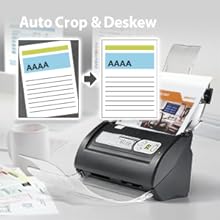
Figure 10: Images related to Plustek customer support and company recognition.


