
1. Producte acabatview
The Maxwest Nitro 5N is an Android 7.0 smartphone designed for reliable communication and multimedia use. It features a 5-inch display, a Quad Core processor, and dual SIM capability, making it suitable for various global GSM networks.

Imatge 1.1: Davant i darrere view of the Maxwest Nitro 5N smartphone, showcasing its sleek black design and display.
2. Què hi ha a la caixa
Upon opening your Maxwest Nitro 5N package, please ensure all the following items are present:
- Maxwest Nitro 5N Smartphone
- Bateria (2000 mAh)
- Adaptador de carregador
- Cable USB
- Protective Case Cover
3. Configuració inicial
3.1. Inserció de la targeta o targetes SIM i la bateria
- Apagar: Ensure your Maxwest Nitro 5N is powered off before proceeding.
- Treure la contraportada: Traieu amb cura la tapa posterior del telèfon.
- Inseriu la targeta(es) SIM: Locate the SIM card slots. This device supports dual SIM cards. Insert your GSM SIM card(s) into the designated slots with the gold contacts facing down. Ensure they are securely seated.
- Insereix la bateria: Place the 2000 mAh battery into its compartment, aligning the gold contacts on the battery with those in the phone.
- Substituïu la coberta posterior: Carefully reattach the back cover until it clicks into place.
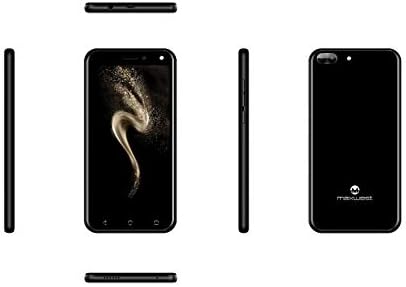
Imatge 3.1: Lateral views of the Maxwest Nitro 5N, illustrating the location of buttons and ports for SIM/battery access.
3.2. Engegada i configuració inicial
- Encès: Press and hold the Power button (usually on the side) until the Maxwest logo appears.
- Selecció d'idioma: Segueix les instruccions que apareixen a la pantalla per seleccionar l'idioma que prefereixis.
- Connexió Wi-Fi: Connecteu-vos a una xarxa Wi-Fi per completar el procés de configuració i descarregar les actualitzacions necessàries.
- Compte de Google: Inicia la sessió amb el teu compte de Google o crea'n un de nou. Això és essencial per accedir a Google Play Store i altres serveis de Google.
- Data i hora: Estableix la data i l'hora correctes o permet que la xarxa les estableixi automàticament.
- Seguretat: Configure screen lock options such as PIN, pattern, or password for device security.
Nota important: This device is designed to work with GSM carriers such as AT&T, T-Mobile, and Metro PCS. It will NOT work with CDMA carriers like Verizon, Sprint, or Boost Mobile.
4. Operating Your Maxwest Nitro 5N
4.1. Navegació bàsica
- Pantalla tàctil: Interact with the device by tapping, swiping, pinching, and spreading on the 5-inch LCD display.
- Pantalla d'inici: El centre neuràlgic de les teves aplicacions i widgets. Fes lliscar el dit cap a l'esquerra o la dreta per accedir a pantalles addicionals.
- Panell de notificacions: Llisca cap avall des de la part superior de la pantalla per accedir a les notificacions i a la configuració ràpida.
- Botons de navegació: Use the on-screen navigation buttons (Back, Home, Recent Apps) at the bottom of the display.
4.2. Fer trucades i enviar missatges
- Aplicació per a telèfons: Tap the Phone icon to access the dialer, call logs, and contacts.
- Aplicació de missatges: Tap the Messages icon to send and receive SMS/MMS messages.
4.3. Ús de la càmera
Your Nitro 5N is equipped with 5MP front and rear cameras.
- Càmera oberta: Toca la icona de la càmera a la pantalla d'inici o al calaix d'aplicacions.
- Canvia de càmeres: Toqueu la icona del canvi de càmera per alternar entre la càmera frontal i la posterior.
- Fes una foto/vídeo: Toqueu el botó de l'obturador per capturar una foto o iniciar/aturar la gravació de vídeo.
4.4. Screen Pinning Feature
Screen Pinning allows you to lock your phone to a single application, preventing others from accessing other apps or settings. This is useful when sharing your phone temporarily.
- Enable Screen Pinning: Vés a Settings > Security > Screen pinning i enceneu-lo.
- Pin an App: Open the app you wish to pin. Tap the Recent Apps button (square icon). Swipe up on the app's preview and tap the pin icon.
- Unpin an App: To unpin, simultaneously press and hold the Back and Recent Apps buttons. You may need to enter your PIN/pattern/password if required by your security settings.
5. Manteniment i cura
5.1. Cura de la bateria
- Càrrega: Use only the provided charger and USB cable. Avoid overcharging by disconnecting the charger once the battery is full.
- Temperatura: Avoid exposing the phone to extreme temperatures, as this can degrade battery life.
- Emmagatzematge: If storing the phone for an extended period, ensure the battery is partially charged (around 50%).
5.2. Neteja del dispositiu
- Pantalla: Feu servir un drap suau i sense borrissol, lleugerament humitampened with water or a screen cleaner, to gently wipe the display.
- Cos: Use a soft, dry cloth to clean the phone's body. Avoid harsh chemicals or abrasive materials.
5.3. Actualitzacions de programari
Periodically check for system updates to ensure optimal performance and security. Go to Configuració > Quant al telèfon > Actualitzacions del sistema per comprovar i instal·lar les actualitzacions disponibles.
6. Resolució de problemes comuns
| Problema | Possible solució |
|---|---|
| El telèfon no s'encén. | Assegureu-vos que la bateria estigui correctament inserida i carregada. Connecteu el carregador i torneu-ho a provar. |
| Sense senyal de xarxa. | Verify SIM card insertion. Check if you are within network coverage. Ensure your carrier is GSM compatible (e.g., AT&T, T-Mobile). Restart the phone. |
| Les aplicacions són lentes o es bloquegen. | Tanca les aplicacions en segon pla. Esborra la memòria cau de l'aplicació (Configuració > Aplicacions > [Nom de l'aplicació] > Emmagatzematge > Esborra la memòria cau). Restart the phone. Ensure sufficient storage space. |
| La bateria s'esgota ràpidament. | Reduce screen brightness. Disable Wi-Fi, Bluetooth, and GPS when not in use. Close unnecessary background apps. Check battery usage in settings to identify power-hungry apps. |
| No es pot connectar a la Wi-Fi. | Assegureu-vos que el Wi-Fi estigui activat. Reinicieu el router i el telèfon. Oblideu-vos de la xarxa i torneu a connectar-vos. |
7. Especificacions del producte
| Característica | Detall |
|---|---|
| Nom del model | Nitro 5N |
| Sistema operatiu | Android 7.0 |
| Processador | Quad Core 1.2 GHz (1.2GHz Cortex A9 Processor) |
| RAM | 1 GB |
| Emmagatzematge intern | 8 GB (approximately 5.6 GB user available) |
| Mostra | 5.0 inch LCD, 480 x 854 pixels, 2.5D TP |
| Càmera posterior | 5 MP |
| Càmera frontal | 5 MP |
| Capacitat de la bateria | 2000 mAh d'ions de liti |
| Compatibilitat de xarxa | 3G H+ 850/1900/2100 MHz, 2G: 850/900/1800/1900 MHz (GSM Carriers only) |
| Connectivitat | USB, Cellular, GPS, Wi-Fi, Bluetooth (Wireless) |
| Jack d'àudio | 3.5 mm |
| Dimensions (L x A x A) | 5.73 x 2.83 x 0.38 polzades |
| Pes | 5.4 unces (153 grams) |
| Color | Negre |
8. Informació de la garantia
The Maxwest Nitro 5N comes with a one-year parts and labor warranty from the date of purchase. This warranty covers manufacturing defects and workmanship under normal use. It does not cover damage caused by misuse, accidents, unauthorized repairs, or normal wear and tear.
Conserveu el vostre comprovant de compra per a reclamacions de garantia.
9. Atenció al client
For technical assistance, troubleshooting beyond this manual, or warranty inquiries, please contact Maxwest customer support. Refer to the contact information provided with your product packaging or visit the official Maxwest weblloc web per obtenir els detalls d'assistència més actualitzats.
When contacting support, please have your product model (Nitro 5N) and proof of purchase readily available.