1. Introducció
This manual provides comprehensive instructions for the setup, operation, and maintenance of your ELECOM DEFT PRO Trackball Mouse, model M-DPT1MRBK. This high-performance trackball mouse offers versatile connectivity options including wired, 2.4GHz wireless, and Bluetooth, designed for enhanced precision and ergonomic comfort across various operating systems.

El ratolí Trackball ELECOM DEFT PRO, mostraasing el seu disseny ergonòmic i la seva prominent bola de seguiment vermella.
2. Contingut del paquet
Verifiqueu que tots els elements siguin presents al paquet del producte:
- ELECOM DEFT PRO Trackball Mouse (M-DPT1MRBK)
- USB-A to USB-C Cable (for wired connection and charging)
- USB Wireless Receiver (2.4GHz)
- Lithium Polymer Battery (pre-installed or included separately)
- Manual d'usuari (aquest document)

The trackball mouse accompanied by its USB-A to USB-C cable for wired connection and charging, and a USB wireless receiver for 2.4GHz wireless mode.
3. Producte acabatview
Familiarize yourself with the components of your ELECOM DEFT PRO Trackball Mouse:
- Trackball: Per al moviment del cursor.
- Botons de clic esquerre/dret: Funcions estàndard del ratolí.
- Roda de desplaçament: For vertical scrolling and tilt for horizontal scrolling.
- Botó de commutació de DPI: Ajusta la velocitat del cursor.
- Function Buttons (Fn1, Fn2, Fn3, etc.): Programmable buttons for custom actions.
- Connectivity Mode Switch: Selects Wired, Wireless (2.4GHz), or Bluetooth mode.
- Interruptor d'alimentació: Encén/apaga el dispositiu.
- Port USB-C: For wired connection and battery charging.
- Wireless Receiver Storage: Compartiment per al receptor sense fil USB.
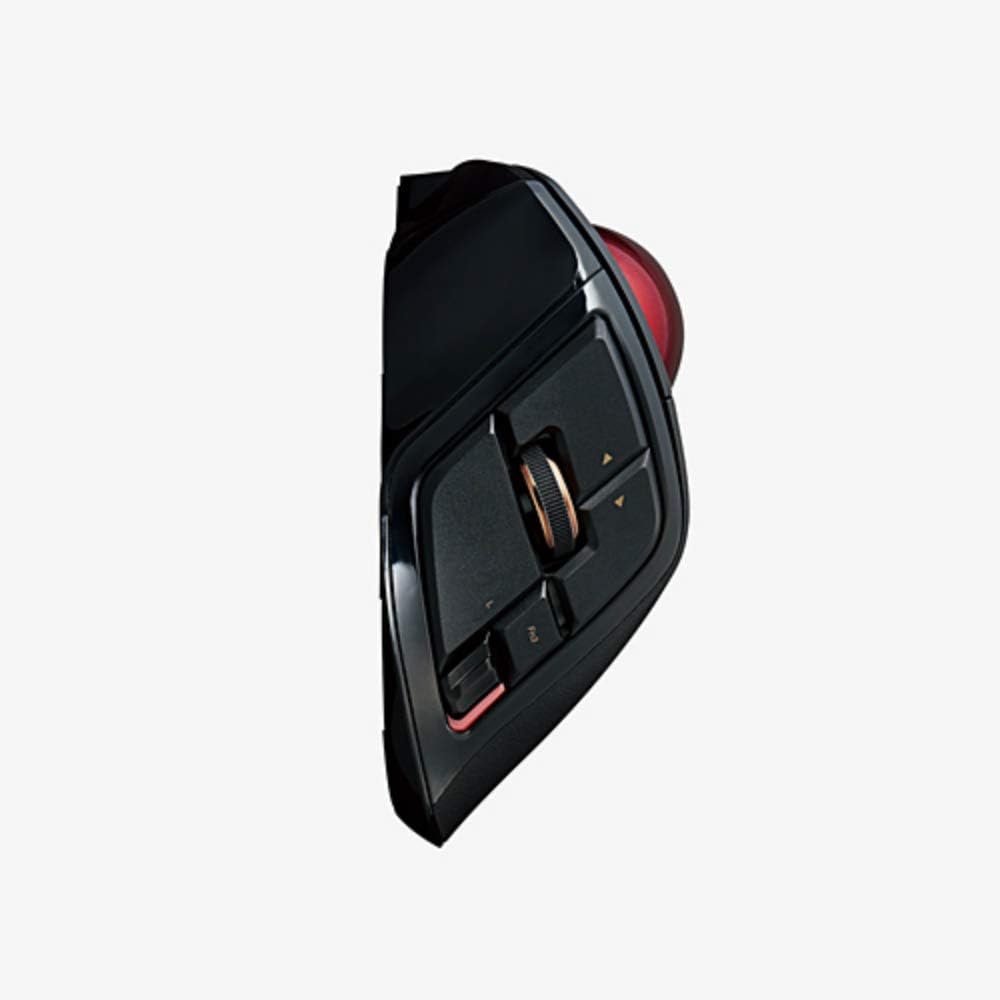
Un professional secundarifile of the trackball mouse, illustrating the placement of the scroll wheel, tilt functions, and programmable side buttons.

Un detallat view of the ELECOM DEFT PRO's buttons, including the main click buttons, scroll wheel, and additional programmable function buttons.
4. Configuració
4.1. Instal·lació i càrrega de la bateria
The ELECOM DEFT PRO uses a Lithium Polymer battery. If not pre-installed, open the battery compartment and insert the battery according to the polarity indicators. To charge, connect the mouse to a USB power source using the provided USB-A to USB-C cable. The LED indicator will show charging status.
4.2. Opcions de connectivitat
The mouse supports three connection methods:
- Connexió per cable: Connect the mouse directly to your computer using the USB-A to USB-C cable.
- Connexió sense fil de 2.4 GHz:
- Inseriu el receptor sense fil USB en un port USB disponible de l'ordinador.
- Set the connectivity mode switch on the mouse to the 'Wireless' position.
- Turn on the mouse using the power switch. The mouse should automatically connect.
- Connexió Bluetooth:
- Set the connectivity mode switch on the mouse to the 'Bluetooth' position.
- Enceneu el ratolí amb l'interruptor d'encesa.
- A l'ordinador o dispositiu, navega fins a la configuració de Bluetooth i cerca dispositius nous.
- Select 'ELECOM DEFT PRO' from the list of available devices to pair.
4.3. Software Installation (ELECOM Mouse Assistant)
For full customization of buttons and advanced settings, download and install the ELECOM Mouse Assistant software from the official ELECOM website. This software allows you to remap buttons, adjust DPI settings, and configure other functions specific to your workflow. Ensure you download the correct version for your operating system (Windows or macOS).
5. Funcionament
5.1. Control bàsic del cursor
Use your fingers to roll the red trackball to move the cursor on the screen. The optical tracking technology provides precise and smooth cursor movement.

An illustration of a hand comfortably resting on the ELECOM DEFT PRO Trackball Mouse, showing the natural finger placement for operating the trackball and buttons.
5.2. Funcions del botó
The ELECOM DEFT PRO features 8 physical buttons and scroll wheel tilt functionality. Default functions are:
- Clic esquerre/dret: Standard primary and secondary click actions.
- Roda de desplaçament: Desplaçament vertical.
- Scroll Wheel Tilt (Left/Right): Horizontal scrolling.
- Commutador DPI: Cycles through DPI settings (500, 1000, 1500).
- Programmable Buttons (Fn1, Fn2, Fn3, etc.): Customizable via ELECOM Mouse Assistant.
5.3. Ajust de DPI
Press the DPI switch button located near the trackball to cycle through the available cursor speeds: 500 DPI, 1000 DPI, and 1500 DPI. Select the sensitivity that best suits your task or preference.
6. Manteniment
6.1. Neteja del trackball
Regular cleaning of the trackball and its bearings is essential for optimal performance. Dust and debris can accumulate and affect cursor smoothness.
- Apagueu el ratolí amb l'interruptor d'alimentació.
- Locate the small hole on the underside of the mouse.
- Gently push the trackball out from the bottom using a pen or similar blunt object.
- Netegeu el trackball amb un drap suau i sense borrissol.
- Clean the three ruby ball bearings inside the trackball housing with a cotton swab lightly dampened with isopropyl alcohol. Ensure no residue remains.
- Torneu a inserir el trackball a la seva carcassa.
7. Solució De Problemes
- El cursor no es mou o és erràtic:
- Ensure the mouse is powered on and the correct connectivity mode (Wired, Wireless, Bluetooth) is selected.
- Comproveu el nivell de la bateria i carregueu-la si cal.
- For wireless, ensure the USB receiver is securely plugged in. For Bluetooth, verify pairing in your device's settings.
- Clean the trackball and its bearings as described in Section 6.1.
- Botons que no responen:
- Verify the mouse is connected and powered on.
- If using custom button assignments, check the ELECOM Mouse Assistant software for correct configuration.
- Software issues (ELECOM Mouse Assistant):
- Ensure you have downloaded the latest version of the software for your operating system.
- Reinicieu l'ordinador després de la instal·lació.
- If issues persist, try reinstalling the software.
8. Especificacions
| Característica | Detall |
|---|---|
| Número de model | M-DPT1MRBK |
| Connectivitat | Wired (USB), 2.4GHz Wireless (USB Receiver), Bluetooth |
| Configuració de DPI | 500 / 1000 / 1500 count (switchable) |
| Botons | 8 physical buttons + Scroll Wheel Tilt |
| Detecció de moviment | Optical, Trackball |
| Dimensions (L x L x A) | 3.6" x 5.3" x 2.3" (91.4 mm x 133.4 mm x 57.3 mm) |
| Pes | 5.7 oz (sense bateria) |
| Bateria | 1 bateria de polímer de liti (inclosa) |
| Requisits del sistema | Windows 7, 8, 10 o posterior; macOS 10.13 o posterior |

An image comparing the dimensions of various ELECOM trackball mouse models, with the DEFT PRO (M-DPT1MRBK) positioned in the center, showing its length, width, and height.
9. Garantia i Suport
Per obtenir informació sobre la garantia, assistència tècnica o més ajuda, consulteu la pàgina oficial d'ELECOM. website or contact ELECOM customer service. Keep your proof of purchase for warranty claims.


