1. Producte acabatview
The MAYFLASH Arcade Fighting Stick F101 is a versatile arcade-style controller designed for an authentic gaming experience across multiple platforms. It features a robust build and customizable components to enhance your gameplay.

Imatge: Superior view of the MAYFLASH F101 Arcade Fighting Stick, showcasing the joystick, eight action buttons, and control panel.
Característiques principals:
- Compatibilitat multiplataforma: Compatible with Nintendo Switch/Switch 2, PC (Windows XP, Vista, 7, 8, 10, 11), PlayStation 3, Android devices, NeoGeo mini, SEGA MEGA Drive mini, and SEGA GENESIS mini.
- Customization Ready: Designed to be compatible with Sanwa Denshi buttons for personalized modifications (Sanwa Denshi buttons are sold separately).
- Modes d'entrada: Supports both XINPUT and DINPUT when connected to a PC.
- Funció turbo: Includes a Turbo function with adjustable speed settings for enhanced gameplay.
- Disseny durador: Features anti-skid pads on the bottom for stable use on various surfaces.
2. Configuració i connexió
The F101 Arcade Fighting Stick offers plug-and-play functionality for most compatible systems. Follow these steps to connect your device:
2.1 Selecció del mode d'entrada
Before connecting, select the appropriate input mode using the switch on the control panel:
- XINPUT: For PC (Windows) and other XINPUT compatible devices.
- NS: For Nintendo Switch/Switch 2.
- DINPUT/PS3: For PlayStation 3, Android, NeoGeo mini, SEGA MEGA Drive mini, and SEGA GENESIS mini.
Imatge: Primer pla view of the input mode selection switches (XINPUT, NS, DINPUT/PS3) on the F101 control panel.
2.2 Connexió al vostre sistema
- Select the correct input mode on the F101.
- Connect the USB cable from the F101 to an available USB port on your console, PC, or mini console.
- The device should be recognized automatically. For Nintendo Switch, ensure the 'Pro Controller Wired Communication' option is enabled in the system settings.
Video: Demonstrates connecting the MAYFLASH Arcade Stick F101 to various systems including Switch, PC, and PS3, highlighting its plug-and-play functionality.
3. Instruccions de funcionament
3.1 Joystick and Buttons
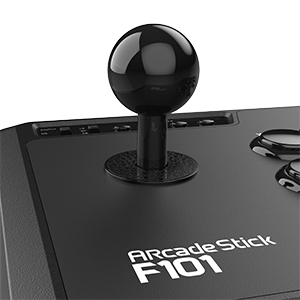
The F101 features a standard arcade layout with a joystick for directional input and eight action buttons. The buttons are labeled with common console button mappings (e.g., Y/Δ, X/☐, B/O, A/X, RB/R1, LB/L1, RT/R2, LT/L2).
3.2 LS/DP/RS Switch
This switch allows you to assign the joystick's function:
- LS (Left Stick): Joystick acts as the left analog stick.
- DP (D-Pad): Joystick acts as the directional pad.
- RS (Right Stick): Joystick acts as the right analog stick.
3.3 Funció Turbo
To activate the Turbo function for a button:
- Manteniu premut el botó TURBO botó.
- Mentre aguanta TURBO, press the desired action button (e.g., A/X) to enable Turbo for that button.
- To adjust Turbo speed, press and hold TURBO, then move the joystick UP per a una velocitat més ràpida o ABAIX for slower speed.
- To disable Turbo for a button, press and hold TURBO, then press the action button again.
3.4 Special Buttons
- SELECT/-: Functions as the Select button (PS3) or Minus button (Switch).
- INICI/+: Functions as the Start button (PS3) or Plus button (Switch).
- PS/HOME: Functions as the PlayStation Home button or Nintendo Switch Home button.
- CAPTURA: For taking screenshots on Nintendo Switch.
4. Customization and Modding
The MAYFLASH F101 is designed for easy customization, allowing users to replace the joystick and buttons with Sanwa Denshi components (sold separately).
4.1 Replacing Buttons
The F101 supports Sanwa Denshi buttons (e.g., OBSF-30 model). To replace buttons:
- Unscrew the six screws on the bottom of the unit and carefully open the casing.
- Disconnect the wires from the existing buttons.
- Gently press the tabs on the sides of the buttons to remove them from the top panel.
- Insert the new Sanwa buttons into the openings.
- Reconnect the wires to the new buttons.
Imatge: Interna view showing the wiring connected to the buttons, illustrating the ease of disconnection for replacement.
4.2 Replacing the Joystick Gate
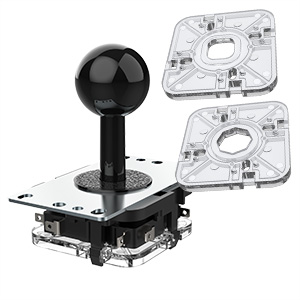
The F101 typically comes with a square gate installed and may include an octagonal gate for customization. To change the gate:
- Obriu el casing as described for button replacement.
- Locate the gate mechanism under the joystick.
- Carefully remove the existing gate and install the desired replacement gate.
- Tanca el casing and secure with screws.
Video: A step-by-step guide on how to replace the buttons and joystick gate on the MAYFLASH Arcade Stick F101, demonstrating compatibility with Sanwa components.
5. Manteniment
To ensure the longevity and optimal performance of your MAYFLASH F101 Arcade Fighting Stick, follow these maintenance guidelines:
- Neteja: Use a soft, dry cloth to wipe down the surface of the fighting stick. Avoid abrasive cleaners or solvents that could damage the finish.
- Emmagatzematge: Store the fighting stick in a cool, dry place away from direct sunlight and extreme temperatures. Use the built-in Velcro strap to neatly manage the USB cable.
- Manipulació: Eviteu deixar caure el dispositiu o sotmetre-lo a forts impactes.
6. Solució De Problemes
- Dispositiu no reconegut:
- Ensure the correct input mode (XINPUT, NS, DINPUT/PS3) is selected on the fighting stick.
- Proveu de connectar-vos a un port USB diferent.
- For Nintendo Switch, verify that 'Pro Controller Wired Communication' is enabled in the system settings.
- Check the official MAYFLASH weblloc web per obtenir les darreres actualitzacions de firmware i instruccions d'instal·lació.
- Buttons or Joystick Unresponsive:
- Ensure all internal wiring connections are secure if you have performed any modifications.
- Test the device on another compatible system to rule out system-specific issues.
- Menu Access Issues (e.g., with Arcade Stick Pro):
- Some specific console setups or game configurations may assign the F101 as a secondary controller, preventing menu access. Ensure the F101 is recognized as the primary controller if such issues arise.
7. Especificacions
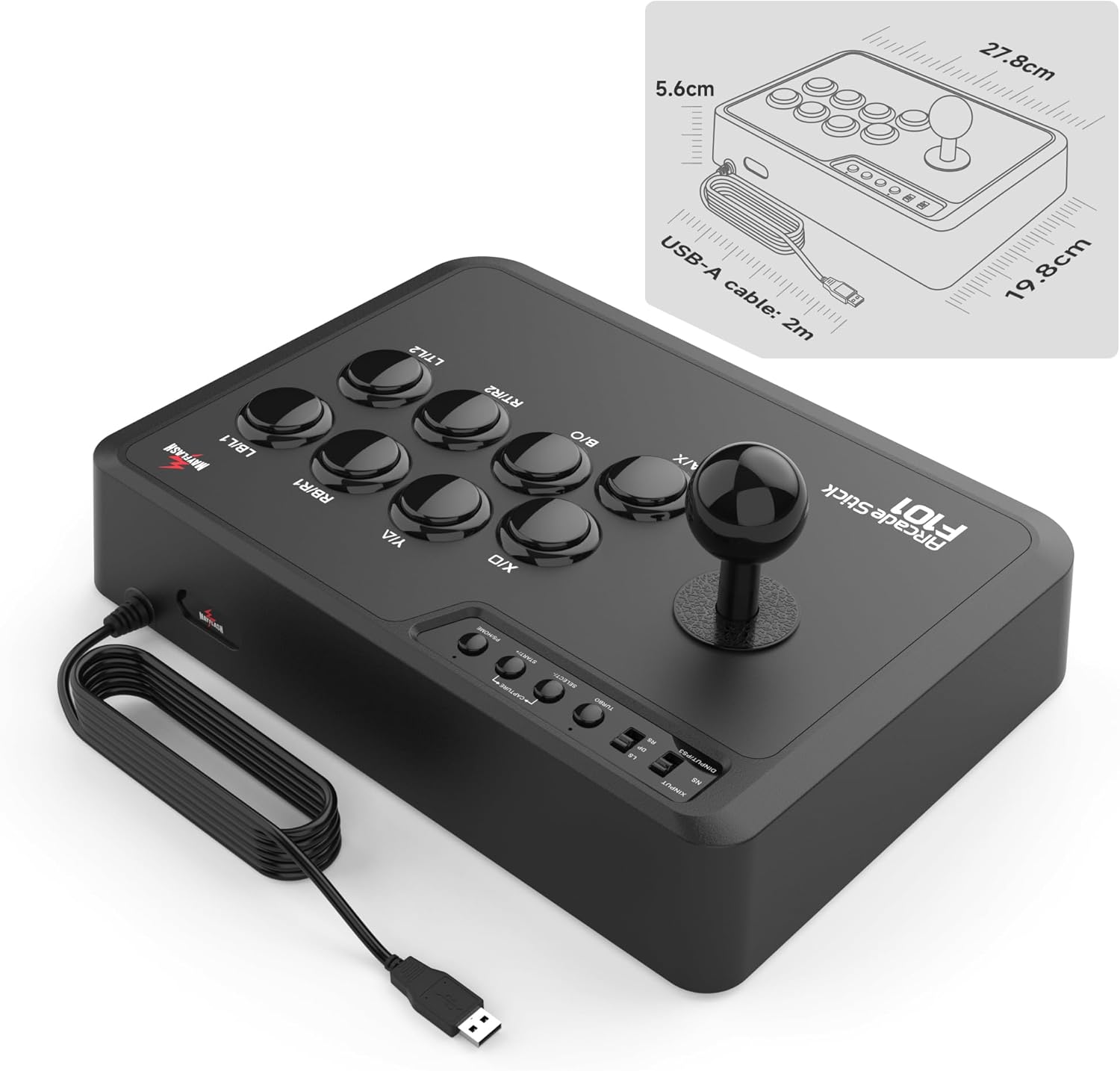
Image: The MAYFLASH F101 Arcade Fighting Stick with key dimensions labeled, showing its compact size.
| Característica | Detall |
|---|---|
| Marca | MAIG FLASH |
| Nom del model | F101 |
| Número de model de l'article | F101 |
| Plataforma de maquinari | Android, Nintendo Switch, PC/Mac, PlayStation 3 |
| Compatibilitat de sistemes operatius | Android, Vista, Windows 10, Windows 7, Windows 8, Windows XP |
| Pes de l'article | 3 lliures |
| Dimensions del producte (LxWxH) | 12.13 x 9.37 x 4.96 polzades |
| Color | Negre |
| Font d'alimentació | Elèctric amb cable |
| Tecnologia de connectivitat | USB |
8. Garantia i Suport
Per obtenir informació sobre la garantia, assistència tècnica i les darreres actualitzacions de firmware, visiteu el lloc web oficial de MAYFLASH. website. Keeping your device's firmware updated ensures optimal performance and compatibility with new systems and games.