Introducció
This manual provides detailed instructions for the setup, operation, maintenance, and troubleshooting of your Logitech HD Pro Webcam C922. Please read this manual thoroughly before using the product to ensure optimal performance and longevity.
El Logitech C922 HD Pro Webcam is designed for high-definition video calls and streaming, offering clear 1080p video capture and reliable performance.
Producte acabatview
Familiarize yourself with the components of your Logitech C922 Weblleva.

Figura 1: Davant view del Logitech C922 HD Pro Webcam, showing the lens and "HD 1080p" branding.

Figura 2: Logitech C922 HD Pro Webcam with its adjustable clip extended, suitable for mounting on monitors or laptops.
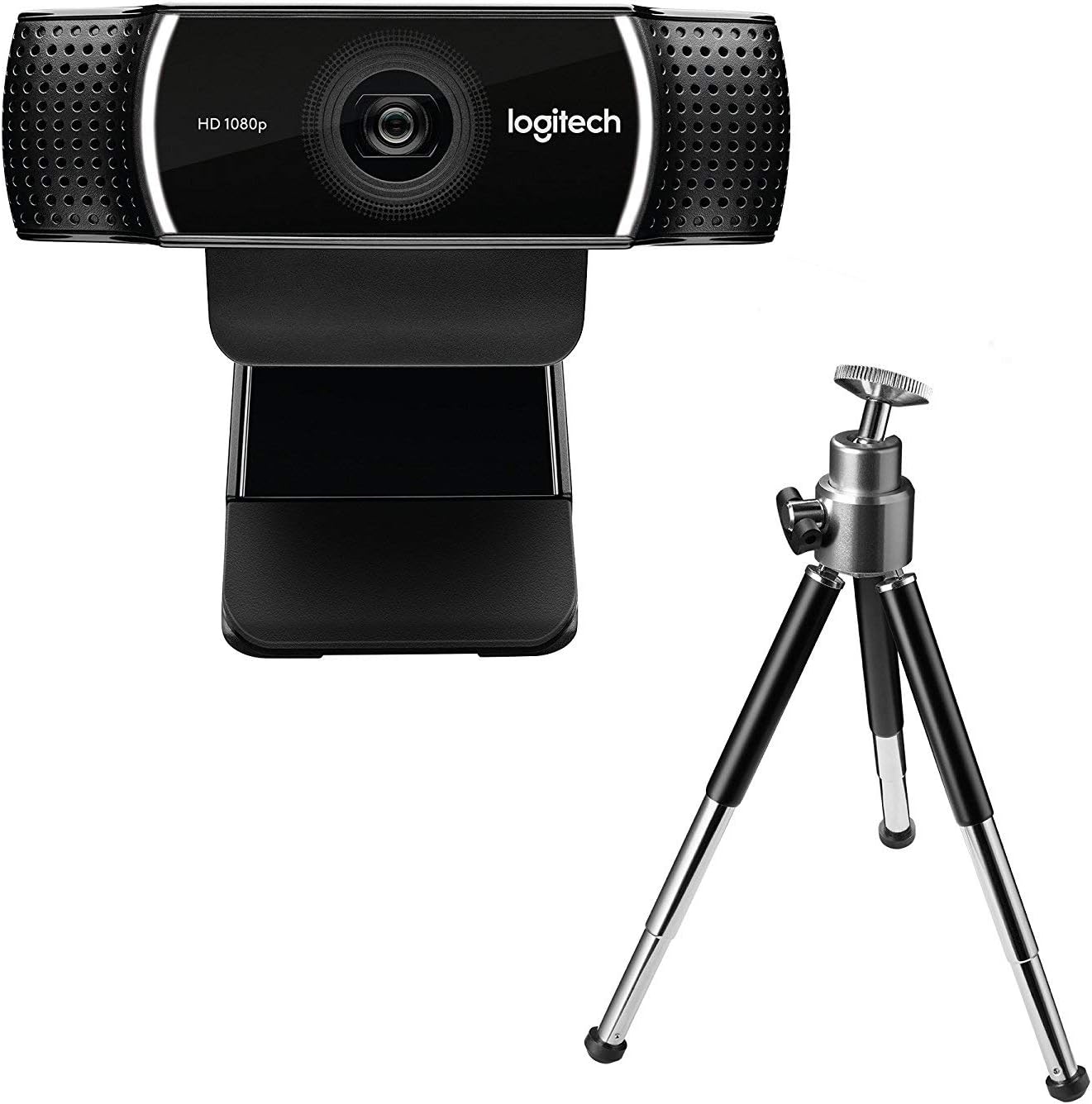
Figura 3: Logitech C922 HD Pro Webcam shown with its included mini-tripod, offering alternative placement options.
Configuració
Requisits del sistema
- Windows 7 o posterior
- macOS 10.10 o posterior
- Chrome OS
- Port USB 2.0
- Connexió a Internet per descarregar programari
Passos d'instal·lació
- Desempaquetar el Weblleva: Carefully remove the C922 webcam and any accessories from its packaging.
- Connexió a l'ordinador: Plug the USB cable of the C922 webcam into an available USB 2.0 or 3.0 port on your computer.
- Col·loca el Weblleva:
- En un monitor/ordinador portàtil: Open the flexible clip base and place it over the top edge of your monitor or laptop screen. Adjust the front part of the clip so the webcam sits securely.
- En un trípode: If using the included tripod, screw the webcam onto the tripod mount. Place the tripod on a stable, flat surface.
- Instal·lació de programari: Your operating system should automatically detect and install basic drivers. For full functionality, including advanced settings and features, download and install the Logitech G HUB software from the official Logitech weblloc (www.logitech.com/ghub).
- Prova el Weblleva: Open a video conferencing application (e.g., Zoom, Skype, Google Meet) or your computer's camera application to verify the webla càmera funciona correctament.
Instruccions de funcionament
Funcionament bàsic
- Once connected and drivers are installed, the C922 webcam is ready for use with most video applications.
- Select "Logitech C922 Pro Stream Webcam" as your video device within your chosen application's settings.
- The integrated dual microphones will automatically be selected as the audio input.
Using Logitech G HUB Software
The Logitech G HUB software provides advanced control over your C922 weblleva:
- Resolució i freqüència d'imatges: Adjust video resolution (up to 1080p) and frame rate (up to 60fps at 720p, 30fps at 1080p).
- Camp de View: Personalitza el camp de view.
- Enfocament automàtic: Enable or disable autofocus.
- Exposure and White Balance: Manually adjust exposure, white balance, and other image settings for optimal lighting conditions.
- ChromaCam (Background Replacement): Utilize the ChromaCam feature for virtual background replacement (requires compatible system).
- Profiles: Crea i desa un professional personalitzatfiles for different applications or lighting scenarios.
Manteniment
- Neteja de la lent: Feu servir un drap suau i sense borrissol dissenyat específicament per a òptica per netejar suaument el weblent de càmera. Eviteu materials abrasius o productes químics agressius.
- Neteja del cos: Netegeu el cos de la weblleva amb un suau, damp tela. No submergiu el webcame a l'aigua o utilitzeu una humitat excessiva.
- Emmagatzematge: Quan no s’utilitzi, emmagatzemeu el fitxer webguardeu-ho en un lloc net i sec, allunyat de temperatures extremes i de la llum solar directa.
- Cura del cable: Eviteu doblegar o engargar excessivament el cable USB per evitar danys.
Resolució de problemes
| Problema | Solució |
|---|---|
| Webcàmera no detectada per l'ordinador. |
|
| Sense vídeo o pantalla negra. |
|
| Mala qualitat de vídeo (borrós, fosc, granulós). |
|
| No hi ha àudio o hi ha mala qualitat d'àudio. |
|
Especificacions
| Característica | Detall |
|---|---|
| Número de model | 960-001088 |
| Marca | Logitech |
| Resolució de captura de vídeo | 1080p (Full HD) at 30fps, 720p (HD) at 60fps |
| Tecnologia del sensor d'imatge | CMOS |
| Apertura màxima | 1.8 F |
| Distància focal màxima | 52 mil·límetres |
| Tecnologia de connectivitat | USB 2.0 |
| Format d'àudio compatible | AAC |
| Format de captura de vídeo | MP4 |
| Color | Negre |
| Dimensions d'enviament | 12.8 x 8.6 x 5.2 cm; 162 grams |
| Primera data disponible | 11 de febrer de 2019 |
Note: Some specifications from the source data (e.g., "Removable Memory Type: SD", "Connectivity Technology: Wi-Fi") appear to be generic or incorrect for this specific webcam model and have been omitted or corrected for accuracy. The C922 is a wired USB weblleva.
Garantia i Suport
Logitech products typically come with a limited hardware warranty. For specific warranty details, registration, and technical support, please visit the official Logitech support weblloc:
You can also find FAQs, driver downloads, and community forums on their support page.


