Introducció
This manual provides essential instructions for setting up, operating, maintaining, and troubleshooting your Microsoft Surface Pro 2017. The Surface Pro 2017 is a versatile 2-in-1 device designed to function as both a powerful laptop and a portable tablet, offering a seamless computing experience.
Please read this manual thoroughly to ensure proper use and to maximize the lifespan of your device. Keep this manual for future reference.
Què hi ha a la caixa
Upon unboxing your Microsoft Surface Pro 2017, verify that all components are present:
- Microsoft Surface Pro 2017 device
- Adaptador de corrent alterna
Note: Additional accessories such as the Surface Pen, Type Cover, or Surface Dial are sold separately and may not be included with your device.
Configuració
1. Engegada i càrrega inicials
- Connecteu l'adaptador de corrent: Plug the AC power adapter into a wall outlet and then connect the magnetic charging connector to the charging port on your Surface Pro. The LED indicator on the connector will illuminate when charging.
- Encès: Press and hold the power button located on the top edge of the device for a few seconds until the Microsoft logo appears on the screen.
2. Windows Setup
Follow the on-screen prompts to complete the initial Windows setup. This process typically includes:
- Selecció de la vostra regió i idioma.
- Connexió a una xarxa Wi-Fi.
- Acceptació de l'acord de llicència.
- Crear o iniciar la sessió amb un compte de Microsoft.
- Setting up security features like Windows Hello (facial recognition) or a PIN.
3. Connexió a Wi-Fi
- During Windows setup, you will be prompted to connect to a network. Select your desired Wi-Fi network from the list and enter the password if required.
- If you need to connect later, go to Comença > Configuració > Xarxa i Internet > Wi-Fi. Turn Wi-Fi on, select your network, and click Connecta't.
Instruccions de funcionament
Basic Device Orientation and Controls
The Surface Pro 2017 features a 12.3-inch PixelSense display with multi-touch support. Key physical controls include:
- Botó d'encesa: Located on the top edge, used to turn the device on/off, sleep, or wake.
- Botons de volum: Situat al lateral, serveix per ajustar el volum de l'àudio.
- Suport de peu: Integrated on the back, allows for multiple viewangles d'ajust.
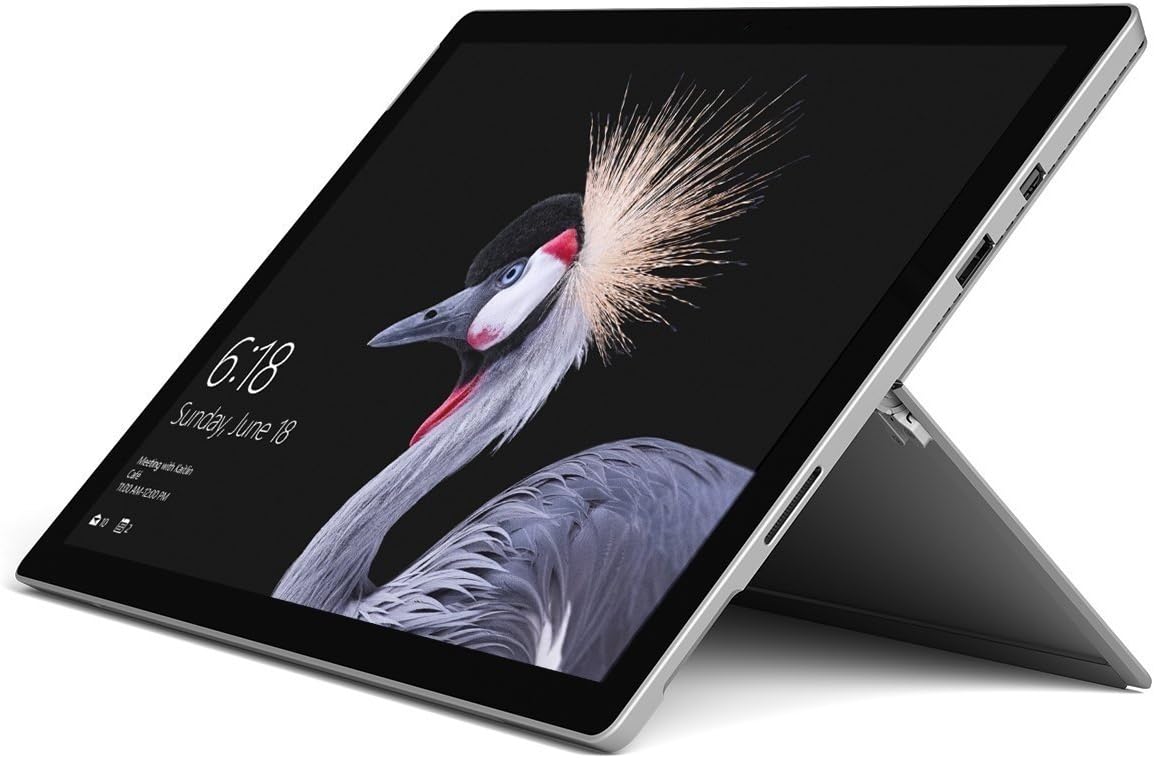
Image: Microsoft Surface Pro 2017 in laptop mode with its kickstand extended, showcasing the device's display.
Ús del suport de peu
The integrated kickstand allows you to position your Surface Pro at various angles for comfortable viewing, typing, or drawing. Gently pull the kickstand out from the back of the device until it reaches your desired angle.
Gestió d'energia
- Mode de repòs: Briefly press the power button to put the Surface Pro into sleep mode. Press it again to wake the device.
- Apagar: Vés a Comença > Poder > Apagueu.
- Reinicia: Vés a Comença > Poder > Reinicieu.
Connexió de perifèrics
The Surface Pro 2017 includes various ports for connecting external devices:
- Port USB 3.0: For connecting USB drives, keyboards, mice, and other compatible accessories.
- Mini DisplayPort: Per connectar monitors o projectors externs.
- Lector de targetes microSD: Per ampliar l'emmagatzematge o transferir files de targetes de memòria.
- Port de connexió de superfície: For power and connecting to Surface Dock accessories.
- Presa d'auriculars de 3.5 mm: Per a la sortida d'àudio.
Bluetooth: To connect Bluetooth devices (e.g., headphones, mice), go to Comença > Configuració > Dispositius > Bluetooth i altres dispositius. Ensure Bluetooth is turned on, then select "Add Bluetooth or other device" and follow the pairing instructions.

Imatge: Side profile of the Microsoft Surface Pro 2017, highlighting the various ports available for connectivity.
Manteniment
Cleaning Your Surface Pro
- Pantalla: Utilitzeu un drap suau i sense pelusa lleugerament dampened with water or an approved screen cleaner. Avoid harsh chemicals or abrasive materials.
- Cos: Wipe the exterior with a soft, dry cloth. Do not allow liquids to enter openings.
- Ports: Keep ports free of dust and debris. Use compressed air carefully if needed, holding the can upright.
Cura de la bateria
- Eviteu les temperatures extremes, ja que poden reduir la durada de la bateria.
- Per a un estat òptim de la bateria, eviteu descarregar-la completament de manera constant o mantenir-la al 100% de càrrega durant períodes prolongats.
- Use only the official Microsoft AC power adapter or a compatible charger.
Actualitzacions de programari
Regularly update your Windows operating system and device drivers to ensure optimal performance, security, and compatibility. Go to Comença > Configuració > Actualització i seguretat > Actualització de Windows per comprovar i instal·lar actualitzacions.
Resolució de problemes
This section addresses common issues you might encounter with your Surface Pro 2017.
Device Will Not Turn On
- Assegureu-vos que el dispositiu estigui carregat. Connecteu l'adaptador de corrent i espereu uns minuts abans d'intentar engegar-lo.
- Apagar amb dos botons: Mantingueu premut el botó d'augmentar el volum i el botó d'engegada simultàniament durant almenys 15 segons i, a continuació, deixeu-los anar. Espereu 10 segons i, a continuació, torneu a prémer el botó d'engegada per engegar la Surface.
Screen Not Responding to Touch
- Reinicieu el dispositiu.
- Assegureu-vos que la pantalla estigui neta i lliure de residus.
- Check for available Windows updates, as driver updates can resolve touch issues.
Problemes de connectivitat Wi-Fi
- Assegureu-vos que el Wi-Fi estigui activat a Configuració > Xarxa i Internet > Wi-Fi.
- Restart your Surface Pro and your Wi-Fi router.
- Oblida't de la xarxa i torna a connectar-te: vés a Configuració > Xarxa i Internet > Wi-Fi, click on your network, then Oblida't. Reconnect and enter the password.
Especificacions
| Característica | Especificació |
|---|---|
| Nom del model | Surface Pro 2017 |
| Número de model de l'article | 7Y30 |
| Mida de la pantalla | 12.3 polzades |
| Resolució de pantalla | 2736 x 1824 píxels |
| Processador | Intel Core m3-7Y30 (1 GHz Intel_Mobile_CPU) |
| RAM | 4 GB DDR4 SDRAM |
| Emmagatzematge | SSD de 128 GB |
| Targeta gràfica | Integrated (Intel) |
| Sistema operatiu | Windows |
| Tipus sense fil | 802.11abg |
| Pes de l'article | 1.89 lliures |
| Dimensions del producte | 11.5 x 7.9 x 0.3 polzades |
| Color | Plata |
Garantia i Suport
For detailed warranty information, please refer to the warranty card included with your purchase or visit the official Microsoft support weblloc web. Els termes i condicions de la garantia poden variar segons la regió i el distribuïdor.
For technical support, driver downloads, and additional resources, please visit the official Microsoft Support weblloc: support.microsoft.com/surface


