Introducció
The ZTE MU5001 is the world's first Wi-Fi 6 and 5G CAT 20 mobile router, designed to provide high-speed internet connectivity wherever you go. Its compact and premium design makes it an ideal travel companion, offering robust performance powered by the Qualcomm SDX55 platform. This device supports Wi-Fi 6 AX1800 and features a 2.4-inch touchscreen for easy user interaction. With a powerful 4500 mAh battery, it ensures extended operation and can create a stable Wi-Fi hotspot for up to 32 devices.
Image: ZTE MU5001 5G Mini Router banner highlighting its high performance and 5G capabilities.
Informació de seguretat
- No exposeu el dispositiu a temperatures extremes, llum solar directa ni humitat elevada.
- Use only the charger and accessories provided or approved by ZTE.
- Eviteu deixar caure el dispositiu ni sotmetre'l a impactes forts.
- Mantingueu el dispositiu allunyat de l'aigua i altres líquids.
- No intenteu desmuntar ni modificar el dispositiu. Això anul·larà la garantia.
- Desfeu-vos del dispositiu i la bateria de manera responsable d'acord amb la normativa local.
Contingut del paquet
Si us plau, comproveu el contingut del paquet en desembalar-lo per assegurar-vos que hi hagi tots els elements:
- 1 x ZTE MU5001 Wireless Router (Black)
- 1 x Carregador
- 1 x cable de dades
- 1 bateria (4500 mAh)
- 1 x SIM Card Pin
- 1 x Charging Notice
- 1 x Guia d'usuari
Producte acabatview
Familiarize yourself with the ZTE MU5001's components and features.

Imatge: Frontal view of the ZTE MU5001 router, showcasing its 2.4-inch touchscreen display with data usage and settings icons.
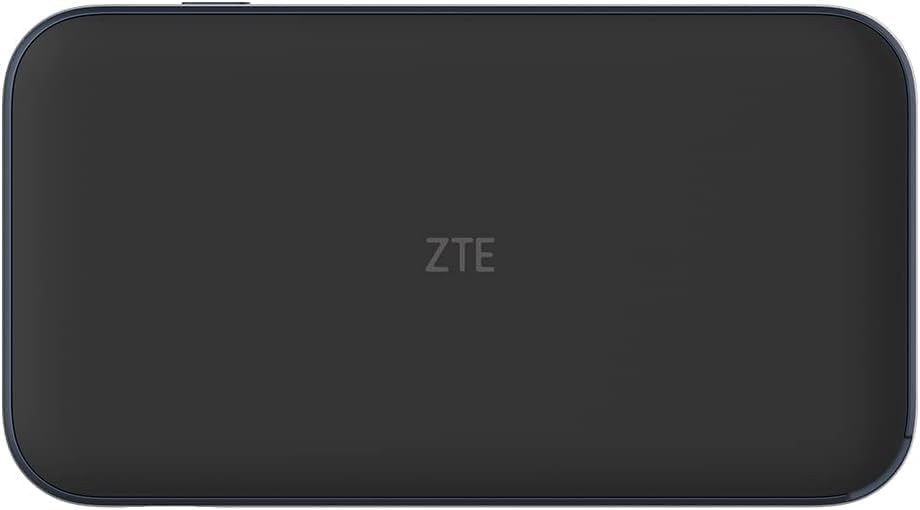
Imatge: Enrere view of the ZTE MU5001 router, showing the ZTE logo.

Image: The ZTE MU5001 router with its touchscreen display active, showing network status and data usage, emphasizing its two-color design.
Característiques principals:
- Pantalla tàctil de 2.4 polzades: Provides easy access to device status, settings, and data usage.
- Ranura per a targeta SIM: For inserting your mobile network SIM card.
- Port USB-C: Per a càrrega i transferència de dades.
- Botó d'encesa: To turn the device on/off and wake/sleep the screen.
- Gigabit Ethernet Port (Optional): Per a connexions de xarxa per cable.
Configuració
1. Inserció de la targeta SIM
- Assegureu-vos que el dispositiu estigui apagat.
- Localitza la ranura de la targeta SIM al lateral del dispositiu.
- Use the provided SIM card pin to open the SIM tray.
- Carefully place your Nano-SIM card into the tray with the gold contacts facing down.
- Empenyeu suaument la safata de la SIM cap a dins de la ranura fins que encaixi al seu lloc.
2. Càrrega del dispositiu
- Connect the provided data cable to the USB-C port on the router.
- Connect the other end of the data cable to the charger.
- Connecteu el carregador a una presa de corrent.
- The battery indicator on the screen will show charging status. Allow the device to fully charge before first use.

Image: The ZTE MU5001 router held in a hand, illustrating its compact size and highlighting its 4500mAh quick-charge battery capable of lasting up to 9 hours.
3. Engegada inicial
- Mantingueu premut el botó d'engegada fins que aparegui el logotip de ZTE a la pantalla.
- The device will boot up and attempt to connect to the mobile network.
- Once connected, the network status will be displayed on the screen.
Instruccions de funcionament
1. Connexió de dispositius mitjançant Wi-Fi
- On the MU5001's touchscreen, navigate to the Wi-Fi information screen to find the Wi-Fi Name (SSID) and Password.
- Al dispositiu (telèfon intel·ligent, ordinador portàtil, tauleta), obriu la configuració del Wi-Fi.
- Select the Wi-Fi Name (SSID) displayed on the MU5001's screen.
- Enter the Wi-Fi Password when prompted.
- Your device should now be connected to the internet through the MU5001.

Image: An illustration showing the ZTE MU5001 router providing Wi-Fi 6 and 5G connectivity to multiple devices, indicating its capability to support up to 32 connections.
2. Ús de la interfície de pantalla tàctil
The 2.4-inch touchscreen allows for easy navigation and management of the router's functions:
- Llisca cap a l'esquerra/dreta: To navigate between different information screens (e.g., data usage, connected devices, settings).
- Toca: To select an option or enter a menu.
- Ús de dades: Monitor your current data consumption.
- Configuració: Access advanced configurations such as network mode, Wi-Fi settings, and device information.
3. Advanced Settings (via Web Interfície)
For more detailed configuration, you can access the router's web interfície de gestió:
- Connect your device to the MU5001's Wi-Fi network.
- Obre a web browser and enter the router's IP address (usually 192.168.0.1 or 192.168.1.1, check the device's screen or user guide for the exact address).
- Enter the administrator username and password (default credentials are often admin/administrador or found on a sticker inside the device/packaging).
- Des del web interface, you can manage network settings, security, parental controls, and more.
Manteniment
1. Neteja del dispositiu
- Use a soft, dry, lint-free cloth to clean the device's exterior and touchscreen.
- No utilitzeu netejadors líquids, aerosols ni dissolvents abrasius.
2. Cura de la bateria
- Per allargar la durada de la bateria, eviteu descarregar-la completament amb freqüència.
- Store the device in a cool, dry place if not used for extended periods.
- No exposeu la bateria a altes temperatures.
3. Actualitzacions de programari
- Periodically check for firmware updates through the device's settings or web interfície.
- Les actualitzacions poden millorar el rendiment, afegir noves funcions i augmentar la seguretat.
- Ensure the device is sufficiently charged before performing an update.
Resolució de problemes
| Problema | Causa possible | Solució |
|---|---|---|
| Sense connexió de xarxa | La targeta SIM no s'ha inserit correctament, no hi ha senyal o hi ha problema amb el pla de dades. | Reinsert SIM card, move to an area with better signal, contact your service provider. |
| No es pot connectar a la Wi-Fi | Incorrect Wi-Fi password, device too far from router, or Wi-Fi disabled. | Verify password, move closer to the router, ensure Wi-Fi is enabled on both devices. |
| Velocitat d'internet lenta | Weak signal, too many connected devices, or network congestion. | Check signal strength, reduce number of connected devices, try restarting the router. |
| El dispositiu no s'encén | Battery is drained or device malfunction. | Carregueu el dispositiu durant almenys 30 minuts. Si encara no respon, contacteu amb l'assistència tècnica. |
Especificacions

Image: The ZTE MU5001 router alongside a smartphone, illustrating its compact size and highlighting its Snapdragon X55 chipset for download speeds up to 3.8 Gbps.
- Model: MU5001
- Chipset: Qualcomm SDX55 + QCA6391
- Suport a la xarxa: 5G NR (NSA&SA), LTE EN-DC, Sub6G FDD (n1/3/7/8/20/28), TDD (n77/78/41/40/38), 4G LTE FDD & TDD (CAT 20)
- Wi-Fi estàndard: Wi-Fi 6 (802.11ax), AX1800
- Visualització: 2.4-inch Touchscreen (320 x 240 mm)
- Bateria: 4500 mAh (Lithium-ion), with fast charging
- Temps de funcionament: Fins a 8 hores
- Dimensions: 133 mm x 73 mm x 18.5 mm
- Pes: 200 g (només el dispositiu)
- Max Connected Devices: Up to 32 Wi-Fi compatible devices
- Connectivitat: Wi-Fi, Bluetooth, Ethernet (optional Gigabit port)
Garantia i Suport
The ZTE MU5001 Wireless Router comes with a 2 any de garantia provided by Livewire/eFones®.
For technical support, warranty claims, or further assistance, please contact your retailer or the manufacturer's authorized service center. Refer to the contact information provided in your purchase documentation or visit the official ZTE weblloc.
Si us plau, conserveu el comprovant de compra per motius de garantia.
Escenaris d'ús

Image: A person walking in a modern subway station, illustrating the router's suitability for on-the-go connectivity in urban environments.

Image: A group of people sitting together, all engaged with their smartphones, demonstrating the router's ability to provide internet for multiple users simultaneously.

Image: A couple relaxing outside a camper van, highlighting the router's portability and utility for travel and outdoor activities.

Image: A person walking down a road with a suitcase, emphasizing the router's role as an ideal travel companion for continuous connectivity.

Image: People running into the ocean on a beach, suggesting the router's versatility for use in various outdoor and recreational settings.


