Introducció
This manual provides detailed instructions for the setup, operation, and maintenance of your MSI Optix G27C4 27-inch Gaming Monitor. Please read this manual thoroughly before using the product to ensure proper functionality and to prevent damage.
The MSI Optix G27C4 is a 27-inch curved gaming monitor designed for an immersive visual experience. Key features include a 1500R curved VA panel, 165Hz refresh rate, 1ms response time, wide color gamut, and AMD FreeSync Premium technology for smooth, tear-free gaming.

Davant view of the MSI Optix G27C4 gaming monitor, showcasing its curved screen with a red dragon graphic display.
Instruccions de configuració
1. Desembalatge del monitor
- Obriu amb cura l'embalatge i retireu tots els components.
- Ensure all accessories are present: monitor panel, stand base, stand neck, power adapter, power cord, HDMI cable, DisplayPort cable, and user manual.
- Col·loqueu el panell del monitor cap per avall sobre una superfície suau i neta per evitar ratllades.
2. Muntatge del suport
- Attach the stand neck to the stand base. Secure it with the provided screw.
- Align the assembled stand with the mounting holes on the back of the monitor panel.
- Gently push the stand into place until it clicks or secure it with the provided screws, depending on the model's design.

posterior view of the MSI Optix G27C4 monitor, showing the stand attachment point and various input ports.
3. Cables de connexió
- Connexió d'alimentació: Connect the power adapter to the monitor's power input, then plug the power cord into the adapter and a power outlet.
- Connexió de vídeo:
- For optimal performance (165Hz refresh rate), use the provided DisplayPort cable to connect the monitor to your computer's graphics card.
- Alternatively, use an HDMI cable to connect the monitor to your computer or other video sources. Note that HDMI may limit the maximum refresh rate depending on the version.
- Assegureu-vos que totes les connexions siguin segures.
4. Engegada inicial
- Premeu el botó d'engegada del monitor.
- Engegueu l'ordinador. El monitor hauria de detectar automàticament el senyal d'entrada.
- If no image appears, verify all cable connections and ensure the correct input source is selected on the monitor.
Instruccions de funcionament
1. Encendre/apagar
Press the power button, typically located on the bottom right or rear of the monitor, to turn the monitor on or off. The power LED will indicate the monitor's status.
2. Navegació pel menú en pantalla (OSD)
The OSD menu allows you to adjust various monitor settings. Access the OSD menu by pressing the OSD joystick or button, usually located on the back or bottom of the monitor. Use the joystick/buttons to navigate through the menu options and confirm selections.
3. Ajustar la configuració de la pantalla
- Brillantor/Contrast: Adjust these settings in the OSD menu to suit your viewmedi ambient.
- Configuració de color: Modify color temperature, gamma, and color saturation for desired visual output.
- Freqüència d'actualització: Ensure your operating system and graphics card settings are configured to utilize the monitor's 165Hz refresh rate. This is typically done through your graphics card control panel (NVIDIA Control Panel or AMD Radeon Software).
- AMD FreeSync Premium: Enable FreeSync in the OSD menu and in your AMD Radeon Software for tear-free gaming.
- Temps de resposta: Adjust the response time setting (e.g., Normal, Fast, Fastest) in the OSD menu to minimize ghosting.
4. Selecció de la font d'entrada
If you have multiple devices connected, use the OSD menu or a dedicated input selection button to switch between HDMI and DisplayPort inputs.

En angle view of the MSI Optix G27C4 monitor, showing the curved screen and slim bezels.
Manteniment
1. Neteja del monitor
- Apagueu sempre el monitor i desconnecteu el cable d'alimentació abans de netejar-lo.
- Utilitzeu un drap suau i sense pelusa dampnetejat amb aigua o amb un netejador de pantalles especialitzat.
- No ruixeu el netejador directament sobre la pantalla. Apliqueu-lo primer al drap.
- Eviteu utilitzar netejadors abrasius, alcohol o solucions amb base d'amoníac, ja que poden danyar la superfície de la pantalla.
2. Atenció general
- Eviteu col·locar objectes pesats sobre el monitor o els seus cables.
- Do not expose the monitor to direct sunlight, high humidity, or extreme temperatures.
- Assegureu-vos que hi hagi una ventilació adequada al voltant del monitor per evitar el sobreescalfament.
Resolució de problemes
| Problema | Possible solució |
|---|---|
| No hi ha imatge a la pantalla |
|
| Imatge parpellejant o inestable |
|
| Incorrect resolution or refresh rate |
|
| Colors appear distorted |
|
Per obtenir més ajuda, consulteu el suport d'MSI. weblloc o contacteu amb el servei d'atenció al client.
Especificacions del producte
| Característica | Detall |
|---|---|
| Marca | MSI |
| Nom del model | Optix G27C4 |
| Mida de la pantalla | 27 polzades |
| Resolució de pantalla | 1920 x 1080 (FHD) |
| Resolució de pantalla màxima | 1920 x 1080 |
| Tipus de panell | VA |
| Curvatura | 1500R |
| Freqüència d'actualització | 165 Hz |
| Temps de resposta | 1 ms |
| Tecnologia de sincronització adaptativa | AMD FreeSync Premium |
| Entrades de vídeo | HDMI, DisplayPort |
| Relació d'aspecte | 16:9 |
| Descripció de la superfície de la pantalla | brillant |
| Pes de l'article | 11.88 lliures |
| Dimensions del producte (LxWxH) | 30.5 x 10.3 x 19.3 polzades |
| Color | Negre |
| Fabricant | MSI |
| Data de primera disponibilitat | 3 de desembre de 2019 |
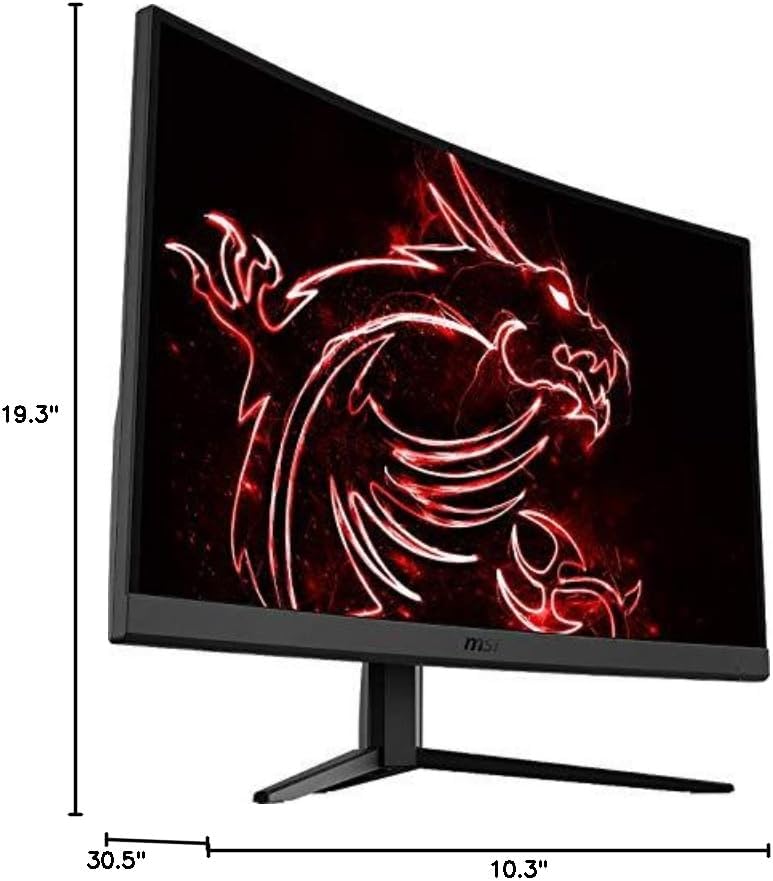
Diagram showing the dimensions of the MSI Optix G27C4 monitor.
Informació de la garantia
MSI products are covered by a limited warranty. The specific terms and duration of the warranty may vary by region and product type. Please retain your proof of purchase for warranty claims.
For detailed warranty information, including coverage, exclusions, and the claims process, please visit the official MSI website or contact your local MSI authorized dealer.
Important: Any unauthorized modifications or repairs to the product may void the warranty.
Atenció al client
If you encounter any issues that cannot be resolved using the troubleshooting guide, or if you require further technical assistance, please contact MSI Customer Support.
- MSI Official Weblloc: Visita www.msi.com for product information, drivers, FAQs, and support contact details.
- Assistència en línia: Many common questions are answered in the support section of the MSI weblloc.
- Informació de contacte: Refer to the MSI weblloc web per a números de telèfon regionals i opcions d'assistència per correu electrònic.


