1. Introducció
This manual provides detailed instructions for the setup, operation, maintenance, and troubleshooting of your Oversteel Iron Mechanical Gaming Keyboard. Please read this manual thoroughly before using the product to ensure optimal performance and longevity.
The Oversteel Iron keyboard features Kailh Red mechanical switches, full RGB backlighting, anti-ghosting technology, and a detachable wrist rest for enhanced comfort during extended use.
2. Contingut del paquet
- Oversteel Iron Mechanical Gaming Keyboard
- Reposa-canell desmuntable
- Manual d'usuari (aquest document)
3. Configuració
3.1 Connexió del teclat
- Col·loqueu el teclat sobre una superfície estable i plana.
- Attach the detachable wrist rest by aligning the clips and gently pressing until it clicks into place.
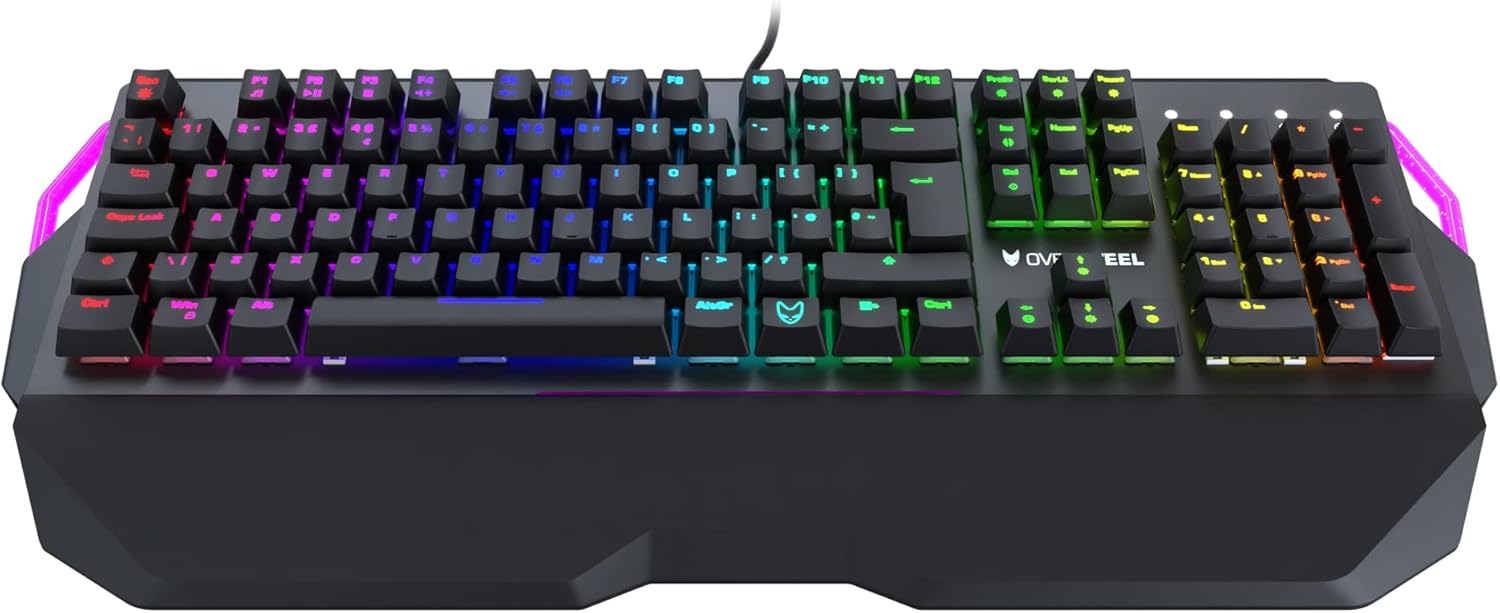
Image: Oversteel Iron keyboard with its detachable wrist rest. The wrist rest provides ergonomic support for comfortable typing.
- Localitza un port USB disponible al teu ordinador (PC o portàtil).
- Plug the USB connector of the Oversteel Iron keyboard into the USB port.
- El vostre sistema operatiu hauria de detectar i instal·lar automàticament els controladors necessaris. Aquest procés pot trigar uns instants.
3.2 Instal·lació de programari (opcional)
For advanced customization of RGB backlighting and macro functions, dedicated software may be available. Please visit the official Oversteel website for the latest software downloads and installation instructions.
Note: The integrated software allows configuration of 19 standard lighting modes and 9 lateral lighting modes.
4. Instruccions de funcionament
4.1 Funcions bàsiques del teclat
The Oversteel Iron keyboard functions as a standard QWERTY keyboard. Key presses will register as expected in your operating system and applications.

Imatge: De dalt a baix view of the Oversteel Iron keyboard, showcasing el seu disseny complet i la vibrant retroiluminació RGB.
4.2 Control de retroil·luminació RGB
El teclat té retroil·luminació RGB personalitzable. Feu servir les combinacions de tecles següents per ajustar els efectes d'il·luminació:
- Fn + [Tecla]: Specific function keys (F1-F12) may have secondary functions for lighting control. Refer to the keycaps for symbols indicating these functions.
- Dedicated Lighting Keys: Some keyboards include dedicated keys for cycling through lighting modes or adjusting brightness.
- Control de programari: For granular control over individual key lighting, effects, and colors, use the Oversteel software (if installed).
Note: The keyboard offers 19 standard lighting modes and 9 lateral lighting modes. The software allows for full configuration.
4.3 Tecles multimèdia
The Oversteel Iron keyboard includes multimedia function keys, typically accessed by pressing the Fn key in combination with the F-keys (F1-F12). These allow control over media playback, volume, and other system functions.
- Fn + F1-F12: Common functions include Play/Pause, Stop, Previous Track, Next Track, Mute, Volume Up, Volume Down, Email, Web Browser, My Computer, Calculator.
4.4 Anti-Ghosting Feature
The keyboard is equipped with an anti-ghosting effect, ensuring precise registration of simultaneous key presses. This is particularly beneficial for gaming, where multiple keys are often pressed at once.
5. Manteniment
5.1 Neteja del teclat
- Desconnecteu el teclat de l'ordinador abans de netejar-lo.
- Feu servir una llauna d'aire comprimit per eliminar la pols i les restes que hi ha entre les tecles.
- Netegeu les tecles i la superfície del teclat amb un drap suau i lleugerament dryamp, drap sense borrissol. Eviteu la humitat excessiva.
- Do not use harsh chemicals, abrasive cleaners, or solvents, as these can damage the keyboard's finish and keycap legends.
5.2 Atenció general
- Avoid spilling liquids on the keyboard. In case of a spill, immediately disconnect the keyboard and allow it to dry completely before reconnecting.
- No exposeu el teclat a temperatures extremes ni a la llum solar directa durant períodes prolongats.
- Manipuleu el cable USB amb cura per evitar danys.
6. Solució De Problemes
6.1 El teclat no respon
- Assegureu-vos que el cable USB estigui ben connectat tant al teclat com a l'ordinador.
- Prova de connectar el teclat a un port USB diferent de l'ordinador.
- Reinicieu l'ordinador.
- Prova el teclat en un altre ordinador per determinar si el problema és del teclat o del sistema.
6.2 La il·luminació RGB no funciona o és incorrecta
- Check the keyboard's lighting control key combinations (e.g., Fn + F-keys) to ensure lighting is not turned off or set to a very dim level.
- If using the Oversteel software, ensure it is running and correctly configured. Try resetting lighting profiles within the software.
- Ensure the keyboard's firmware is up to date (check the Oversteel weblloc web per a actualitzacions).
6.3 Les tecles no es registren o es teclegen dues vegades
- Clean the affected key(s) using compressed air to remove any debris that might be obstructing the switch.
- If the issue persists, it may indicate a hardware fault. Contact customer support.
7. Especificacions
| Característica | Detall |
|---|---|
| Marca | Sobreacer |
| Número de model | NAT-OV-IRON-RED-UK |
| Tecnologia de connectivitat | USB |
| Descripció del teclat | Teclat mecànic per a jocs |
| Tipus de canvi | Kailh Red Mechanical Switches |
| Backlight Color Management | RGB (19 standard modes, 9 lateral modes) |
| Característiques especials | Backlit, Anti-Ghosting, Detachable Wrist Rest, Adjustable Height |
| Dispositius compatibles | Portàtil, PC |
| Material | Acrilonitril butadiè estirè, alumini |
| Color | Red (referring to switch type/accent, product chassis is black) |
| Disseny | UK Layout (as per model number and feature bullets) |
8. Garantia i Suport
For warranty information and technical support, please refer to the documentation provided with your purchase or visit the official Oversteel weblloc web. Conserveu el comprovant de compra per a reclamacions de garantia.
Fabricant: Sobreacer
País d'origen: Xina


