1. Introducció
This manual provides detailed instructions for the installation, operation, maintenance, and troubleshooting of your D-Link DIR-1750-US AC1750 Mesh Smart Internet Home Network System WiFi Router. Please read this manual thoroughly before using the device to ensure proper setup and optimal performance. The D-Link DIR-1750-US is designed to deliver high-speed AC1750 dual-band Wi-Fi with MU-MIMO technology, providing a smooth and buffer-free online experience for streaming, gaming, and general internet use. It also supports D-Link Wi-Fi Mesh for expanded coverage and enhanced parental controls for network management.
2. Contingut del paquet
Comproveu que el vostre paquet contingui els elements següents:
- 1x D-Link DIR-1750-US Router
- 1x adaptador de corrent
- 1x Cat 5E Ethernet Cable
- 1x Guia d'instal·lació ràpida (QIG)
- 1x Targeta d'instal·lació ràpida (QIC)
- 1x Voice Assistant Guide
3. Producte acabatview
Familiarize yourself with the physical components and indicators of your D-Link DIR-1750-US router.

Figura 3.1: Davant view of the D-Link DIR-1750-US WiFi Router. This image displays the router's sleek black design with four external antennas and LED indicators on the front panel.

Figura 3.2: posterior view of the D-Link DIR-1750-US WiFi Router. This image highlights the various ports and buttons on the back panel, including the Power Connector, Gigabit Ethernet Ports, Internet Port, WPS Push Button, and On/Off Button.
Indicadors LED:
- LED d'alimentació: Indica l'estat d'alimentació del router.
- LED d'Internet: Indicates the status of the internet connection.
- 2.4GHz Wi-Fi LED: Indicates activity on the 2.4GHz wireless band.
- 5GHz Wi-Fi LED: Indicates activity on the 5GHz wireless band.
Ports i botons del panell posterior:
- Connector d'alimentació: Es connecta a l'adaptador de corrent inclòs.
- Gigabit Ethernet Ports (LAN): Four ports for connecting wired devices such as computers, gaming consoles, or smart TVs.
- Port d'Internet (WAN): Es connecta al mòdem per accedir a Internet.
- Botó WPS: Used for easy and secure connection of Wi-Fi Protected Setup (WPS) compatible devices.
- Botó de restabliment: Recessed button to restore factory default settings (use a paperclip to press and hold for 10 seconds).
- Botó On/Off: Encén o apaga el router.
4. Instruccions de configuració
Follow these steps to set up your D-Link DIR-1750-US router:
- Desempaquetar i posicionar: Carefully remove the router and all accessories from the packaging. Place the router in a central location in your home, away from obstructions and other electronic devices that may cause interference.
- Connectar-se al mòdem: Connect one end of the included Ethernet cable to the Internet (WAN) port on the back of your D-Link router. Connect the other end of the Ethernet cable to an available Ethernet port on your modem.
- Connectar l'alimentació: Plug the power adapter into the Power Connector on the router and then into a wall outlet. Press the On/Off button to power on the router. Wait for the Power LED to turn solid white, and the Internet LED to indicate a stable connection (usually solid green or blue).
- Connectar dispositius (sense fil):
- Using D-Link Wi-Fi App: Download the free D-Link Wi-Fi app from the App Store (iOS) or Google Play (Android). Follow the on-screen instructions in the app to set up your router and create your Wi-Fi network. This is the recommended method for easy setup.
- Connexió manual: On your wireless device (smartphone, tablet, laptop), search for available Wi-Fi networks. Select the default D-Link network name (SSID) printed on the bottom of your router or on the Wi-Fi Configuration Card. Enter the default Wi-Fi password (also found on the router label).
- Connectar dispositius (amb cable): For wired connections, connect an Ethernet cable from one of the Gigabit Ethernet Ports (LAN) on the router to the Ethernet port on your computer, gaming console, or other wired device.
- Accediu a la configuració de l'encaminador: Un cop connectat, obriu a web navegador en un dispositiu connectat i navegueu fins a
http://dlinkrouter.localorhttp://192.168.0.1. Log in using the default username (admin) and password (found on the router label or Quick Installation Card). It is highly recommended to change the default Wi-Fi name and password, as well as the router's administrative password, for security purposes.
5. Instruccions de funcionament
This section covers the general operation and key features of your D-Link DIR-1750-US router.
Wi-Fi de doble banda 5.1

Figura 5.1: Simultaneous Dual Band Wi-Fi. This image depicts the router broadcasting both 2.4GHz and 5GHz Wi-Fi signals, allowing for more devices to connect with less congestion. The 2.4GHz band is suitable for web surfing and email, while the 5GHz band is ideal for online gaming, video streaming, and file transferències.
The DIR-1750-US operates on both 2.4GHz and 5GHz Wi-Fi bands simultaneously. The 2.4GHz band offers wider coverage and better penetration through walls, suitable for general internet use like web browsing and email. The 5GHz band provides faster speeds and lower latency, ideal for bandwidth-intensive activities such as online gaming, 4K video streaming, and large file transfers. The router's Smart Connect feature automatically assigns devices to the optimal Wi-Fi band for the best performance.
5.2 Tecnologia MU-MIMO
Multi-User, Multiple-Input, Multiple-Output (MU-MIMO) technology allows the router to communicate with multiple devices simultaneously, rather than sequentially. This significantly improves network efficiency and throughput, especially in environments with many connected devices, reducing buffering and lag.
5.3 D-Link Wi-Fi Mesh
The D-Link DIR-1750-US is compatible with D-Link Wi-Fi Mesh extenders. This feature allows you to expand your Wi-Fi coverage seamlessly throughout your home by adding compatible extenders, creating a unified mesh network. This eliminates dead zones and provides consistent Wi-Fi performance across all areas.
5.4 Enhanced Parental Controls

Figura 5.2: Enhanced Profile-Based Parental Controls. This image displays a smartphone screen showing the D-Link Wi-Fi app interface for parental controls, allowing users to create profiles, set schedules, and limit internet access for specific devices or users.
Manage and control internet access for family members using the D-Link Wi-Fi app. You can create individual profiles, set internet schedules, block specific websites, and pause internet access for specific devices, ensuring a safe and controlled online environment.
5.5 Integració de l'assistent de veu
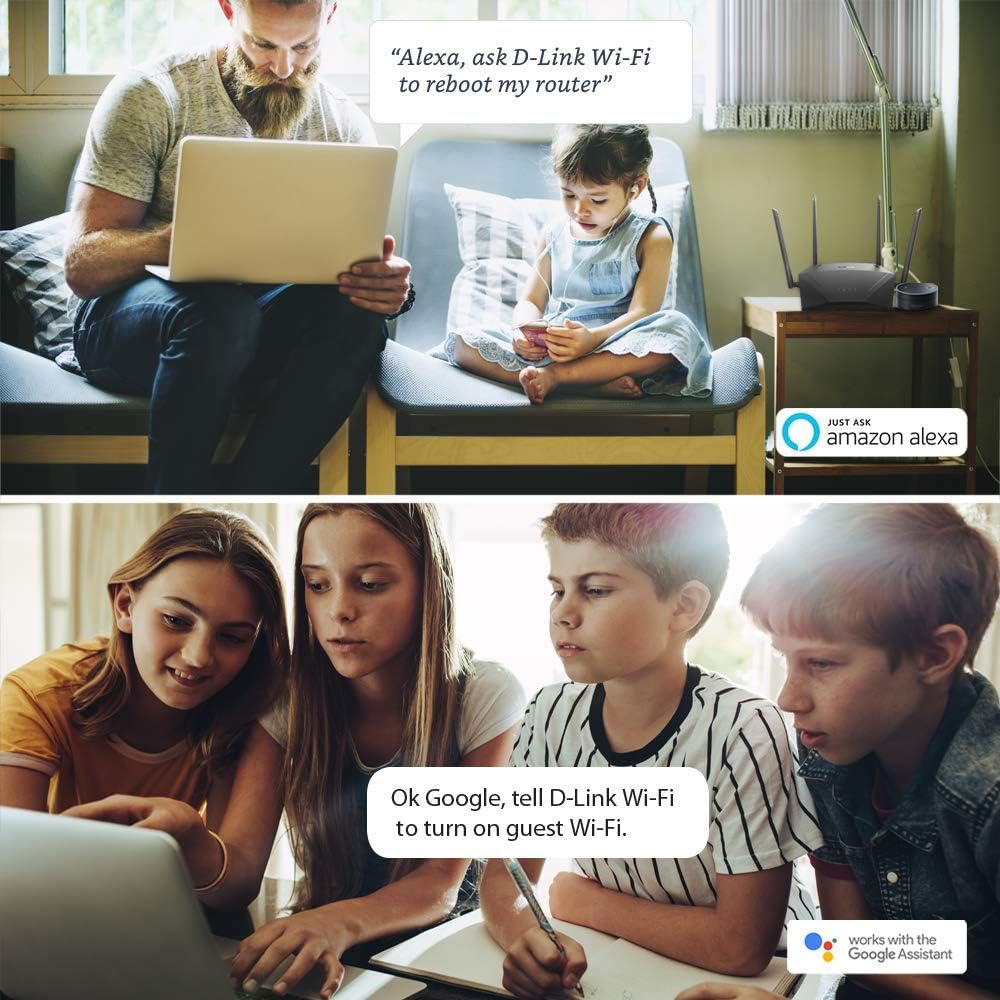
Figura 5.3: Voice Assistant Integration. This image shows scenarios where users are interacting with Amazon Alexa and Google Assistant to control their D-Link Wi-Fi router, such as rebooting the router or turning on guest Wi-Fi.
The D-Link DIR-1750-US router supports voice commands through Amazon Alexa and Google Assistant. This allows for convenient control of certain router functions, such as rebooting the router or enabling guest Wi-Fi, using simple voice commands.
6. Manteniment
Un manteniment regular ajuda a garantir la longevitat i el rendiment òptim del vostre encaminador.
- Actualitzacions de firmware: Comproveu periòdicament el suport de D-Link website or the D-Link Wi-Fi app for available firmware updates. Keeping your router's firmware up-to-date ensures you have the latest features, security patches, and performance improvements.
- Reinici normal: Reiniciar el router cada poques setmanes pot ajudar a esborrar-ne la memòria i resoldre problemes menors de rendiment. Simplement desconnecteu l'adaptador de corrent durant 10-15 segons i torneu-lo a connectar.
- Neteja física: Mantingueu el router net i lliure de pols. Feu servir un drap suau i sec per netejar l'exterior. Assegureu-vos que les obertures de ventilació no estiguin bloquejades.
- Seguretat: Regularment review your Wi-Fi network name (SSID) and password, as well as the router's administrative password. Use strong, unique passwords to protect your network from unauthorized access.
7. Solució De Problemes
If you encounter issues with your D-Link DIR-1750-US router, try the following troubleshooting steps:
7.1 Sense connexió a Internet
- Verifiqueu que el mòdem funciona correctament i que té una connexió a Internet activa.
- Check all Ethernet cable connections between the modem and the router's Internet (WAN) port, and between the router and any wired devices.
- Reboot both your modem and your D-Link router. Unplug their power adapters, wait 30 seconds, then plug the modem back in. Once the modem is fully online, plug the router back in.
- Check the Internet LED on the router. If it's off or amber, there might be an issue with your internet service provider (ISP) or modem connection.
7.2 Velocitat Wi-Fi lenta o desconnexions freqüents
- Ensure your router is placed in a central location, away from large metal objects, concrete walls, and other electronic devices that can cause interference.
- Try connecting to the 5GHz Wi-Fi band for devices that are closer to the router and require higher speeds.
- Reduce the number of active devices or bandwidth-intensive activities on your network.
- Comproveu si hi ha actualitzacions de firmware per al vostre encaminador.
- Consider using D-Link Wi-Fi Mesh extenders if you have a large home or persistent dead zones.
7.3 No puc accedir a la configuració del router
- Assegureu-vos que el dispositiu estigui connectat a la xarxa Wi-Fi del router o mitjançant un cable Ethernet a un port LAN.
- Try accessing
http://dlinkrouter.localorhttp://192.168.0.1en el teu web navegador. - Esborra la memòria cau i les galetes del navegador o prova'n un altre web navegador.
- If you forgot your administrative password, you may need to perform a factory reset (see below).
7.4 Restabliment de fàbrica
If other troubleshooting steps fail, you can perform a factory reset. Warning: This will erase all your custom settings, including Wi-Fi names and passwords.
- With the router powered on, use a paperclip to press and hold the recessed Reset button on the back of the router for approximately 10 seconds.
- Release the button when the Power LED starts blinking.
- The router will reboot with factory default settings. You will need to set it up again using the D-Link Wi-Fi app or the web interfície.
8. Especificacions
| Característica | Especificació |
|---|---|
| Número de model | DIR-1750-US |
| Tipus sense fil | 802.11ac, 802.11b, 802.11g, 802.11n |
| Classe de banda de freqüència | Doble banda (2.4 GHz i 5 GHz) |
| Velocitat sense fil | AC1750 (Up to 450Mbps on 2.4GHz, Up to 1300Mbps on 5GHz) |
| Ports Ethernet | 4x LAN Gigabit, 1x WAN Gigabit |
| Tipus d'antena | Antenes externes fixes |
| Característiques especials | Internet Security, MU-MIMO, WPA3, WiFi Mesh, Parental Controls, Voice Assistant Support |
| Dimensions (LxWxH) | 7 x 8.5 x 1.75 polzades |
| Pes de l'article | 14.7 unces |
| Color | Negre |
| Compatibilitat de sistemes operatius | Android (for D-Link Wi-Fi App), iOS (for D-Link Wi-Fi App) |
9. Garantia i Suport
For warranty information, technical support, and additional resources, please refer to the official D-Link website or the documentation included with your product. The D-Link Wi-Fi app also provides tools for managing your network and accessing support.
- D-Link Official Weblloc: www.dlink.com
- D-Link Wi-Fi App: Disponible a Apple App Store i Google Play Store


